

 Maintenance Connection Everywhere (MCe) · EAM/CMMS manuals
A reminder that changes to the UI config are not covered under SMA, they are covered under Professional Services which you may have bought a block of hours (lower price typically) or may be pay-as-you-go. Fortunately there are tools (exporting the preferences to view, importing them to 'fix up' mistakes) to lower the cost when you do make a mistake.

What is the purpose?
In trying to reduce the number of key clicks a technician needs to do. Some customers 'know' that certain condition ratings mean that the task should be automatically failed, and others mean that is should never be failed.
This document looks at a wide range of options for setting up and how you can achieve your needs using our Preferences.
So first a quick primer on how to get to Preferences:
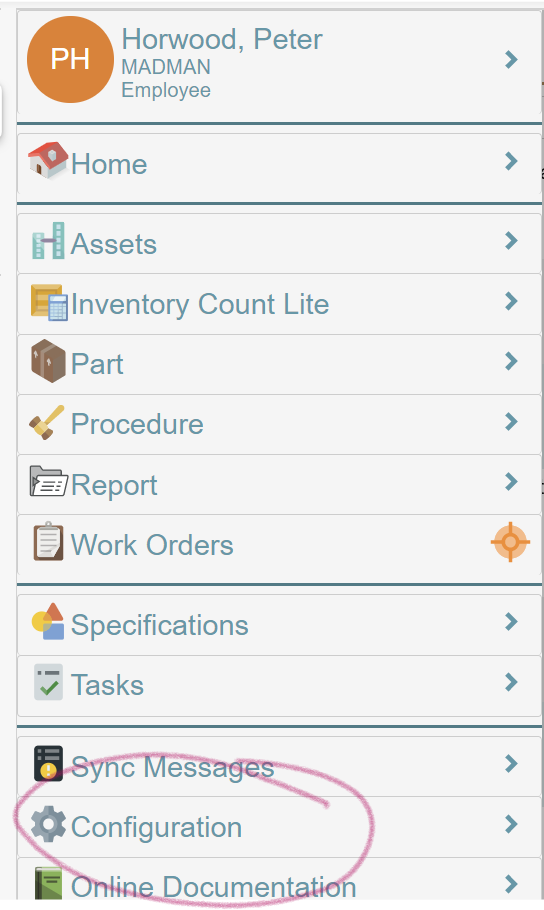
You need to go to Configuration on our main 'left' menu:
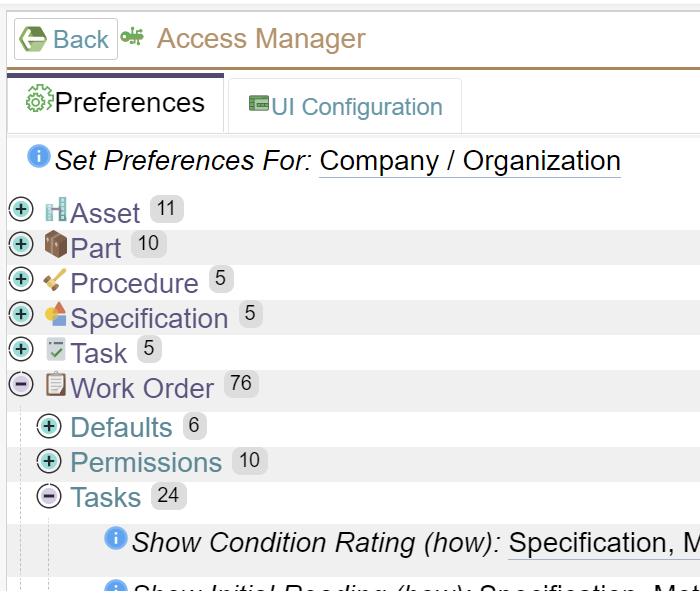
When on the Configuration page, choose the Access Manager

Then select the preferences tab. Finally drill down by choosing "Work Order' then "Tasks" as below:
How to gain control with the Condition rating works to make things faster and more accurate
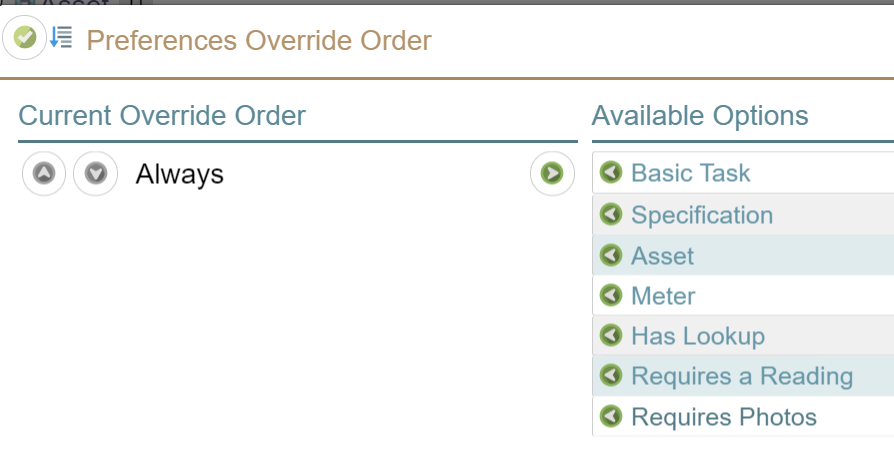
First choose when the condition rating shows up. I have it set to 'always' but you will probably want to limit it more than that.

You have sever types (or definitions of) tasks that you can use to decide which have a condition rating.
Once you have decided WHICH tasks ask for a condition rating, you can optimize it further.
You can
- Have the Fail flag on the task controlled by the condition rating.
- Have the fail flag on the task set whenever the condition rating is changed, but still let your technicians override it (set it to failed or not failed manually)
- Have the complete flag on the task controlled by, or set whenever the condition rating changes.
The condition rating is a NUMERIC value. Typically ranges like 0 to 5 or 1 to 10 or -5 to +5.
You can 'hide' the numeric value by having a pick list of values, the values seen when picking can be strings like "excellent" "Terrible" and so on. To do this, you set in preferences the lookup table that you want used for setting the condition rating with the following setting:

Your next decision is: Are LOW condition ratings 'better' than HIGH condition rating or are HIGH condition ratings 'better' than low. We default to "Lower Numbers are Better" which matches if your lookup table uses A,B,C,D,E,F as the 'grade' (which you would normally then map to 1,2,3,4,5,6 or 0,1,2,3,4,5 – but you could use any numbers (in a logical order) that you want. For example you might use 0,10,20,30,40,50 to allow room to add more intermediate values later.

You then enable or disable (the default is disable) whether the condition rating can set the fail flag and/or the complete flag.


You decide whether the user can override, or whether, if there is a condition rating, it always wins and cannot be overridden.

And there is a similar one for overriding complete.
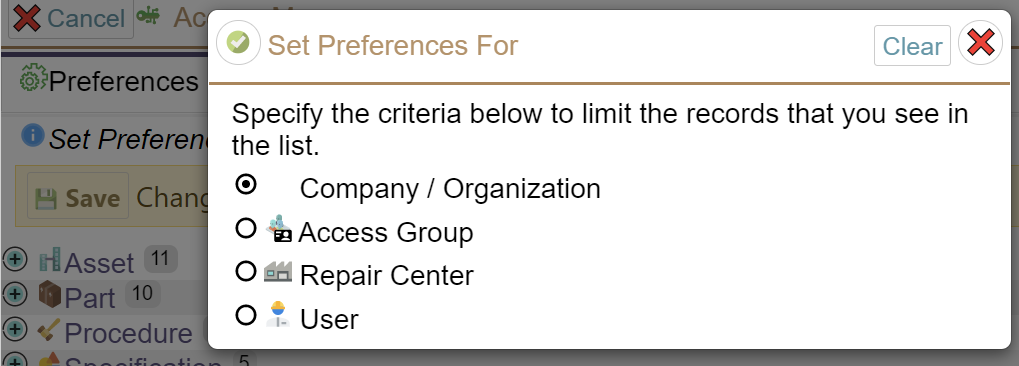
Advanced trick: What if you want TECHNICIANS to NOT be able to override but you want administrators to be able to override? This is handled by deciding how the specific preference is set. You might set company wide that they can't override it, but then go in to the Adiminstrator's access group preference settings and let Administrators override the Company/Organization level setting.
Now the final steps …

Let's assume that you have gone with 0 as the 'best' value and 5 as the 'worst' value. Let's further assume that if they set it to 2, 1 or 0 you want the task to NOT fail, and if they set it to 3, 4 or 5, you want it to be set to Fail.
Because "worse" then means 3, 4 or 5, we set the "Auto fails when worse (not equal): to 2 – because 3 is worse than 2 and you set "Auto un-fails task when better (or equal)" to 2 as well. Indeed most if the time you will have both these values the same.
So why do we have 2 settings? If you allow technicians to set the values, you might decide that a value of 0 or 1 should set fail to false and a value of 4 or 5 should set the fail flag to true. But values of 2 and 3, you need a human to make a decision which way the fail flag should be set.
Note: You are not limited to integers such as 0,1,2 – you can also use numbers like 1.3 and 2.5 if those make sense for your situation.
Now, as an exercise: What if you wanted the complete flag to be set any time a value of 1 or 0 is chosen, but you don't ever want the complete flag to be unset? <pause here to think of your answer before reading further> You would set the "Auto complete when better (or equal)" to 2, and you would set the "Auto complete when worse (not equal)" to a very high number such as 999999999
We think the following will be a very common case:
Another exercise: What if you wanted the complete flag to immediately be set ANY TIME they enter ANY value in the Condition Rating? <pause again> If, again, you are using low numbers as 'better' you would set the "Auto complete when better (or equal)" and the "Auto complete when worse (not equal)" to a very high number like 999999999. Can you see how that would set it for EVERY value the user enters in?
What if your good values are high values and your bad values are low – like 0?
You reverse all the examples above. And in the case of using numbers like 99999999 you could use -1 or -99999999 depending on the allowed values the user can enter.
Summary:
We hope that you can see how you can use the power of our UI Config to optimize the experience for technicians (lowering the number of keystrokes etc.., they have to enter) while giving huge flexibility if for example Administrators or Managers should have higher powers than technicians, you might even easily make a differentiation between a 'junior' technician and a 'senior' technician.
It takes a bit more thought, and a bit more time to set up (but it should only take minutes at most) than leaving everything at default, but the results are that you can get a semi-custom application at the cost of a package.