

 Maintenance Connection Everywhere (MCe) · EAM/CMMS manuals
This may not apply to you!
If you are using the Maintenance Connection LoginHub with an identity provider (such as Entra, Auth0, Ping, Google, Active Directory, Okta or any of 1000 others,) with the exception of the MC provider, your company will have specific instructions on how to sign up and they will likely be very different than the instructions below. For all other users, the Maintenance Connection accounts are accessed as follows.
TL;DR
All of these scenarios are covered in this document:
- If you have not signed into Maintenance Connection before and you were given a 'connection key', you go to the URL you were given and 'sign up' using that key.
- If you have already been connected but it is a new (to you) device, you go to the URL you use and log in
- If English isn't your preferred language, you can on the 1st screen change your language.
- You can initiate a 'forgot password' action from the same screen
- When you are done for the day, logout, this will ask you for a pin if you have never used a pin on this device (or never used one since clearing cache or using 'this' browser.)
- When you are done with the device - selling it etc.., you device retire logout to stop using the device.
1st time on a device/browser1, such as a cell phone or laptop
You will see a screen much like this
If you are also the first user on this device/browser
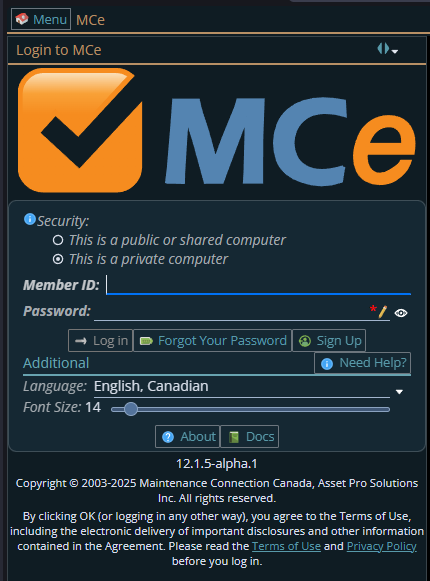
If someone else has previously used this device/browser and they didn't device retire logout nor did they clear cache
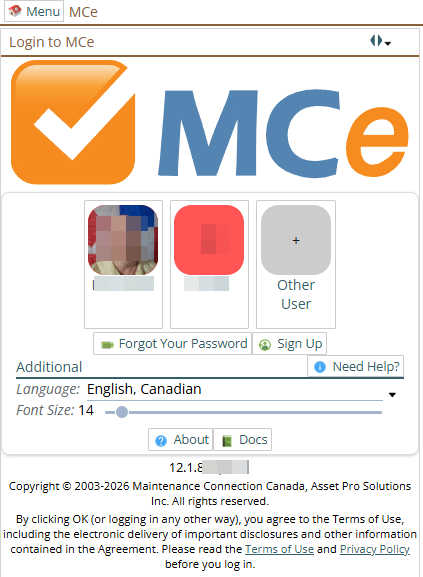
If someone else has already logged in on this device it might instead look something like this, noting the overall color of the screen above is what you will see if your browser/OS is in dark mode2, the one below is if you are in light mode. Notice below how the previous user(s), 2 in the case below, of this device and browser are listed to get in quickly:
You can change the language:

or
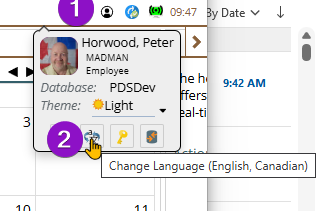
Important: If English is not your first language, your company MAY have set up the ability for you to work in. There are two places they can set the list of allowed languages
- For the login process
- For day to day operations (in the specific database you access.)
If you are set up for changing languages in the Login, there will be our language change option here: and it would be a good idea to change to your preferred language now. See the screen shot above.
Note also, if your company changed the DEFAULT language to something other than English and you prefer to work in English, the same applies to you to get the screens into English from whatever language your company picked as the default.
Forgot Your Password
If you forgot your password, hopefully it is obvious that you should push the 'Forgot your password' button.

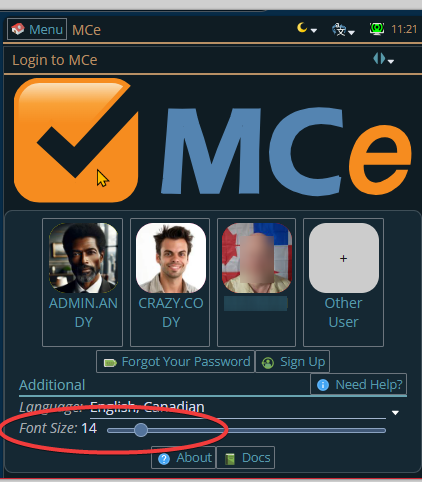
If the screen is hard to read (text too small) you can adjust it
Try going up by only a few numbers at a time, such as trying 18. The starting number will depend on what type of device you are on.
You can access our docs without signing in.
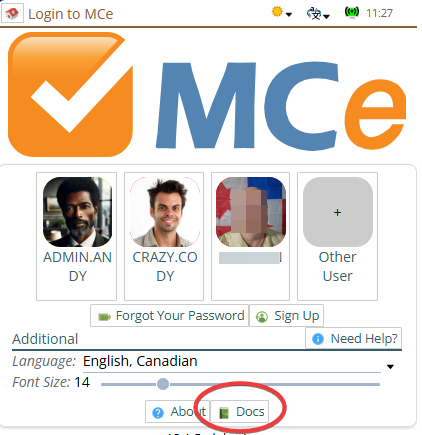
If sending someone a link to documentation and they can't sign in, go in our docs through this button so that you can give them a shareable link that doesn't require logging in. You can also just go to our https://docs.itiqdocs.com site for the same up-to-date documentation, formatted slightly differently.
Never had access on any device (to the database)
If you have never logged in before and your administrator didn't create your account for you, then you will want to start by signing up. See the section "Sign up" later in this document. Note that you can access several sources of information including:
- Our Terms of Use
- Our Privacy policy
- Information "about" the product and
- Our online documentation.
Sign up
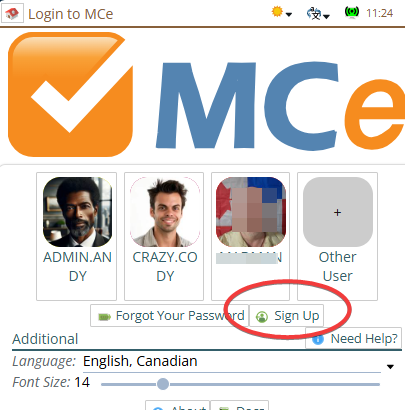
Often, your administrator or IT department will sign you up. But if they asked you to go and sign up for MCe, use the URL they gave you to come to one of the above pages.
### Enter Connection key
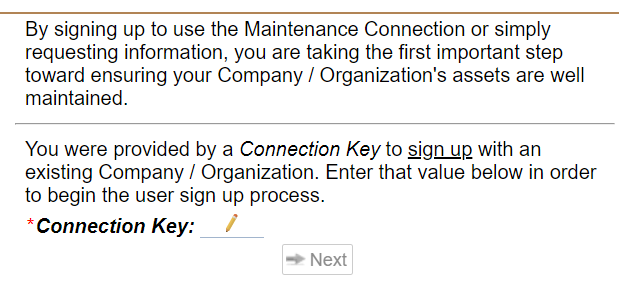
You will need your database connection key (aka connection key aka database key, aka ent key). From the start screen select "Want to Sign UP? Click Here."
You will then be asked to provide the connection key for signup. The Connection key is the key to connect or signup for specific database.
If you already have a user account in MCe application for specific URL then you can use existing user account or select new user account from next screen. Then give Member Name and password. As of November 2020, Accruent has limited the Password to 20 characters maximum. As is our password documents, we recommend you use most or all of that limit. An excellent way would be to have a passphrase such as: "ThisIsMyPassPhrase" or "SkidSteerTruckBovine", something that is not obvious or easy to guess.
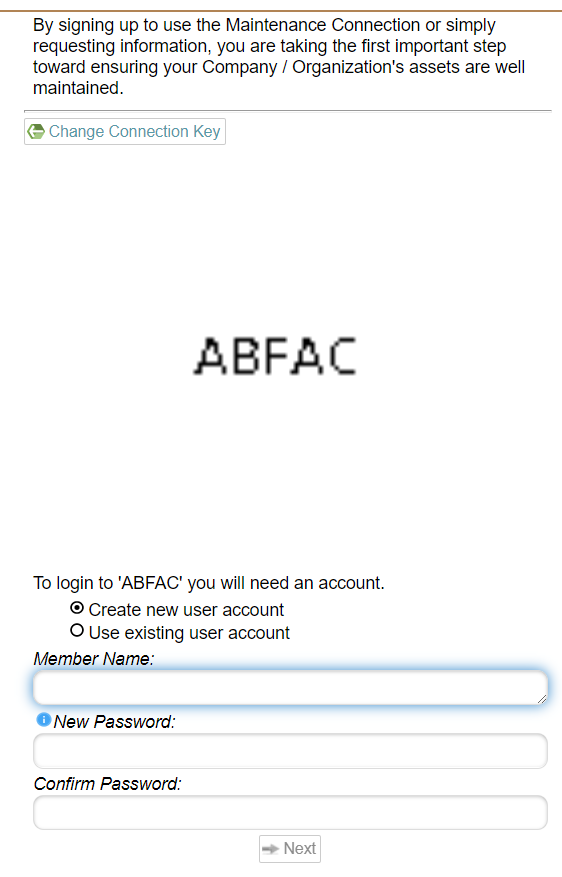
When you press Next button, MCe will ask you to enter your details.
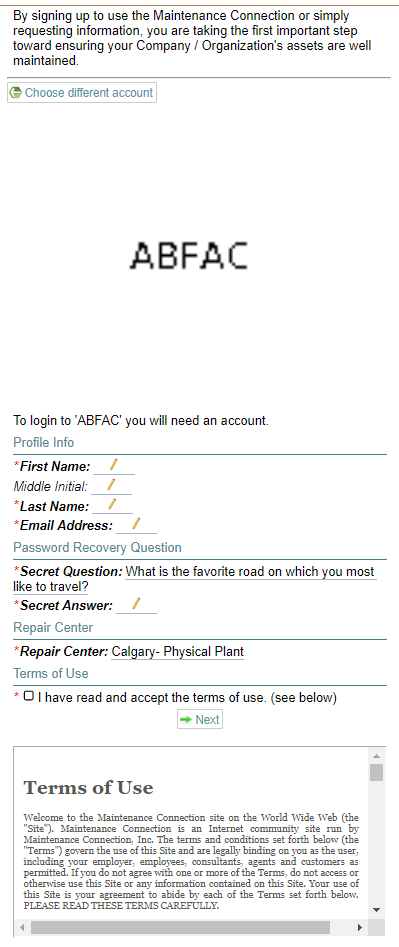
After signup, your user needs to be approved by Admin to access MCe.
Login/Logout
When you login, it will show you the Home view of MCe application. It has calendar in home page. The calendar contains your assigned Work orders on the appropriate day.
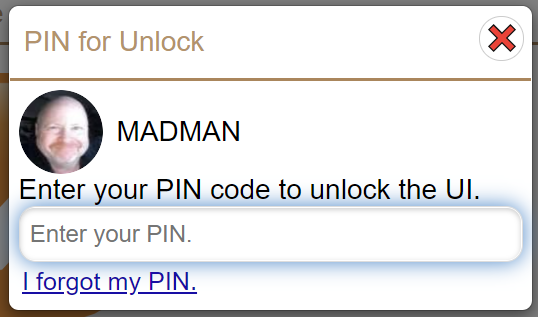
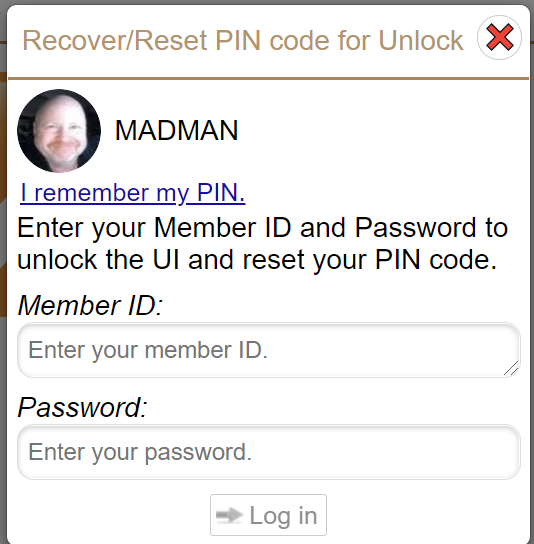
To logout, you will be asked to set pin so next time you can login again with your pin. You can use retire device discussed below if you sell your device or want to use different device.
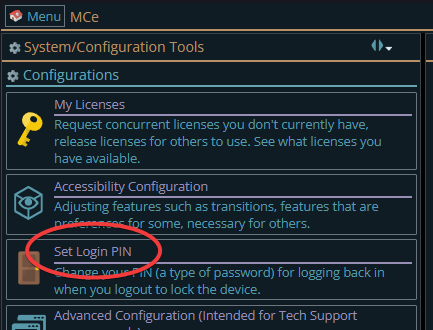
If you close the browser without setting the pin (you can do it by logging out or by going to main (upper left) menu), then configuration, the set pin option.
Retire Device
Retire device is the feature in MCe to be used in case you want to wipe out your all data, when you sell your device or replace your device. To retire device, select "Configuration" from left menu. Then select "Retire Device" option from the Tools tab.
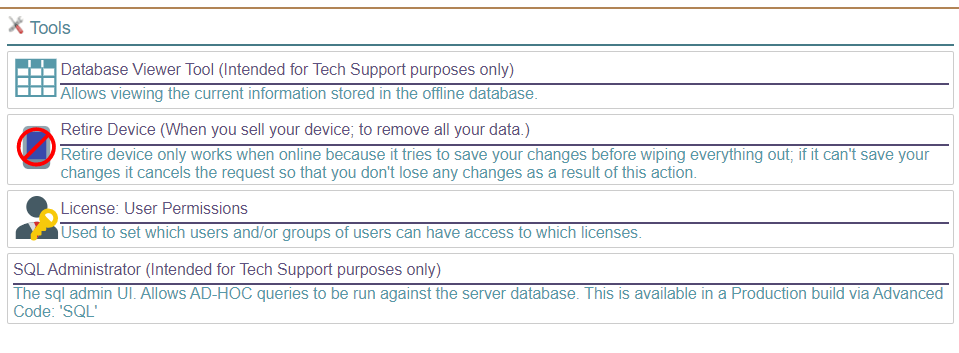
MCe does a lot of things offline, but "Retire device" feature works only when you are connected to internet. The reason behind this is when you retire your device, you need to push all your changes to server and you need to release the licenses that are locked to this device. This is especially important for named licenses or concurrent licenses that you have locked to you for a long period of time.
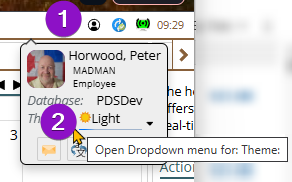
Later, once you are logged in, it will be in a similar position, but there are more features in the 'person' icon:
Footnotes
-
1: Most people only use 1 browser on a device such as a phone, tablet, laptop, desktop computer. If you use 2 browsers, each is a separate device from MCe's perspective because the browsers don't share that type of info between them. ↩
-
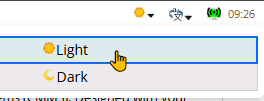
2: Changing between light and dark mode, in the upper right hand corner you will see a 'sun' or a 'moon' on the login screen. ↩