If you just want to install it …
You can skip the 1st 2 sections which talk about 'why' and the 'benefits', and go to the "Setup Octopus Deploy" on page 2.
The goal
The industry leader Octopus is the way we do installations and upgrades by default. Other options are available on a 'bill by the hour' basis.
The deploy setup takes about 10 minutes (once you have done a couple) per server, and a few minutes at 'our' end (we do the work at our end) after your end is done. After that, all future upgrades will be automatic.
Please note: This ONLY replaces upgrades of MCC products such as MCe and LoginHub. This:
- DOES NOT install Windows upgrades or installs
- DOES NOT install SQL upgrades or installs
- DOES NOT install MCe, LoginHub or DataHub (Though we are working on making this available)
- DOES NOT install MRO upgrades or installs (Though we are working on making this available)
- Handle ANY server 'management' other than upgrading MCe
- Does NOT handle backing up your MRO database
Note: These instructions have only currently (2018.10.01) been used by people familiar with octopus. Please let us know anything that causes even momentary confusion. Also, we'll be simplifying these instructions as we automate more and more.
Note: this is a new process, what we have running has been very solid, but some things are going to be implemented over the coming, let's say 'year' to be safe.
- Currently, on a new install, you need to run the reg start and ent start sql scripts before a Octopus deploy install will be ready for installing licenses and then use by the customer.
- We will be automating more and more of the steps below, which will reduce how much info you have to send us to finish setting you up.
- Currently you have to email us the info for your install, but we will probably be setting up an online form and then later an 'offline' form, this will make it easier to make sure you have the correct data.
The experience
We have a limited set of data admittedly, but SO far, our 'we don't like upgrades' customers are giving either no feedback or positive feedback with the 'lots of little' changes. And with them - no feedback is GOOD feedback! So the 'continuous upgrade' SO far has been an improvement for customers that don't like changes. But we are, as I said, making sure our processes can be flexible so that if specific customers don't like it, we can accommodate their preferences.
Musing: I think it helps that we are able to push bug fixes sooner for the attitude of 'I don't like changes' and the fact that, by pushing 'smaller' upgrades, the potential number and seriousness of 'bugs' is greatly reduced.
And I think it helps that 'we' (the developers) also understand this. WE hate it when software we use gets radical changes from one version to another. Micro-changes are generally much easier to live with. But we also recognize, every 'improvement' can be seen by some people as a negative.
Setup Octopus deploy
You need a new Octopus deploy. You need the Octopus deploy on every server that will be running MCe
Start by going to https://Octopus.com
F  ind and download the Octopus Tentacle software (this is the octopus deploy software) onto 'your' computer (this step is simply because typically security restrictions make it difficult to directly download from a web site to a server). Circa 2018: From Octopus.com, click on their download links, then on the Tentacle download link
The following assumes you have your IIS for MCe and SQL Server on the same computer. If you have them on two computers you will need to follow these steps twice.
Copy the software to the server in some good directory like c:\tools or c:\temp (There are often restrictions for putting and using files at c:\ so the root is generally not a good choice)
The following are based on the way Tentacle 3.21 works and the order of questions in 3.21. It will likely be very similar in future versions of the software.
Run the install file you downloaded and copied to the server (currently an MSI) to install it.
Then run Tentacle.
- Choose 'Listening' if you can.
- Chose Polling ONLY if there is no other option. We have another document we are creating for listening, contact us if you need it. We don't currently support polling as a 'free' option, because we are unable to install your licenses on new licenses and we are unable to connect to tell upgrades to update your database. So polling will be a slower upgrade process and will require you to do extra work with each upgrade that has any database changes (bug fixes typically do NOT require database changes, feature upgrades usually DO.)
- Enter with Listen port (default usually 10933)
- Paste in the Thumbprint. MCC's Octopus Thumbprint is 666B1F6B74D26E32D1FB1530DF53A4893954B0B3
It is very important to copy the above exactly with no spaces etc.., before or after.
- Click the Install button.
- Record the Tumbprint of your tentacle that you were just assigned. (It shows up during the install process.)
Send petere@madmanpierre.com the following information. NOTE: WE WILL BE SETTING UP an automated process that will remove this step.
- CustomerID (An unchanging, even if the company changes it's name/gets bought out etc.., ideally human readable, for example a SalesForce customer ID)
- a descriptive name for the installation. A name that will be used most importantly when 'emergency' bug fixes need to be installed. Something that lets you and us know what server this is. So for example 'AccruentSaaS Customer x'
- What languages (other than English) are used by this install of MCe. If you don't specify this, we will assume 'English only'.1- If this is a NEW install, or you require additional licenses, put the license requirements here.
- Customer name
- Ent database(s)
- Which licenses for that/each ent database: For example, nwo41 – 3 copies (for our current normal, named, MCe) or nwo11 – 7 copies (for our legacy, named, MCe) nwo42 for our current concurrent licenses.
- What type of install you chose (hopefully 'listening')
- The listening port you chose (default usually 10933)
- The host name for the server (typically something like mrosubdomain.mydomain.com) So for example on our ON SaaS server they are customername.mcc-on.com, if you RDP into the server, this will typically be 'that' name.
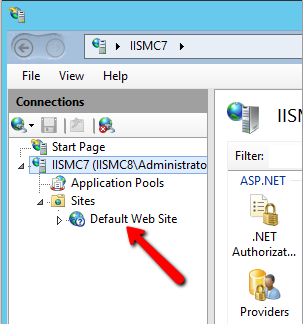
- The name of the web site in IIS. This will typically be 'Default Web Site'
-
- The thumbrint of your tentacle (it will look like our octopus thumprint) this is not technically necessary, but it lets us verify we are connecting
- One of: 'Database and Web' or 'Database' or 'Web' Server(s)
- Whether this is a PRODUCTION server or a Staging/beta test/sales demo etc.., server. This is important because sales servers for example get pushed with pre-release code that has known bugs, production servers only get pushed the best quality 'shipping' code and very rarely, emergency bug fixes. If you don't specify this, unless the server name makes it obvious that it is something else, we will assume it is a production so it only gets the highest quality shipping code.
- The MC.INI path, for example "c:\WebRoot\customername.mcc-on.com\mc_web\mc.ini"
- The virtual path for MCe, typically "/mce" The /mce path is our standard and we recommend it always be used for new installs, for existing installs, check what it is (some might have /palmpilot or /mcxle etc..,)
Footnotes
-
1: As much as we would like to have all languages always up-to-date, we do NOT do a fully automated translation, we have a human component which has, according to our customers, resulted in much higher quality translations. While mistakes will be made still! This process is better than a pure Bing or Google translation. The downside is … after we have a release ready, it takes some time to then get it translated into other languages. ↩