

 Maintenance Connection Everywhere (MCe) · EAM/CMMS manuals
Introduction
Accruent has reports that are known as "Custom" or "Custom ASP" reports. They are written in V3.0 of 'Classic' ASP. This does not mean they were written custom for a specific customer (although many are), this means they can't be copied or edited with the MC reporting tools, and that any changes to these reports is Custom, either you make the changes or our Professional Services makes them or Accruent makes them.
This document is provided as a courtesy, but changes made at this level are not covered by SMA. Meaning you pay for the change/training etc.., and if changes are needed to your code (regardless of who wrote it) in new releases of the MC family, or problems come up in the future, it is a paid service to make the changes.
We therefore typically encourage customers to keep to a minimum the changes, but we understand that at times it is important for you to get the changes. When our Professional services make changes for customers, we try hard to make them future proof as possible.
Note: in most cases, if you can use MCe reports, you are better because they can be modified by you in the UI which means you are much less likely to break something.
Tip:
Accruent ASP (Active Server Pages) are not 'Active Server Pages .NET'. ASP.NET was a product Microsoft introduced in 2002 to replace what has now become known as "Classic ASP", and it has a lot of similarities to Classic. There are lots of major differences, and hundreds of minor, subtle, differences between the original 3 versions of ASP and the ASP.NET product family. If you are doing a search on the internet for help with the syntax etc.., for editing an MC ASP page, it will often help if you form your question by saying "In Classic ASP how do I..." because now-a-days if you just ask for ASP - you will almost always find answers that are for ASP.NET. https://en.wikipedia.org/wiki/Active_Server_Pages
What happens when there is an upgrade?
When you make changes to ASP pages, you will have to consider the effects of the upgrade at some point.
You will, with each upgrade, need to decide whether to:
a) keep your custom ASP pages 'as is'. Ignore the changes, if any, in the new MC ASP pages that you have customized. (This has been the most common choice by our customers in practice)
b) backport your changes to the new MC ASP pages (start from the new ASP and make your changes over again)
c) switch to the new MC ASP page (perhaps the reason you customized is now a 'feature')
d) Take the changes in the new MC ASP pages that you want and apply them to your already customized page. (This is the second most common in practice).
Can be costly to fine
One of the biggest problems with custom ASP pages is that you may forget you have customizations, and there can be many hours of your time and many hours of support that is spent before you/we realize that the problem is due to your custom ASP pages. This is not part of SMA, the time spent, once it is determined the cause was a custom ASP page is billable time by our support/Professional services. Often it is a 'surprise' that, whatever changed, caused any problem with the customizations. As a result we recommend and try to keep customizations to an absolute minimum, and instead encourage using configuration wherever possible.
Another suggestion is to use MCe whenever you need a customer report or UI changes. Why? Because our UI Config allows extensive changes that survive upgrades and MCe the reports can be easily edited if necessary and by not being an ASP page that has to be manually installed, it frequently makes the upgrade much easier/lower cost.
Then you have to decide who will make the changes, for the initial changes and after every software upgrade:
a) someone on your team, perhaps the person who made the original changes if they weren't done by us for you.
b) someone on our Professional Services team.
How does it work On-Prem?
On your own servers, if you make the changes, you 'simply' change the file and replace it and test.
If we make the changes, we provide you with one or more test pages for you to test with, you replace yours with one and test, then after more changes, if necessary, you repeat.
How does it work on SaaS?
If you make the changes, you make the changes then provide it to us to put on the server for you to test. We usually charge 30 minutes Professional Services, this is to do the install and to check that there aren't any changes that are unsafe/unacceptable.
If we make the changes, it everything is done for you, if we quoted a fixed price, you pay that price and then do testing. Typically this takes between hours and a week or two depending on the complexity and priorities.
Now let's look at an example, using the WO report
So we are going to edit what shows in this field:
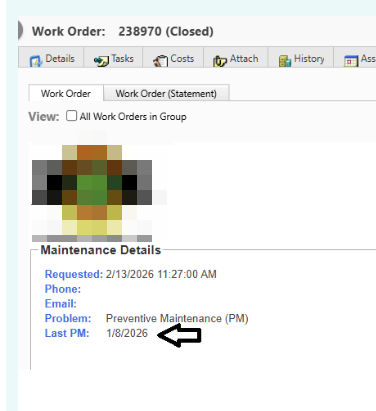
So that, instead of looking at ANY work orders older, we are only going to look at work orders that are what we consider to be PMs.
How to find what the report asp page file's name on disk is:
First, you get an idea of where it is in the MC UI. In some cases there is a banner you can right mouse click on that will get you more info, but others, like this one, there is no banner, so it's a bit more work to find the asp file name.
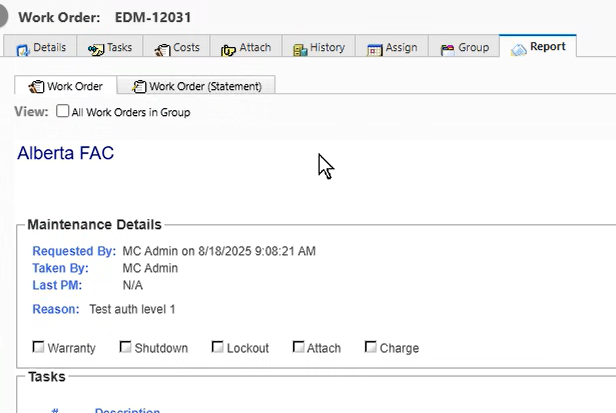
Look in the URL of the page you are on. It will have in it rpdID=. Depending on your screen size you may have to copy it to read it.

Go into SSMS (Microsoft's SQL Server Management Studio)
This screen shot is using the most recent, as of 2026, SSMS; yours may be different, [^Move the Cheese]
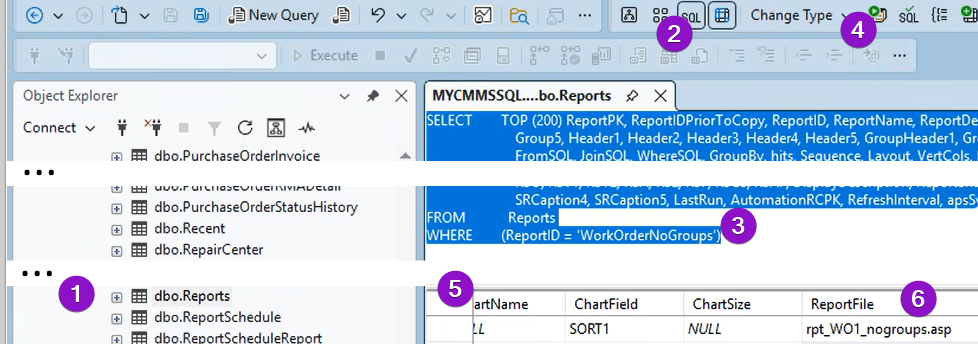
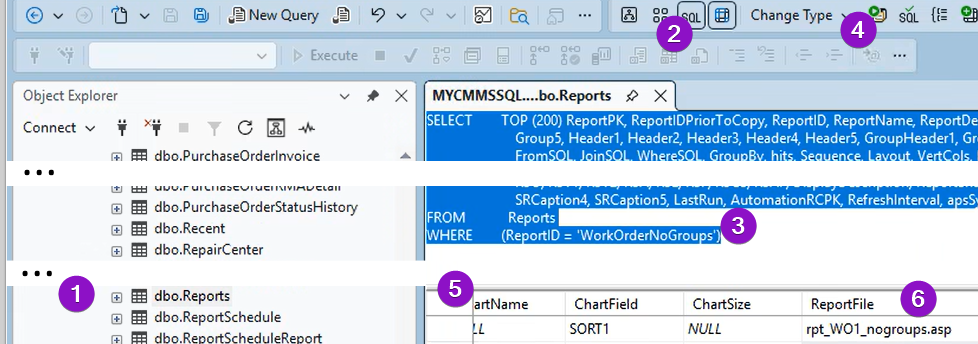
1. In SSMS you need to go to your database, to the table Reports
2. You need to edit the SQL
3. You need to add the where clause:
where (ReportID = 'WorkOrderNoGroups')
4. You need to execute the SQL with the new where clause
5. You need to scroll over until the 'ReportFile' column is showing
6. You can then read the name of the asp page that generates the report
Now making a change, editing some SQL for example
How to find the report (IIS then Windows explorer)
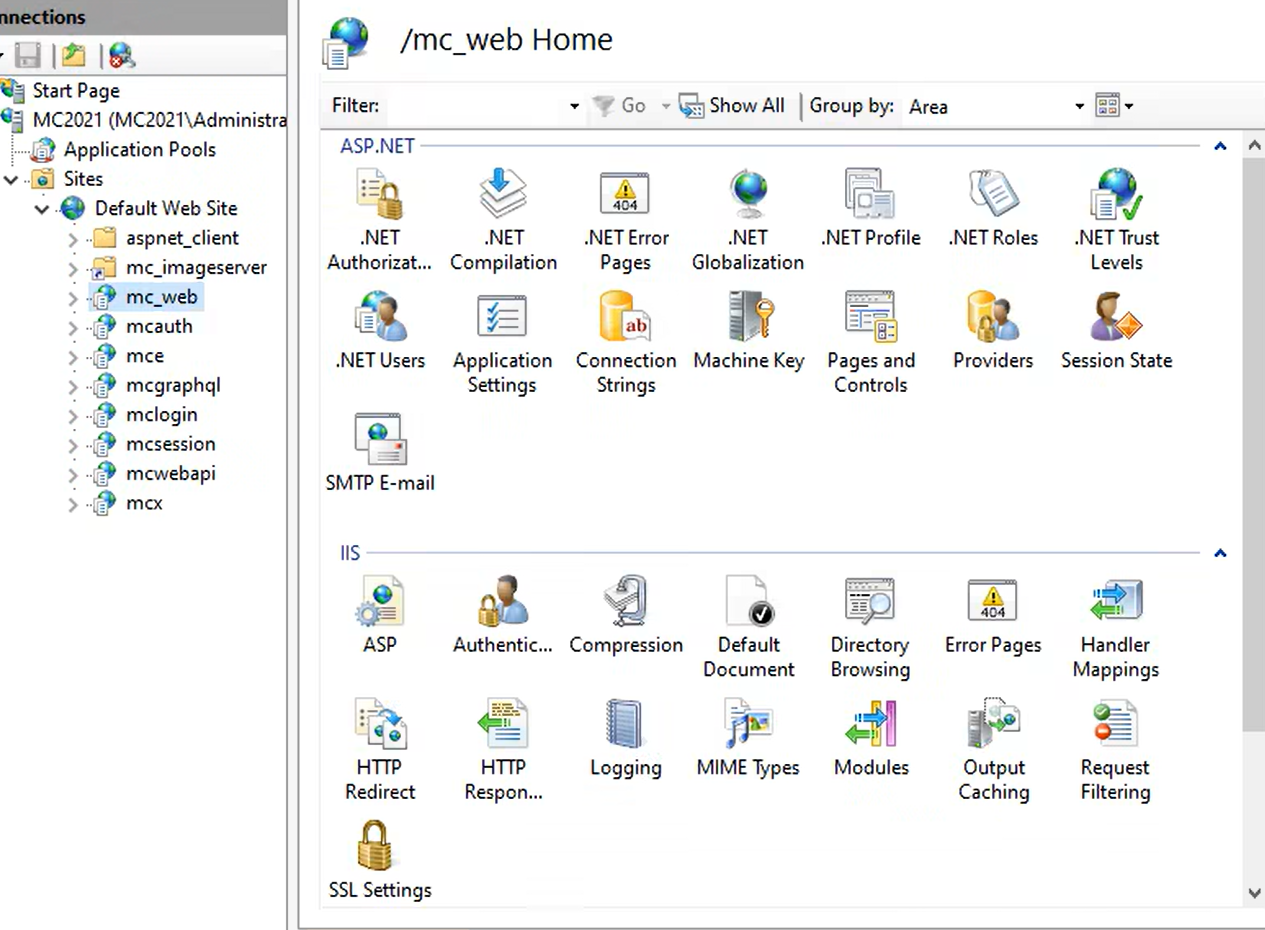
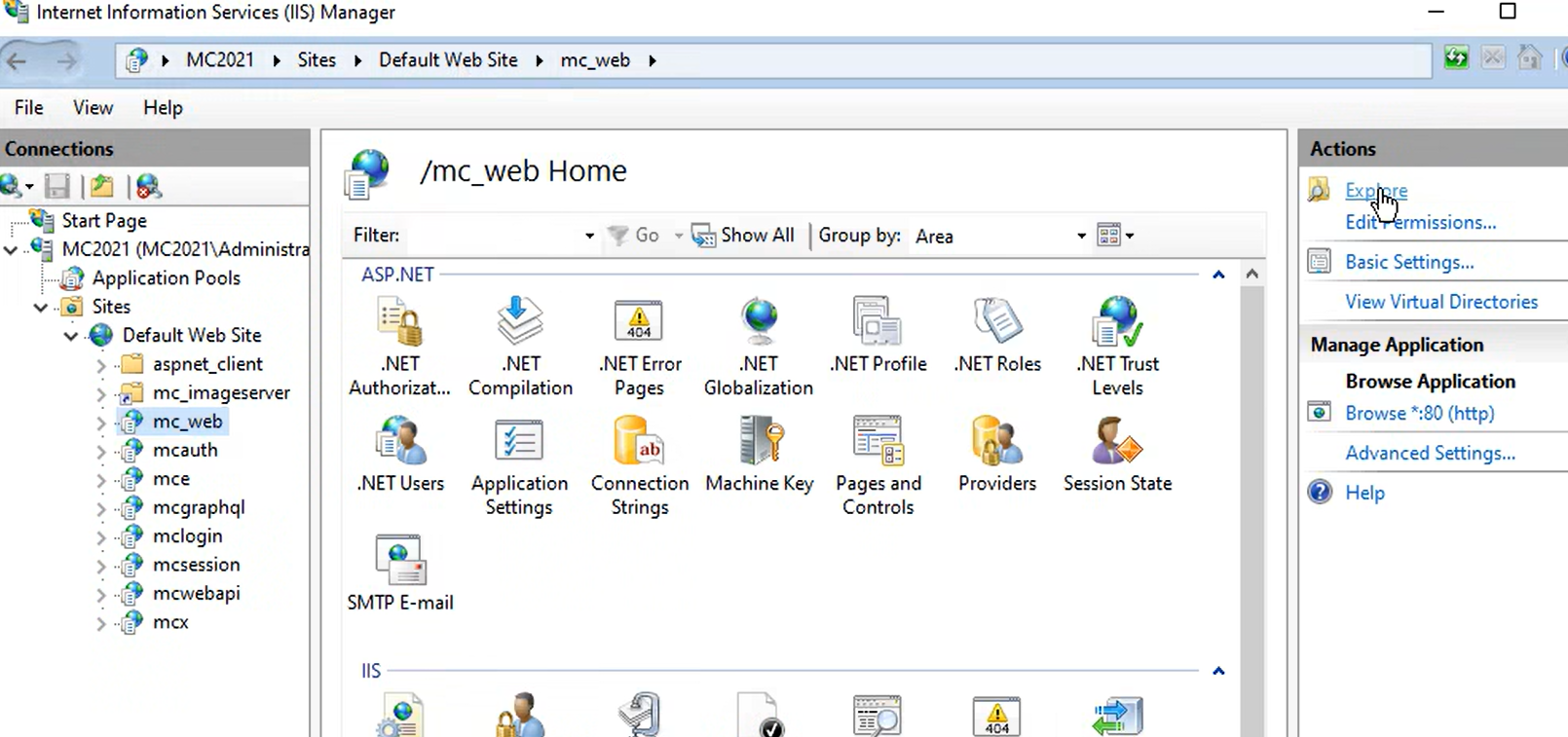
In IIS, go to your server, then sites, then find your mc_web site.
Upgrade of MC more than 24 hours ago?
If you upgraded more than 24 hours ago, click on the "Explore" action on the right hand side:
Upgrade of MC in the last 24 hours?
(A lot of people do these types of changes RIGHT after an upgrade)
Note, if you just upgraded, and you are doing this ahead, explorer will be wrong for up to 24 hours.
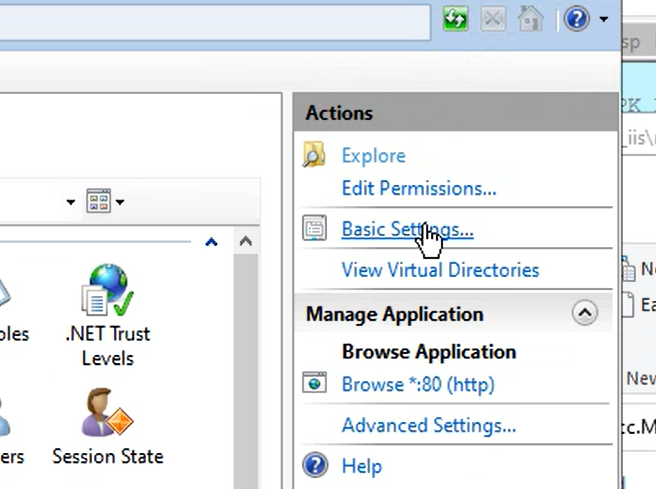
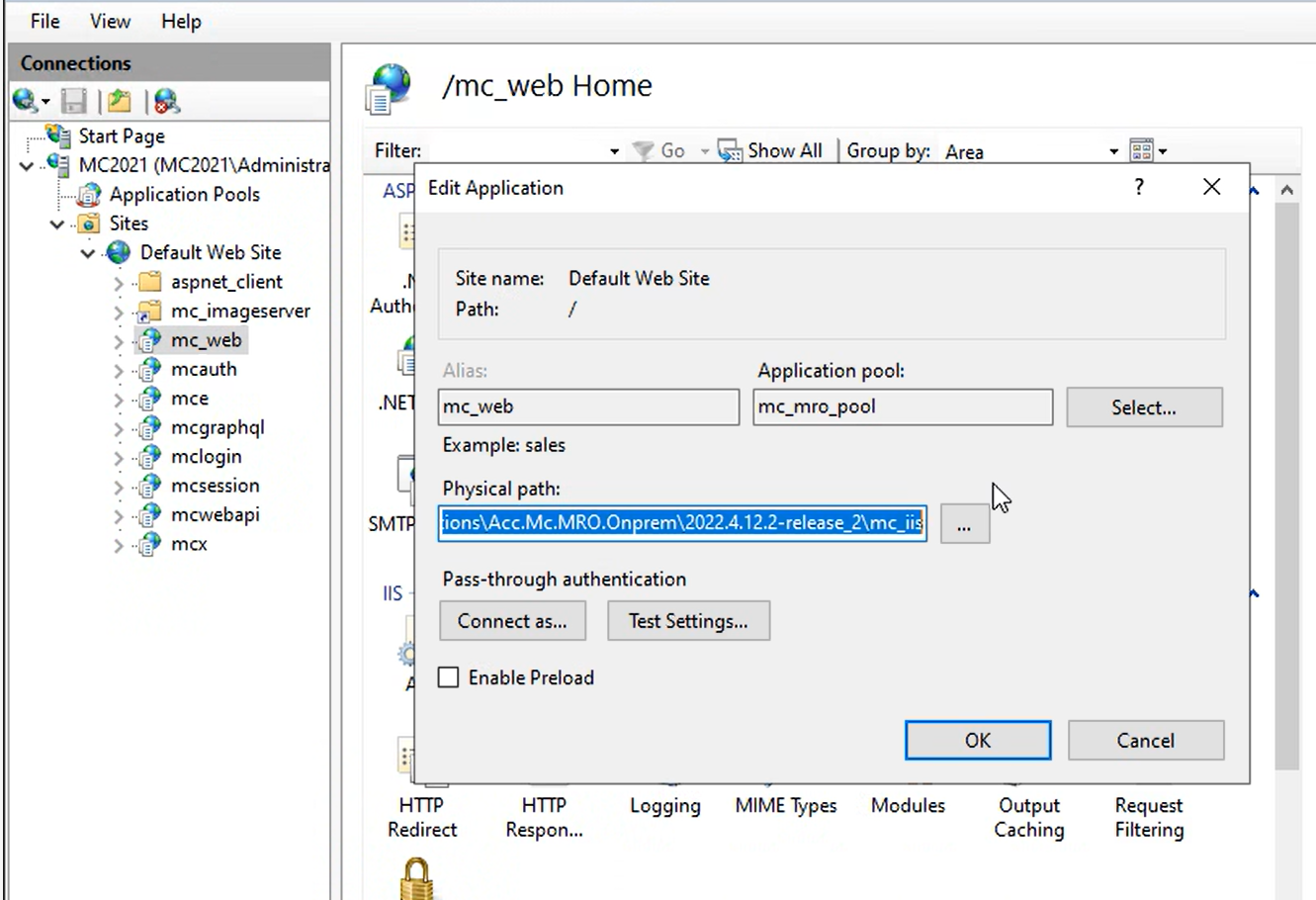
If so, instead, do one extra step: Instead click on Basic Settings on the right hand side.
So the following gives you the path that your files are stored. You can copy and paste the path, ending in mc_iiis into explorer
Find the mapp_v12
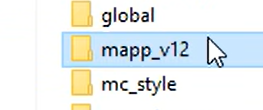
Not the rapp_v12 or onsite
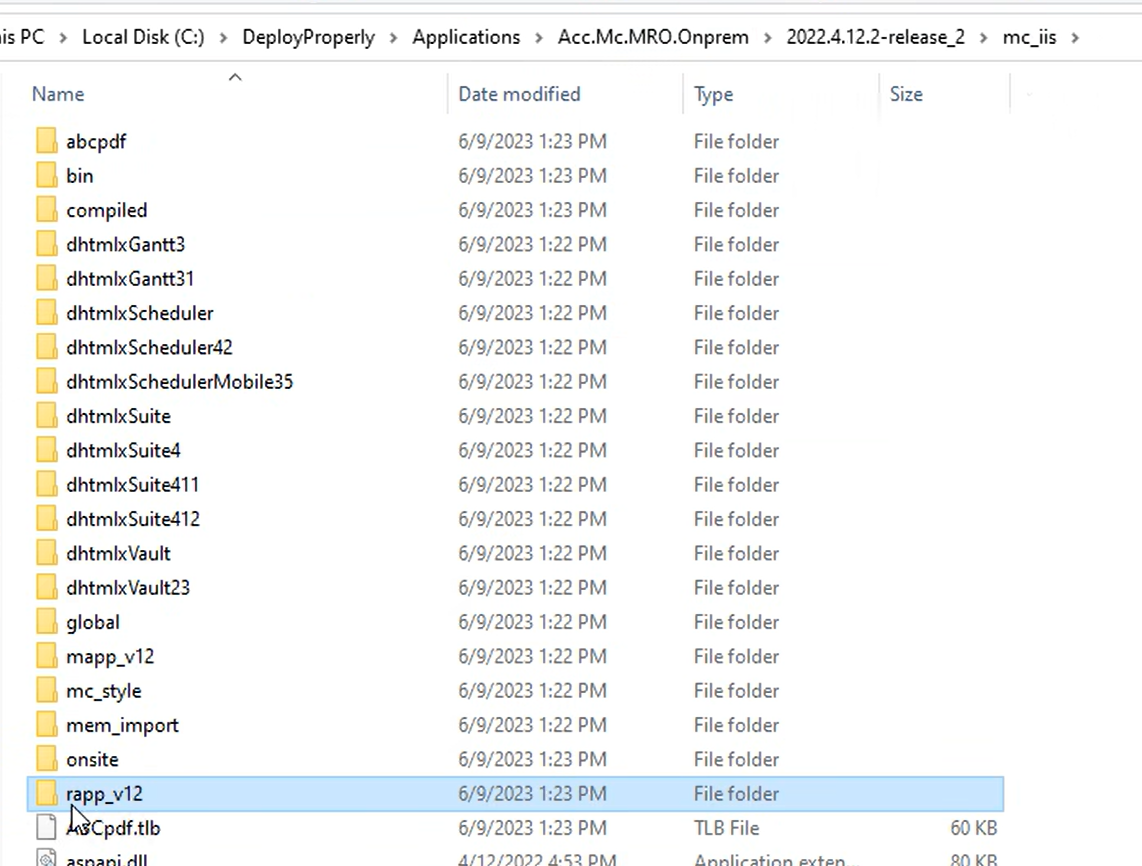
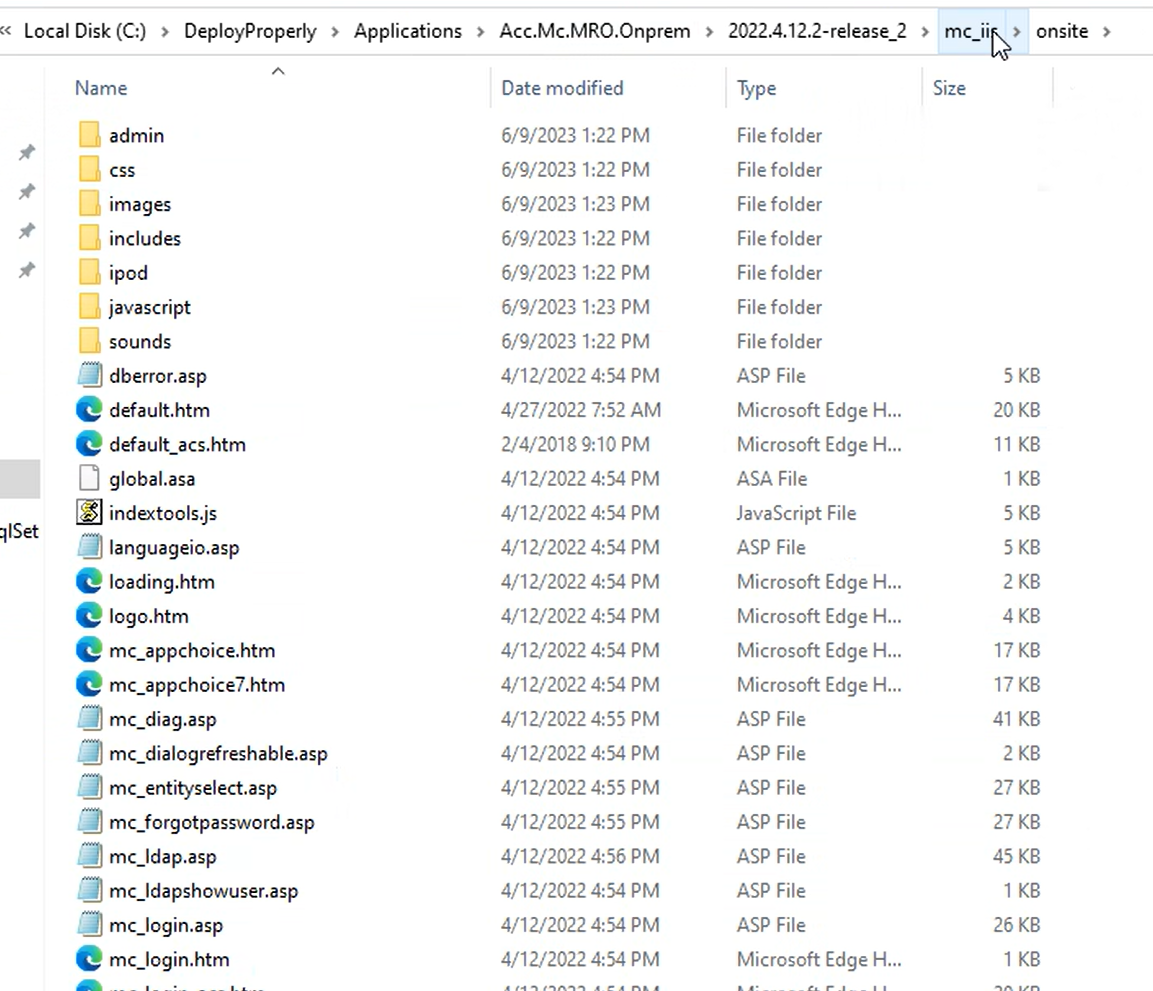
map4p_v12 is the MC app, MRO, Technician, KPI dashboard, Report
rapp_v12 - service requestor
onsite is login
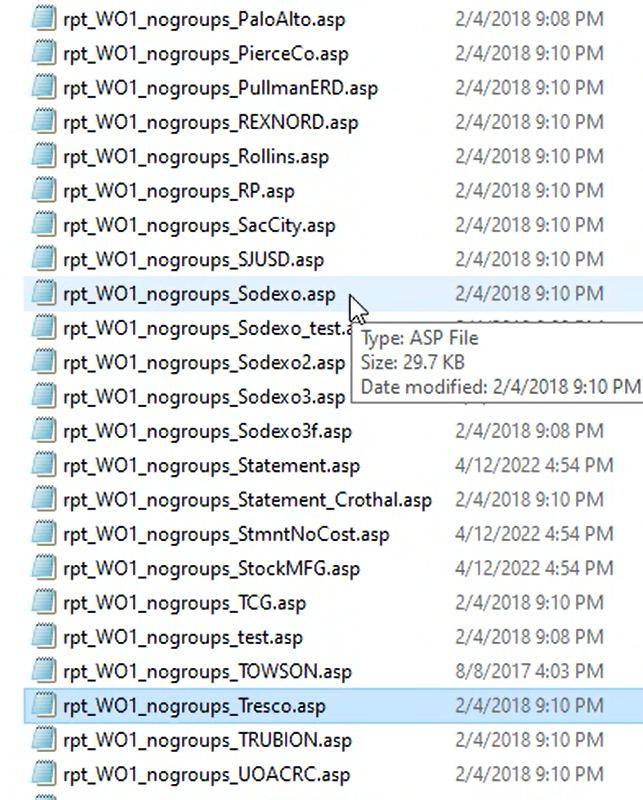
So... in mapp_v12
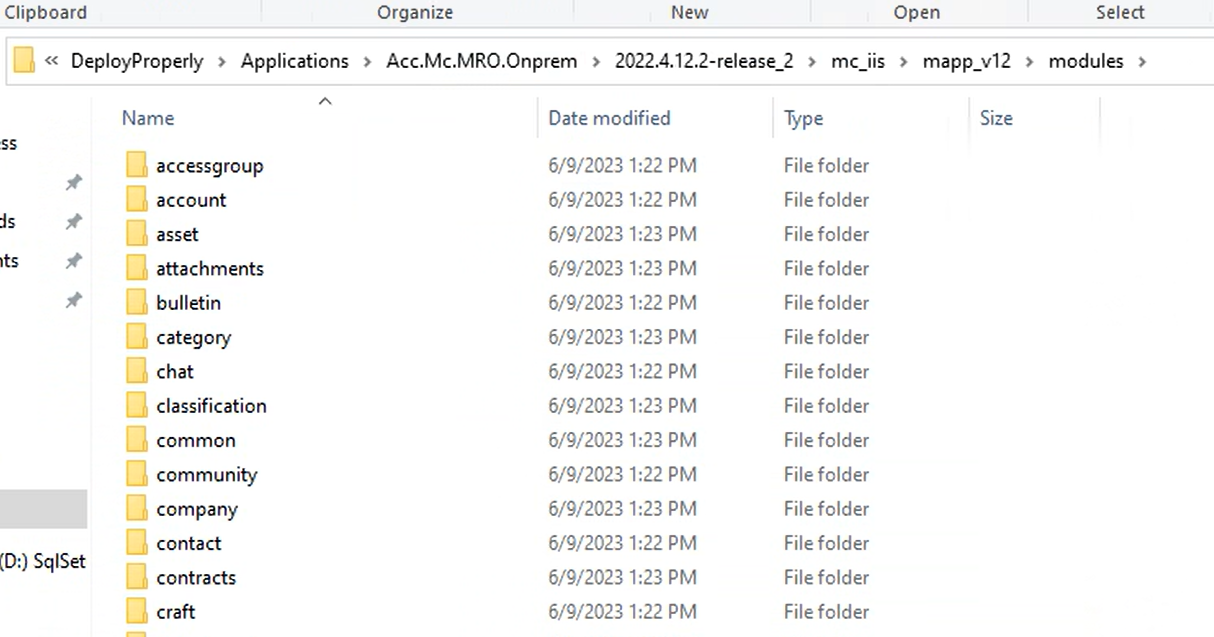
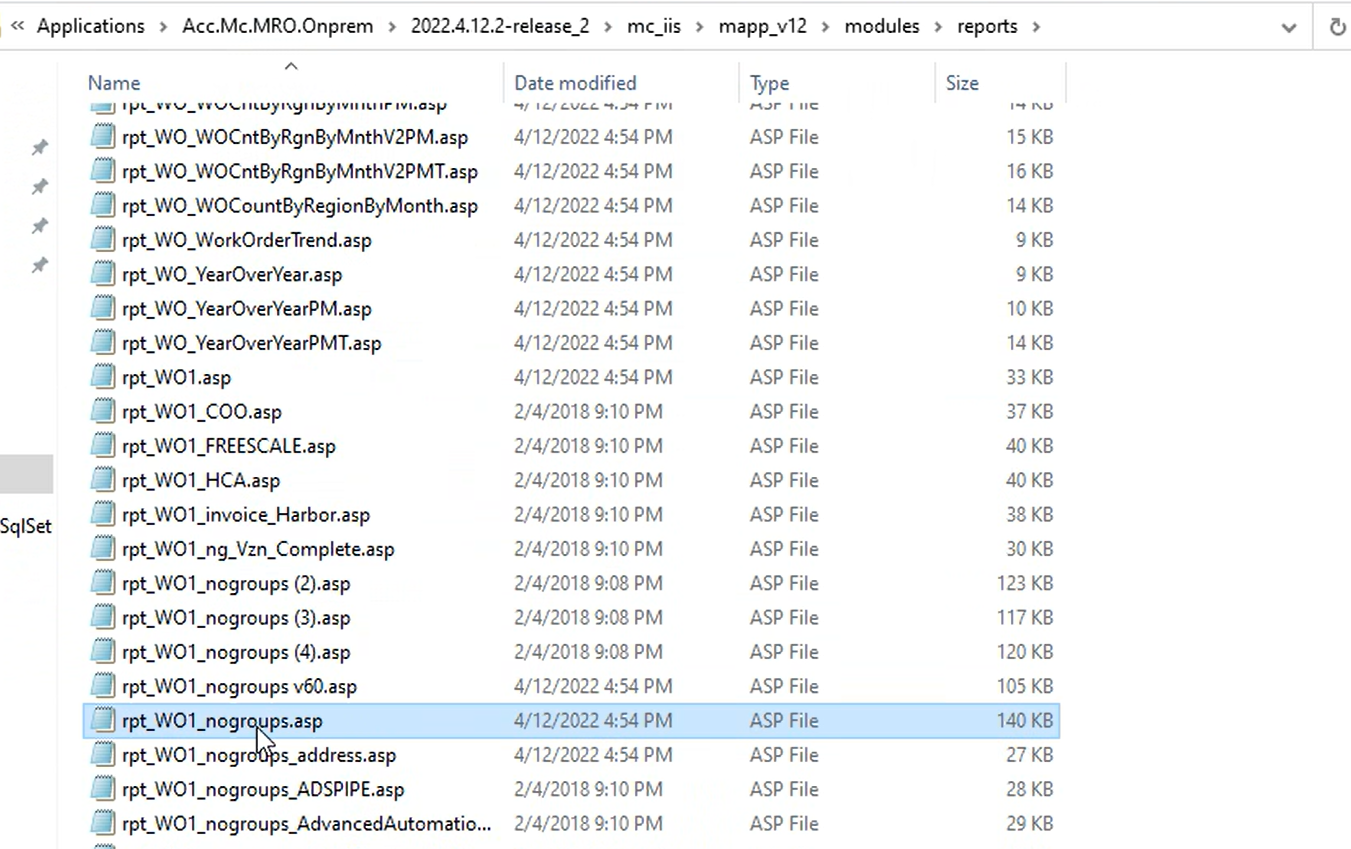
You may see other customizations for other companies.
The actual edit
This document shows a couple 'real world' changes as examples.
Change the Where Clause to exclude some rows you don't want
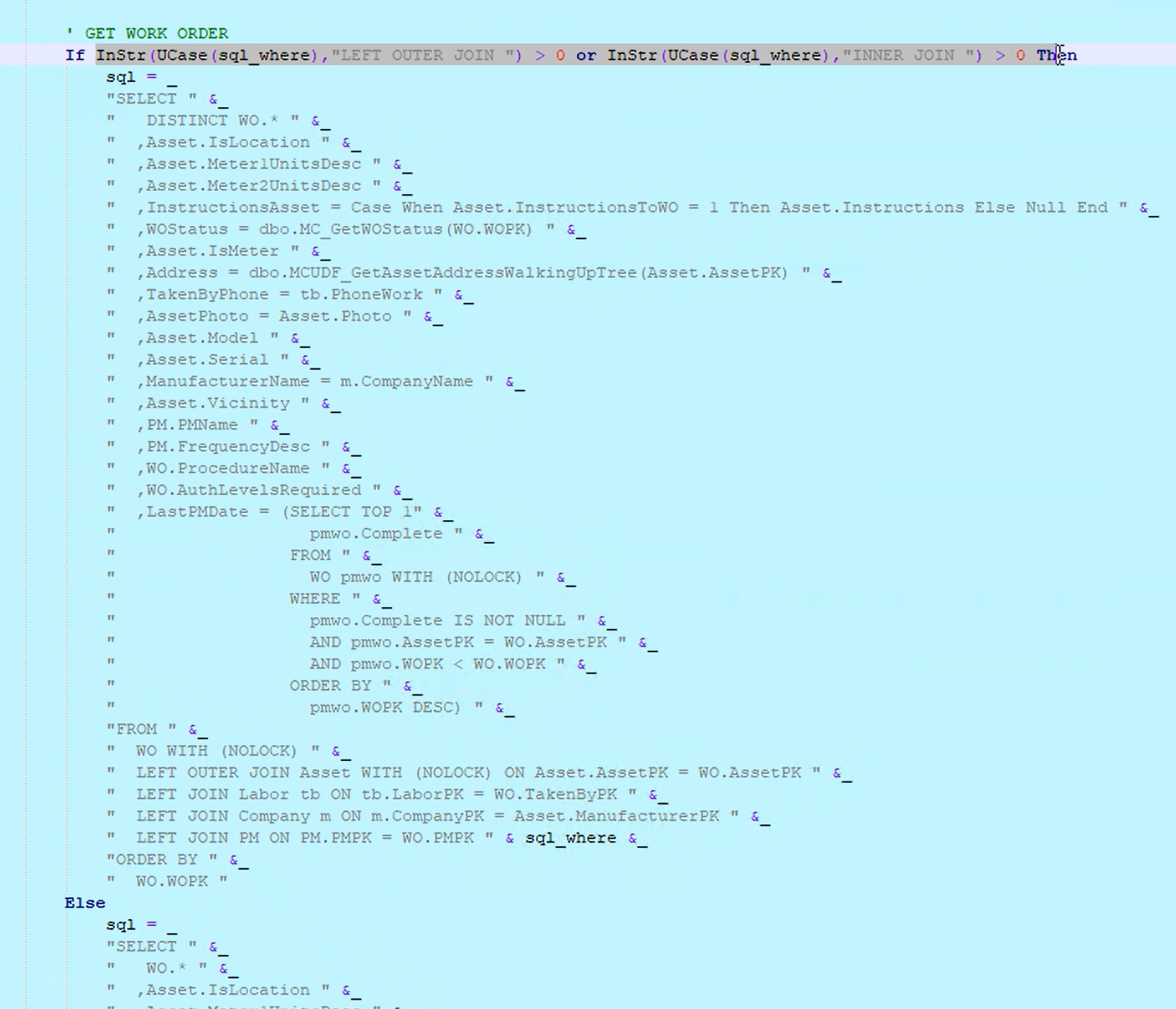
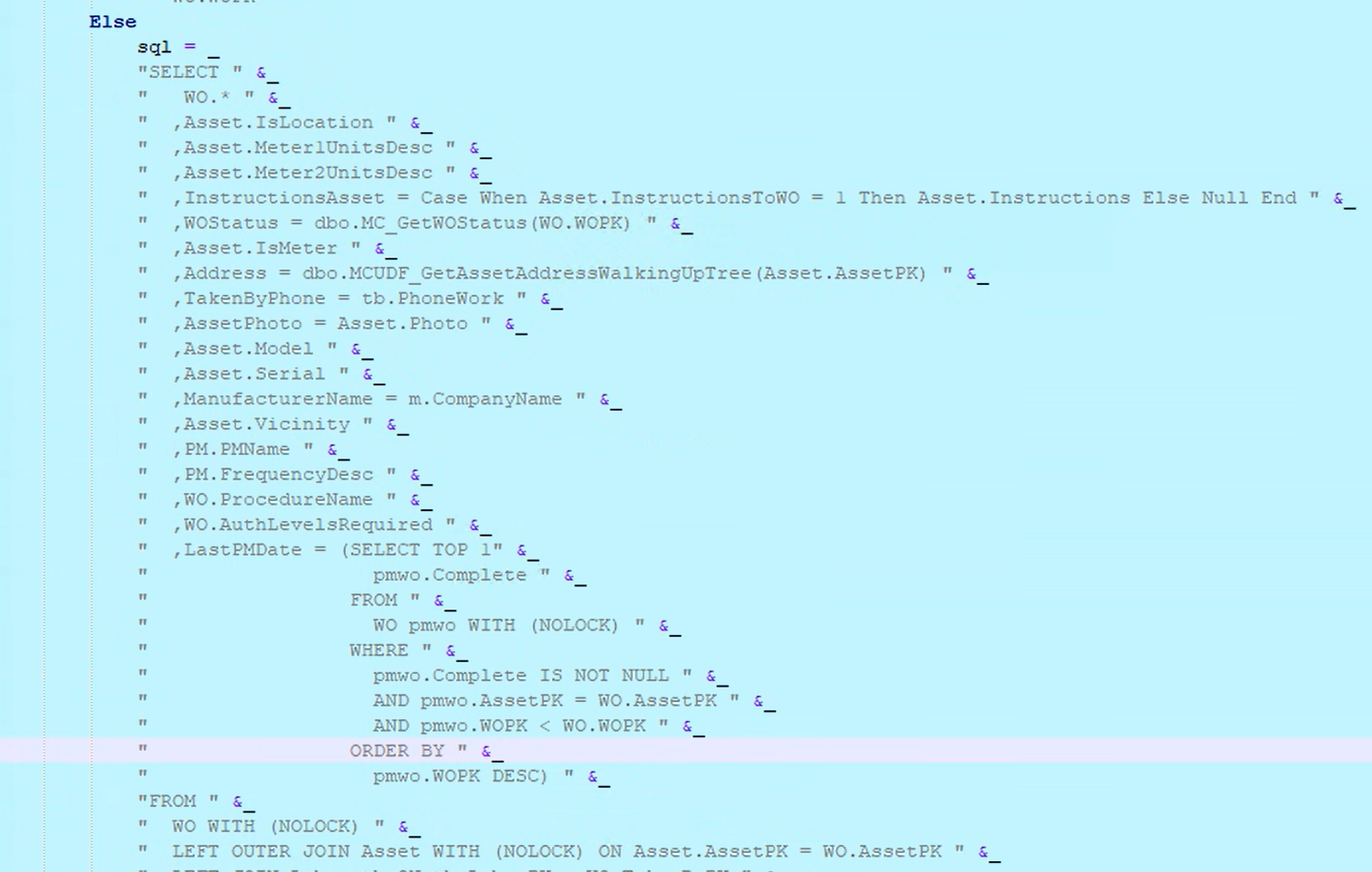
You are going to add in a where clause to 2 SQL statements. (It is pretty common to have to make the same change multiple times to allow various options on the reports to work.) In this case it is pretty simple and simple to understand
"And pmwo.type = 'PM' " &_The double quotes are because you are building up a BASIC string.
The And pmwo.type = 'PM' is the clause you are adding to restrict it to only looking at PMs that are older than you.
The &_ is because that's what asp classic needs to say 'the next line is part of this string'.
Notice the other limiters in the WHERE clause say,
- only look at rows that have a complete date,
- only look at rows that are for the same Asset
- and only look at rows that were created before 'this' work order was created)
We are adding
- and only look at rows where the type is 'PM'. (If you want other rules, such as only/all rows created by automations, or 'all types including PMA (PM Annual) and PMM (PM weekly), you would have to change your where clause to match.
Changing what is shown on the report
Here you can get 'crazy' or you can make simple changes. Really you can do anything you want given enough time and/or budget. We can make massive changes for you but in general the cost of big changes isn't worth it, you'd be better off starting with MCe reports.
So we are going to again take a real life customer request. The request is looking at the same thing above, rather than to change the date to show the last work order of type PM (instead of the Out of the box 'last work order of any type'), this change is 'remove the field entirely from the display'.
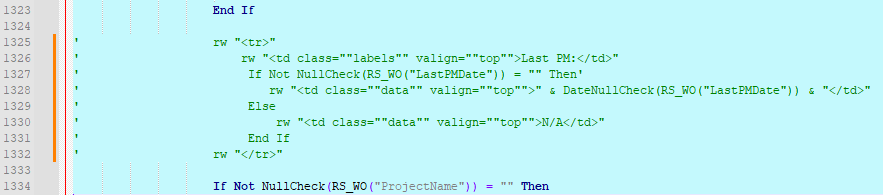
First step is to find where the code is, I searched on "Last PM:" to find it, and it only showed up once.
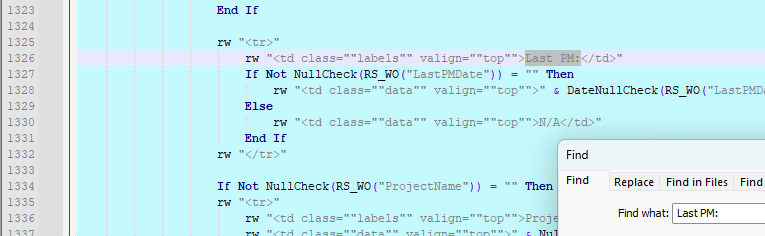
I then analyzed the code and see that an HTML table row is being created, the text Last PM is being displayed in a <td> data cell (think column in most cases), and then, depending on whether the date (from the code above) is returned as a null or a valid date, the result is put into another <td>
So my choice to fix this would be to drop the entire row from the report.
You could delete the lines of code, but I choose to just comment them out.
Now Install it back into your system with your changes.
But this time in step 6 you will change the value to the new value. Then click on the 'blank' row below it to save the changes to the server.
Installing the file under the old name,
Very useful for backporting fixes.
Doing this will result in your changes being wiped out with the next upgrade. This is fine if you are fixing a bug you know is fixed in the next release. The advantage here is that you also get any other changes in the newer version.
If the new version does not have the fix, then you will need to remember to apply the same (or similar) fix every time you get an upgrade, even a minor patch one.
Installing the file under a new name
Doing this will result in your changes surviving an upgrade
But of course if the next version has other changes to the report, you won't get those changes, you'll need to reapply your fix to the new file.
The 1st 5 steps to change it are the same as before
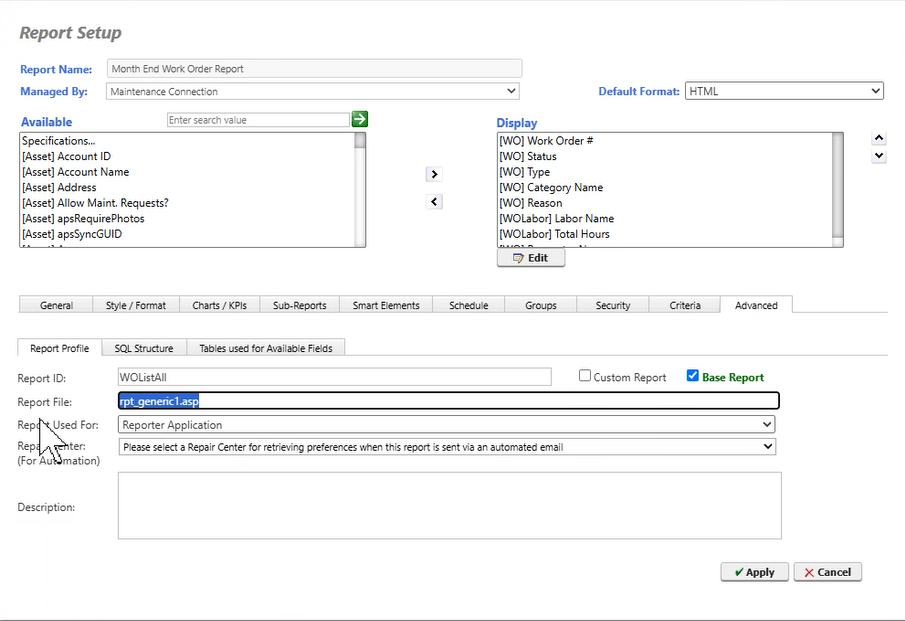
Note that the following will NOT work in this case:
While "normal" MC reports can be changed to point at a new asp page, so called 'standard custom' reports can not be. The report above is 'custom' in the sense that 'it was written by hand and doesn't work in the MC report writer. This is a fundamental difference between MC where all reports are done in the report writer. But in case you think "I'm sure there was an easier way" this is showing you what you were probably thinking of so you can be confident that you have to do it the way shown above.
[^Move the Cheese]: You can skip the rest of 'this" paragraph: Microsoft has artists they hire that would get fired due to lack of work if they don't move things around and change the icons continuously, so yours may look a little different. Some people say Microsoft does this to keep the product looking 'fresh', others say they do it so that you don't get complacent, and with each new upgrade, you look around and see things you didn't see in the previous version. But the result is that, often shortly after you get used to finding an icon by looks - the icon changes.