

 Maintenance Connection Everywhere (MCe) · EAM/CMMS manuals
There are 3 primary ways to login to MCe.
They can be broken down to 'initial' login and 'daily' login.
Initial Login, works online
The first is split into two options depending primarily on how your system is configured.
Get the login URL from you SaaS provider or IT department
You will have been given a URL that will take you to where you go to login (and automatically install) the application.
If you have never logged in before, you might find the Logging in document in Getting started for users section to be a better starting place.
Login using the Maintenance Connection LoginHub if you have LoginHub
If you have LoginHub then your login security is handled by a 3rd party such as Microsoft (again depending on your corporate choice/setup.) We never see your password – only the 3rd party provider does. See the documentation for LoginHub if you have this product.
You will login using your provider, someone like Active Directory, Azure Active Directory, Okta, Ping, Facebook, Google etc.., Depending on the provider and how your company has decided to set the system up, you may or may not be automatically logged in (full Single Sign On, SSO)
In any event, if your company has a custom login process, this document is NOT for you!
Otherwise you will be taken to a screen like this:
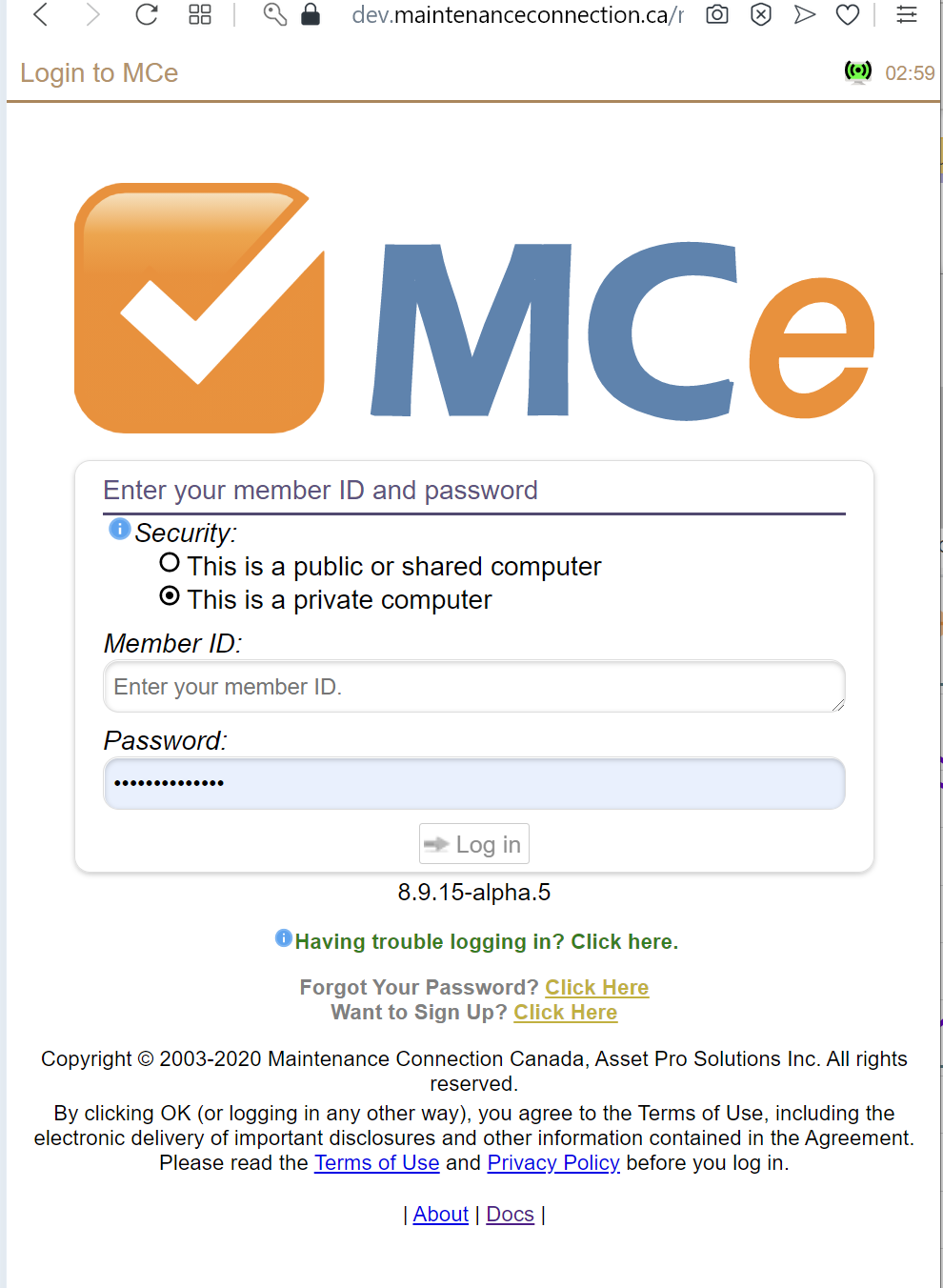
If you have never logged in before and your administrator didn't create your account for you, then you will want to start by signing up. See the section "Sign up" later in this document. Note that you can access several sources of information including:
- Our Terms of Use
- Our Privacy policy
- Information "about" the product and
- Our online documentation.
If the device has previously been used by someone else, you may instead see a screen like this:
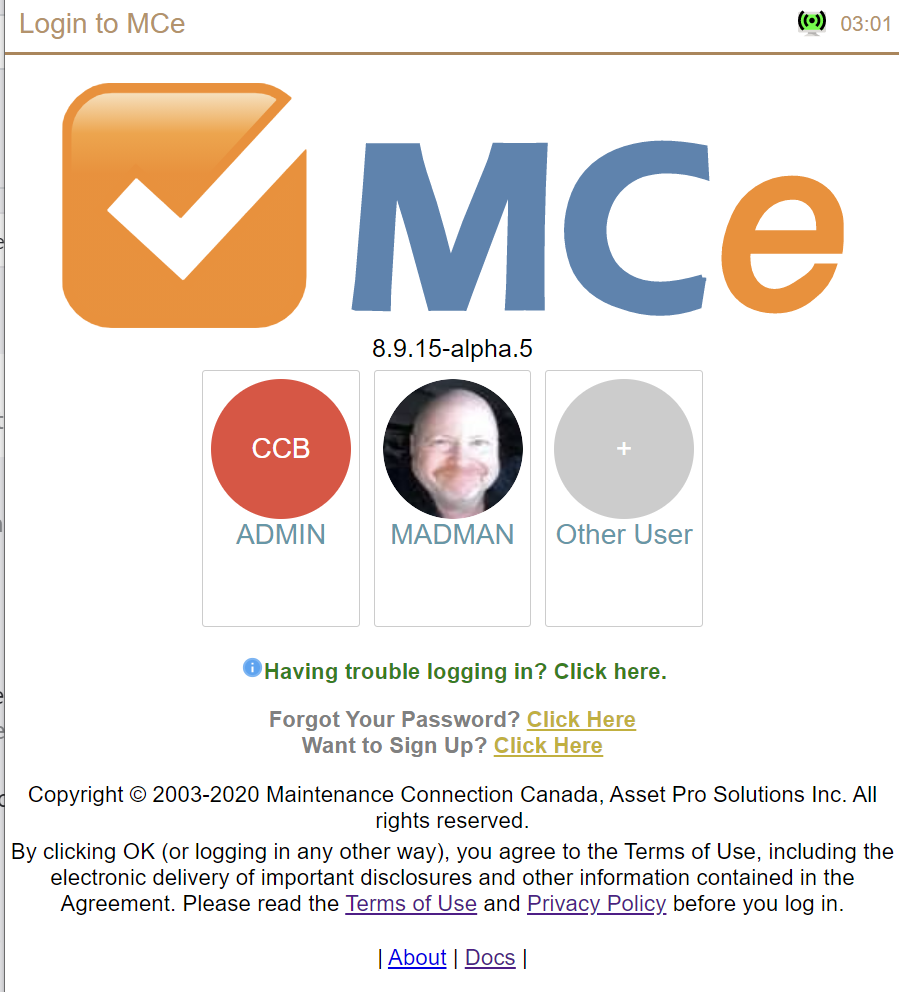
The same links exist here, but the other users sharing this device with you can also log in.
You will also have been given (or perhaps set yourself) a member ID and a password.
Sign up
Often, your administrator or IT department will sign you up. But if they asked you to go and sign up for MCe, use the URL they gave you to come to one of the above pages. You will need your database connection key (aka connection key aka database key, aka ent key). From the start screen select "Want to Sign UP? Click Here."
If your registration database is set to support more than one language, you will see a change language icon up beside the clock that will let you change the language on this screen.
When you enter this information and click the Log in button, we will send your password (1 way hash encrypted of course) to the server to verify your credentials.
Because of the way our system works, the connection icon will be red until you attempt to logon. This is because until you have logged on, we don't have a connection 'to your account'.
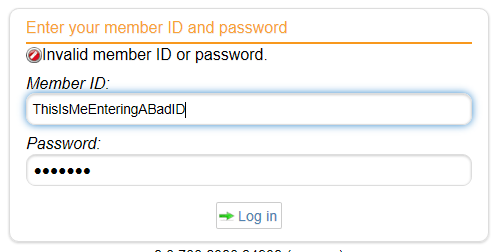
If you entered incorrect information you will see a message to that fact.
Select Company/Organization (if you have access to more than one.)
Once you log in with a valid member ID and password you might see a screen that lets you select your Company or Organization. You will often hear this referred to as selecting your database.
If you only have one assigned to you, you will not see this screen, you will instead jump directly to the next step.
Next the Application is loaded in 3 stages, mostly in the background.
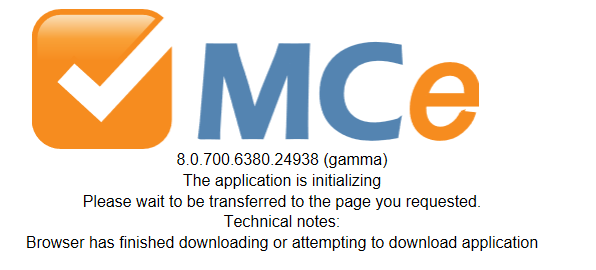
This tells us the initial code (often called 'bootstrap' by computer technical people) has been loaded.
Next we load the rest of the application, starting with the most common phrases so you can start to work in whatever language you have chosen. It is made up of many files. If you are on a fast internet connection, then depending on the speed and load of the server, this will only take a few seconds to a minute. But it all happens in the background.
The number of files depends on several factors. The browser provides us, and so we provide you with an update after each file so you can see that it is working.
If you are on a slower internet connection the time will vary greatly.
This step is downloading all the code to your browser. You won't need to do this step again unless one of these things happens:
- you do a 'wipe data' logout. It also requires the application to be loaded again.
- There is an upgrade installed on your server (you will automatically receive it this same way when you next run the application with a 'refresh'.) Essentially, go to the URL again, and you'll automatically get the new code and if you were logged in or locked, you will get the new code.
- If you used the browser tools to clear what is called the 'app cache'. Different browsers give you access to do this (see separate document in the manuals).
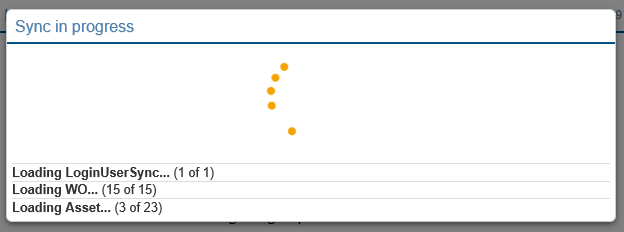
Next we automatically perform your initial sync. This is to get the data from the server that you need on your device. The exact numbers and types of data loaded depends on your system, which modules you have purchased and which figure have been configured on your system.
You may also see the numbers being downloaded change. For example, as WO's are loaded, they become aware of more Assets that are needed offline, so the 'x of y' assets number will increase the y value as more assets are needed.
If the orange dots stop moving or the number of items loaded stops climbing and has been stopped for a minute or more, you can try to refresh your browser as this usually means your browser has lost internet connection.
Daily Login, works online and offline
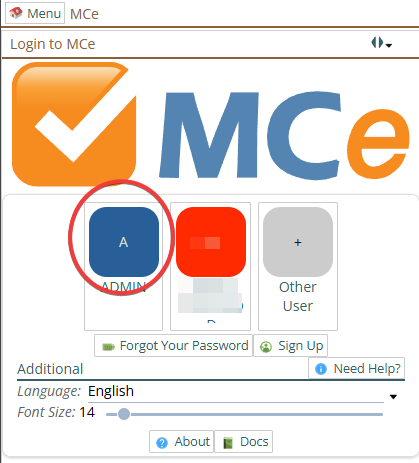
We call this daily because that is how most users will think about it and the way many will use it, but it could be hourly or it could be weekly or longer.
Essentially, when you do a normal logout of the system you will enter a PIN to lock (logout) the first time, and just click on logout afterwards.
Your database and language will have been saved so you won't be asked to enter that info.
The application itself will have already loaded.
The unlock does not perform a sync.
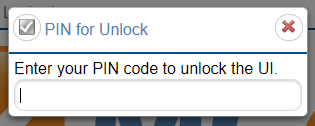
The result is that the unlock login gets you back into the system very quickly.
Simply enter your PIN, like the Windows 10 PIN, once you enter a valid PIN you will be automatically logged in again.
Tip: Most browsers will ask if you want to remember the password. But if so, they will offer you the password that you used to login with. If you don't want to say 'yes', most browsers have a way to turn this annoying question off and stop asking you if you want it to remember the password.