

 Maintenance Connection Everywhere (MCe) · EAM/CMMS manuals
Intro
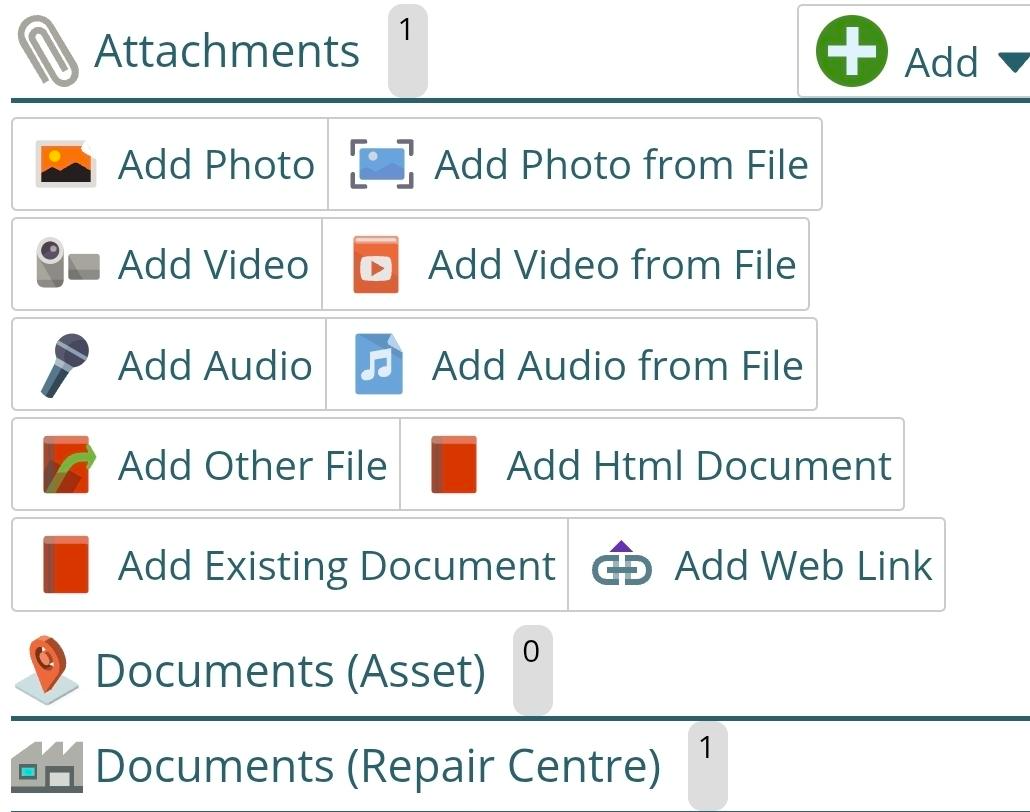
There are four basic ways you can add a document/file to something like a WO or an Asset:
Upload:
This takes the physical file, copies it to the MC server, for direct access from the server. And in general there will be 2 ways for this:
- locate an existing photo, video, voice or other file and upload it or
- if your hardware supports it to the browser, 'take' a photo/video/audio right now and then upload that newly created file.
Editor:
This lets you create a formatted set of text and upload it to the server.
Link:
This lets you link to an existing file/page somewhere on the internet or your internal servers. Someone accessing it later will always access it from that location. If it gets deleted from it's location (URL), it will be a 'broken' URL when someone tries to go to it.
Library:
This lets you link to existing files/pages that have been already specified in the document library.
The 3 methods in more detail
Upload
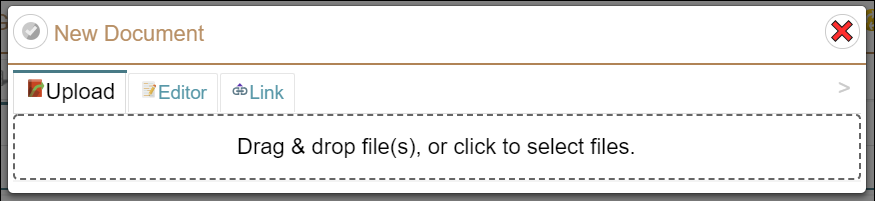
This takes the physical file, copies it to the MC server, for direct access from the server
The file can come from any location that your browser has access to with its file capability.
If you have a device that allows drag and drop, you can grab the file or files you want and drag them into the drag & drop area. The specific of how you find the files to drag and initiate the drag operation depend on your device and your browser, it is not something we control, we handle 'receiving' the files you drop and then processing them after.
If your device does not support drag and drop, or you want to use your device's file picker, click anywhere on the dotted box and the file picker for your system will come up. The specifics of the file picker depend on your device and your browser, it is not something that we control. We handle receiving the file(s) you selected and then processing them after.
What happens when I drag and drop or select a file(s)?
One you had added a file to this screen a few things happen:
- The Editor and Link tab buttons are disabled so that you don't accidentally forget to finish adding the files you picked.
- There will be a list of the files you dropped or selected, each one gives you information about the file type, file name, file size, and gives you a chance to delete them.
- Your specific server will likely have some limit on the maximum file size, if you exceed this limit, you will need to delete the file from your device.
- Your device will likely have some limit on the maximum file size as well, the reaction of the browser to this varies from version to version and from browser to browser, contact support if you exceeded your browser limit and need help continuing.
Size (you can generally skip this technical detail section, ond skip to the next section if this bores you.)
Simple answer: our KB/MB/GB/TB sizes are the 'non-computer' sizes that Apple uses and calls KB/MB/GB/TB. Our KiB/MiB/GiB/TiB sizes are the 'industry standard, that no one uses' sizes that Microsoft uses and calls KB/MB/GB/TB. An Apple KB is 1000 a Microsoft KB is 1024.
If you want to know how this silliness came about and why KiB etc.., are reasonable numbers, read on. If not, skip to the next section.
The size either will mean something to you or it will be meaningless. There are more than one standards for showing file size in computers. Arguably the 2 most influential operating systems in the world (both older version of Windows) existed before 1998, and they have always (to this day) used Metric abbreviations to indicate the size of things.
Unfortunately, humans like to work in base 10 means numbers like 10, 100 and 1000 are nice numbers to work with, but computers like to work in base 2, so numbers like 1024, 16,384, 1,048,576.
Herein lies the problem, prior to 1998 everyone in the computer world calls 1024 a Kilobyte (KB) while humans want 1000 to be a KB, and computer people call 1,048,576 a Megabyte MB) while humans want 1,000,000 to be a MB.
So around 1998, a standards body decided 'The Microsoft way is wrong, let's call 1024 a KiB and 1,048,576 a MiB' and so on, and then they said 'KB, MB, GB, TB from now on have the normal metric meaning, and not the computer meaning.
Like many standards bodies, it seems that if there is not consensus, standards bodies around the world like to pick something that is not what the biggest player uses. Or is that just me griping? But it sure seems like standards bodies purposely like to set standards that are what the biggest players are not using.
Apple seems to have embraced the KiB, MiB, GiB, TiB method of naming … by NOT using them. Microsoft has too many 1000's of lines of code that use the KB, MB, GB, TB terminology the way 'everyone' used them before the 1998 standard. As a result, when Apple says MB they mean 1,000,000 but when Microsoft says MB they mean 1,048,576.
The funny thing we have then is: Microsoft doesn't follow the industry standard because they had too much code and documentation and user expertise based on the commonly accepted standard to make the switch, and Apple doesn't follow the industry standard because they wanted to have their sizes look 'bigger' than Microsoft – so they use the non-computer terms for computer memory and sizes. That leaves the other 10% to decide whether to follow the common standard (that Microsoft uses), the non-computer practice (that Apple uses) or the so-called industry standard!
As a result, depending on what computer you are looking at numbers, they can mean significantly different things. To try to be 'accurate' we give all numbers > 1000 in the 'industry standard' way. If you just looking at the number in front of KB/MB, Apple will look like it gives you a lot more than Microsoft, but Microsoft will make it look like their files are smaller. But really, there basically no difference other than neither company follows the 'industry standard'.
So what do we do? We provide you with both numbers for file sizes. The KB/MB/GB/TB numbers will show you the 'non-computer' size that Apple uses. The KiB/MiB/GiB/TiB numbers will show you the 'computer sizes' numbers that Microsoft shows you – but remember Microsoft CALLS them by the old names KB/MB/GB/TB.
Side note: Back in 1980 everyone knew that a byte was 'the size of a chunk of memory in a computer' which meant it was 4, 8 or 16 bits long depending on the computer. Over the next 2 or 3 years everyone yelled at each other, and eventually everyone except 'mini-computer' people agreed that a byte was exactly 8 bits long. Standards bodies argued for the next 20 years, and in 2008 standards bodies (ISO/IEC 80000) stated that henceforth a byte was 8 bits long. The rest of us yawned and said – yeah, we made that decision nearly 30 years ago, back in the early 1980's when it would have been useful to have a standard, we're just glad you didn't decide to make it 9 bits. (Early memory had 9 bits or 10 bits - so called 'parity' bits so that you could check if you had 'bad memory'. I'm really surprised the standards folks didn't go for the 9 or 10 bits given they were decades out of date by the time they set the standard.)
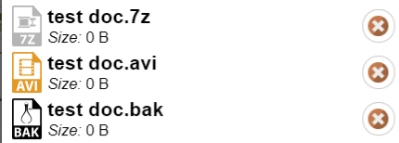
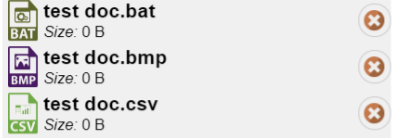
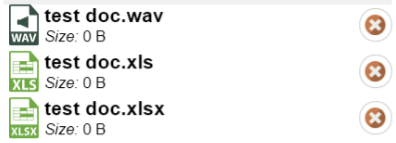
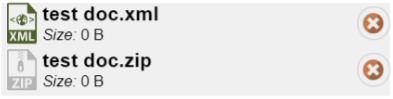
What files do we have icon indicators for?
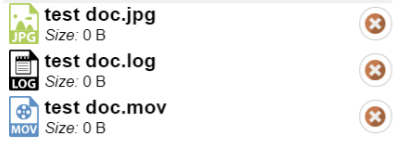
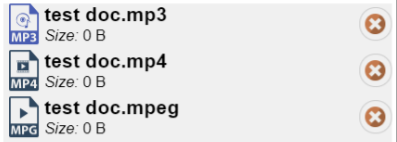
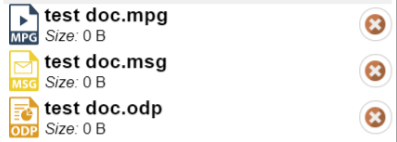
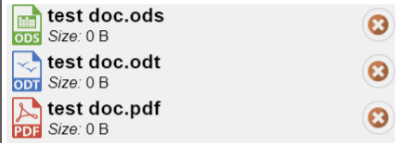
All the ones below, as well as unknown. This list does not restrict which files, it is merely a list that we have provide icons for, all of these files are 'popular' for various industries. If you don't recognize one or don't know why you would use it – then ignore it. For the ones you use a lot, these should help you identify them quicker at a glance.
Editor
Editor files in MC are basically a long string that is a string of HTML. If you have any problems using it, see our document on HTML editing for more details on how this works.
Link
Link is where you enter in a URL (typically cut and paste, but on some systems you may be able to drag and drop). The link should be to a file that is accessible with that exact URL by anyone using MC or MCe.
A link on your computer:
This means that a link to a file on your personal computer won't work for anyone other than you.
A link on your internal network:
A link using the internal network name of a file on your network will only work for you and others when you are on the internal network in a way that can see that URL directly.
An internet link
An internet link will generally be the most accessible for everyone.
You should use HTTPS:
Note: Wherever possible, use an HTTPS link not an HTTP link. Using an HTTP link may cause the browser of a person using it to experience various problems including having 'the lock' disappear, having a red 'unsafe' lock show up, and messages like 'mixed content'. Many browsers are getting more and more insistent that you use HTTPS so even if there is no problem 'today' using the HTTP link, you can be very sure that there will be problems in the future.
Library
If you previously have specified a link or created a document that is in the MC Library, you can use this tab to select it for inclusion in whatever object (a WO or an Asset as very common examples) you are working with. This does not make a copy of it, it just references the already existing one.