

 Maintenance Connection Everywhere (MCe) · EAM/CMMS manuals
The summary tab repeats some high level information that is on other tasks, and gives you both the generally more important data as well as all of the general info on the WO. It is a high level summary.
The Details provide the most commonly requested details to be seen on every WO. The following screen shot shows a representative summary screen. Missing are:
- Asset tab (there is no asset), Problem (there is no problem specified on this WO), Location, Vicinity, Special Instructions.
Details bottom tab:
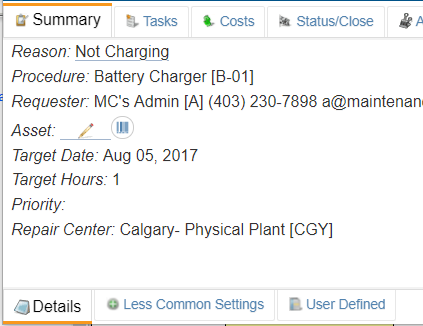
Field descriptions
As usual in our system (We don't mention this on every page, but the WO is a page most people will go into so it seems worth repeating here.)
- Fields that are Unused/empty/missing values and are 'read only' for you do not show up. So if there was no priority assigned to this work order, you won't see priority in the list. But if a 'blank' value (slightly different from an unused/missing/empty value) is assigned, (as above for priority) that shows up because it is still 'a value'.
- Fields that you can (currently) edit are underlined such as the reason above
- Fields that are empty but you are permitted to add a value will have our underline with our edit icon (as with the Asset above.)
Reason
Should be a description that makes it clear why this WO exists. Focus on the important details firs, then the lessor important details. Depending on the width of your screen, some/all of the reason will show up in the WO list (hit the Expand button on the list to see it all). Similar functionality is available in the MC list.
Procedure
The procedure associated with this work order. Note: a manager has access to change the procedure listed on a WO, but once a WO is 'issued', changing the procedure will make almost no differences, so generally speaking, if you want to change the procedure after it has been issued, you should cancel the WO and create a new one or take similar steps.
A procedure is often used for both Ad Hoc and from a PM (Preventative Maintenance) schedule.
Problem
Not shown on the screen shot, but if a problem was specified, it says what the service requester or a manager thinks is 'the problem'. Note that in MC, setting this may affect other fields.
Requester
the person what initiated the Service Request. Includes the phone number and/or email address if known in the requester, labor resource or contacts modules. Those with the WO Manager module can edit the email/phone number and that will change it on this specific work order, it will not be copied back to the associated requester or labor resource record.
Asset
If there is an asset associated at the base WO level it will be listed here. Note: you can also have assets listed as tasks. While almost all fields allow you to enter or edit a value using a barcode read, some fields like the Asset are so commonly used with a barcode that we give you direct access to entering a value with the barcode as you see here.
Location
We walk 'up' the tree to find the first parent record that is of type 'location' and show it here.
Vicinity
A free form field that those who build the assets can type anything they want into. It is intended to give information to help a technician find the asset. So vicinity of a building might be 'corner of 4th st and 17th avenue" vicinity of a boiler might be 'NE corner of the boiler room'. Vicinity of a part may be 'just above the left-handed-widget and just to the right of the off button'. Your company's use may differ, and at least one customer we know has this auto-populated by an action, so it based on other data values known to the asset.
Target Date
This is when the work is 'targeted' to be complete. Depending on your corporate policies, this may be a 'promised' target date or just an internal "would like" date.
If you have priority action rules enabled in your system this field plus the priority value may have been used to determine the target date.
Target Hours
The number of hours that someone thought it should take. Obviously if you see 32 hours and you think it can be done in 1 hour, or you see 1 hour and you think it is going to take 12, you probably should contact your manager and/or the requester and discuss the scope of the job before continuing.
Priority
A way of indicating how important the job is. The list of possible priorities (alpha &/or numeric) is set by your installer or an administrator of your system.
Repair Center
If there is a repair center specified as associated to this work order, it will show up here.
Special Instructions
If 'special instructions' where specified they show up read only here.
Less common settings bottom tab
Many fields are not showing in this screen shot because they are read only and have no value set in this work order, see the Field descriptions below for a more complete list.
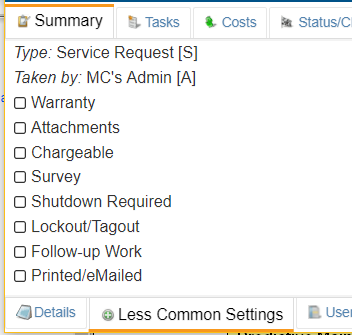
Field descriptions:
Type
The type comes from a list of 'types', and shows up if it was set on creation of the work order.
Category
If a Category is associated with the WO, it will be noted here.
Account
If an Account is associated with the WO, it will be noted here.
Project
If the WO is associated with a project, it will be noted here.
Shop
If the WO is associated with a shop, it will be noted here.
Supervisor
If the WO is associated with a supervisor, it will be noted here.
Shift
If the WO is associated with a shift, it will be noted here.
Department
If the WO is associated with a department, in will be noted here.
Contract
If the WO is associated with a contract, it will be noted here.
Customer
If the WO is associated with a customer, it will be noted here.
Taken by
The person who 'took' the Service Request (phone operator for example.) If the reason is hard to understand, it may help to contact the person who took the service request as they may have summarized the stated issue.
Solution
If a solution has been specified for the WO, it will be noted here.
Warranty
Checked if there is a known warrantee. Unchecked if there is not a warrantee or if is unknown whether there is a warrantee. (By default it is unchecked)
Attachments
Indicates if there are attachments associated with this work order. (More useful for paper work orders)
Chargeable
If there are charges that should be made based on this work order, check this box
Survey
If set (checked), then a survey will be made available when the work order is closed. Currently you need to use MC to specify the specific survey to use.
Shutdown Required
If the work order is going to require a shutdown in order to perform the work, then this should be checked to indicate that. Note this is most usefully set by an associated procedure that has this flag set.
Lockout/Tagout
If there is a procedure for lockout/tagout, this should be selected. Note this is most usefully set by an associated procedure that has this flag set.
Follow-up work
If the work order has additional follow-up work that should be performed, this field should be checked.
Printed and/or emailed
If the work order has been printed or emailed to someone to do the work, then this field should be checked.
User Defined Fields (UDF) bottom tab
This shows all the fields in their initial (unset) values. Technically there is no way in MC to know whether a UDF Bit is unset or simply set to false. But for Character (string) types and Date types, MC keeps track and so we show the edit icon underlined if there is 'no value'.
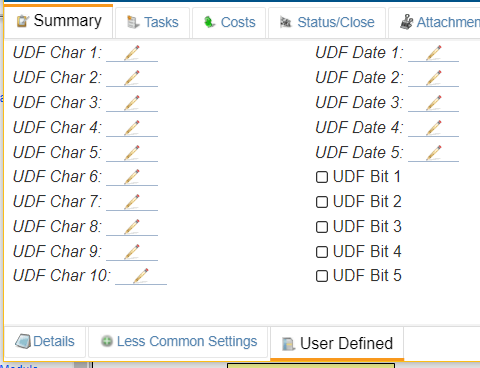
The User Defined Fields (UDF's) for the work order are all editable here. Note that MC doesn't give the option of having UDF bits 'undefined', they are 'false' or 'true' only, and 'false' by default.
For a small fee, we can customize the labels to read differently and/or hide UDF's you don't use if your company would like that.