

 Maintenance Connection Everywhere (MCe) · EAM/CMMS manuals
First steps for users
Setting up
One time, set and forget, for you - all devices
- Enter your personal details
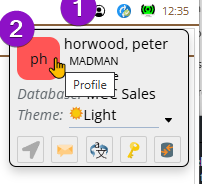
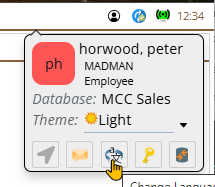
- Pick your desired UI language
Changing your language will percolate to other devices
Each time on a new device
- So you can access all the time while offline, every time you connect on a new device (which won't be very often), go to the Configuration, 'Set Login Pin' and set your pin. This will make general use of the device more convenient, instead of having to always type in a password, you use the device security plus a pin, typically a 4 digit code, but we don't restrict you. More important, this lets you connect when offline, so if you want a complex pin - no problem. If you logout before doing this, you'll be asked for a pin. But if you shut down without setting a pin - you'll have to log in 'online' next time.
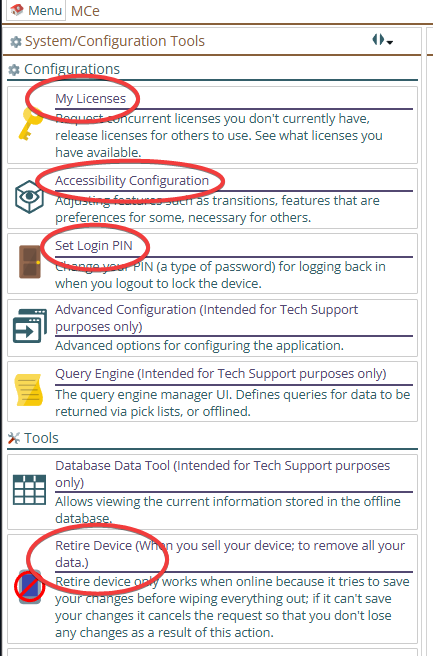
- Go to the Accessibility Configuration and set your preferred font and icon sizes for this device. You might not see all these options depending permissions you have been given/features you may have bought. You may also see features that are not in this screen shot. image: Configuration New Device
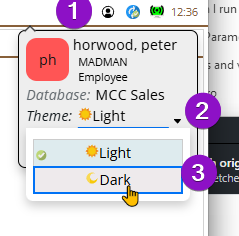
- Light and Dark mode is based on what you have set in your browser, or if you haven't set it there, what you have set in your OS. So for example if you prefer dark mode for this app and your device or browser is set to light, go up to the image of a person in a circle on the top bar, right hand side, and set your preference
Keep in mind, when you are done using a device permanently, the Configuration "Retire Device". This applies also to devices you share with others but you are done with it, it retires only you, not everyone.