

 Maintenance Connection Everywhere (MCe) · EAM/CMMS manuals
Have you validated your system has the correct requirements? If you have not reviewed the upgrade requirements document, read it first: Upgrade Step 1 requirements
Once you are finished going through this document, you are ready to call us to do the upgrade or for you to do the upgrade
Terms:
App/Web server means the server(s) that runs IIS, if you are running a Load Balanced system, this will usually be more than one server.
Database server means the server that is running MS SQL with the reg and ent databases.
All/Both servers means usually the 2 servers (MS SQL and IIS) but it could be 1 server with both, or it could be more than 2 if you have a Load balanced environment. We strongly recommend the SQL and IIS servers be different servers.
Load Balanced servers - while this document is appropriate for Load Balanced servers, it has none of the special instructions that depend partly on your Load balancing setup.
NOTE: LINKS BELOW WERE WORKING AT TIME THIS DOCUMENT WAS WRITTEN. But they have have changed. Don't blindly rely on them, look at what they are for and make adjustments as necessary. This document is for technical people only.
Files required before you install (or before you have us connect to install) the 2025 MC Upgrade
All these files can be downloaded to your Downloads folder. If you put them somewhere else - let the person doing the install know, ideally in writing.
Download DotNet 8.0 and and pre-install other supporting tools:
- SDK 8.0.419 - Click Here
- SDK 8.0.125 - Click Here
- IIS runtime support (ASP.NET Core Module v2) - Click Here
- IIS runtime support (ASP.NET Core Module v2) Hosting Bundle - Click Here
- .NET Desktop Runtime 8.0.25 - Click Here
- .NET Runtime 8.0.25 - Click Here
Install them on the correct server(s(): see **"**The installer user needs access to:" below for which servers each needs to be on.
Now do a reboot of the server.
Not doing these steps ahead will incur professional services, and we won't have time to do the install below in the blocked out session.
If we are doing the install, send screen shots ahead of time from All/Both servers from Control Panel, Programs, Programs and Features, showing that they were installed.
Download the MC 2025 upgrader (package pickup instructions):
- Open the approved MCC File Downloader process (see instructions below).
- Use the MC 2025 download code: InstallMC2025.
Navigate to https://files.maintenanceconnection.ca
Once the page is open, under the "Start a file download"
- For the Downloaded by field, enter your name or email address
- For the Download Code field, enter the Download code, case insensitive.
If the Download code doesn't work, contact us for the new code.
The "Download Now" will then be available for you to click to start downloading the file.
Click it to start the download. Depending on your browser you may be prompted as to where to save it, or it may go ahead and save it without asking, typically saving it in Downloads unless you have set up a different default directory to save it in.
If you typed in a valid code you will see:
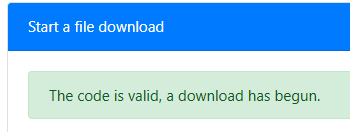
And while it is downloading you will see something like this in explorer:

While it's downloading, depending on your browser, you may see a progress indicator somewhere on the screen something like:

It's OK to navigate away from our page one the download starts however ...
When it is done, if you didn't navigate away or start another download you should still see:
(the same as before) but in explorer:
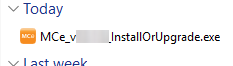
And somewhere your browser will report completion.
- Download the package to a local folder on the target server (Downloads is acceptable).
- Extract the package completely before the maintenance window.
- Confirm extracted files include the installer and package payload (for example
DPInstaller.exe,DPInstaller.project.json, and package folders). - If the code is invalid, expired, or access is denied:
- Contact Cam for the current approved download code/location.
- Do not proceed with an older or unverified package copy.
Verify package readiness before the upgrade window
- The package extracted without errors.
DPInstaller.exeis present.- Required project/payload files are present.
- Installer UI opens on the target server (do not start deployment yet)
If we are doing the install, send a screen shots from the App/Web server showing which file you downloaded and where it can be found.
Download the MCe latest:
For the MCe upgrader, you will need to download the file from the instructions below. You will need the Download code: InstallMC2025
Navigate to https://files.maintenanceconnection.ca
Once the page is open, under the "Start a file download"
- For the Downloaded by field, enter your name or email address
- For the Download Code field, enter the Download code, case insensitive.
If the Download code doesn't work, contact us for the new code.
The "Download Now" will then be available for you to click to start downloading the file.
Click it to start the download. Depending on your browser you may be prompted as to where to save it, or it may go ahead and save it without asking, typically saving it in Downloads unless you have set up a different default directory to save it in.
If you typed in a valid code you will see:
And while it is downloading you will see something like this in explorer:
While it's downloading, depending on your browser, you may see a progress indicator somewhere on the screen something like:
It's OK to navigate away from our page one the download starts however ...
When it is done, if you didn't navigate away or start another download you should still see:
(the same as before) but in explorer:
And somewhere your browser will report completion.
(Older versions NOT needed: InstallMC70, InstallMC89, InstallMC2022, InstallMC2023)
Upgrade Pre check
If these are not done, you will incur extra Professional Services charges if we are doing the upgrade due to us having to reschedule.
The installer, typically us, needs to have a system administrator level user that has permissions to:
- full control over all relevant file folders and sub directories
- able to take full database backups
- able to restore database backup
- Able to grant sysadmin rights to SQL Server users
- Able to administer the IIS module Accruent
- Able to install .NET and MS PowerShell modules
The installer user needs access to:
- Database connectivity, if using windows authentication, the user that runs the install must have access to the database
- SQL Server 2019 (Reminder: 2022 is not supported by MC 2025 - it cannot run on SQL Server 2022) (Only needed on the Database server)
- The software installed earlier
- .Net Core 8.0.x with hosting bundle (App/Web server(s) only)
- .Net Core 8.0 runtime for desktop apps (All/Both servers)
- Dotvload the x64 for the '"run desktop apps" option
- .Net core hosting bundle (All/Both servers)
- PowerShell 5?/Windows Management Framework (App/Web server(s) only)
- .Net Framework 4.8 Runtime (All/Both servers) (For an upgrade, this should already have been activated on the server, it is part of Windows, no download required)
- NTFSSecurity PowerShell Module (App/Web server(s) only)
- PSIni PowerShell Module (All/Both servers)
- SQL server PowerShell Module (All/Both servers)
- Web-Server Windows feature (for the App/Web server(s) only)
- TLS 1.2 (All servers)
- NuGet Package Provider (All servers) Not strictly required, but not having it may increase your time/Professional Services.
- Your SQL server 2019 database compatibility mode must be SQL Server 2016 or higher and must use MSOLEDBSQL
Clients
- Clients need internet connectivity to use some features, though we have turned as many of these off as possible. You must have a valid hostname configured and bound to the website.
SQL Server user permissions
- For the install/upgrade the account used for the SQL Server connection must have the 'sysadmin server role' to run some scripts
- After the install is complete, the sysadmin server role can be removed
- The user performing the update requires the explicit sysadmin role and cannot 'simply' inherit this permission as part of a group.
- Validate the user performing the upgrade has the sysadmin role on their SQL Server Roles page.
- Verify the account used for SQL Server connection:
- Open IIS on the web server and go to the mc_web application
- Right mouse click on mc_web and select Explore.
- Open the mc.ini file in a text editor like notepad++
- in the Reg Database section, the user id for the SQL authenticated account must have the sysadmin server role.
- If the integrated security setting is set to '1', you are using a Windows Authenticated account. As above, be sure that that Windows account has the sysadmin server role.
Other:
Just before the scheduled upgrade time:
Turn IIS off so users cannot make changes that may be lost
- If MC is the only family of products you are using, you can turn IIS itself off
- If you have other applications, Turning off the MC family app pool(s) is acceptable
- If you don't do this - changes made by users and processes may be lost
Backup reg and ent databases.
Any upgrade CAN have problems. It is EXTREMELY important that you do a full database backup of both your reg database(s) and your ent database(s). If you don't know how to tell, contact MCC support ahead of the upgrade.
Critical: Did you do a FULL backup of the reg and ent databases?
Things CAN go wrong, and if they do, you MUST be prepared to restore the reg and/or ent database to wait and/or try again.
While it is true that, less than 1% of the time we have to restore databases, there can always be something about your setup that we were unaware would affect the upgrades and require a restore. So we require the backups. Fortunately, you should be considering backups part of your normal routine, so this requirement shouldn't be onerous, and if your site is the one in 100 where a restore is the better way to continue, you, and we, will be glad and it will avoid unnecessary disruptions and downtime.
If you don't have a backup, and a problem is run into: - if you are doing it, this may mean you are down longer to fix the problem and you will likely spend a lot more time recovering.
- if we are doing it, this may mean you are down longer to fix the problem and you will have to pay for the extra professional services incurred due to not having a backup.
If we are aware you don't have an easily accessible backup that we may restore to without warning, we will typically refuse to do the upgrade until you produce one just before the upgrade window. Extra charges will apply due to having to delay the upgrade.
Backup IIS configuration
You can run the following scrip inside a Powershell on your app/web server to backup your IIS configuration
$backupName = "IIS_Config_Snapshot_$($(Get-Date).ToString("yyyyMMdd_HHmmss"))" & $env:SystemRoot\System32\inetsrv\appcmd.exe ADD backup "$MC2025UpgradePrep"Record the name
If you need to rollback, replace the 20260323_141401 part with the name you saved above
# Restore the backup
$backupNameToRestore = "IIS_Config_Snapshot_20260323_141401" & $env:SystemRoot\System32\inetsrv\appcmd.exe RESTORE backup "$MC2025UpgradePrep"
Credentials to do the upgrade:
If using MCC professional services to do the upgrade, make sure you have given the person doing the upgrade the following:
- Provide us with the VPN credentials to the IIS Server Server, and the login credentials.
- This can also be done by teams or zoom but that is not covered under our standard SMA. Additional1 Professional Services charges will apply due to the inability of the technician to work on multiple projects at the same time, especially while waiting for steps to complete.
Credentials or standby
Additionally pick one of the following:
- Make sure some is readily available if a database restore is needed.
- Make sure you give us the VPN credentials and login credentials to the SQL Server Server as well as the SA name (if not SA) and password.
OK, you are ready: Time to call us in if we are doing the install
Once you complete the preparation steps above, continue to the execution guide: MC Upgrade (On-Prem Server)
NOTE: You can put all the downloaded files on the "Downloads" folder for us to easily find it.
Footnotes
-
1: Typically there are NO Professional services if our part in the MC upgrade takes 2 hours or less. So "Additional" does NOT imply that there will already be charges, in that context it may be 'extra above the SMA or your contract with us' ↩