

 Maintenance Connection Everywhere (MCe) · EAM/CMMS manuals
There are two general ways you can install a license.
- LocalHost: from here you can install update or remove a license that works on ANY database. In general this works great for on-prem customers and administrators of SaaSs
- Remote: using the same as above. This requires a security code to get in and, in general, is only useful for on-prem customers and administrators of SaaSs. It does require a time limited code to get in, and customers can block
Overview
System License Management in MC Everywhere including MC LoginHub and MC DataHub has been designed to be extremely flexible, friendly to cell phones and optionally remote accessible. This allows for a great degree of flexibility from sharing license management work between IT Professionals and Maintenance Connection Administrators, to fixing/changing licensing on the fly via a cell phone over spotty internet.
Opening Configuration
System License Manager in MC Everywhere, MC DataHub and MC LoginHub is accessed from the Management Tools section in MC Everywhere. This area is accessed by this url: <your server>/mce/#/managementTools
Configuration must be opened in a modern browser such as Chrome, Edge or Safari. You will get an error page if you attempt to open the configuration from old versions of modern browsers or Internet Explorer. It will also fail if you use private/incognito mode.
You can also open the management tools by double clicking the MC Everywhere logo on the Login Page or the application menu.
From LoginHub the management tools page can be opened by double clicking the word LoginHub on the login page (it will redirect you).
Open the Advanced Tools from Management Tools in order to get access to the System Configuration. Select the System License Manager tab in order to access the License Manager.
Remote Configuration
License Management is very serious, it can make a system work and can break users. For this reason, the System License Manager is only accessible via "localhost" by default. The server checks your access location and will require a "Remote Access Key" if you attempt to access the configuration without being on localhost.
If you are accessing the server via localhost and get a "Remote Access Key" prompt, that means you are actually NOT accessing the server via localhost and instead are accessing the server via a load balancer, SSL offloading or other network device. There are 2 things that must occur in this case:
- Acquire a Load Balancing license for the software you are using. (MC Everywhere, MC DataHub, MC LoginHub) This is required since Load Balancing, SSL Offloading and several additional proxying settings are only available if you have the correct license.
- Add a record to the server's hosts file to cause requests for the domain you are accessing to actually be directed to 127.0.0.1 instead of the network device.
If you want to configure remotely on purpose you can add Remote Access Tokens in the configuration (covered in this document: https://info.maintenanceconnection.ca/pdfviewer/39f2ab4b-c903-4fa5-9a9f-4d40012c60f8) which will allow administrators remote access to the system license manager.
Installing A License
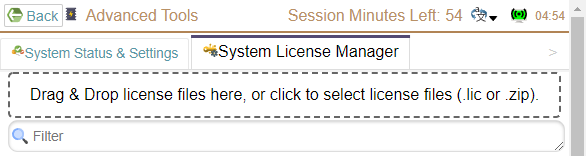
In MC Everywhere installing a license is a simple drag & drop action (also can click to browse to select a license file). It is done 1 file at a time. If you have multiple license files, just drag/select one at a time.
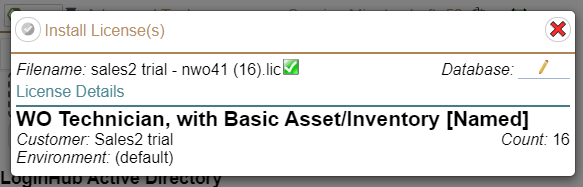
Once a license has been selected you may (will if it is the first time for this license) be prompted to fill out a few final details before the license is added to the system. Depending on the specific license type, the exact questions may vary.
A Named or Concurrent license will ask which database it needs to be associated with.
A Database class license will ask which database(s) or connection points (sometimes multiple of the same database if connecting to outside systems) to setup. You will also be able to add an Alias and comments in order to remember details about the association should the database key need to be used multiple times.

When installing an older license file you may be prompted with "Essential License details are missing". This means that several details that are used in order to ensure an optimum experience are missing from your older license file. This can be fixed by selecting the "Update from License Server" button which will place a server -> server API call to https://licensemanager.maintenanceconnection.ca in order to update the license file for you. If this communication is blocked, you can contact support with a screenshot and they will generate a new license file for you to import.
Deleting A License

You can remove a license from the server by selecting the X delete button.
Updating A License
 If you purchase additional licenses for a product those licenses can be delivered to you very quickly via the built-in license update feature. The key/arrow button on the right-hand side of each license row can be clicked in order to place a server -> server API request to https://licensemanager.maintenanceconnection.ca in order to download the latest copy of the license. This can update trial expiration dates, counts and other useful updates.
Alternatively if support emails you an updated license you can follow the "Installing A License" process and instead of prompting you for more details it will automatically update the license (assuming the license was previously installed).
Reassigning to a Different Database
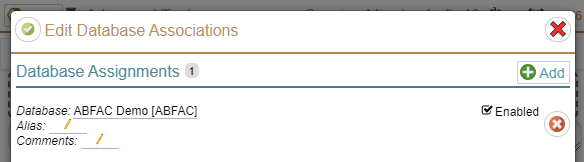
Reassigning a license to a different database is a process that may include a support request (depends on license type).
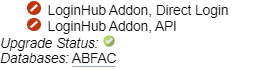
If the license is a Database class license (e.g. LoginHub) there is a simple UI provided for reassigning databases. Click the database name beside the "Databases:" label to open the Database Associations editor. You can then add/delete and disable database assignments for the license. Select the green checkmark to commit the changes to the server.
If the license is Named or Concurrent you will likely need to talk to support to ensure you are cleared to move the license over to a different database. When approved you can delete and then re-add the license to the system. This process requires the physical license file.
Addon Licenses
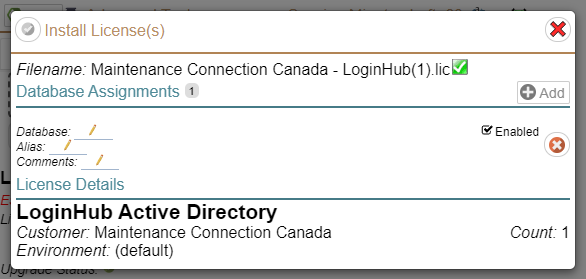
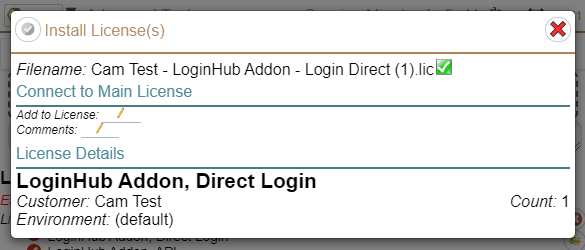
Some products have features that unlock via addon licenses. These licenses are installed in a very similar fashion to a standard product license, except the popup will ask which license you are adding functionality to.
Select the license to add to from the list, and add any comments you need in the comments box. Then select the green checkmark to commit and save to the server.
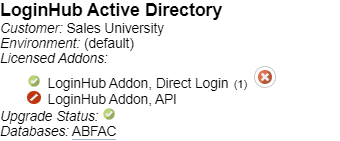
Deleting Addon Licenses
Deleting an addon license is similar to deleting a license in general, select the X delete button next to the addon license you need to remove.