Maintenance Connection Everywhere (MCe) · EAM/CMMS manuals
Very rarely, our support may ask you to check for errors in the developer's tools. If so, they would have directed you to this document.
TL;DR for technical people or those just needing a reminder
Step 1, if you can, reproduce it on the Desktop.
Phone and tablet easy to use tools are much more limited than the desktop tools.
Step 2, find any errors in the Developer tools Console
And report them with screen shots, drilling down for details.
Step 3, find any errors in the Dev tools Network tab
And report them with screen shots, drilling down for details.
Step 4, find items in the relevant time period in the server logs
On prem: (you run your own servers)
Your IT department will do this and send us the relevant logs. You'll need to tell your IT department whether you are testing in MCe, MC, Maximo etc.., so they find the correct logs.
On SaaS:
Tell us as accurately as possible the time you did the test, and tell us which time zone you are reporting the time in.
Details from the Desktop/Laptop
First, get into the Developer tools
Browser
The exact look varies from browser to browser and version to version, but these instructions should get you there if you look at the concept of how we are getting there.
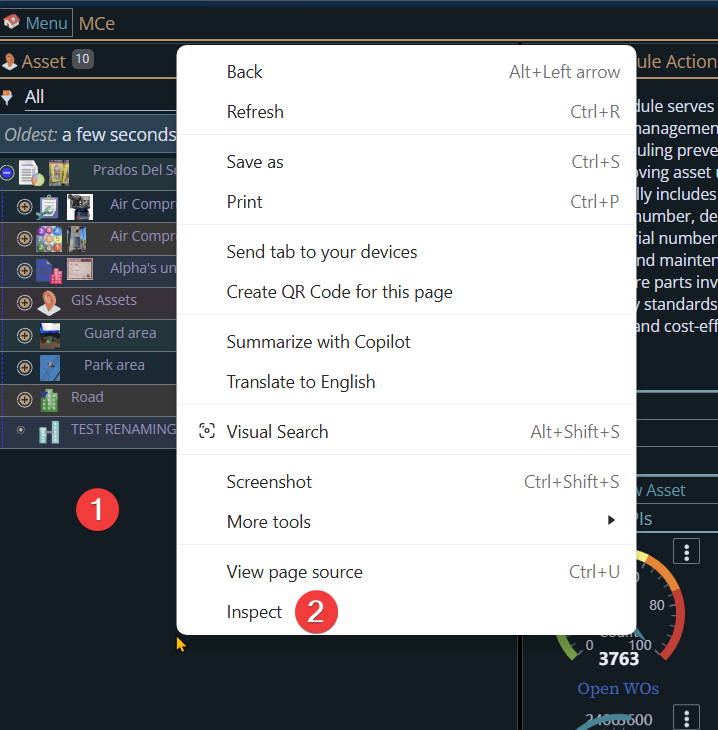
To get to the console on a desktop/laptop computer, in Chrome or Edge you start by hitting r-mouse somewhere on the program, then select 'inspect':
Desktop App for MC
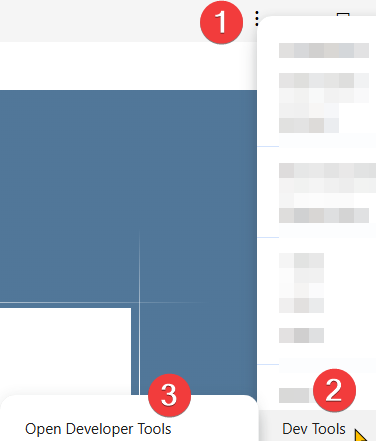
Click on the 1. 3 dots, then 2. Dev tools, then 3. Open Developer Tools
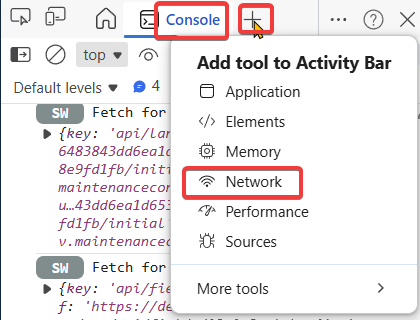
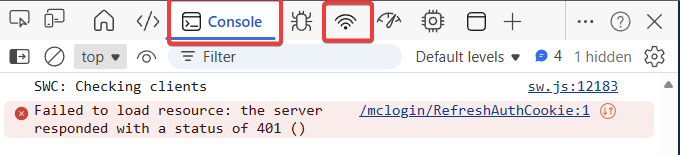
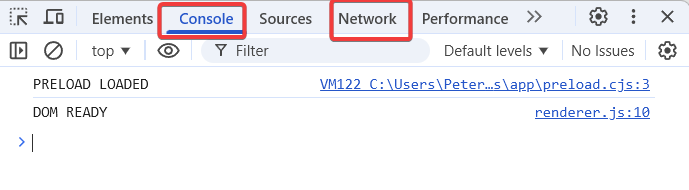
Once the Developer Tools are open, unless we said otherwise, we want you to be looking in the Console and Network tabs
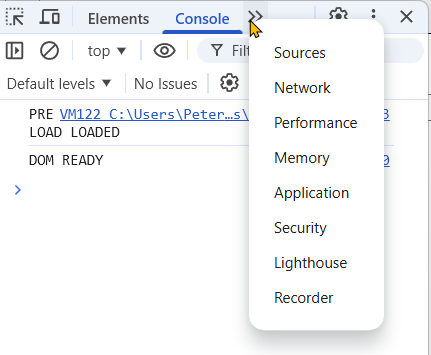
Now find and report the errors
From the developer tools, first choose 'Console'
Unless asked otherwise, start by clearing any errors:
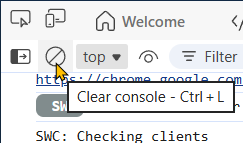
From here, go and run to cause the issue you and support are talking about, taking screen shots of any errors. When you find errors, if there are any arrow heads pointing right:  click them to see what details they will give about the error, screen shot those to send to us too.
Any errors in the 500 range will be usually the most important, any in the 400 next, and any that are red or yellow will normally be the next most important.
Then go to the Network tab
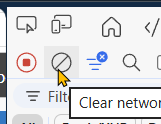
And as above, clear any errors:
Now cause the issue again.
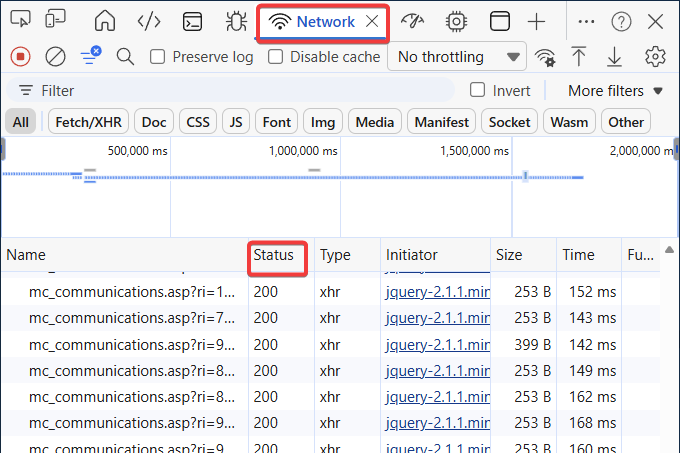
Typically 200 level errors (200-299) will be of no interest.
Typically 500, and if no 500, 400 or 300 level errors may be of interest. Especially on the 1st one (the 1st one is usually the most important, with others often caused by the 1st, but not always)
Click on the interesting errors to bring up details. At a minimum, screen shot the headers tab for us
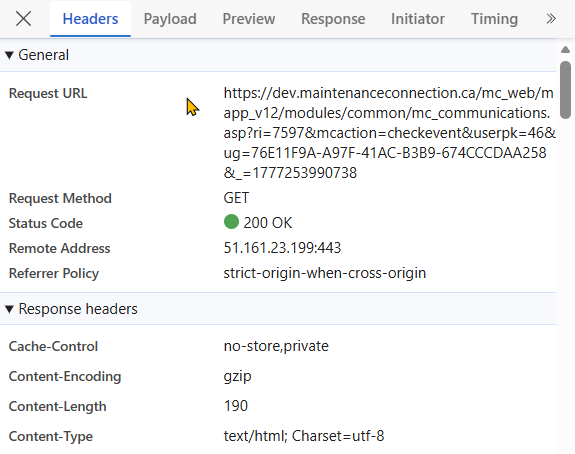
Others may be of interest too, it is hard to tell until the correct error is found.
Get the log file:
If you host your own servers, "on prem"
Your IT department will know how to find log files and trim them to the relevant time period.
Have your IT department go to the IIS directory you installed MCe (or MC as appropriate) in and find the relevant log files for the time you did the test. You can trim older log entries, then zip (or better 7zip) the file and send it to us.
If you are on our Saas
Let us know the time you did the test, make sure you tell us the time zone you are in and our team will grab the relevant log.
Details from Android/iOS apps
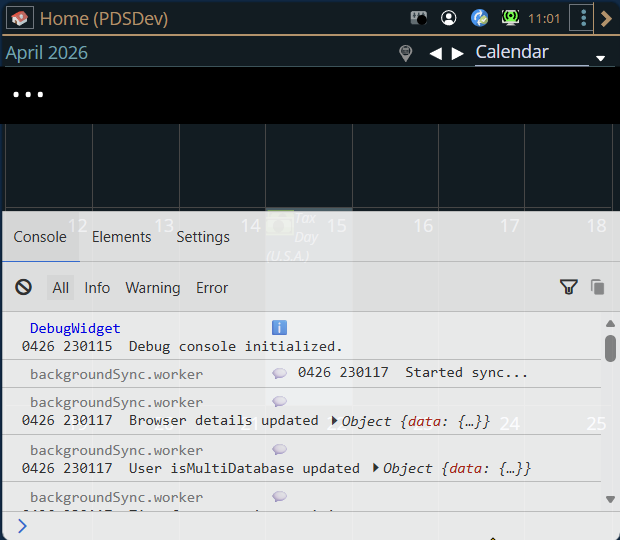
If possible, replicate it on a desktop as the tooling in Android and iOS is very limited compared to a desktop. If it is impossible to replicate in a desktop, then we can see whether the more limited, relatively easy to get to, tools of Android/iOS will tell us enough. If more is needed, it is beyond the scope of this document. See Advanced Android debugging
1. Click on the menu then 2. Double click on the MCe logo
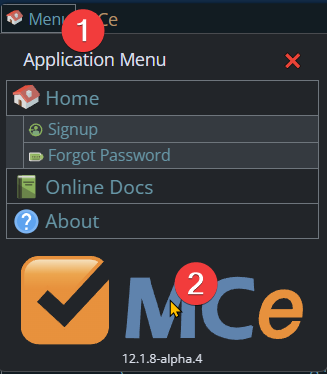
Then turn on the "Enable Debug Console"
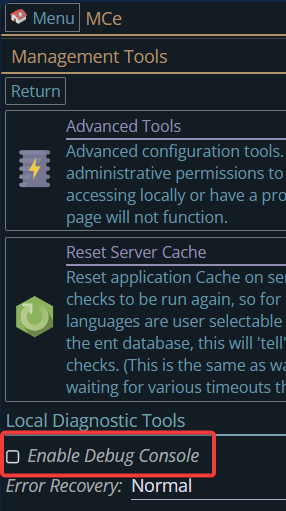
Once enabled, you can Open or Close the Debug Console with the debug icon

This will open the Debug console.
From here, go and run to cause the issue you and support are talking about, taking screen shots of any errors. When you find errors, if there are any arrow heads pointing right: click them to see what details they will give about the error, screen shot those to send to us too.