

 Maintenance Connection Everywhere (MCe) · EAM/CMMS manuals
Have you received a spreadsheet for translations?
If so, you can skip down to Focus on step E:, how you (a translator) should edit the spreadsheet:and ignore the discussion about 'why' if you'd like.
Overview
We have several tools we use to get translations, some very manual, some very human oriented.
For many languages we rely on customers to provide us with correct/updated translations.
One of our tools that has worked well for customers to have their people review this is via a spreadsheet.
This document talks about how to use our spreadsheet tool to provide updated translations.
Steps, the 10,000 foot view1, a high level look at the steps
Our turnaround is typically about a week for the steps below.
Step A: We create a translation using Bing or Google Translate. (For some languages there may be more steps before Step B)
Step B: We approach a translator or a customer or a customer approaches us indicating they'd like to help improve our translation in a specific language.
We have, in our company, people who speak fluently about 10 different languages. These ones we do, and maintain, detailed translations done manually. Others we either have to hire out periodically or we have customers who work with us to keep the translations up-to-date. Even in the ones where we have staff that speak the language, there are regional differences that customers often help us with. See the footnote on 10,000 foot view.
Step C: We create a spreadsheet with phrases for them to review the translations and fix ones that are not as good as they could be.
Step D: We send the spreadsheet to the person doing the translation or translation check.
Step E: The translator goes through, asks us a few questions as they go through,
Step F: We are sent the Edited Spreadsheet back
Step G: We review it to make sure (as best we can) that the translations are Language generic and not company specific2 Step H: We import it into our reference database.
Step I: We send you an update.
Focus on step E:, how you (a translator) should edit the spreadsheet:
Summary:
Edit only cells with white background.
If you edit the steel blue (some monitors show it is gray) background cells, we will not see it, it will be ignored.
If you edit the red text cells – you will break it, it won't import properly.
The only column you have to validate and edit is column B. Column C is important if you are making a change to a translation done by a human. You MAY edit columns C, D, and F.
- Column B, the steel blue background is what you are translating from (don't touch this) the white background is the translation as you want it to be. If you leave the white background row for a translation blank, it will NOT be updated. If you put a value in the white background row for a translation, it will be updated with your name as the translator who last verified it.
- Some phrases are mostly symbols, and these are usually NOT translated. If there is no translation, then the parent (usually English) will be used. So if you see a colon : and your language uses a colon the way English does, you do NOT have to translate it.
- If the translation in steel blue background 2ndline has Bing: PLEASE, if you can, put your translation, even if you just copy the Bing one. That way we know it has been vetted by a human.
- If you are unsure – do NOT put a translation in. Please. Ask questions, but leave it blank until you are sure.
- Column C is where you explain WHY you made the change you did. This is optional. You will normally only do this if you are changing another human translation. So here you might say "in country x we say blah2 not blah1"
- Column D is to help the 'next' translator know what the purpose of the translation is for, in case they don't know English. You will very seldom enter anything into this column.
- Column E you will normally not fill in anything, it is used for team translating. Talk to us if you want to use this.
- Column F is used if you have more than one translator and you want to acknowledge more than one. (there will be a default that will be used if you don't specify one. See the Extras sheet, column A, line 3 is the name that will be used if you don't specify anything in Column F
If there is a computer translation (usually Bing), and you agree with it. Please copy it down. Nothing else needs to be done. But that lets us Know a human verified it.
Details:
You will receive an excel spreadsheet. You can edit it with MS Excel or with Libre Office (a fork of Open Office). If you want to use some other tool, please try a few translations, then send it back to see if it is compatible from our perspective (it probably will be); in other words let us see whether we can read it after you make changes.
The screen shot below is a little out of date.
- We now have TWO steel blue background rows per translation. This so you can always see what you are changing it FROM.
- We now put the phrase key on every row. This is to make it easy to remember that the steel blue background row ABOVE the white background line is the one you are translating.
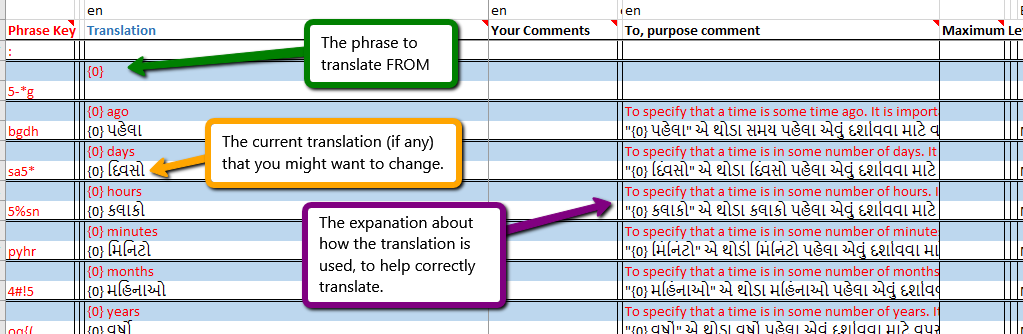
In each set, the top line has a steel blue background. In column B, as is pointed by the top (green) arrow) is pointing at the source text that you are translating from. In most cases, this will the US English version. If there is nothing there, then the US English will be shown to users. In the case of 0 there really is no need to translate it, see special cases below.
There is a second steel blue background line now, not in the image above, it contains the CURRENT value for the language you are translating into. If it says 'Bing' as the translator, then, if you agree with the translation, please copy it down to the white line.
The second box (Orange) has an arrow pointing at the translation in Bengali. That shows what you have decided the correct translation is. We will change the translation to what you have there and indicate your name as the translator.
The third box (Purple) is pointing at the English and the translated purpose comment. This one (Column G) is OPTIONAL for you to translate. It will ONLY be used by other translators translating into this language. It describes what you are translating. In most cases, this will be blank because it is 'obvious' to anyone familiar with this software. But in other cases, a description is needed. For example, one of the places we have the English word 'Date' we have the following comment:
"English has several definitions for word date, this phrase is for a date that is a specific date on a calendar. Not as in a date with a girlfriend. Not as in a date with a business colleague. Not as in 'to date some old artifact'. Not as in the fruit called a date. Not as in 'to make old'."
As a translator in this language, you would look at the current translation and then you would look at the purpose comment (if there is one) and you should probably also look at the source purpose
Special cases: If you see 0 or 1 or 2 etc.., these are 'placeholders'. You need to have them in your translation, but the POSITION you put them may (often will be) different than the position they are in the English string. This is because different languages have words in different orders – they have different grammar rules. If it isn't clear what is going to go into the placeholder, please ask.
Feel free to change the column_ widths _to make it easier to read. The program we use to read does not consider column widths for anything. Just don't delete columns or change their order.
Sections you are 'done' with, you can change the line height so they aren't 'in your way', even the rows with your translations. Our software can read them even if their height is 0.
None of the header rows (showing the system, the orange ones) matter for importing, they are for your convenience only. Again, if you edit anything there, it will be ignored.
Changing the colour or font of text makes no difference whatsoever to the import. Feel free therefore to highlight things you want to come back to look at. Note that the color will not be retained by us, so if you send changes to us and we send you a new spreadsheet, any changes of color or font will be lost.
If you are thinking that some of the column A (PhraseKey) values are human readable and most of them look like gibberish you would be correct. If you change them, even the tiniest bit, even just adding a space or a period, your translation will not be imported for that line. Again, it is OK to change the column width, so if you want, change the width of the PhraseKey column to 0.
Tricks:
Make columns B, C and D as wide as you can while still seeing the other columns. In some cases, making them even wider so you have to scroll across to see all of D can make it easier to use.
In MS Excel, Double clicking on a cell in columns B, C or G (or any other) will open it for editing in a multi-row editor so you can see more, usually all, of the data in that column. This can let you easily read all of text in the cell.
If you are unsure about the purpose of a translation, either because there is no purpose comment or the purpose comment is unclear…
Don't guess! Send the PhraseKey from column A to us, we will use that to answer your question and add/update the purpose comment to help all future translators (as well as you the next time you get this spreadsheet.)
You can also use Column G to ask us questions, but if you do tell us – so we see it.
Do not edit the Orange or steel blue background rows. Orange is for grouping to help you understand what the translations are for. Steel blue background rows are the phrase you are translating - do not edit or delete it/them.
Column A: do NOT change the values here.
Column B: Your translation goes here. On the white background cell/row.
Column C: Optional notes, think of it as notes for the next translator - it explains why you translated the way you did. It also can tell why you disagree with the previous translator. (If the previous translator was Bing – no need to tell us that the computer translation was stupid – there is a reason we try to get Humans to fix up the computer translations!)
Column D, optional, think of it as notes for the next translator to explain to them what the rules, restrictions and purposes of the translation are in case they can't easily read the English purpose explanation.
You will notice tiny red triangles on some fields, like the headers. Hover over them with a mouse in Excel to get more info.
Warnings:
Warning: To allow you to copy rows (so you can put in multiple proposals for a phrase), and to allow you to delete rows (so you can just have the sections YOU are working on) we can NOT protect the cells with red text. Therefore: If you change the Phrase Key, the import will fail, but it may not be obvious that it failed.
Similar to the warning above. If you make a change in the Orange or steel blue background rows - your changes will be ignored (Unless you HAPPEN to change columns A, B and C properly) Making changes in the orange and steel blue background columns will just make it harder for you to do your work, but it will be ignored by the importer.
Do not change the order of columns, doing so will make the import fail, but it might not be obvious that it failed.
 Copyright © 2018 Maintenance Connection Canada, Inc 3 | Page
Footnotes
-
1: This is an example, put here on purpose, of why translations are necessary. The phrase '10,000 foot view' only works in the USA and for older people in Canada. Why? Because most of the English world, let alone the non-English world has no idea what a 'foot' is. I'm a Canadian and my late 20's children circa 2018 don't know how long a foot it – they only know meters. Then second, it is an idiom. Why doesn't it say 9540 foot view? Or 100,000 foot view? Because the "idiom" is ten-thousand-foot-view. Any change to that makes it a nonsense phrase. BUT … in other languages, indeed other cultures, a completely unrelated phrase may be used, or their may be no phrase, you might just have to say something like "a very broad overview, not looking at the details" ↩
-
2: We have several ways for you to have company specific translations. For example, if you call "Service Requests" "Job requests" and if you call "Assets" "Property". Talk to us about the cost for you to that. ↩