

 Maintenance Connection Everywhere (MCe) · EAM/CMMS manuals
In this day and age, you essentially can't do anything on the internet without having JavaScript enabled.
So these instructions are intended more for if you made a mistake and turned it off – and basically your whole web experience is not working anymore.
Chrome
Windows 11 and Chrome
Option 1:
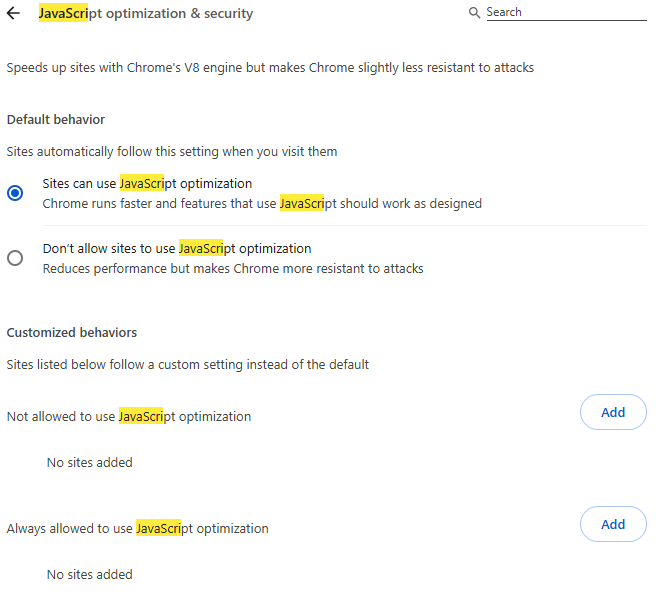
Go to settings, type JavaScript in the search box
Choose Security

Then choose Manage JS optimization & security

Then make sure either you have 'Sites can use JavaScript optimization' and you do not have your MCe site in the "not allowed to use JS optimization"
or, explicitly put your MCe site in the "Always allowed to use JS optimization"
Windows 10 and Chrome 60
Probably the Windows 10 part is a red herring.
Go to the settings in Chrome,
Type JavaScript in the search box.
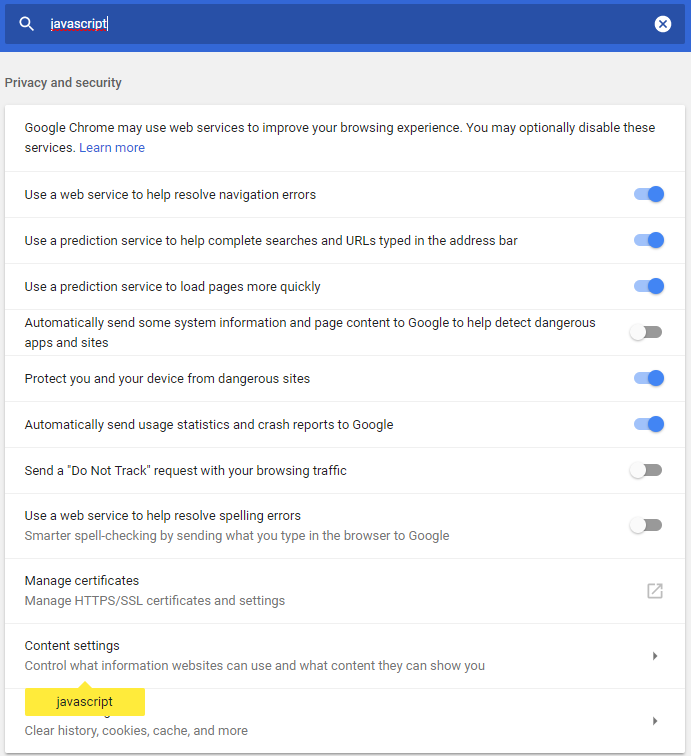
Click on 'Content Settings'
JavaScript should be highlighted. Change it to read 'allowed'
Option 2:
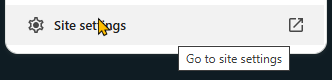
Go to the site settings button

Choose site settings:
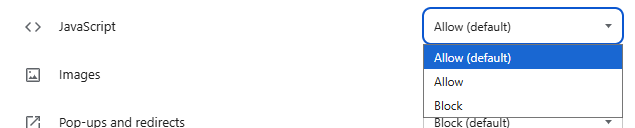
Make sure JavaScript is set to allow, from here it will only set it for 'this' site.
iOS Safari
Go to the iOS Settings,
Choose Safari,
Scroll down to the JavaScript option
Turn it on
Edge
Edge does not let you turn off JavaScript.
Edge USED to let you turn it off by group policy, but current builds no longer let you. I guess they recognized that these days turning it off basically gives you no access to 99.? % of the internet.
IE 11
Enabling JavaScript
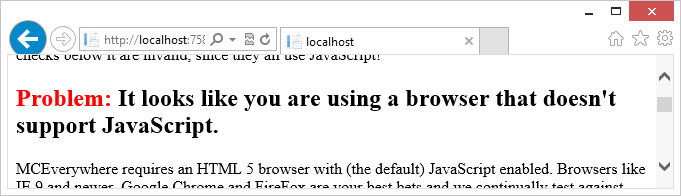
If you get an error when running the application that says you need JavaScript, you probably have it disabled. To enable it:
- Click on the gear icon near the upper right hand corner of the window, directly to the right of the star icon.
- Click on the 'internet options' choice which will bring up the following window
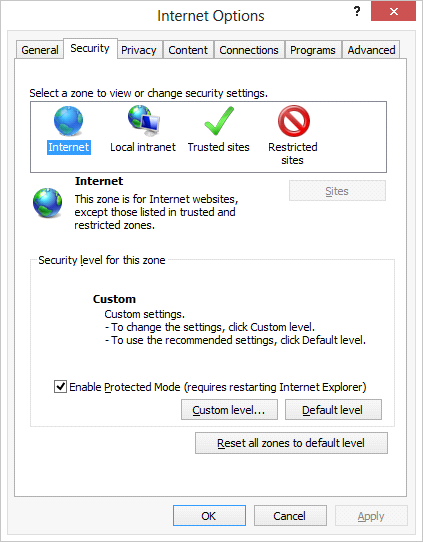
- Click on the Security tab to select it if it is not already on that tab.
- Pick the zone that your MC server is in. (If you are not sure and you don't mind Resetting all zones to the default level, you can click on that button and you are done.)
- You will probably see that the Default level button is available. This means that you or someone has changed it from the Defaults. You have three choices now. The first choice is to simply click on the Reset all zones to the default level, or you can click on the Default level button, your third option is to click on the Custom level button.
- If you choose the custom level, you will see this screen
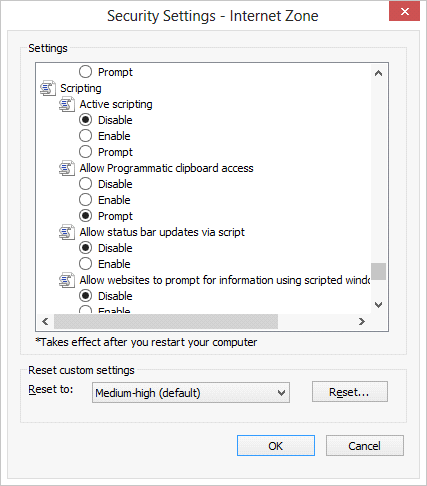
- Scroll down to the section on Scripting (as above) and you should see that it says Active scripting is disabled. Click on the Enable radio button to select enable. (Active Scripting is Java Script)
- Hit OK and answer Yes to the prompt ensuring you want to make these changes. Hit OK again to get rid of the internet options window and refresh.