

 Maintenance Connection Everywhere (MCe) · EAM/CMMS manuals
The new MUST TRY feature of MCe 8.9.15 !
For those that know the techno-babble: it is a PWA1 a 'Progressive Web App'.
This document is set up to tell you:
- why you should try it.
- Followed by Caution(s).
- Followed by device specific setup and usage instructions.
- Finally some minor comments that apply to all devices and can be safely ignored.
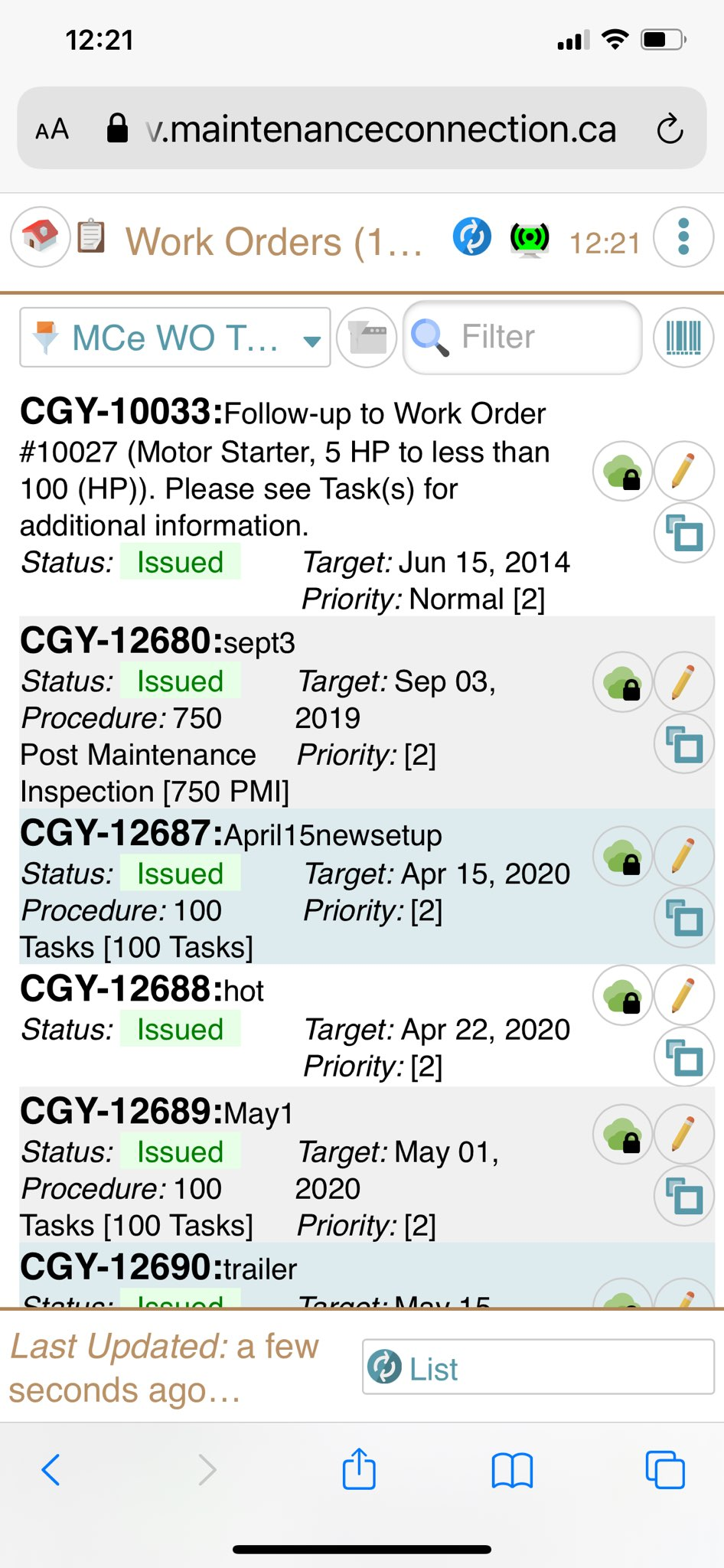
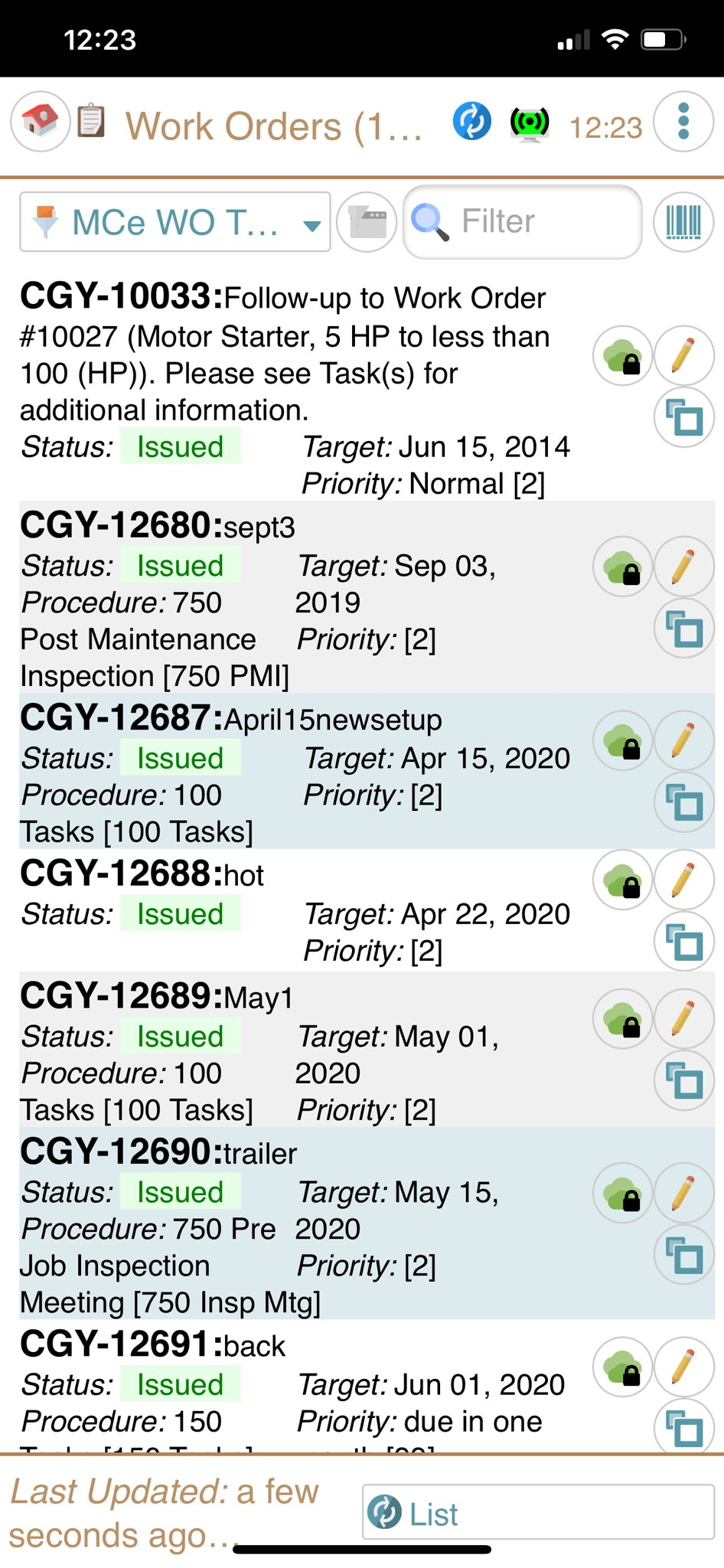
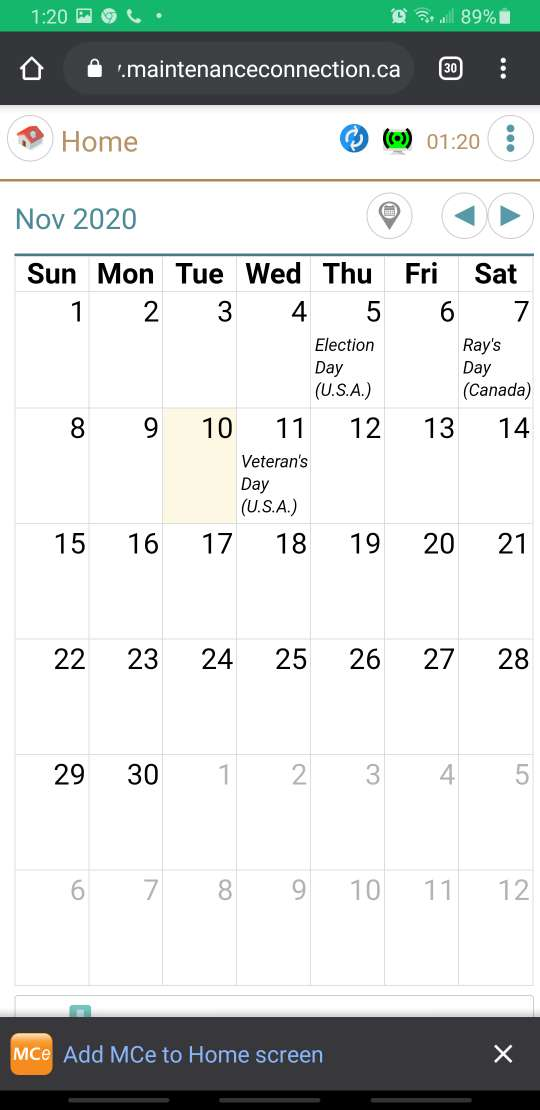
Compare these screen shots:
| Running directly in the browser | Running as a "Browser Application" |
|---|---|
 |  |
4 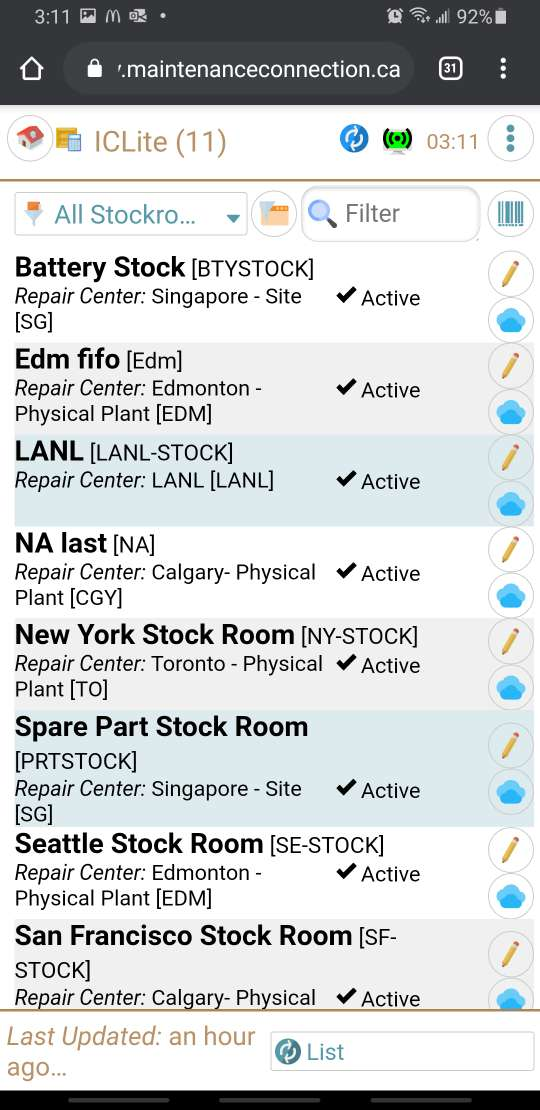 | 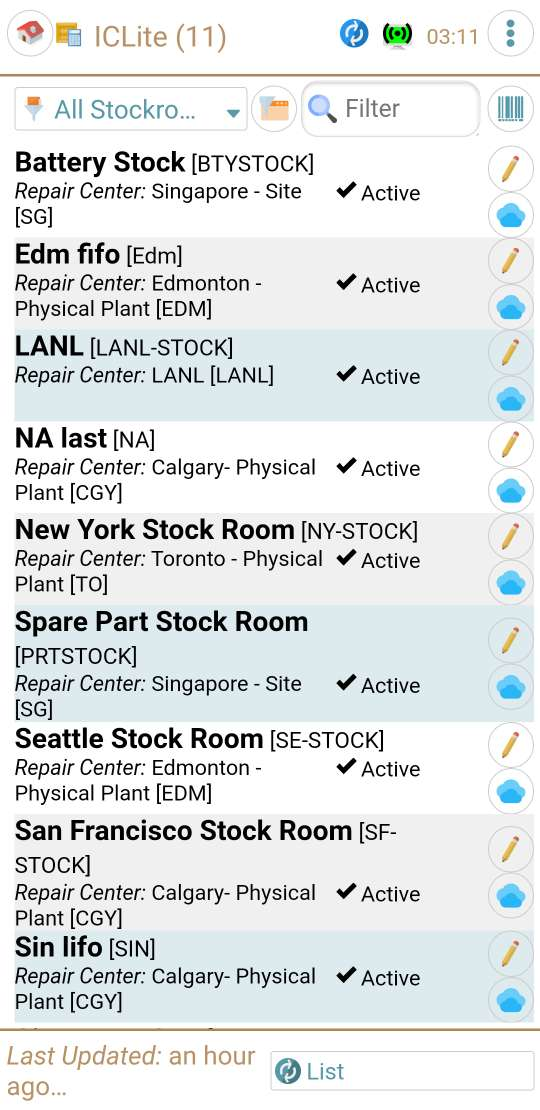 |
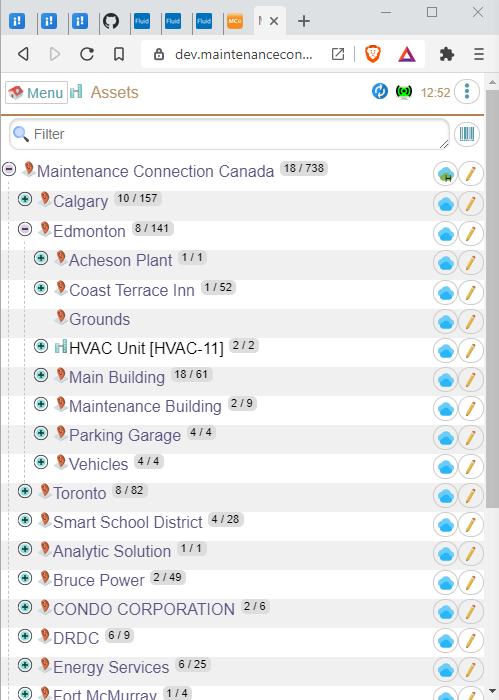 | 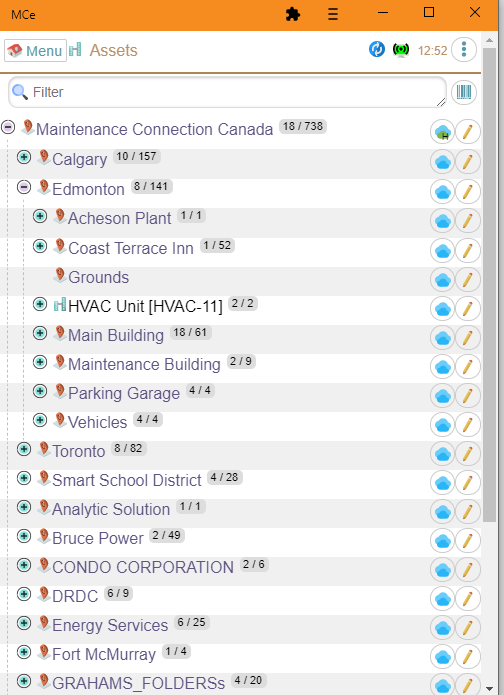 |
What do you get with Advanced display?
You get an application icon to go on your desktop or home page or home screen – depending on what your platform calls it. Easier to launch.
You get to have the least amount of 'stuff' (called chrome) on your application, to give you as much space as possible for looking at YOUR data.
You have a screen that minimizes the chance of you accidentally hitting the back button – because there is no browser back button!
You will still have the option of using the normal, basic display that we've had since 2003.
Caution and a couple small downsides:
While you CAN go back and forth between the browser and the stand-a-lone, we recommend you not.
Consider this: If you are in the browser AND in the stand-a-lone app, and you make changes in each you may get confused until the changes are sent to the server from the one making the changes, then read by the one that did not make the specific change.
You can't run multiple tabs, each set in a different location of the app.
You lose the refresh button. This is a minor nuisance since we do everything we can to make it so you don't have to hit the refresh button, but sometimes, like when your screen goes completely white, or hangs in a location too long, you need to. We put a refresh button in the new 'clock menu', just double tap it.
How do you get into Advanced display (stand-a-lone)
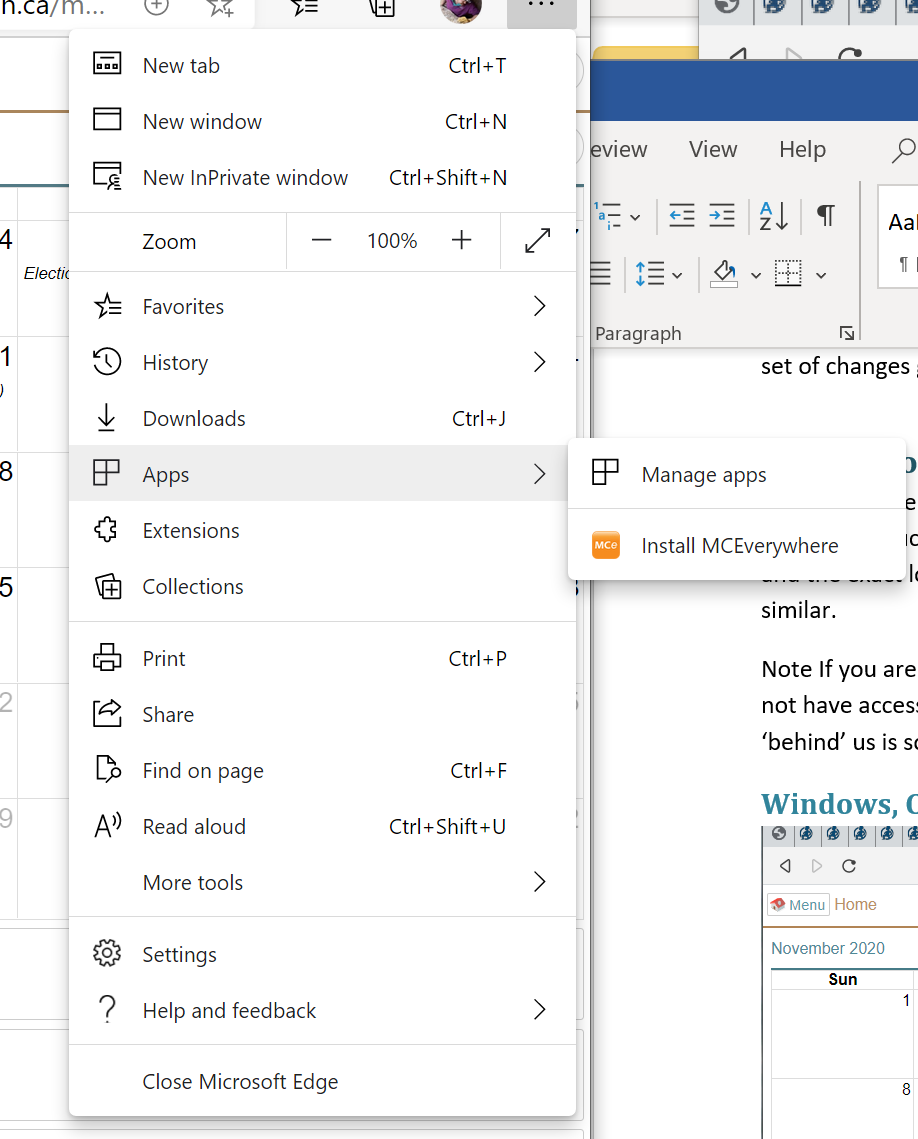
All modern browsers now support this. Below are 'typical' instructions for Windows, Android and iOS. Other platforms like Linux and Mac are very similar, and the exact look will depend on what exact version of which browser you are using. But it will be very similar. Look for words like 'install' or 'app' or 'add to home screen'.
Windows, Chrome, Brave, New Edge etc..,
Brave:
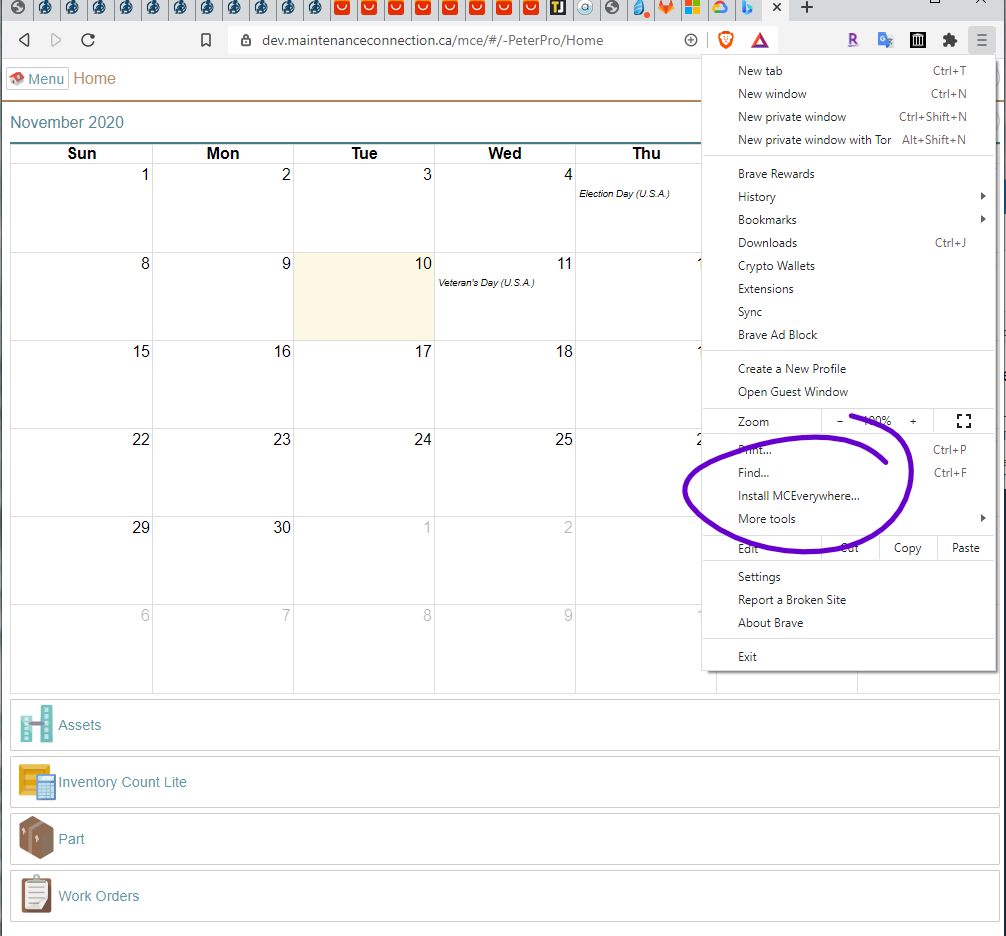
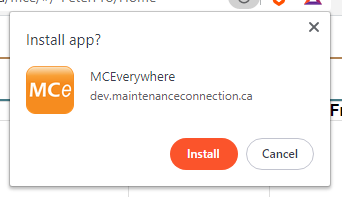
Chrome
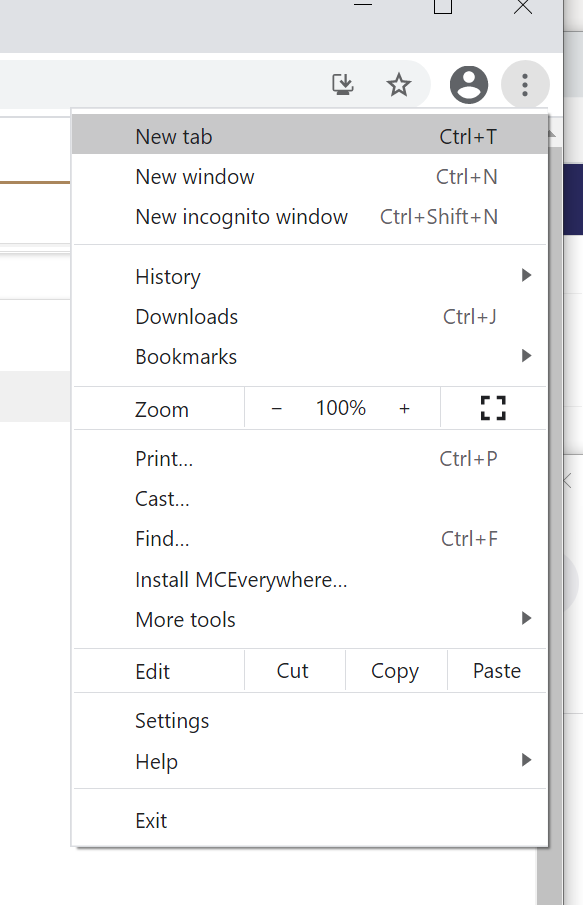
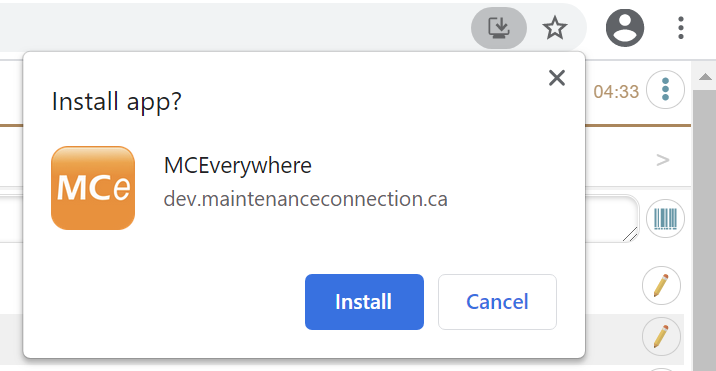
New Edge:
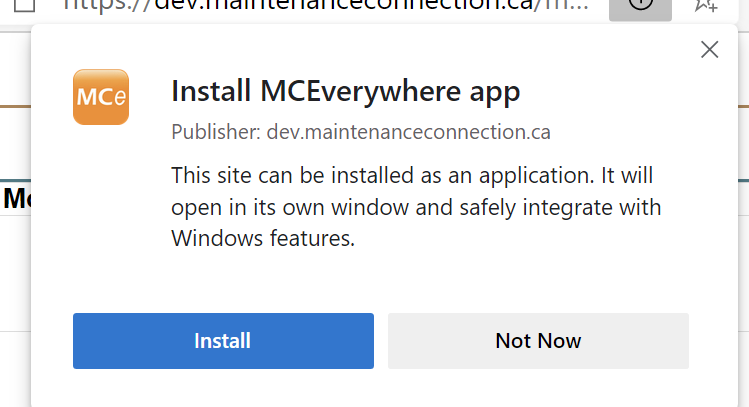
The result will be an APP:_
In the tray it looks something like this, depending on your tray settings and version of Windows:
 Once you have it in the tray, you may want to r-mouse on it and "pin to taskbar" if you use MCe a lot.
On your desktop it will look something like this (I have a black background at the time the screen shot was taken):
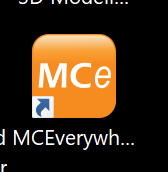
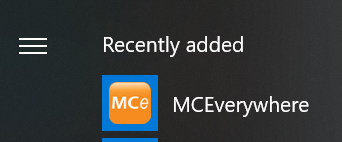
In your system menu (or what you might know as the 'start menu')
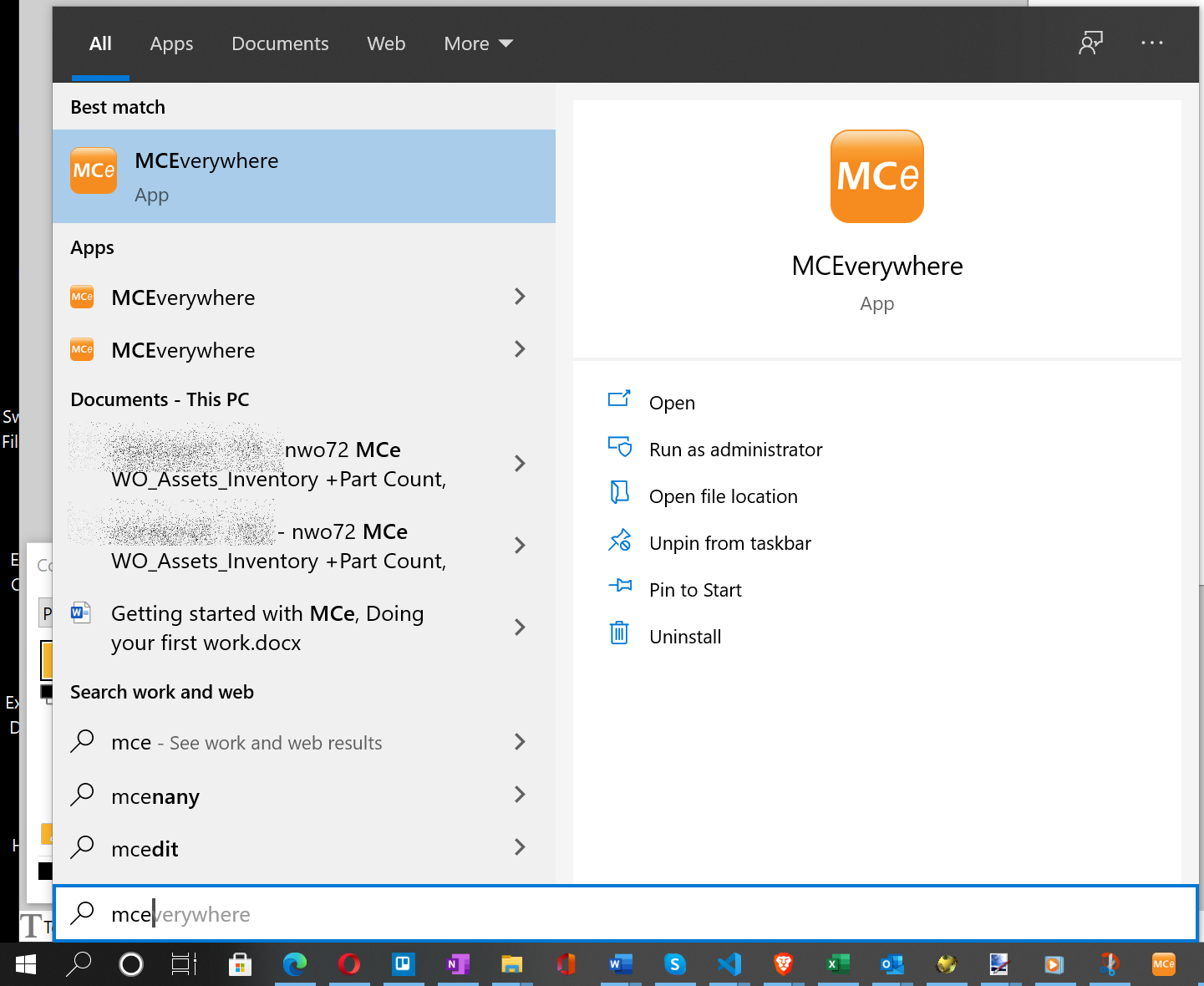
Later, when it is no longer 'recently added' you can find it by clicking on the system menu (start menu) and typing "mce" to find it.
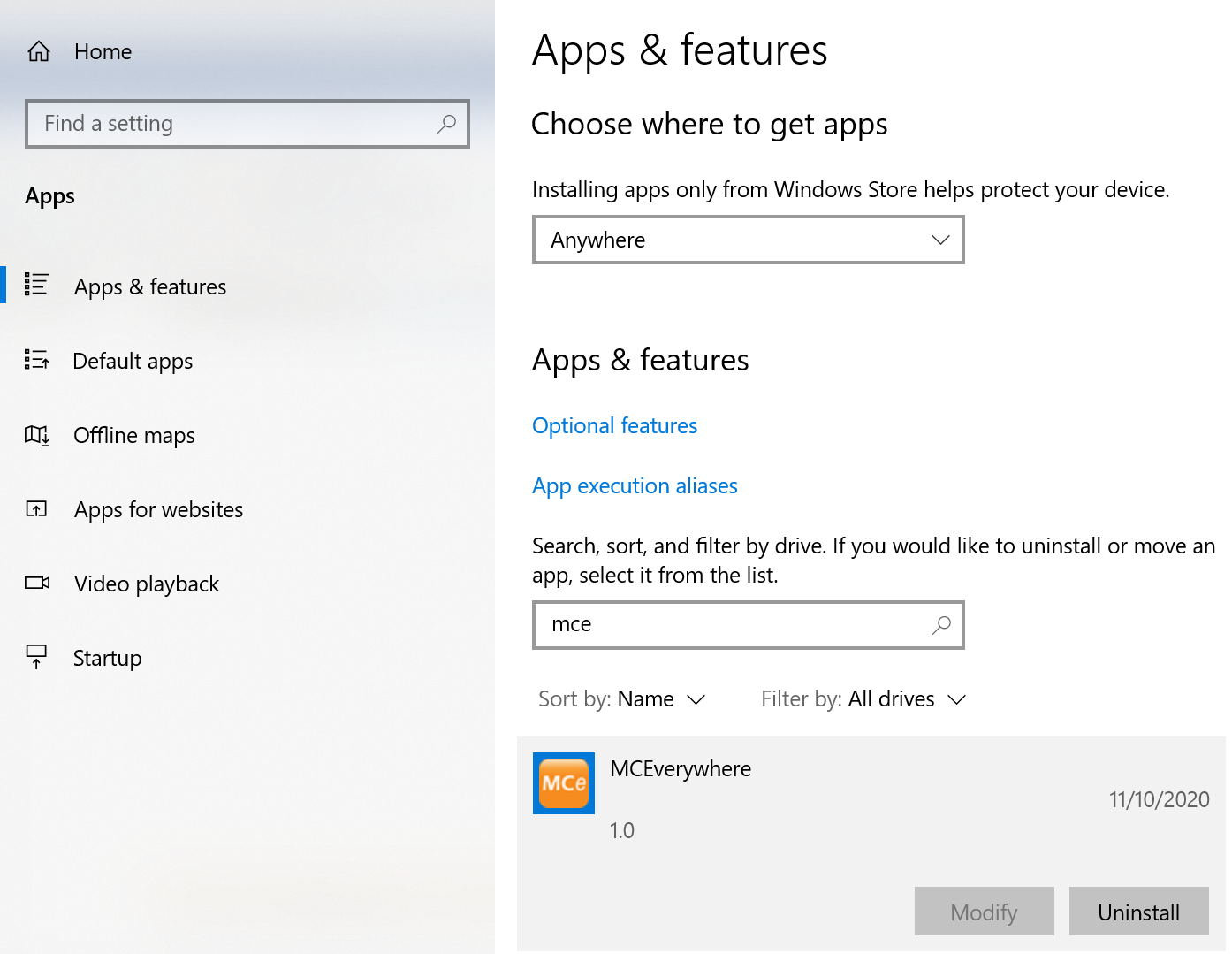
How do you uninstall from Windows
If you used Edge to install, you can use the Windows uninstall:
If you installed with Brave or Chrome, you use the menu at the top right.
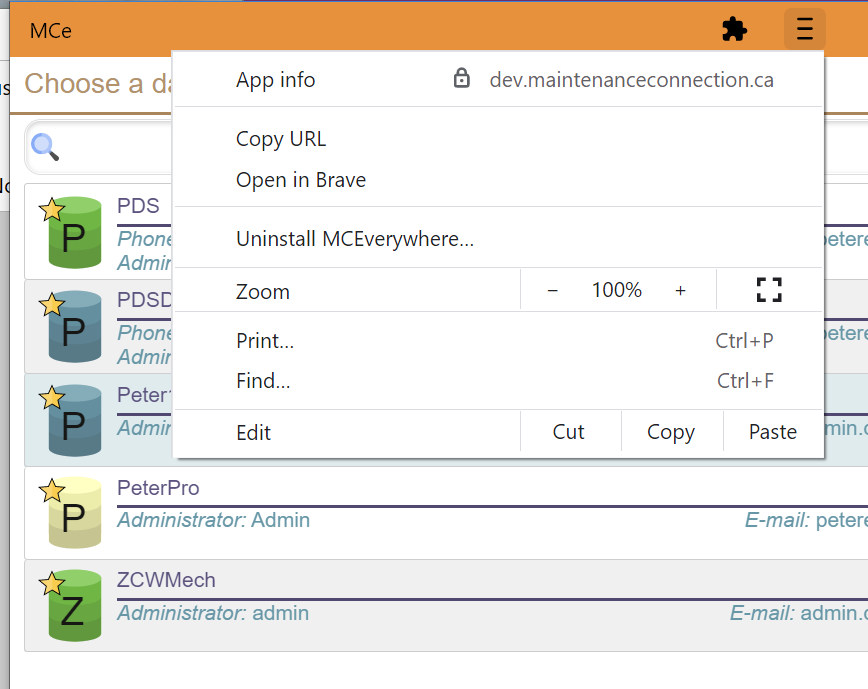
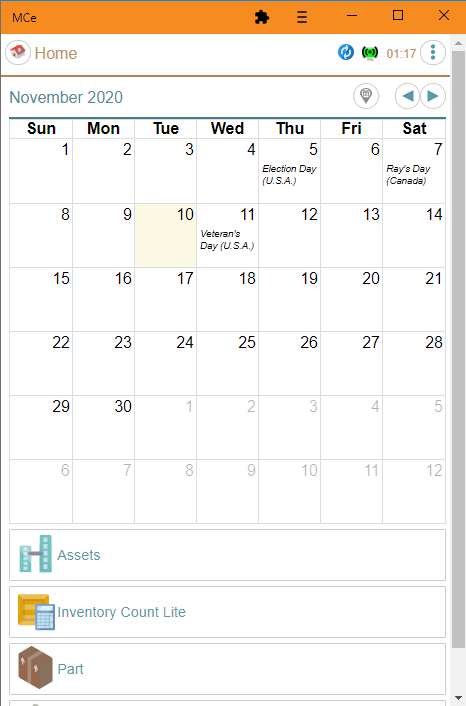
On Windows, you are running as a normal app, this means all the ways YOU are comfortable with changing the size of an app, full screen, docked to left/right/top/bottom etc.., work the way your version of Windows handles every other app.
Window specific 'issue', opening up with top part 'above' the screen: We have only seen this on systems where you have 2 or more screens and the screens are different sizes. It is a COMMON problem for users with multiple screens of different sizes on Windows and not just us.
Here are two standard Windows ways of getting control of a window that is off screen:
The keyboard method is to
- Hold Alt and Space bar at the same time
- Then press M for move
- Use mouse keys to move it where you want
The tray method is to
- Hover your mouse over the tray icon until a thumbnail pops up.
- R-mouse on the thumbnail to get the context menu
- Select "M" for move.
- Use the mouse keys to move it where you want
Android
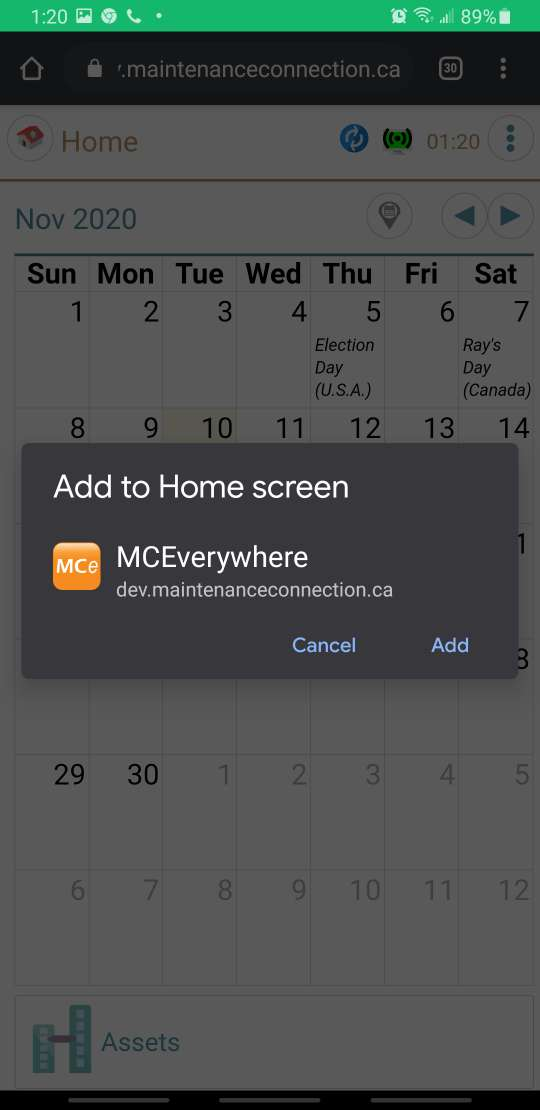
Use the hamburger menu in the browser (the 3 dots or three dashes, usually in the upper right) to display the main browser menu. Then find a menu choice worded something like "Add to Home Screen" or "Install" or "App" then Install. Sorry it varies by Browser and browser version. It is a new feature for them too so they keep moving it around. But it hasn't been hard to find as of writing.
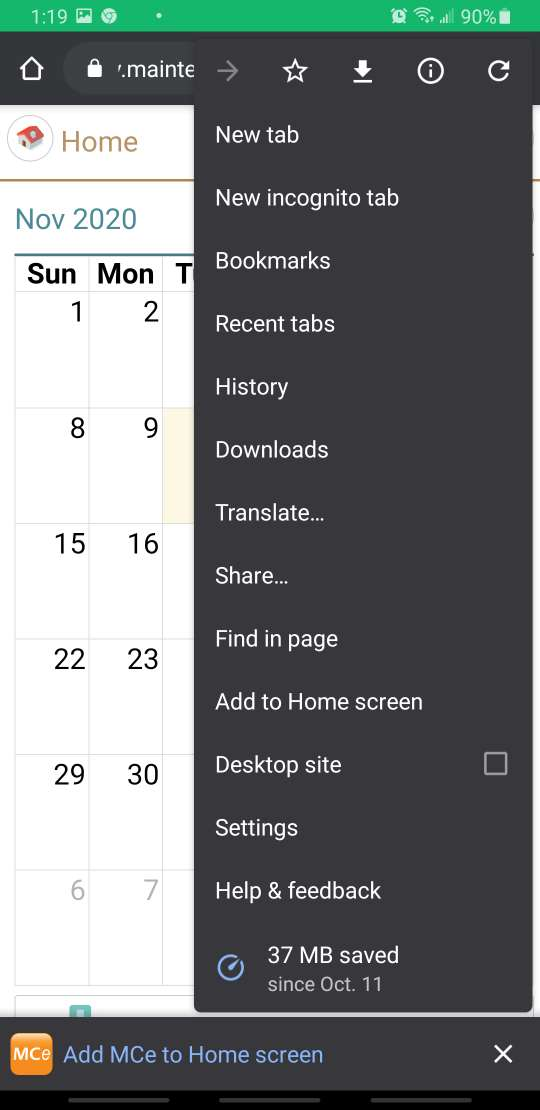
After you click on it, it will have a popup and look something like the screen above and/or one of the screens below.
 |  |
|---|
After installing, when running on Android, if you swipe down it will do a refresh as per the following screen shot: (See the black circle at the top with the blue curved line moving in a circular fashion, showing that it is refreshing.)
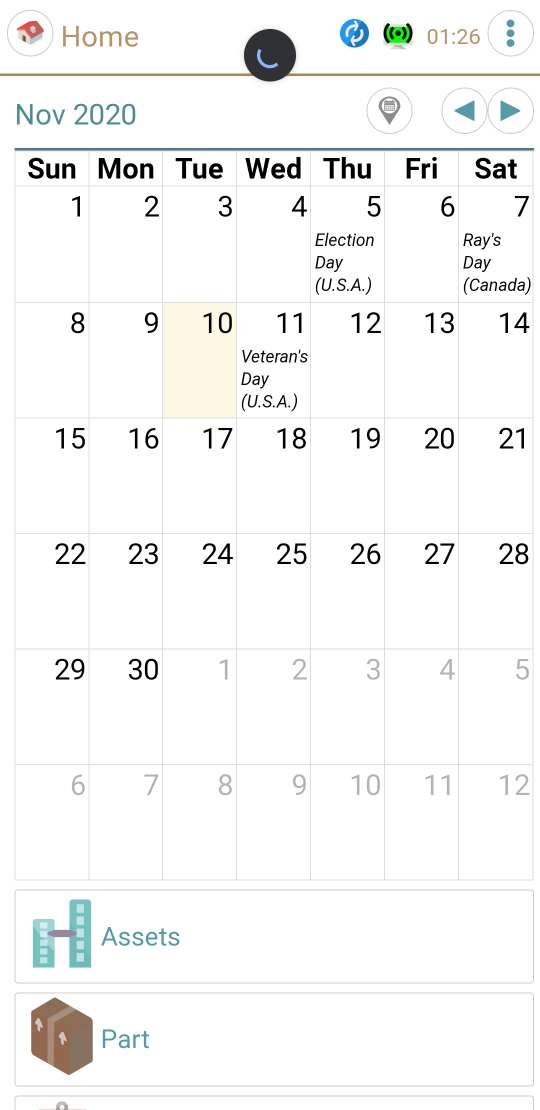
Android will open in as full screen as your device allows. In most cases it is truly 'full' screen.
If your device/version of Android has the 3 software buttons, you swipe up from the bottom to make them visible and active.
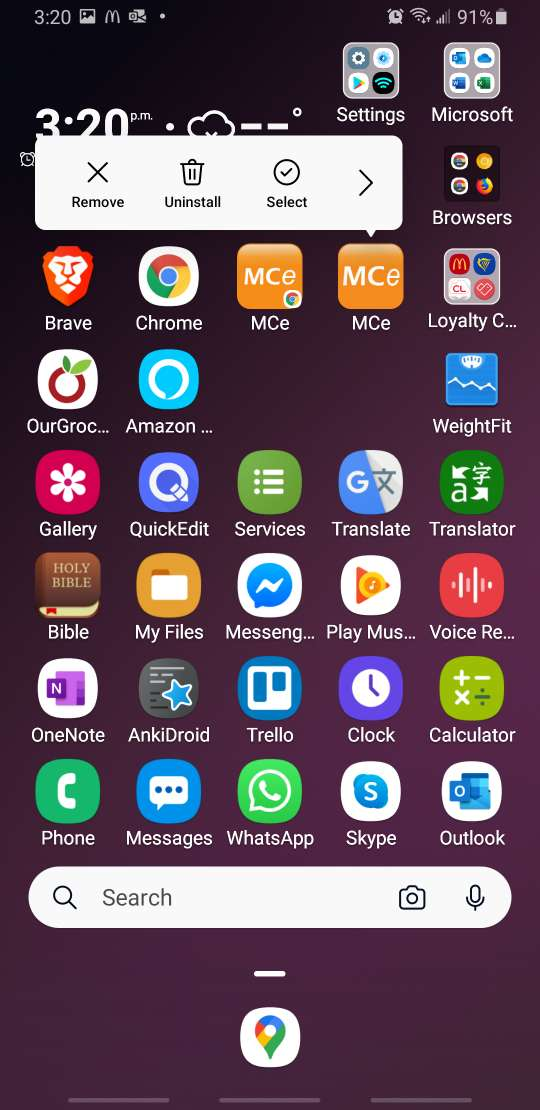
To uninstall, press and hold the app icon to get the context menu, then choose uninstall.
iOS
Similar to Android.
You lose the refresh button on iOS. This is a minor nuisance since we do everything we can to make it so you don't have to hit the refresh button. We put a refresh button in the new 'clock menu', just double tap it.
iOS will automatically open in 'full screen' or at least as full screen as we are allowed:
- if you have a cutout at the top, we aren't currently able to use the very top of your screen.
- At the bottom, current versions of iOS on phones without physical buttons, show a black horizontal bar over top of the bottom of our screens, we are unable to make that go away.
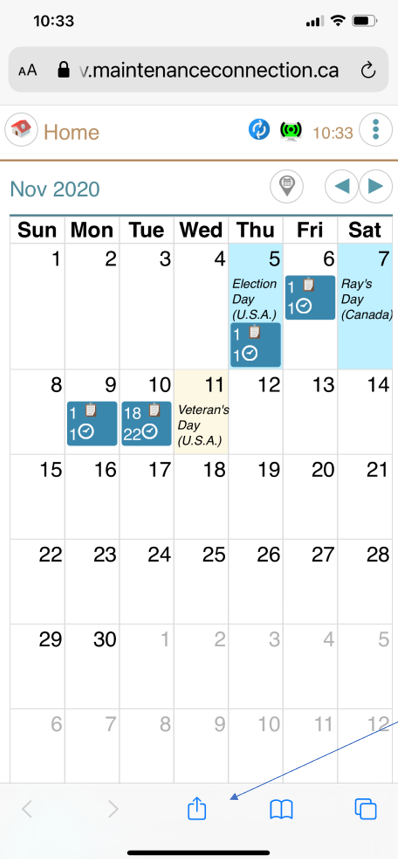
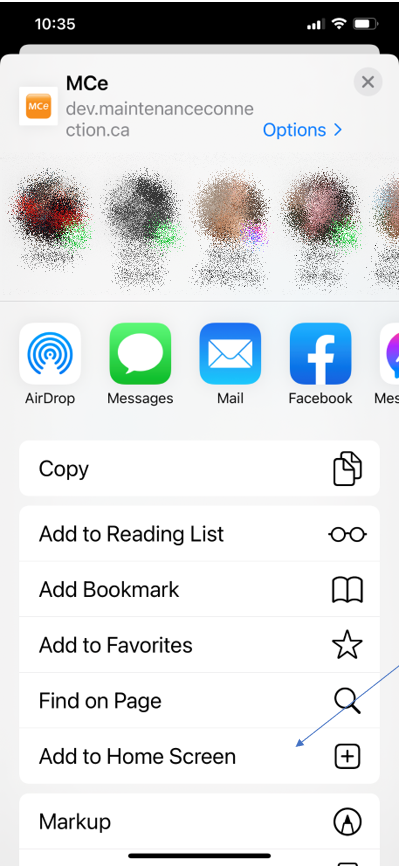
Installing: Bring up the app, any screen, chose the "save" button, then choose "Add to home screen"
 |  |
|---|
Then, select the application to install it.
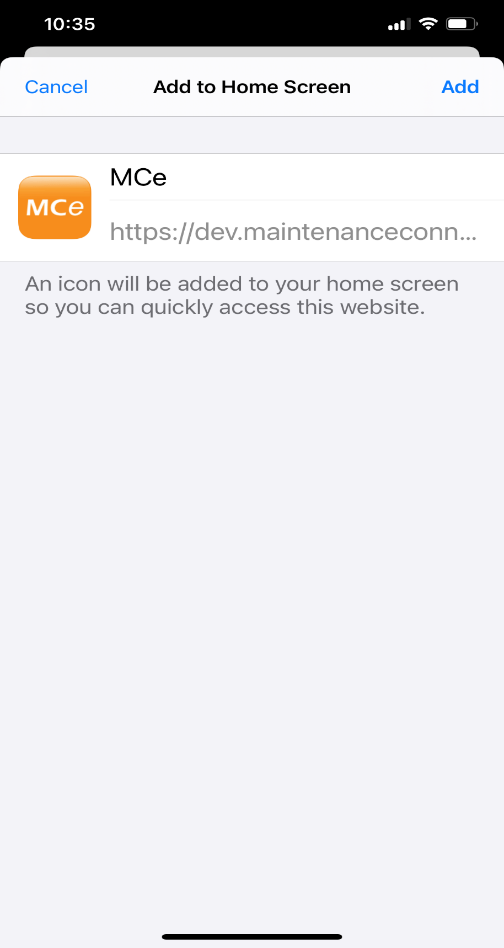
The black line at the bottom on many iOS devices, spaning the middle about third of the screen is in liu of a button, it is to remind you to swipe up to get the equivalent of pressing the home button.
Minor comments for all devices
On your home screen and app picker menu, depending on which device you have, what OS version, and which manufacturer made changes to the Android. It can change even between the upper end Samsung devices and the lower priced ones, all else equal.
 |  |  |  |  |
|---|
The MCe browser application will still upgrade automatically like it did 'in a browser' when an upgrade is installed on your server.
The browser that is part of the MCe browser application will also upgrade automatically whenever you upgrade the browser that you created it from. So for example, if you created it from Edge, when you upgrade Edge, the browser that is part of MCe browser application will also be upgraded, if from Brave or Chrome or Safari, then when Brave or Chrome or Safari is upgraded.

Footnotes
-
1: PWA's (Progressive Web Applications) started in ways to be supported by browsers in 2018. By Q2 2020, the newest versions of the browsers we support had enough PWA implemented for us to be able to run as PWA. ↩