

 Maintenance Connection Everywhere (MCe) · EAM/CMMS manuals
A reminder that changes to the UI config are not covered under SMA, they are covered under Professional Services which you may have bought a block of hours (lower price typically) or may be pay-as-you-go. Fortunately there are tools (exporting the preferences to view, importing them to 'fix up' mistakes) to lower the cost when you do make a mistake.

We do a lot of good guesses for keeping data offline for you. We use a lot of 'what did you use recently' to make these decisions.
If you almost always have 'at least' flakey internet, these may be perfect for you.
But what if you completely loose connection frequently enough and long enough for it to be a headache?
Simple, you make sure the data you are going to need is going to be there
List data is one of those that you may find helpful 'forcing' to be offline.
The example below uses "Problem" codes. But the same applies for others like Failure and users.
For those familiar with our system – the TL;DR is: In preferences, go to the query you want, such as the problem picker, and click on the blue cloud to force it onto your devices, force it offline.
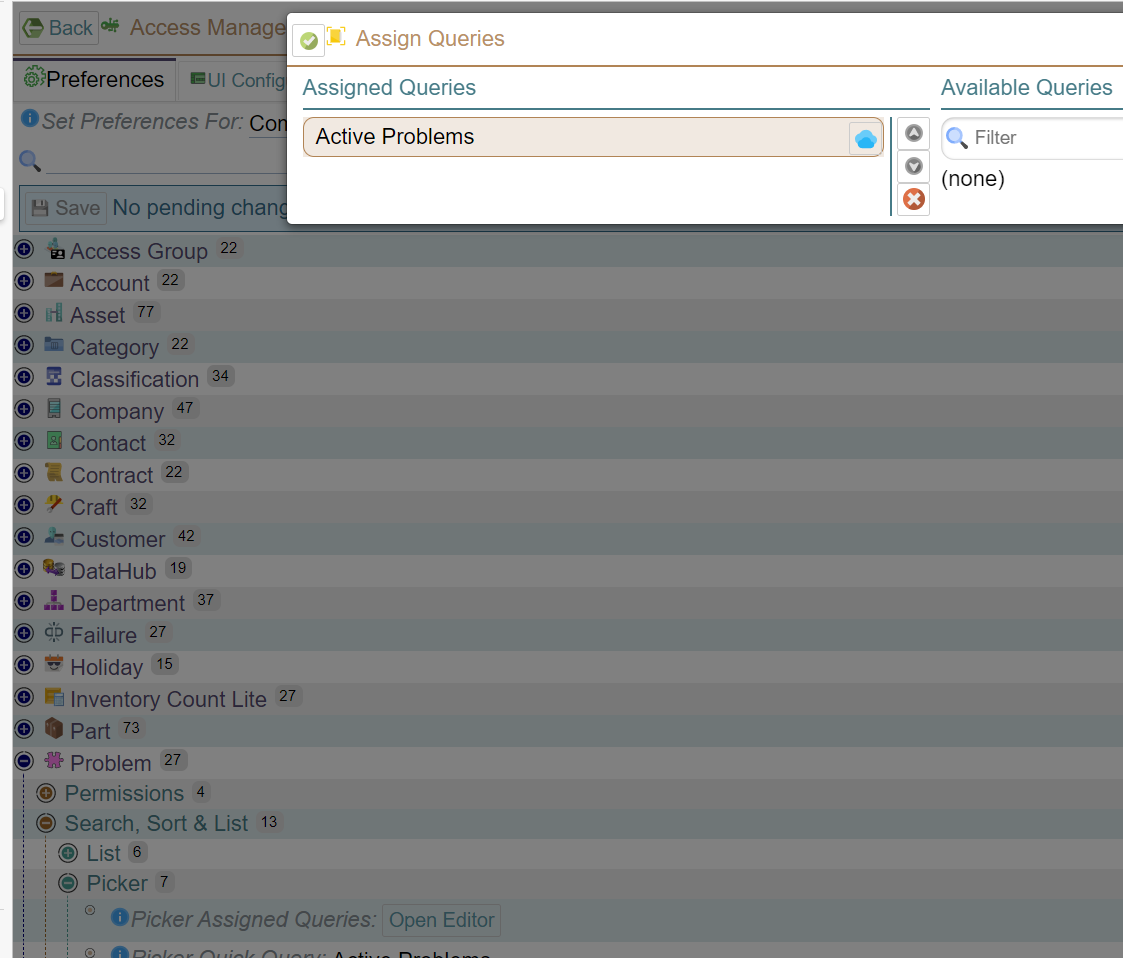
Now the step by step details:
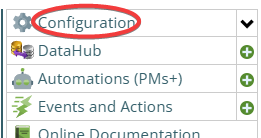
You first have to get into the Access manager. This usually requires admin permissions (YOU decide what permissions it needs, not us, that is discussed elsewhere.) The Access Manager is on the Configuration page
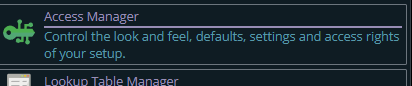
Then from there you choose the Access Manager, or what we call the funny green key
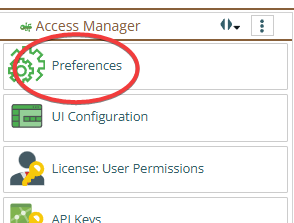
And from there you pick the Preferences tab and decide at what level you are specifying it. Here we have chosen Company/Organization level, but you could pick a repair center, access group or even an individual:
Here, in our example, we want to specify the list for the Problem code picker, so we find that picker in the tree of preferences:
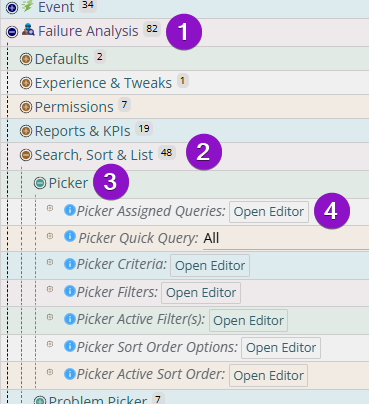
And we click the Open Editor on the Picker Assigned Queries

This will open up the Assign Queries picker.
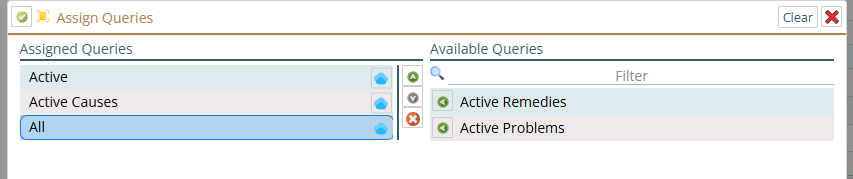
You can drag or use the green buttons to move available queries to the assigned queries.
You can drag or hit the red x to move assigned queries to available (but not in use) queries.
But notice the blue cloud icon on the right (circled in the screen shot below)
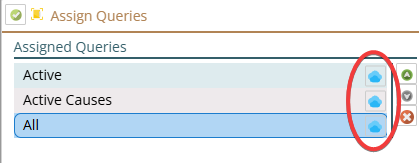
If you click on that cloud you will 'force' it to be offline – meaning, you will force it to be always on the device of everyone in the company (since we chose Company/Organization above.)
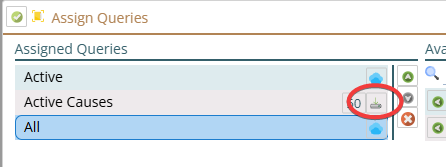
No click on the green checkmark and then click the Save button at the top of the panel to save these changes to the server.
The next time a sync happens on each person's device, be it a manual sync or an automatic full sync in the background, they will get the list if they don't already have it, and it will be kept up to date periodically on their device.
Repeat the above process for every pick list you want offline. (You can select several at a time before hitting save.)