

 Maintenance Connection Everywhere (MCe) · EAM/CMMS manuals
Overview:
This document is a how to. It ignores 'why' you were on HTTP and just assumes you are preparing or considering the move to HTTPS.
As of January 2017, we stopped officially supporting HTTP for MCe or MCxLE. As of 2019, it is now impossible due to browser requirements.
This means that, if there are problems due to HTTP, then support is billed by the hour. It doesn't mean we will hang up the phone or ignore your emails!
Summary:
You need HTTPS working. A little harder on intranets than on the internet.
On a new system there is nothing more to do, MCxLE/MCe will auto-redirect you.
On an existing system that has been running with HTTP:
- there is one minor step you need to do for MCe/MCxLE if you have 8.0.777 or later installed.
- And a warning: don't have IIS auto-redirect until you are sure all you users have saved their data.
For MC (MRO etc..,) you need the code we (MCC) have written to 'fix' MC to work with HTTPS, or you need to wait for MC – they have said they plan on having it by September 2017. (Once MC-US provides theirs, we will stop providing ours.)
Now the details ….
You need to have HTTPS running
Internet:
If you are running on a network with visibility to the internet, this is easy, you follow the instructions of someone like letsencrypt.org (a source of free HTTPS certificates) or your IT department or hosting company will do this for you.
Intranet:
If you are running on a private network with no access to the internet, this is a little more difficult. In particular, you will need to set up all the browsers your users are using to accept your certificate.
At a high level:
- Step 1: issue yourself a certificate
- Step 2: add yourself as a trusted issuing source on each computer that will access that server and the certificate
Basically the exact same process as is required in order to setup a TLS proxy or encrypted logging/interception.
If you (your IT department) doesn't have the competency to set this up there are many people you can hire to do it or help you do it for a fee. We can do it at an hourly rate with/for you, but most of the time you would be better working with someone who does it for a living, there is nothing about our software that is 'special' in these regards.
You need to get your MCe/MCxLE users running on HTTPS
Brand new system:
If no one has logged in (a new install) you should simply set IIS up to redirect to HTTPS. See Appendix: How to redirect traffic to HTTPS:
But it is not technically required because as of 8.0.777 MCxLE/MCe default to HTTPS unless you have done extra work to make it not do that and there is no point in doing that extra work on a new system.
Existing system that has been running in HTTP:
Do NOT set the IIS redirect to HTTPS yet.
If you do:
- your users will lose data (any changes not sync'd yet)
- If they are on a slow/unreliable connection they will be unable to use the software until they get back to a place where they can load the application and do a full data sync.
Here we have a 'slight' issue that has to be dealt with properly to avoid data loss. The BROWSER associates data with HTTP separate from HTTPS. Basically the browser assumes that anything done in HTTP is 'dangerous' and so it refuses to look at it in HTTPS.
But once the browser has seen that it can switch to HTTPS automatically, many browsers will remember that and do it automatically, meaning your browser may never let you go back to HTTP.
This means your users need to sync all their data before they stop using HTTP.
If you have been running in HTTP, starting with MCe/MCxLE version 8.0.777 you had to have a line in the web.custom.config file to permit the use of HTTP:
<?xml version="1.0"?>
<customSettings>
<add key="Flags:AllowHTTP" value="true" />
</customSettings>
You need to REMOVE just the line that reads: <add key="Flags:AllowHTTP" value="true" /> Because this line has prevented the auto-redirect (by our software) to HTTPS:
The user experience will be this:
If they are logged in:
They will get a message regularly that tells them they need to save their data then login using HTTPS. It gives them a button to make this easy to do.
Once they successfully run the button that saves changes, clears data and logs them out, they will automatically be redirected to HTTPS to log in.
If they are NOT logged in:
When they go to log in, they will automatically be moved to HTTPS:
Once you are sure every user has saved their data so there is no risk:
First of all, for MCe/MCxLE it makes NO difference – you never have to do anything MCxLE/MCe automatically switches them to HTTPS on login unless you have the AllowHTTP flag set to true.
If you want your server to auto-redirect at the server level, you can now safely do that.
You need to get your MC users running on HTTPS
The first step is to get code that will let MC run on HTTPS. Maintenance Connection Canada edited the MC/MRO code in 2015 to allow MC MRO etc.., to run in HTTPS and we provided it to them at that time. We have been updating our changes to work with new version of the MC code.
As of 2017.09.06 you still need to get that code from Maintenance Connection Canada, we 'fixed' all 70+ places in the MRO code that it was redirecting to HTTP … however, Maintenance Connection Inc. (MC-US, The USA company) is working hard on getting their code working on HTTPS so we hope to see that in the MC 8.0 code very soon.
If MC-US does the changes the same basic way we did, there will be nothing you have to do because everything will automatically switch to HTTPS.
We will try to remember to come back here and update this when MC-US gets their solution working and if there is anything else you have to do, we'll let you know.
Once it is safe for MCxLE/MCe to be auto-redirected to HTTPS you can have the whole server auto-redirect if you wish, thereby prohibiting the use of HTTP even on the initial call.
Appendix: How to redirect traffic to HTTPS:
- Download and install IIS URL Rewrite 2.1 http://www.iis.net/downloads/microsoft/url-rewrite
- Open IIS and select the site/application and then double click on URL Re-write and then add a blank rule
- Follow this image :
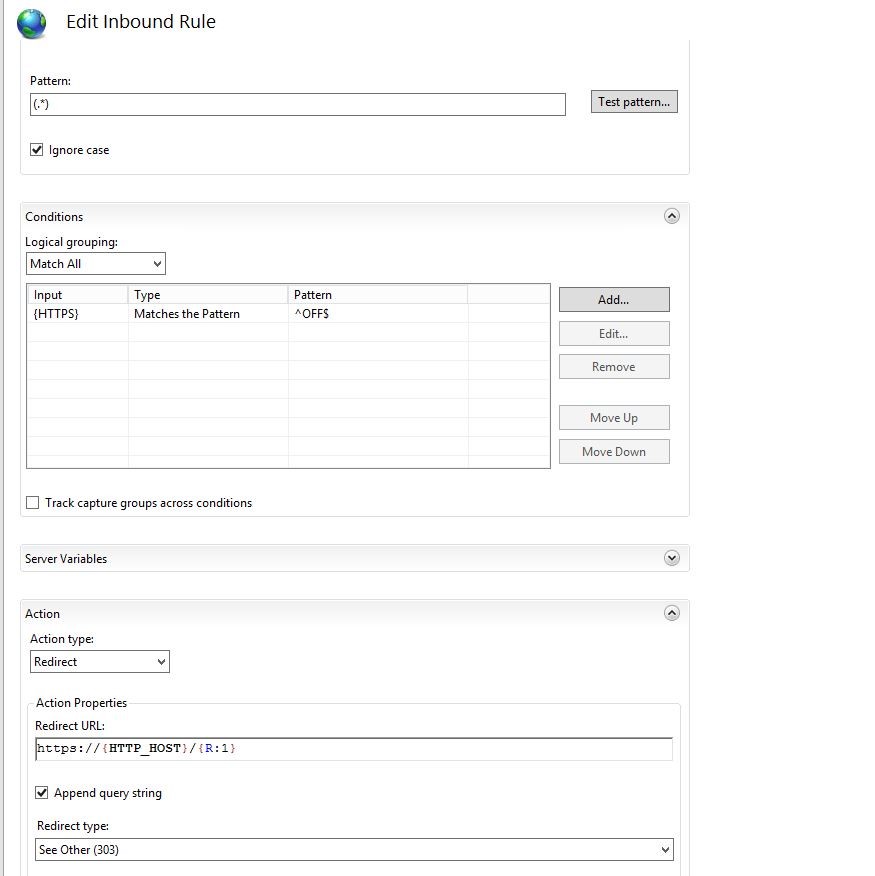
This will redirect any inbound HTTP traffic to HTTPS for that particular domain.