

 Maintenance Connection Everywhere (MCe) · EAM/CMMS manuals
Finding the documentation
If you just want to see the documentation, you haven't bought the product yet, you can go to any MCe system that has the API set up on it, for example:
https://dev.maintenanceconnection.ca/mce/api/altair
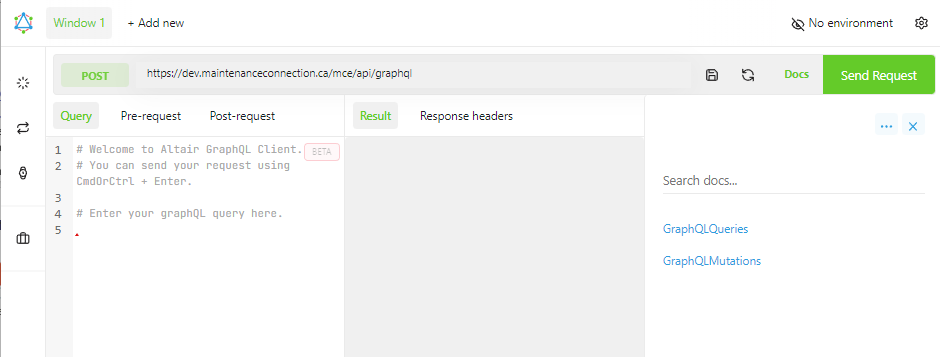
On your server, you would tag /api/altair to the location that you have MCe installed. There are many places you might have it installed, but the two most common are:
<your-domain>/mce
or
mce.<your-domain>
 The subdomain mce does not have to be mce, it might be anything. The easiest way to find the correct location is to go into your copy of MCe, look for the first /#/, the URL base we are talking about is everything before the /#/ so you strip off the #/ and add api/altair to get to it.
 You then check to see if the POST address is the same except
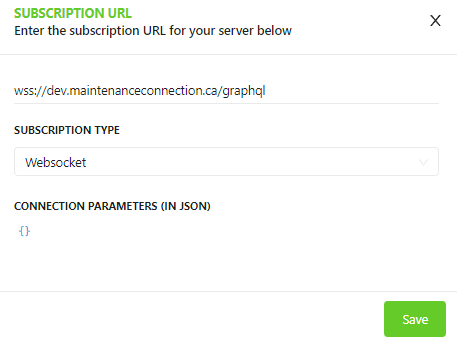
api/graphql, in some cases your system won't return that, in which case you need to set it. To do this, click on the subscription button on the far left and then set it correctly.

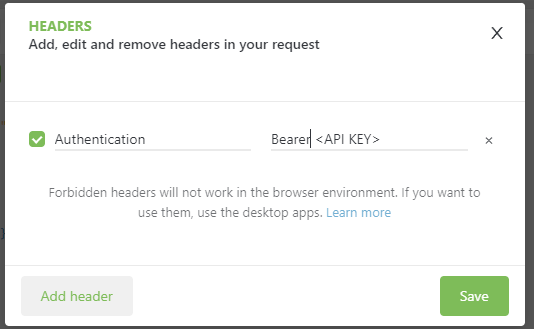
Next you set the API in the headers. Click the Headers button, again you will find this on the left, just above the subscription button on the far left.
You then add an Authentication header that contains the string "Bearer " followed by the API key you received.
 The other 2 buttons on the left let you see history (the wrist-watch icon) and access to advanced options such as formatting your Query in a easy to read for human (pretty) format or compact it to copy into your programming language.
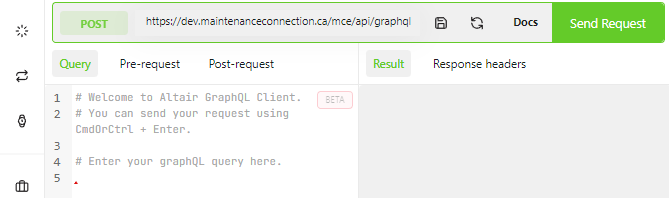
You should now be able to call the API. The left column has 3 options for making the call, the Query will be the one you will use the most.
Then you can toggle between the Result and Response Headers to see what you got back.
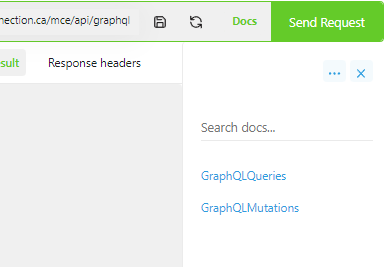
If there are 3 columns, you should see the Docs listed. If there are only 2 columns showing as in the above shot, click on the Docs link up near the top right. This will give you access to 1000's of pages of documentation.
The GraphQLQueries documentation gives you access to information getting queries from the data sources.
The GraphQLMutations give you access to queries designed primarily to Set, change, insert or delete information in the data sources.
The Search of course lets you search for specific phrases.
Quick notes on the documentation
Don't let the volume of documentation scare you. It is laid out is a consistent pattern. It is designed for 'drilling down' to find the information you want.
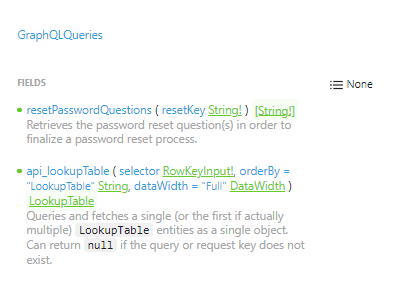
When you click on one of the GraphQL Queries or Mutators you will get a list of the different calls available to you, with key information and description.
Note that, compared to our RestQL there are far fewer calls listed, this is because GraphQL is much more flexible and can handle a lot more variations for each call. The GraphQL can do everything the RestQL and some things it can't, in many cases the simpler RestQL may take several calls to get or do what you want, but the GraphQL lets you do so much more in one call due to its flexibility.
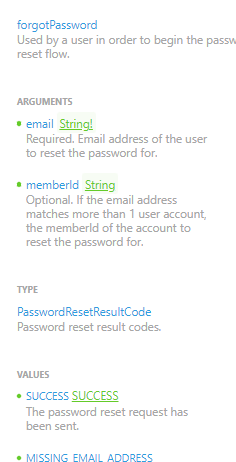
Clicking on different items gives you more information about it. For example, clicking on the resetPasswordQuestions call gives you all the arguments, result data type and details.
You can also click on all the green underlined data types to get definition of them.
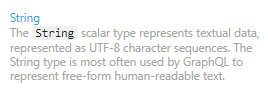
So for example, you can see our definition of a String
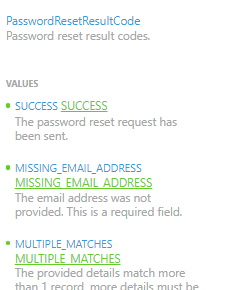
Or you can see the definition of a more complex data type such as the PasswordResetResult-Code data type.
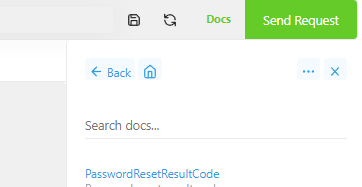
The back button above 'Search docs….' will take you back step by step until you get back to the initial Docs screen.
The Home button unwinds all the way to the initial Docs screen in one step.
The … button lets you export our Schema, and also gives you the option to read in a completely different schema from someone else.
The X will close down the documentation column and leave you in the Sandbox (1st 2 columns) where you can, if you have an API Key, play with the GraphQL calls, learning how to use them.
If you close the Docs down, you can get back to them by clicking on the Docs link to the left of the big green 'Send Request' button.
Playing in the Sandbox
Because this is giving you access to live data, you must have an API key before you can 'play' and set it up as above.
You can now search the Docs to find the command you want to use.
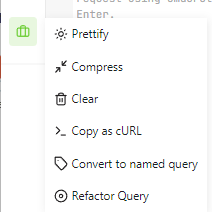
You can (and probably should) then try to create a sample/test of the Query you want your code to call. If it gets messy, click on the Prettify to make things line up nicely for a human.
Once you have it working in the sandbox you may want to Compress it to make it easier to substitute your parameter values instead of your test hard coded values, and then create the string in your program.
At this point you know what will work, and you now work to fix any bugs you have in creating that exact string (or similar with different values) and call the API with your program(s).
You will now rely heavily on the docs, but here is an example of a live query that worked on our server:
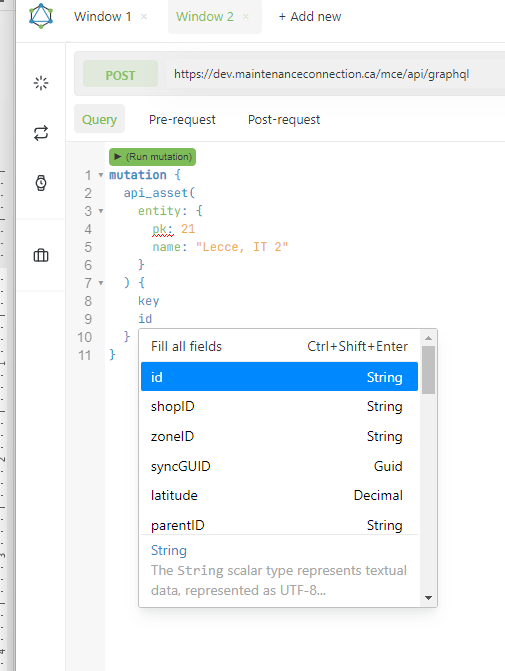
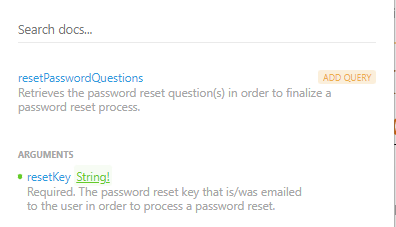
In the docs, if you go into the details of the call you want to make, resetPasswordQuestions in my example here, then hover to the right of the call you are interested in making, a "Add Query" button will appear.
Clicking on the Add Query button will add a template of the, in this case resetPasswordQuestions, query and let you then fill in the details.
Don't miss this feature! Read the information directly above if you skipped over it.