

 Maintenance Connection Everywhere (MCe) · EAM/CMMS manuals
Warning, following these instructions will delete ALL data – saved and unsaved from your browser, any data not sync'd will be permanently lost.
Also, all licenses assigned to this browser/device will NOT be released
The effect of the licenses not being released depends on a few factors, most significant the type of license:
- Enterprise, no real effect, just some database queries or reports may cause inaccurate info
- Named, you will be locked out of that license until the license is released. See licensing docs for more information.
- Concurrent, that copy of the license will be blocked until it times out. If you had it out for 10 minutes, then no real problem. But if you had it set to be reserved for you for a long time, this can be inconvenient.
There are times however, when clearing browser cache is a reasonable option. In particular if you are selling a device and want to clear as much as possible off without doing a hard reset.
The various browsers keep changing how this is done, so these instructions may be out of date.
If these don't work, let us know what OS, OS version, Browser and browser version you tried and we'll try to update them.
Chrome 60 Windows desktop, Brave 0.18
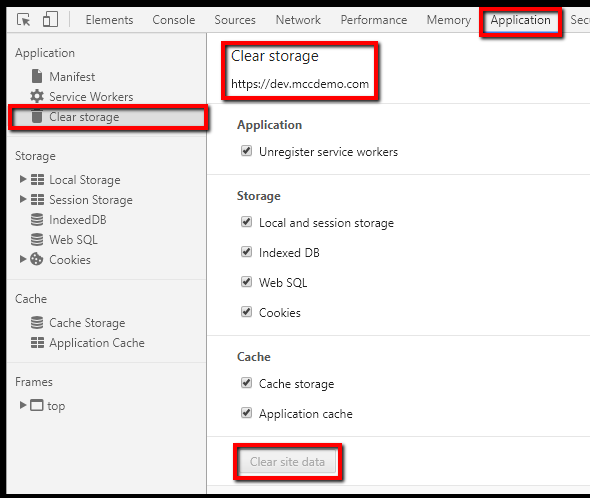 Somewhere around mid 2017 Chrome, about version 59, removed the way we had previously told people to clear their cache.
However, in version 52 according to logs, they added a new way.
Surf to the URL you want to clear everything for.
Select Developer tools F12, Application, Clear Storage.
Then select the storage you want to clear and hit the Clear site data button. If the button is greyed out, you have already deleted everything for this site.
MCe makes heavy use of:
- Local and session storage
- IndexedDB
- Cookies
- Cache storage
- Application Cache
In the future we plan on using service workers.
We do not use Web SQL anymore … we did over a decade ago though.
Android – Chrome (Tested Android 7.0 and Chrome 60)
- Go to the ANDROID settings (the gear for settings often on or near your home page) NOT the Chrome settings
- Select "Apps" (or Applications – depending on the specific implementation
- Select "Chrome"
- Select "Storage"
- Select "Manage Storage"
- Select "Manage (or if you want to get rid of everything for every URL Select "Clear All Data button")
- Select the URL you want to delete data for
WARNING: THE FOLLOWING STEP HAS NO WAY TO UNDO A SO DO NOT FOLLOW THE NEXT UNLESS YOU ARE SURE YOU WANT TO, Please note that any unsaved data will be lost and cannot be sync'd to the server in the future. If you are sure you want to remove everything, continue and everything for this app will be deleted from your device.
- Select "Clear & Reset"
At certain points above you cannot go 'back' easily. Just hit your home button and start over.
iOS (Tested iOS 10)
Go to the OS Settings
Select Safari
Scroll to bottom of page
WARNING: THE FOLLOWING STEP HAS NO WAY TO UNDO A SO DO NOT FOLLOW THE NEXT UNLESS YOU ARE SURE YOU WANT TO, Please note that any unsaved data will be lost and cannot be sync'd to the server in the future. If you are sure you want to remove everything, continue and everything for this app will be deleted from your device.
Choose Clear History and Website Data
Note: We do not support 'Jailbreak' phones, and a jailbreak may result in different methods necessary.
Edge
Click the three dot in the upper right

Then Privacy, search and services (1 below)
Then Clear browsing data (2 below)
Then choose what to delete. Since we don't recommend this with MCe, you will have to discuss with our Professional services what it is you want to delete.
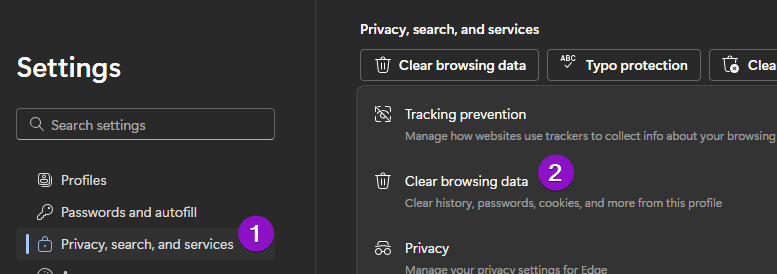
Older - we don't support Edge browsers that are so old that this is the way to do it:
Under the "Clear browsing data" header choose the "Choose what to clear" button
IE 11 (Tested IE 11) Update: We do NOT support IE 11 anymore
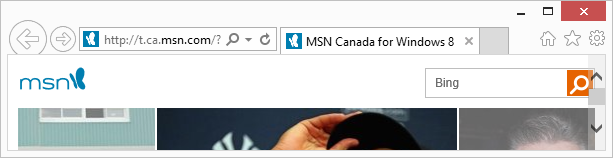
- Choose Internet Options
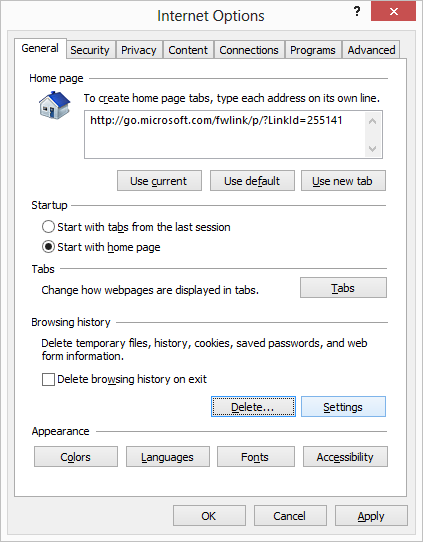
- Click Settings then make sure the 'Caches and databases' tab is selected
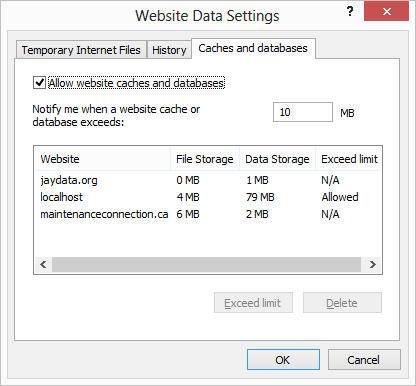
- Select the server your MC data came from, in my case it is maintenanceconnection.ca
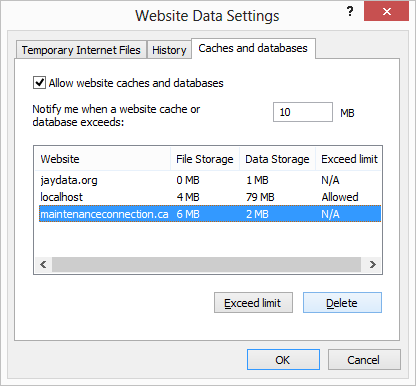
- Find your server (in the image above, it is 'maintenanceconnection.ca'), then Click the Delete button. It will remove your server from the list, but doesn't actually delete it until the next step.
WARNING: THE FOLLOWING STEP HAS NO WAY TO UNDO AND IE DOES NOT GIVE AN 'ARE YOU SURE' MESSAGE SO DO NOT FOLLOW THE NEXT UNLESS YOU ARE SURE YOU WANT TO, Please note that any unsaved data will be lost and cannot be sync'd to the server in the future, please also be aware this wipes out data for both 'this' browser and for the Metro/RT/Windows 10 Universal IE browser.
If you are sure you want to remove everything, you then click the OK button and everything for this app will be deleted from your device. If you click the 'Cancel' button, nothing will be deleted.