

 Maintenance Connection Everywhere (MCe) · EAM/CMMS manuals
Screen sizes and resolution (number of dots crammed in per inch) vary greatly from device to device. This is why we let you change it for our product.
In this document we discuss the two option (and you can combine them)
- the browser option
- how to change the zoom using our zoom tools, with examples of what it will look and feel like, after you are logged in.
- how to change the zoom using our zoom tools, even before you log in.
The Browser method:
You might also have used the 'zoom' feature in your browser. Many browsers give this, for example most desktop/laptop browsers let you hold the CTRL (control) key down plus the + or – (plus1 or minus) keys to make things bigger or make things smaller.
Different browsers on different devices have different ways of achieving this, and some don't have the ability, or the ability is difficult to use, and the jumps in size might not be what you want. Nevertheless, if you want to quickly change the size and your browser supports it, the browser zoom feature can be handy. If you want more control and want to see the effect throughout the system or your browser doesn't support it, try our method.
The biggest advantage of the browser method is, you can do it quickly from anywhere in our application.
This means it is great when you want to quickly make things bigger or smaller for a moment, and then want to go back to your normal size.
The biggest downside is that it is a temporary change only, it doesn't remember it when you close the tab and come back.
It also may affect other tabs you open afterwards.
Our method:
The biggest advantage of our method is, it remembers it device by device, and it remembers it until you decide to change it.
You can combine both together. You can use our method for setting your normal preferred size, then use the browser method to tweak things for a time.
How to set if you are already logged in:
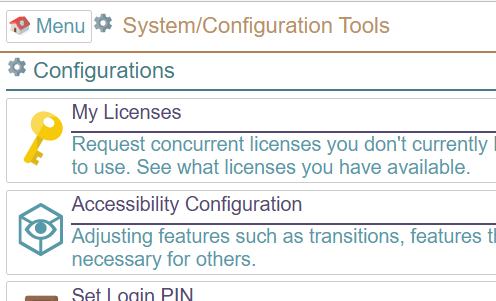
To use our method, which works on all browsers, whether they have this feature conveniently or not, go into the main menu, Configuration and choose Accessibility:
Ours also usually gives you finer resolution than the browser does. And by going into our Accessibility, you get to see the effect of your changes on all sorts of common UI elements within a couple seconds, which helps you pick the best size for you.
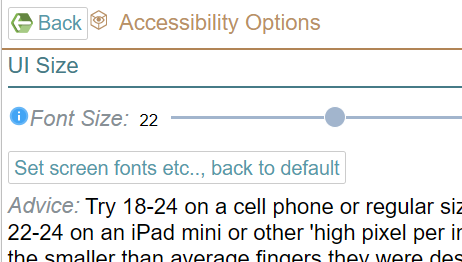 Move the Font size slider.
The page has all sorts of elements we use throughout our application so you can see what, on your device, it will look like at the different resolutions, helping you choose the best combination of lots of info on the screen, easy (enough) to read, easy for you to do things with your finger if on a touch device.
How to set on login:
If you aren't already logged in, you have access to it on the login screen. You can find the option in the "Additional" section, under the language setting and above the buttons to go to the About page and the Docs page.
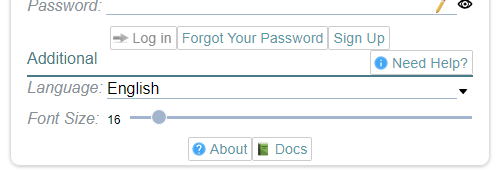
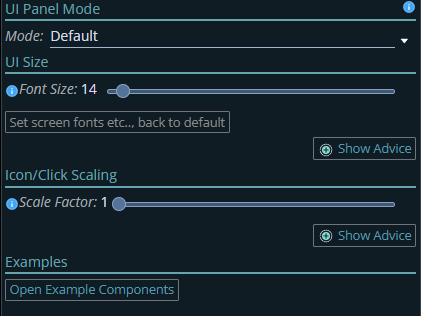
The three things available are to set the Font size, then set the Icon/button scaling (to make buttons larger or smaller relative to the text). Then to test out - use the -"Open Example Components" to see all our different ui elements, and see how they work for you at the requested font and icon scaling.
Footnotes
-
1: For technically minded people, you are usually doing CTRL= because the + character on most keyboards is reached by holding down SHIFT plus the = key and you don't even think about pressing CTRL SHIFT = to do CTRL + since the browsers provide the same functionality on CTRL plus the = character, and only really technical people even care about a mundane detail like this. Fortunately the people writing the browsers are those kinds of people. ↩