

 Maintenance Connection Everywhere (MCe) · EAM/CMMS manuals
For editing and Viewing formattable text
There are places in MC and MCe where you can enter in text that is 'formatted' using HTML codes.
In deciding whether to allow this feature (you can turn it off) , you can probably ignore most of the appendixes, do take a look at the one on Reporting. When using MCe reports you can display HTML fields correctly, but most other report writers will fall down and put garbage like "%0D%0A" and "<thistag/>" as text instead of formatting them nicely for the report.
WYSIWYG editor
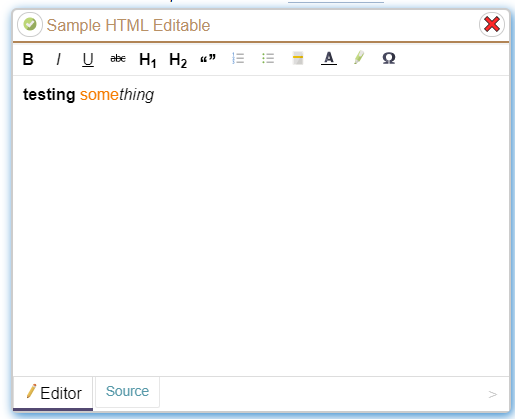
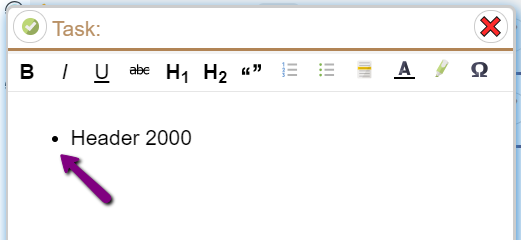
Because these codes can be confusing if you don't have experience with them, MCe provides a WYSIWYG (What you see is what you get) editor any place where MC and MCe allow 'HTML' in a string. (The title says 'Sample' HTML Editable in the first one because it is used in a place where it is showing you a sample of the HTML editor. But in the 2nd example, it is a procedure task that is being edited in a normal place, so it doesn't say 'HTML Editable' and it says Task because that is what is being edited.
Our toolbar

 This one lets you add special characters.
 This adds a horizontal line, similar to the the one directly above the toolbar.
These ones 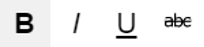
 change the currently selected text
 This will either Bold your text or, if it is already bolded , it will remove the bolding. Note that the color of the button (grey in this case) means that it is saying that the text currently selected is already bold. If some of the text is Bold and some is not bold, it will set it all to bold.
 This will either italicise your text or, if it is already itallic, it will remove the italicising. Note that the color of the button (clear in this case) means that it is saying that the text currently selected in not itallic. If only some is itallic, it sets it all to itallic.
 This will either underline your text , or if it is already underlined, it will remove the underlining. If only some is underlined, it sets it all to underlined.
 This will either
 strikethrough your text, or if it is already, it will remove it. If only some is struck through, it will strikethrough all the seleceted text.
 This lets you change the color of the text using our standard color picker.
 This lets you change the color of the background using our standard color picker.
 These change the 'line' you are on.
Has several quick features to edit. In most cases you push the button after you select the text you want (see Appendix's – each browser/OS has different ways to select text). In others, like H1, it will affect 'the line' you currently are on.
 This one will set it to a standard HTML Header Level 1 – typically big and bold, but note that every browser has a different definition of 'how big' and 'how bold' so don't expect it to look exactly the same on every computer/cellphone/tablet.
 Like H1, but this time sets it to Level 2.
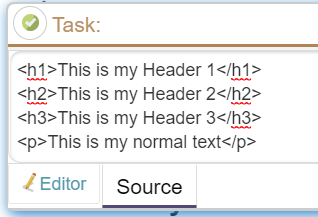
But what if you want Header levels 3, 4 etc..,? This is a case for using the Source tab. Perhaps set what you want to H2, then edit it to H3.
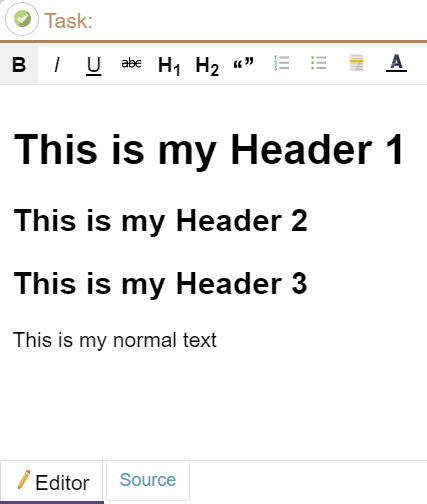
I then switched to the Source tab (See more discussion the source tab below.)
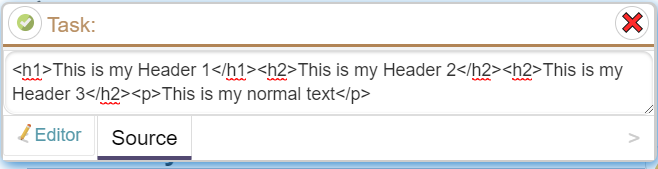
Then added some Carriage Returns (Enter Key) to make it eaiser to read; HTML normally ignores Carriage Returns, Line feeds, and normal spaces.
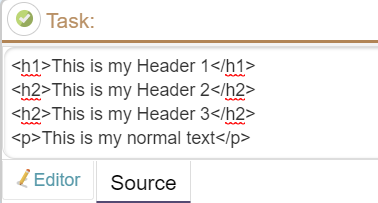
Then changed the last H2's to H3's.
 This puts what are called HTML 'blockquotes' The text will be indented on the left and right to set it out from the other text.
 This will create a numbered list. Each paragraph will have a number in front of it. Clicking it a second time will remove the item(s) fom the numbered list and make it normal text.
 This will create a bullet list. Each paragraph will have a bullet in front of it. Clicking it a second time will remove the item(s) from the bulleted list and make it normal text.
But what if you want one of the 100's of other HTML features? Or what if you want to do things like indenting with a sub-list?
The HTML WYSIWYG editor is designed to very easily let you do all the most common, simple, things you will need. For more advanced, that is why we provide you with the Source tab.
What if you mess things up by hitting buttons like H1 and want to get rid of the formatting?
If you can't do it with the WYSIWYG editor, click to the source tab and remove the formatting.
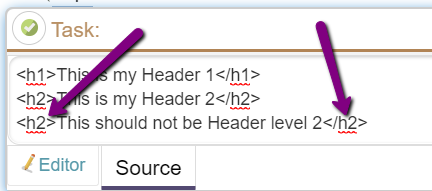 So in this case, just remove the <h2> and </h2> on the last line.
See more discussion on the source tab below.
The MC way to edit (Source Tab in MCe)
The editor also lets you see and edit the raw HTML if you would like on the Source tab. There are several reasons you might:
- If you want to get experience in what HTML looks like, use the WYSIWYG editor then click on the Source tab to see what it produced
- if you have something that is particularly hard to write using a WYSIWYG editor or uses a feature we don't provide (there are 1000's of features in HTML when you consider all the tags and all the properties that each tag can have and consider how tags inside tags – such as a list inside a list – can be different), the Source tab lets you get down to the raw HTML to edit.
- If you have HTML code from another source (It will have a lot of 'tags' in it, things like <p>) you want to paste in, the Source tab wherever you want it in the result.
Note: MC provides a WYSIWIG editor for document 'files', and a text box that you can enter your raw HTML in other places they support HTML strings.
When you switch from tab to tab we 'protect' the code by running it through a safety check, removing HTML we don't permit (very little – and shouldn't affect you for the places we allow HTML.)
In general, HTML formatting tags (and all tags) follow the pattern <tag> stuff </tag>, so when you remove a <tag> look for a </tag> that matches, and if you are adding, add both. There are exceptions, but there are huge books on HTML5 you can read to understand all the details and we are not trying to provide a tutorial on HTML5 here, just enough to get you out of trouble!
Worst case, if you delete everything in the Source window, you can start over again with a clean slate.
Some features depend on your browser
Many of the editor features depend on exactly what your browser and/or device provides, this means that if you always use the same device, our editor should feel very comfortable because it acts normally. This means though there will be some differences, for example,
- some browsers support the DEL key and the Backspace key, but others only support the Backspace key.
- Most browsers have built in spell checkers. Whatever one you have set up to work with your browser (typically you can pick the language) will decide how your dictionary operates. If you've added words to your dictionary they will therefore be respected. Also, browsers have been getting better and better at this, and in some cases you might have added a high powered grammar checker, and that will automatically work with our HTML editor
- We have some specific Browser and Device specific discussions in the Appendixes
Display in this document
Note: Most of the screen shots in this document show two fields with the SAME HTML in them. The top one is the one that is 'editable', the bottom one is the read only one. While we are showing it that way here, there is almost no place in the system where we would ever do it. The place we do it is in the accessibility page where we provide a range of tools for you to see what they look like at your chosen size.

If you're interested, the above was created this way:
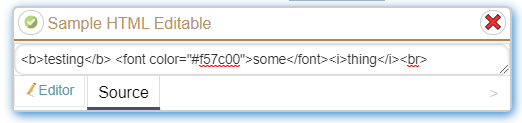
How it will show up in MCe
"The code is more what you'd call 'guidelines' than actual rules." -Hector Barbossa, Pirates of the Caribean

In general, if the HTML fits on the line, it will do so

But often you will create HTML that takes more space than is available, when that happens it moves down to a new line and uses the space it needs to show as in the next two screen shots.
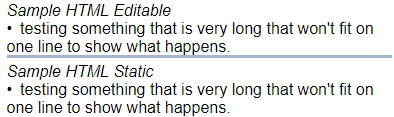
From there you can get as advanced as you need (Again, the header is because it is on a page where we are showing Sample HTML Static as a label, based on the HTML, this might be something in 'Asset Notes":
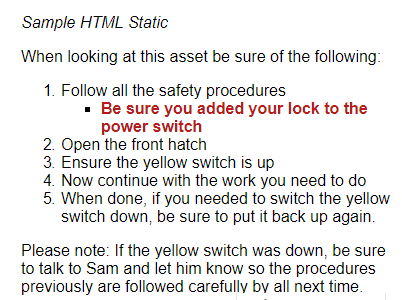
And we make other changes, treating your HTML code as a suggestion, not a rule. These are the most noticeable:
- We have a (fairly long) white-list of commands we accept, any others are ignored as potentially dangerous.
- We sometimes change the text color or background color.
- First, if you don't specify the font, because we have default text colors for both dark and light modes and some companies pay to have their own theming, if you don't specify color, the text color will vary depending on the theme the user reading your field has chosen.
- Second, for fields you are editing, if you pick a font color or background, there is a very good chance that you will have forgotten that someone else will be using a different theme, so you specify a dark color for your text while you are running with a light theme – it will be legible to you, but when someone else runs it in a dark theme, the text will be hard or impossible to read. So … If you specify JUST the text color or JUST the background highlighting color, we will check and fix the other one to keep the text legible. If you don't like this … specify both the text and the background, then we won't fix it for you.
- If you use the old HTML4 "font" tag, we change it to a <span style="color:red">
https://developer.mozilla.org/en-US/docs/Web/HTML/Element/fonthttps://www.w3schools.com/tags/tag_font.asp
Appendix: Special Issues, Android
To select a word (or bigger section) click and hold on it. Once selected you will have to 'handles' that you can use to expand your selection.
When you select some text, the automatic toolbar can hide our tool bar. Fortunately, you can very simply drag it to another location and then you can access our toolbar. It is the 'Cut Cop Paste Select ALL' below that the Android device pops up when I selected 'procedure'. Then I dragged it below so it was out of my way.
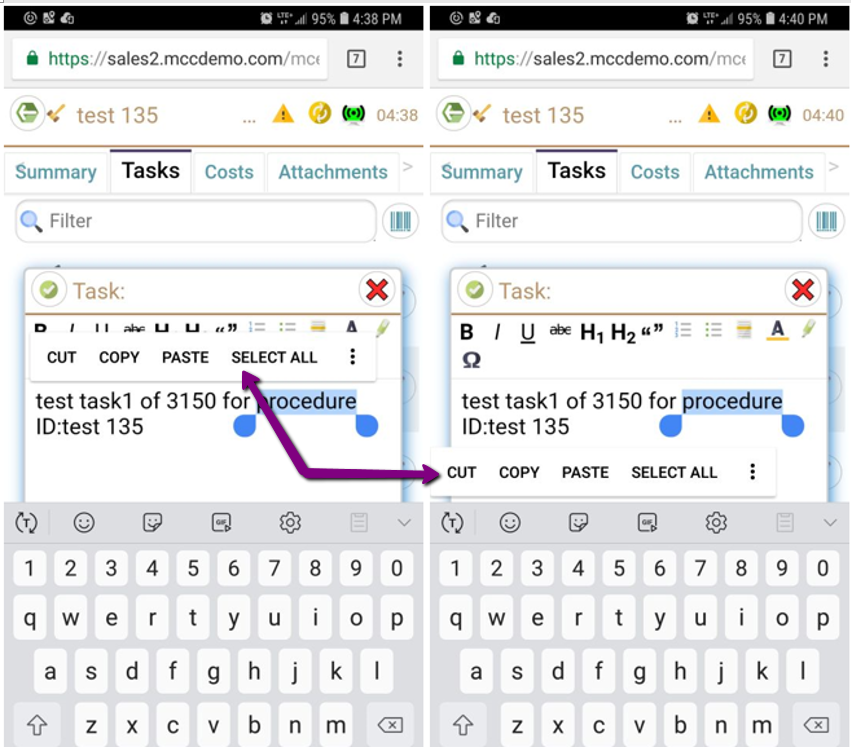
If you want to select a word on an Android, place your finger on the word and wait a second or two and the word will be selected. You can then drag 'the handle' to select a greater or lesser amount.
Appendix: Special issues, iOS (iPhone, iPad)
Unfortunately, we know of no way on the iPhone to hide or move the iOS popup toolbar. Best suggestion we have so far: if you have to change something on the first line, first put in a couple blank lines at the top, make your edits, then delete the 2 blank lines.
If anyone knows of a way on iOS to get around this iOS issue, let use know so we can let others know!
If you want to select a word in iOS, place your finger on the word and wait a second or two. An iOS menu will show up, the exact choices and way it works depends on the version of iOS. But in general there will be a choice to 'select' which will select the current word, and an 'all' which will select all the text.
Another way to achieve this (most recently tested on iOS 11) is to tap then tap and hold, where the 'tap and tap' is at the speed of a double click.
Other features are available depending on the iOS version.
Appendix: MCe vs MC HTML editor, Viewing
For viewing/Read-only display, MC and MCe are as similar as possible for the HTML codes you select.
MC:

MCe: Depending on which headers are open you will see things like:
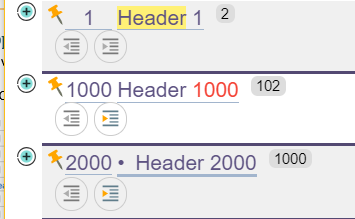
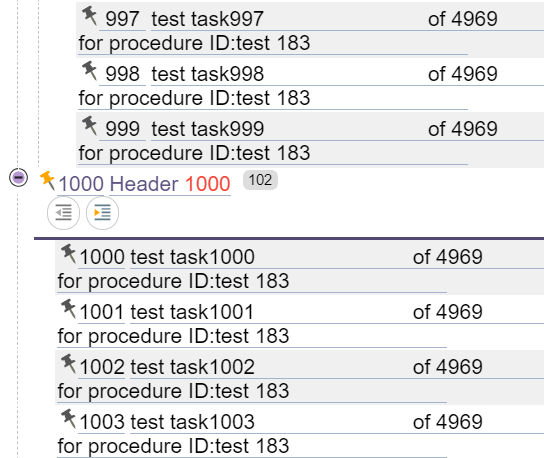
Or, if you have the header above and below open, the view will be closer to that of MC:
Appendix: MCe vs MC HTML editor, Editing
For editing, there are bigger differences. Most places in MC you are presented with the equivalent of our source editor. So for example, in Header task text you will see the following in MC:
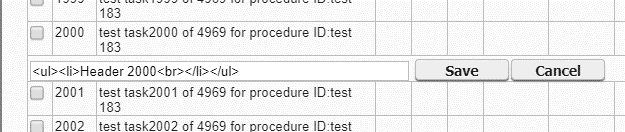
In MCe you can also see the raw <ul><li> text as well if you want
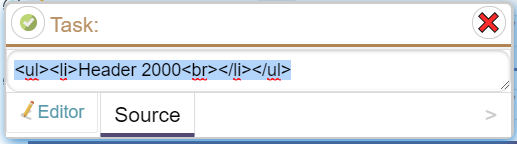
But by default, we put you in the Editor view (Editor tab), which for the example above shows you the bullet rather than the <ul><li></li></ul> type code
Appendix: Technical details for the HTML Editor
<p></p> at beginning or end
In the editor, if your HTML (hand written or written by the tool) strips out <p></p> if it is at the beginning or the end of the HTML.
<p></p><ul><li>testing<br></li></ul><p></p>
Becomes
<ul><li>testing<br></li></ul>
The effect is, where possible, it can all end up on one line.
Single <li>
If there is a 'single' <li> on its own and/or in a <ul>, we essentially strip it out at viewing time and replace it with a bullet. This allows it to show up 'inline' if all you have is a single bullet.
Everything else is processed through a 'white list' sanitizer
If you get HTML wrong, you can break the product that is displaying it. Also, a malicious person could enter in code that could cause damage. As a result, before we display your HTML we run it through a 'sanitize' step before we display it.
This will fix up minor things like forgetting to have a close tag. It also does more extreme things like blocking JavaScript code which could do all sorts of damage.
We use a sanitizer that pays a bounty for any security leaks in their product. When they upgrade their product we incorporate the new version to keep you at the most secure version. This upgrade is included free with your SMA contract, and is available at custom cost at our regularly hourly rates if you choose to not have an SMA agreement.
The sanitizer we currently use is DOMPurify, the following is recommended reading if you want to understand why we have the restrictions we have and to understand the level of safety. Then read our comments below that are in reference to comments made in this document.
https://github.com/cure53/DOMPurify/wiki/Security-Goals-&-Threat-Model
It does mention the possibility of problems if you use HTTP instead of HTTPS. We have for years now had a recommended 'HTTPS ONLY'. And effective January 01, 2017 we only officially support HTTPS for all our products.1 We only display your HTML in HTML.
We do not support 'ancient' browsers. We simply don't run on them.
We don't allow you to enter in CSS or XSS.
We pass every HTML string you/your users give us before displaying it in any context
If you DO find a way to break their security model – they'll pay you!
https://github.com/cure53/DOMPurify
https://www.fastmail.com/about/bugbounty.html $100-$5000
This is a big reason why we use DOMPurify. Every time some smart person comes up with a way to break 'something' in HTML, one place they will head is this site to see if they can earn themselves a few bucks by reporting it. This gives us great comfort that we have provided you with the absolute safest solution that still allows you to enter in HTML for the power that provides.
But I want zero risk.
You probably know that there is no way to be certain you have zero risk in life, other than to die. While we are comfortable that using DOMPurify is very safe, if you don't – you can go to our license manager and turn it off. Then we will simply reject all HTML codes in strings we display.
Appendix: What about reporting?
There's another reason to turn it off, Reporting. Most reporting tools will have a problem with HTML in the data. If you see things like "%0D%0A" showing up - that's usually because of a carriage return (enter key) in the HTML data.
Take this reason for example
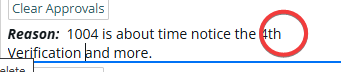
In a typical reporting tool, it will show up like this:

In MCe reports you can get this to come out 'as you expect':

To do this you use Dynamic HTML component, which will handle the above with no issue. If you want to get fancy you can do more:
ReportModel.OutputFormat == "HTML" ? row.Reason : ReportText.wrapText(row.Reason, { targetSize: "1.8in", fontFamily: "Source Serif 4", fontStyle: "regular", fontSize: "10pt" });
Footnotes
-
1: If a problem turns out to not be HTTPS related, we cover it under our normal terms and conditions, for example, under SMA we have never changed anyone for bug fixes. If the solution turns out to be "You need HTTPS for that feature" and you are running HTTP, we 'officially don't support' that – that doesn't mean we will abandon you, but it does mean that you will be billed at our normal rates for professional services. But really … you really should be running in HTTPS, even on a server in-house, the risks are such that you should always run HTTPS and there are so many features you end up missing due to the browsers if you aren't on HTTPS. Or if you are running with a 'self signed certificate' which the browsers don't support. If you have an internet presence you can get SSL certificates at no cost – letsencrypt.org, and there are a lot of people with experience and any IT department should, in this day and age, know how to set it up, and if not, it really is worth learning how to. ↩