

 Maintenance Connection Everywhere (MCe) · EAM/CMMS manuals
To give access to the camera, for taking pictures, video or reading bar code values, you need to set it to allowed for our site.
Edge (Tested Edge, Android)
Most recent we tested 2026.02
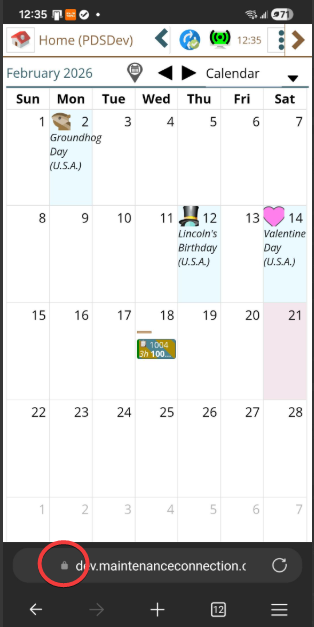
1. Click on the lock in the URL line (mine is at the bottom of the screen, yours may be at the top depending on your settings)
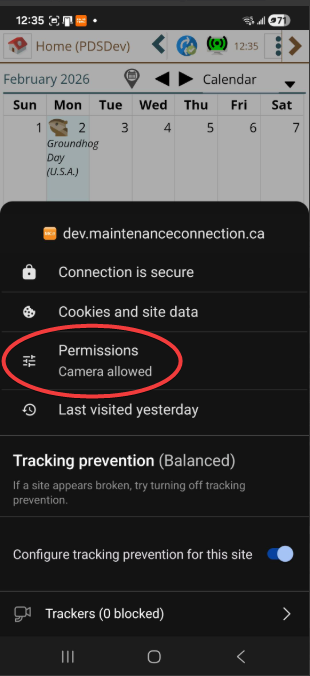
2. If the Camera setting isn't correct, click on it
3. Toggle it so it says 'allowed'
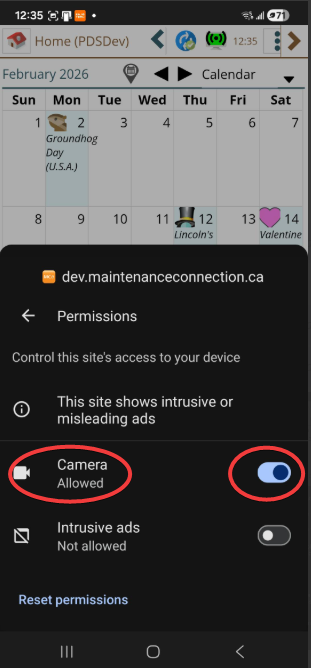
As a side note, you can set the 'intrusive ads' however you want, we do use the ads feature. Setting it to 'Not allowed' will not negatively affect MCe.
Edge (Tested Edge, Windows)
Most recent we tested (2026.02)
Enable Camera Access in Edge Settings
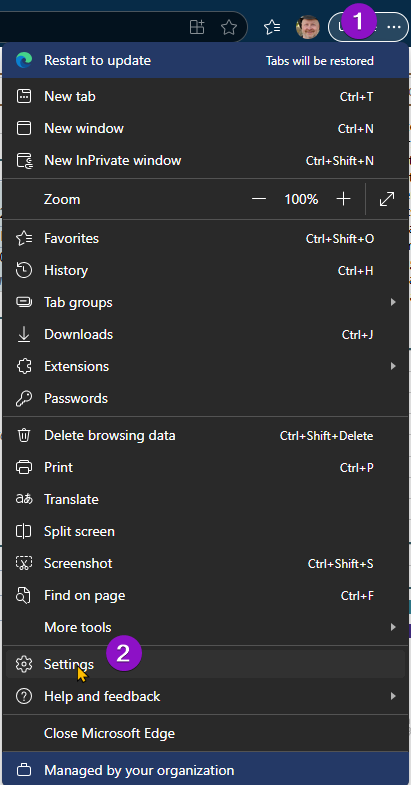
1. In Microsoft Edge click the three-dot menu in the top-right corner. #1 below
2. Select Settings from the dropdown menu. #2 below
3. In the settings menu, Search for Camera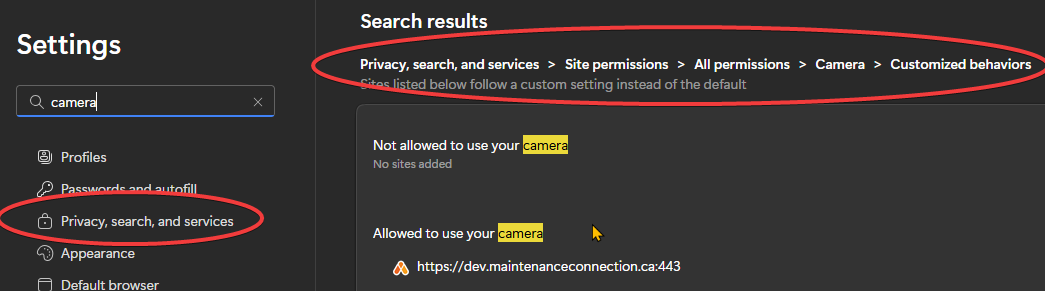
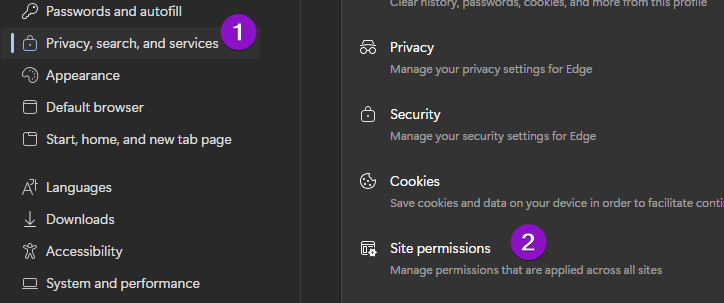
or In the left sidebar,
click Privacy, search and services.
click Site permissions
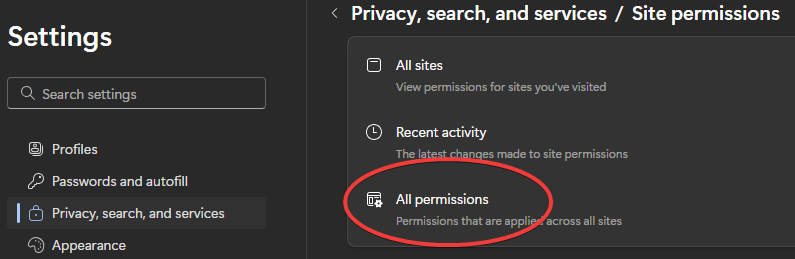
cilck All permissions
click Camera
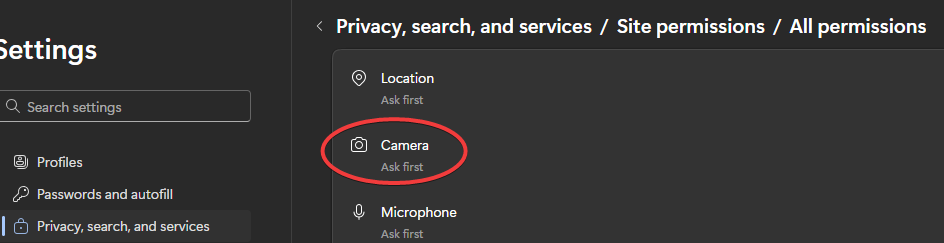
Ensure Ask before accessing (recommended) is toggled On. If it's off, you won't be allowed to use the camera on any site.
Review the Blocked list and click the trash icon next to any site you want to allow, such as the one MCe is on for you.
Now either go and use the camera from MCe and this time give permission for the camera or:
Allow Camera for a Specific Website
- Navigate to the website needing camera access. (Go to any working page or login for MCe)
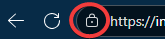
- Click the lock icon in the address bar.
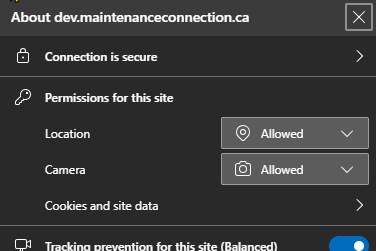
- Find Camera in the dropdown menu and select Allowed.
-
- Refresh the page to apply changes.
-

Older (Not sure which version these stopped working on)
Enable Camera Access in Edge Settings
- Open Microsoft Edge and click the three-dot menu in the top-right corner.
- Select Settings from the dropdown menu.
- In the left sidebar, click Cookies and site permissions.
- Scroll to the Media section and select Camera.
- Ensure Ask before accessing (recommended) is toggled On.
- Review the Blocked list and click the trash icon next to any site you want to allow.
Allow Camera for a Specific Website
- Navigate to the website needing camera access. (Go to any working page or login for MCe)
- Click the lock icon in the address bar.
- Find Camera in the dropdown menu and select Allow.
- Refresh the page to apply changes.