

 Maintenance Connection Everywhere (MCe) · EAM/CMMS manuals
Finding the documentation
If you just want to see the documentation, you haven't bought the product yet, you can go to any MCe system that has the API set up on it, for example:
https://dev.maintenanceconnection.ca/mce/api/swagger
If you want to 'test' or play you will need to go to a URL that you have a key for.
Quick notes on the documentation
D 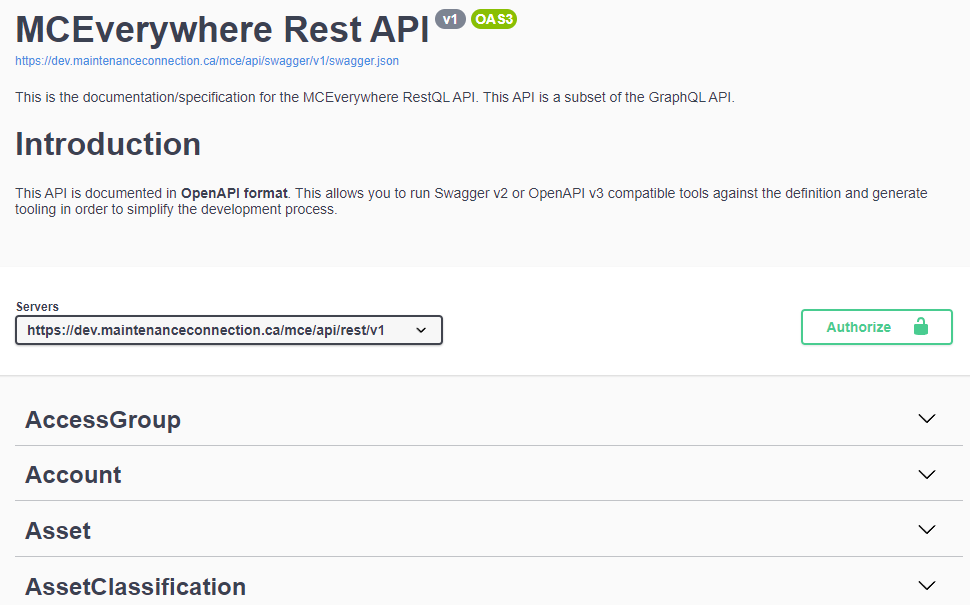 on't let the volume of documentation scare you. It is laid out is a consistent pattern.
The top section tells you where you are getting the documentation from and some general information about the API.
You then see the server that you are connected to, this is important when you start using this tool to both read the documentation as well as test the calls you want to make from code.
We'll ignore the Authorize button for now, that does not affect your ability to read the documentation, it also only affects you when you want to do testing of the API from this documentation.
You can see that we list the data sources you can pull information out of. Within in each data source, such as AccessGroup or Account, you are presented with a lot more information about that DataSource.
We provide the documentation using the Swagger tool in the OpenAPI format, as it says, this means you can pick your favorite Swagger v2 or OpenAPI v3 compatible tool for reading our API documentation. For example, using nswag tool you can generate c# code for calling our API. Many other, most common languages, have their own tools for generating REST calls from documentation. One source of tools, if don't have a favorite tool yet is https://openapi.tools/ which will give you over 100 tools that can read our API docs and do various useful things with them.
There is a lot of documentation (6MB). Where possible we 'reuse' text to keep the size as small as possible. To compare, before you consider it expanded into everything available for you with the reuse, this is 1.5x's the size of the Bible. This means, if you want to read through the whole thing, you will be looking at days or weeks of reading. Rather you should look at what you want to accomplish and drill down to find what you need, not read it like a book. For example, some of the tools will do things like open our docs in a PDF or Word docx format, in general, that is designed for much smaller APIs than ours and would not likely give you a good experience with an API that had 1000's of calls like ours.
With that in mind, the default tool we use starts, as in the image above, by giving you the specific data sources like AccessGroup, Asset and so on.
When you open one of them up you get a list of all the current calls you can make.
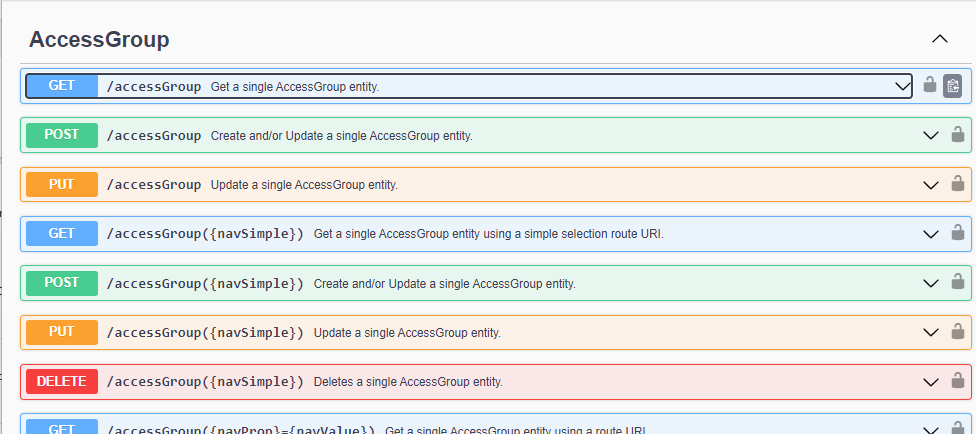
Of which, if you go through all the DataSources, you will find 1000's. But … take another look and you will see that in general, each call is duplicated, there is a SINGLUAR call to return ONE object, and there is a PLURAL call to return an array of objects. So you can make a call to return just one AccessGroup, or a call to return a set of AccessGroups that meet a criteria.
So from an understanding perspective, if you understand that one returns a singleton, and the matching one returns a set of rows, the documentation is now only half as overwhelming, and the documentation within those two will be very similar. So if you know one, with just a little change to handle arrays, you understand the other.
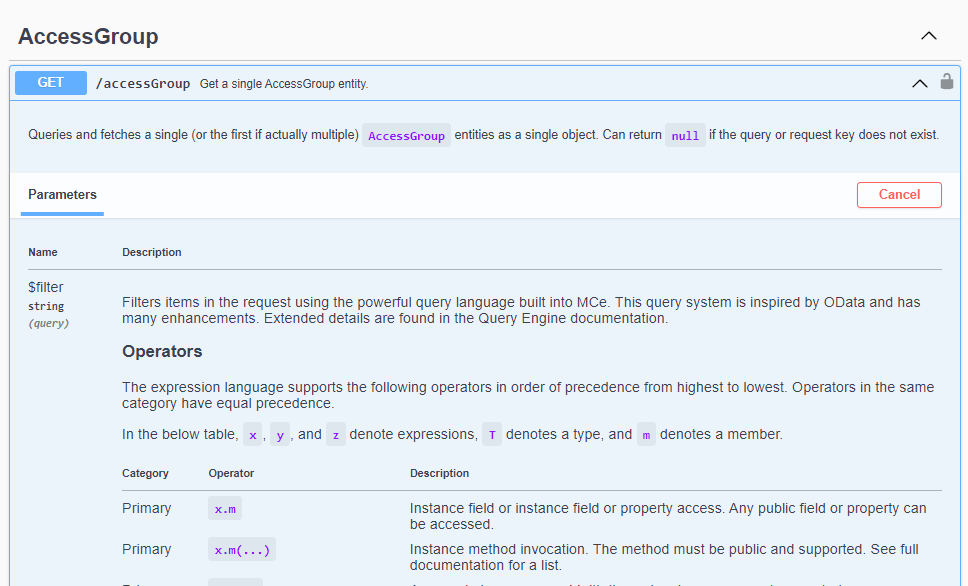 Then, part of that it isn't duplicated in the 6 MB of data but it is expanded when you go reading, you will find that the Operators, Sequence operators, and remaining information will be very similar from one call to another. We provide you with all the information where you need it, so you don't have to refer back and forth and read "most of these…" type comments in a different place. Again, our documentation is designed for you to drill down to get what you need, not a text book to be read from start to end.
Cancel button. In swagger, the default is to just provide documentation, not let you try it out live. We change that to set it so you can try it out. The cancel button, if you press it, will take away that ability from you, thought you can press the "try it" button that will show up to try it.
 How do you try it?
First you have to click on the Authorize button so you can enter your key to call the database. If you are just looking around and don't have a key, you will need to get a key before continuing.
You will now be presented with the "Available authorizations" dialog, where you can enter in your authorization value.
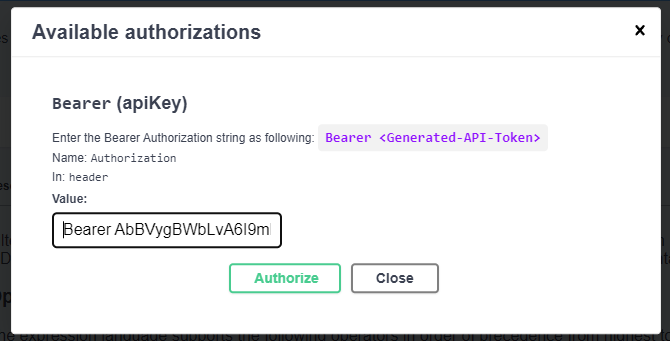
From here, you enter in "Bearer " followed by the API key you have been provided, see the image to the right.
Then press the green "Authorize" button
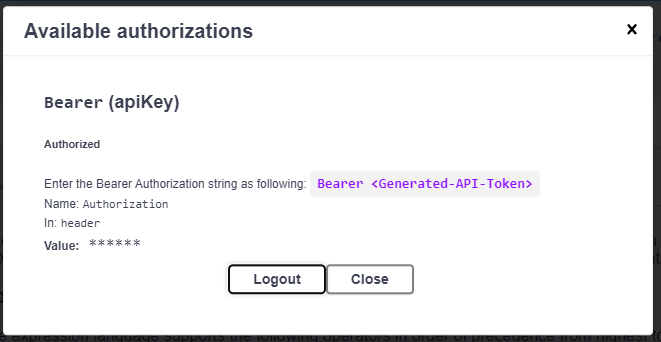 This will show you that the key has been entered. Please note that no validation is being done, it is simply being stored for use in playing around.
Once you have done that, hit close, and the Authorization button will change to displaying a closed (locked) lock.
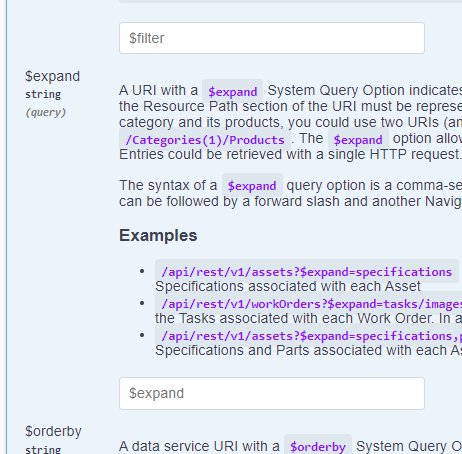 Your next step is to get ready to make a call. There are several fields you can fill in, with your test values. If this is your first time with REST or Swagger and maybe even if this is the first time with the MCe API, for most calls you can skip all the entry fields …
And go straight to the "execute" button.
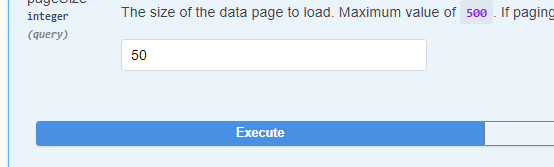
Click on this button, then let's look at the results.
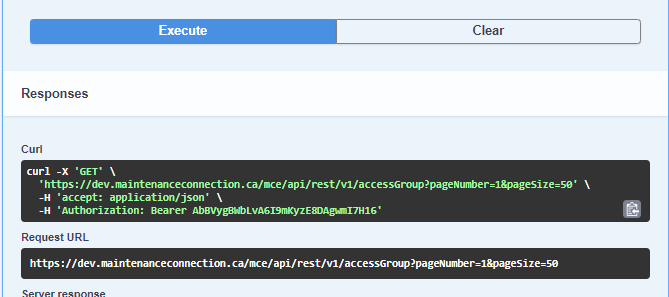
if you use curl
, we provide you with what you need to give curl to make this call.
The Request URL shows what the generated request looks like. If you want to do this exact request from code, this is what your call needs to contain.
After that you are presented with:
The response to your request
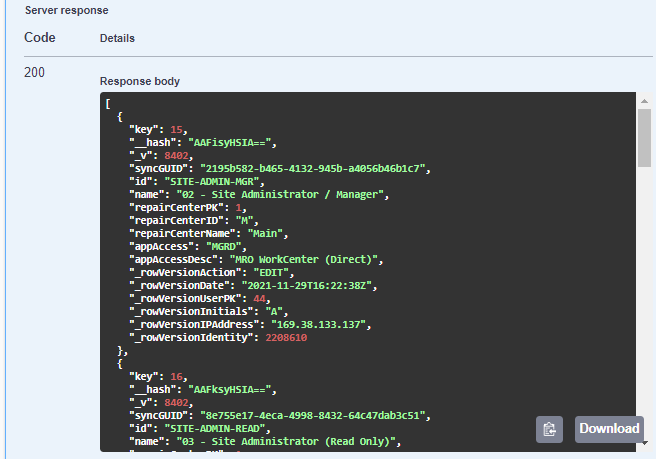
With a couple buttons to store the resulting data into the clipboard or into a file.
Next, you are shown the Response headers that are returned with your request

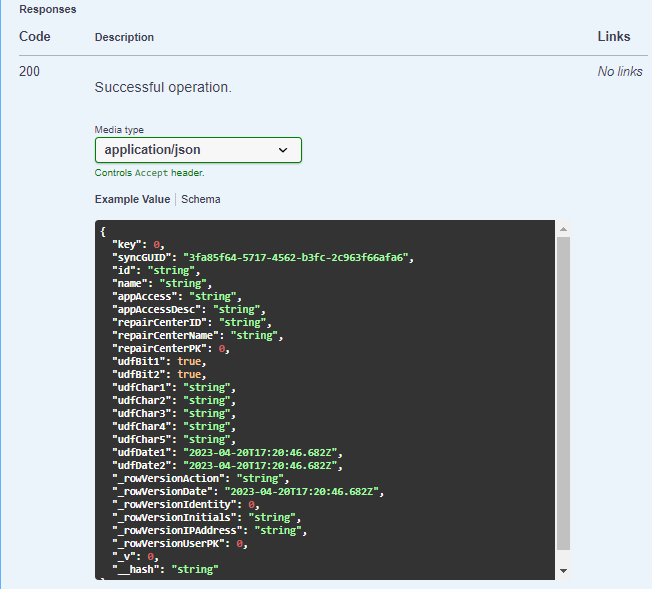
Documentation on the FORMAT of the data that will be returned by your request
i curl is a command-line tool used for transferring data using various network protocols, including HTTP, HTTPS, FTP, and more. The name "curl" stands for "Client URL," which reflects its primary purpose of interacting with URLs (Uniform Resource Locators). It is widely used in various applications, including web development, API testing, and system administration.
Developed by Daniel Stenberg, curl is open-source and available for numerous platforms, including Windows, macOS, and Linux. It supports a wide range of features, such as authentication, proxy support, cookies, and SSL/TLS encryption.
Curl can also be used for more complex tasks, such as making HTTP POST requests, uploading files, and interacting with APIs by specifying custom headers and request methods.