

 Maintenance Connection Everywhere (MCe) · EAM/CMMS manuals
When defining reports, there different measurement types you can use for specifying the size of something. If you don't specify the size, something else, obviously, is going to specify it. Sometimes, often, that is great - let the system make good choices for you, especially with multiple items that may not be easy to at design time pick the right size. Column widths for example. Other times you want to be very specific - when showing a barcode or image for example.
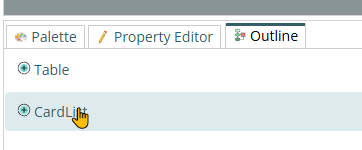
If you don't specify anything, it will come from a higher level default. To see your defaults go to Outline view and pick the highest level component for the area you are working, in this case, the CardList
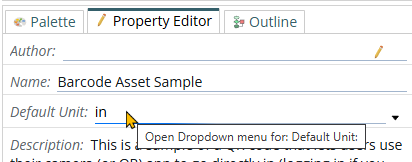
Then after selecting that, select the Property Editor tab and check or set the default unit.
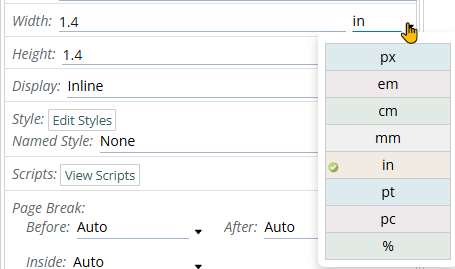
- px - set it in pixels. These have no fixed size, it is typically the smallest definable or 'addressable' element in a digital display. Unfortunately while that is the traditional definition, different display devices might not strictly hold to it, An Apple or Windows phone for example may have 2 or 3 'dots' for 1 pixel depending on the situation (retina screens). The size also varies greatly depending on how many pixels per inch PPI on screens, DPI (Dots per inch) on paper the 'display' or device has. Some common PPI are 72, 96, 144, 288. With Retina displays being much higher or perhaps lower depending on whether you are talking the higher level number or the more detailed level.
- em - set it in 'ems'. This is historically the width of a capital M in the font you are currently using. It may not be exactly that in reality, but it should be close.
- cm - set it in centimeters (100th of a meter)
- mm - set it in millimeters (1000th of a meter)
- in - set it in inches
- pt - set it in points, 1 point equals exactly 1/72nd of a inch, approximately 0.353mm. You will most likely have run into it when choosing a 'font size', noting that many fonts don't strictly hold to the pt which is one of the reasons why 2 fonts can appear very different sizes even though they are the same point size.
- pc - set it in picas, 1 pick equals exactly 12 points - 1/6th of an inch, approximately 4.33mm, 0.433cm.
- % - Percentage of some larger (surrounding) object/container.
How do you pick between px, mm, pt, %, em, in, pc & cm?
Start with "Whatever makes most sense to you based on what you know about the elements you are working on." So if you are working on sizing images, and you want it on paper, and you want 4 images across a 8.5" paper with margins - then something like 1.4" will likely make more sense to you than 100.8points. The different values exist to make it easy for you, not make it more difficult. Start with what you know and makes sense to you, then change it if you find new info that makes it easier to work in a different scale. In the same way I work with inches with paper but kilometers when driving in Canada. Both would technically work for each other - but in practice, working with mm with 8.5" paper would be really cumbersome.