

 Maintenance Connection Everywhere (MCe) · EAM/CMMS manuals
Why are API keys needed? Why can't I just call the API?
The API is very powerful. It gives access to all your EAM/CMMS data. As a result, the API does NOT let you access anything until you create an API key that gives restricted access. When possible, the key should be restricted to read only. When you need to write - that's OK, give the API key rights.
It is also licensed based on usage. The API keys you create track your usage. If you need more tokens, talk to your sales contact with us.
Can't you, MCC, APS, ITIQPro create them for us?
No. we do not EVER want ANY of our team knowing your API keys. Noting that when the keys are saved - the dangerous part of the key isn't stored, so even if you give us access to your database we can not 'get' your keys.
Our Professional services can walk you through, but we don't want to know your codes.
But I forgot my key
Delete the key and create a new one.
There is no known way to figure out the key from the info stored in the database. It is a one direction encryption on purpose.
Keep your MCe API keys private
I hope this is obvious. But in case you overlook it … When you generate a MCe API key, you are creating an access point that has all the power that you assign that key, and that power often is a lot.
You should ONLY give the keys you generate to trusted people. You should never make the keys visible to the public. Do NOT store them in a git repo for example - you don't want them exposed to the world, or even just to Microsoft.
If at some point you fear that your keys may have been exposed, then like ALL private keys and access that you may have for any system, you should delete the existing keys and their associated users. If still needed, generate new ones, and then install those new keys in your software that uses them. Note that, until you delete the key in the MCe API UI module (or delete them with a database command), they can be used to their full power by whoever has the key.
When a trusted employee leaves, you should replace all the keys they had access to, including MCe API keys, that that user had access to by first invalidating the old ones by deleting the user. You should not say "Oh, I trust Susan, it is OK." You want to replace them first, just in case Susan uses them in an inappropriate way. But you should also want to replace them out of courtesy to Susan. That way, if the key is used for a 'bad' purpose, you will know with certainty that Susan didn't do it – because the new key was not known to her.
The author of this document once had access to 20% of the US payroll. When the contract was finished, the owner of the company said "I'll leave your access so that if we need you to make a quick fix, you can." I explained the above to him and said : "I don't want there even to be the possibility that something might be thought of as my mistake". So it was decided that he would delete my access and … if he needed my help again later, he would recreate new access. He never did need me to come back to make any changes, so I never had it. The point was: I do NOT want to have access, because if something goes wrong, people will always wonder if maybe it was me that did something.
So … whether it is the MCe API key or any other login or valuable keys, when employees leave that know them: Replace them or delete the user account to invalidate them, for your sake and theirs.
So how do we create a key?
First, let's get to where you create the key
From the main menu (#1)
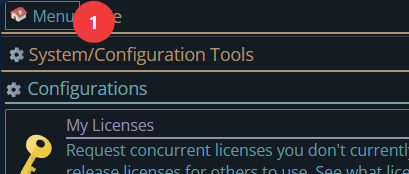
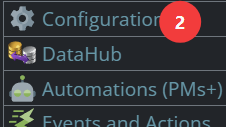
Choose Configuration which on a wide screen will be the 3rd column of the menu, on narrower it will be in the 2nd or 1st columns and the menu becomes taller to accommodate narrower windows.
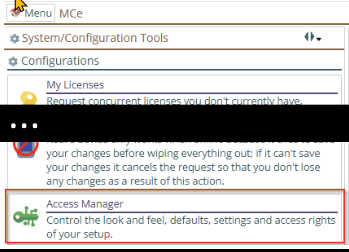
From there choose the Access Manager (the green 'key')
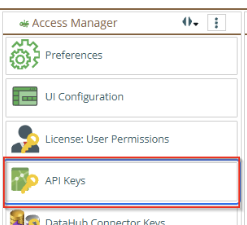
Then from the Access Manager tools, go into the API keys tool
Now we are at the API key creation location
Near the top, see #1, is the documentation for your two options of accessing the API, REST and GraphQL. Within those they document how to use the key you are about to generate. The key is not different for REST or GraphQL, you can use the same API key for either protocol or indeed for both.
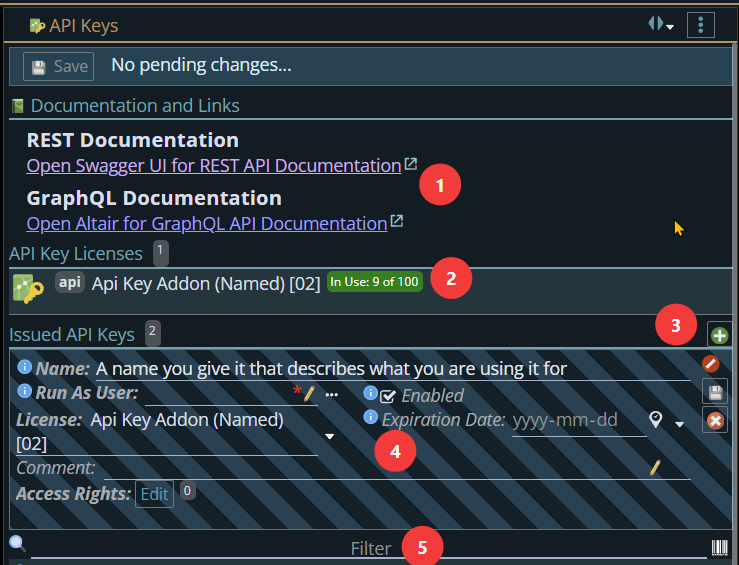
The green 'bullet' (#2) shows that this customer is licensed for 100 tokens, and that so far 9 are already spoken for, 'in use'.
To get the section below, I clicked on the green button with + sign. (#3)
We will go into more detail on the new API section (#4) below. The 'grey/gray' hashing means that it is new, it has not been saved, and that there is at least one piece of required information which due to the * wee see the 'run as user is needed. (the background would be green stripes if it had all the info it needs to be saved as a new record)
(#5) is a filter to limit the list to help you find API keys you previously created, especially if you created a lot of them. The list is not shown, it is directly below the screen shot above.
Enter the Name and Run as user
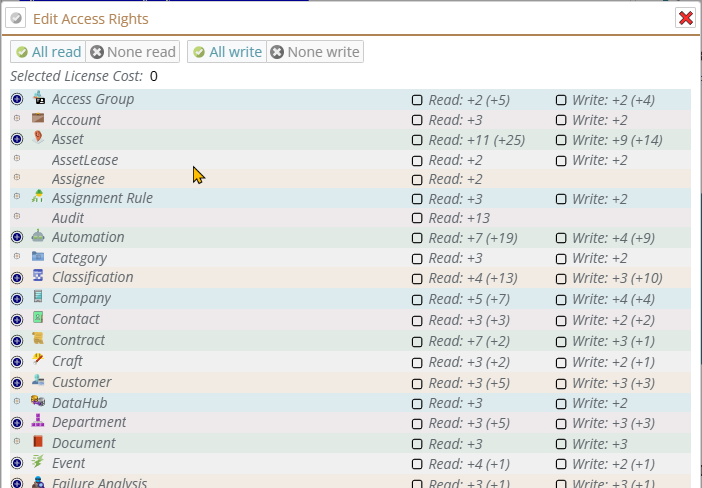
Then enter the Access rights - the areas that 'this' API key is going to be able to access.
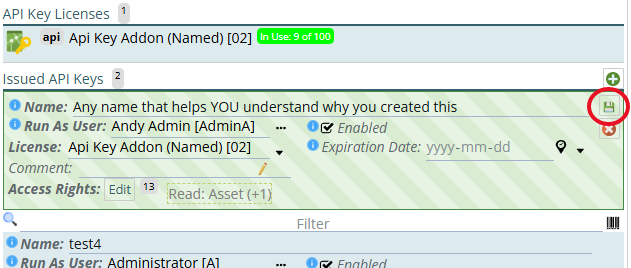
Now you need to generate a key.
Before you do this, if you are on a Teams/Zoom etc.., session - stop the recording and/or stop sharing this window. You do NOT want to leak this to anyone, and we don't want to have been shown in - it's great you trust us, but we want to keep it impossible that we know your key.
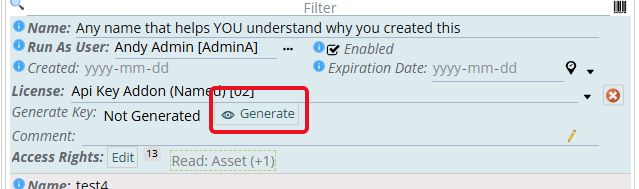
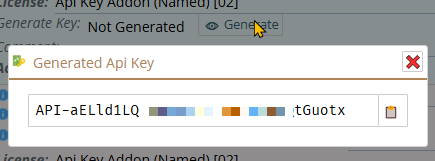
Note this down in a secure location. Use the 'copy' button on the right to make sure you copy it exactly.
If you accidentally leaked the key - be sure after the meeting or after your screen isn't being shared, to generate a new one to wipe the one that was seen accidentally, even if you trust the person who saw it - so there can't be false accusations.
ONCE THIS DIALOG IS SHUT DOWN THE ONLY WAY TO RETIEVE THIS KEY IS BASED ON WHERE YOU STORE OR USE IT
If you lose it, it is a one way encryption. There is no known way for us or anyone to get it back for you. There is no backdoor - on purpose.
If you accidentally leak it - regenerate it immediately to stop anyone from using it maliciously.
If you generate a new one - the previous one (if it it exists) will immediately cease functioning. This is good! This means when one is lost you can kill it very quickly. But ... if you have a process running that relies on it - it will need to be modified to use the new key.

Click on the green arrow to kill the current key and generate a new one.