

 Maintenance Connection Everywhere (MCe) · EAM/CMMS manuals
Most people looking at this help will have found it because they searched for "Manual activation" or they saw a screen in the process of doing the manual activation that said "request manual intervention". If you don't know how to get to the 1st screen shot below, start at System IT level advanced tools.
Getting to System IT Advanced tools, CollapsedWith LoginHub licensing, typically a server will renew it's activation AUTOMATICALLY. This happens at the customer on-prem server calling out to our license server.
If the server doesn't have appropriate internet access, it will be necessary to do a "Manual activation":
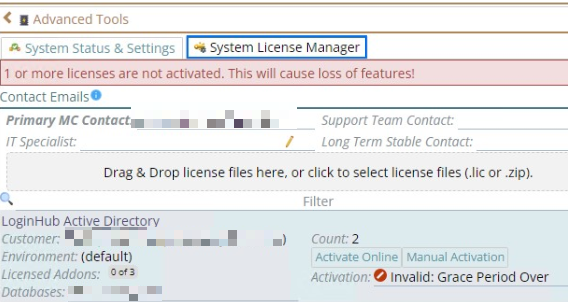
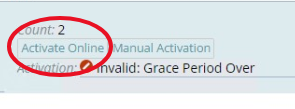
If you think the server currently has internet, perhaps you turned a firewall off for a minute, start by trying to "Activate Online", then you can put your firewall or whatever back for a year until you need to do this again.
If you can't conveniently give the server the access it needs, or you don't know how to, we provide a Manual Activation process. It is a bit more cumbersome, but not too bad. The key is to make sure you copy paste exactly what you are provided with at a couple steps.
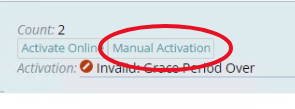
When you click this button you will get the following screen shot.
Step 1 is to click on the copy button to make sure you get only and exactly what is in the token. The copy button simplifies this.
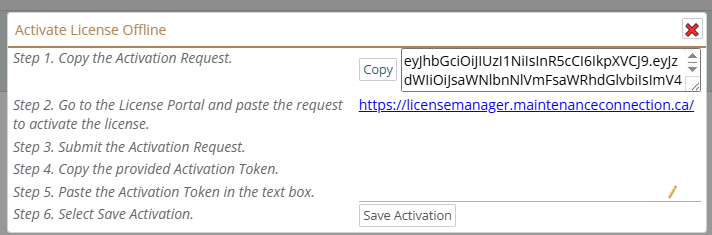
Step 2, is for you to click on the link given. If will show you the following screen shot. You paste what you just copied where the #1 indicator is in the screen shot below.
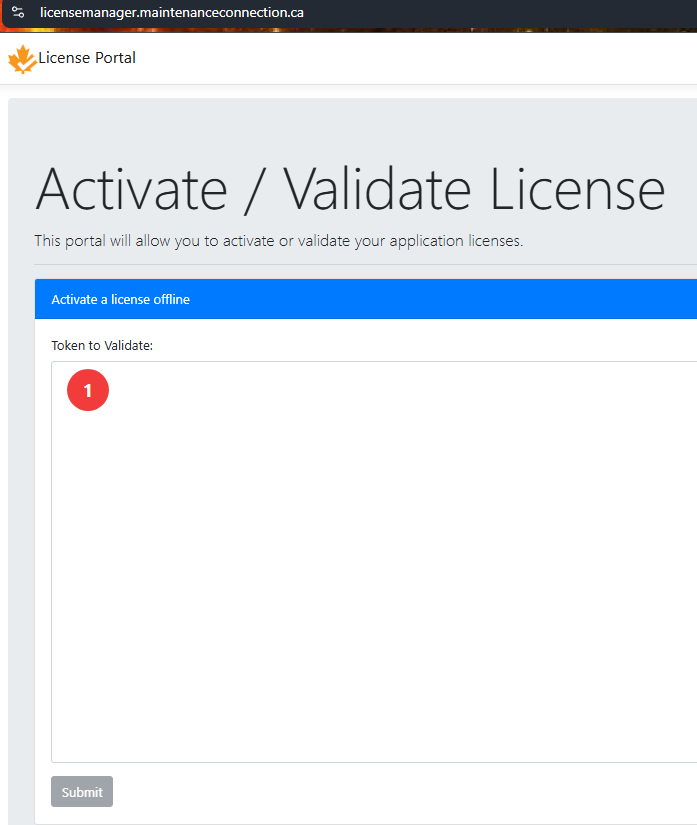
If the manual request succeeds: you will get a screen shot like the following (without the pixilated obfuscation)
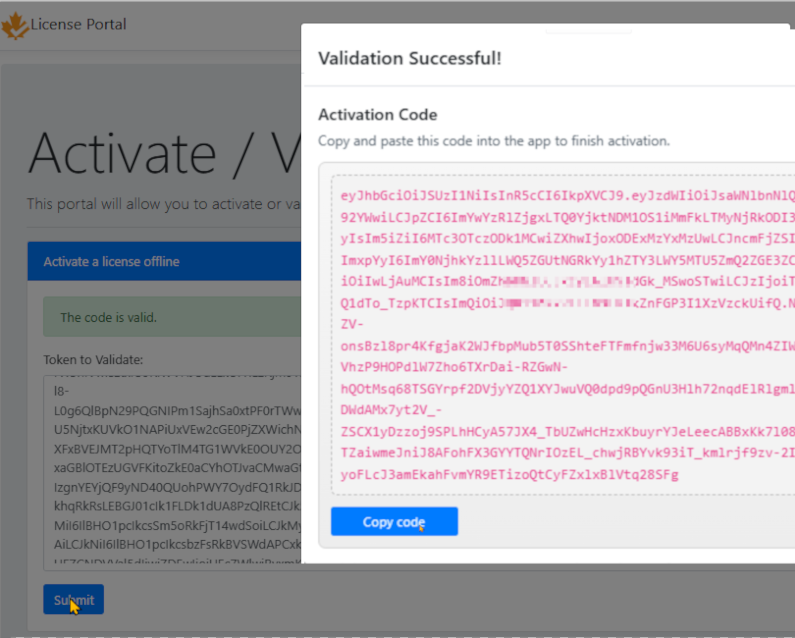
You need to then copy all and only the text in the box in the dialog that pops up.
To avoid mistakes - use the 'Copy code' button to copy the entire code to the copy buffer.
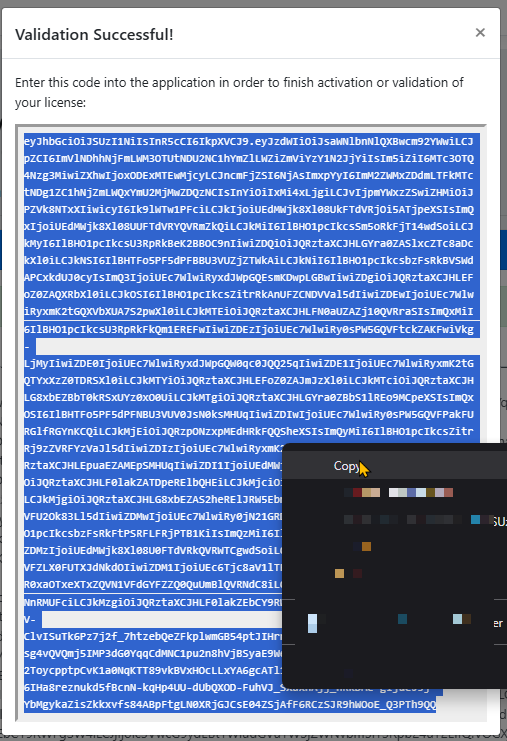
Now close the browser tab with the license manager and return to the IT Management Advanced tools
Go to Step 5 and paste what you copied:
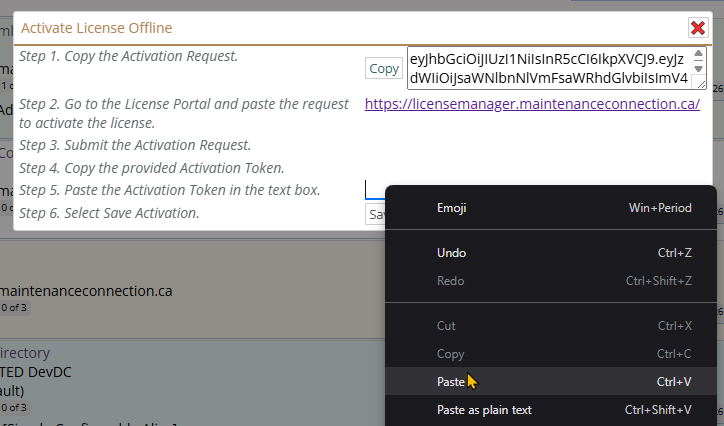
After pasting you likely have to scroll down to see the Step 6 button (because the token is fairly large)

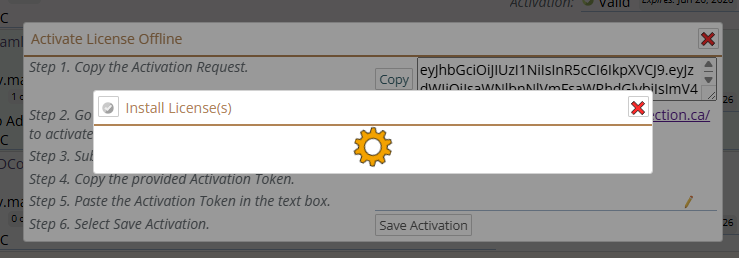
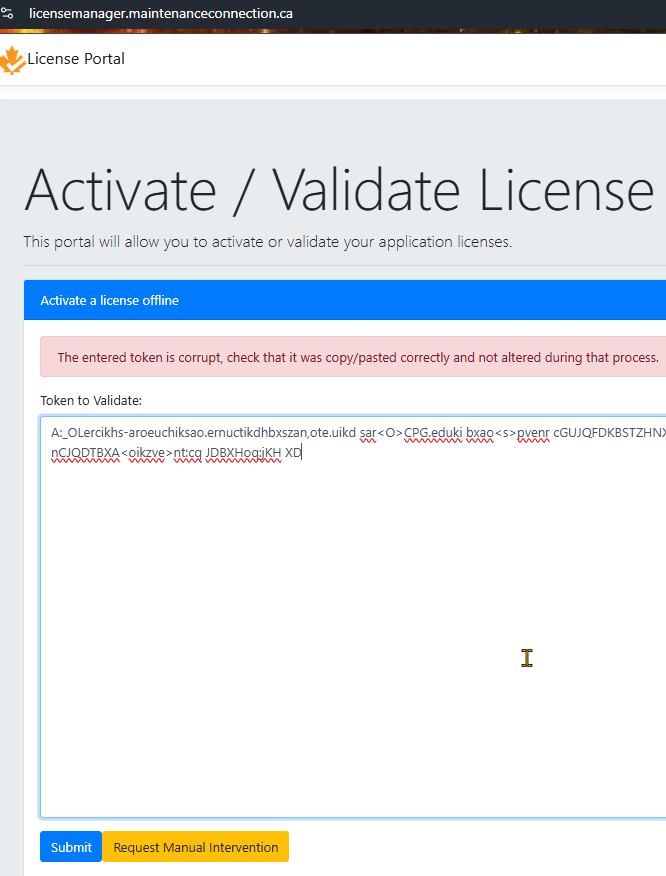
If you get even 1 character wrong (such as not copying EVERY character from the Validation Successful dialog, or over copying some of the UI, you will get an error such as the following.

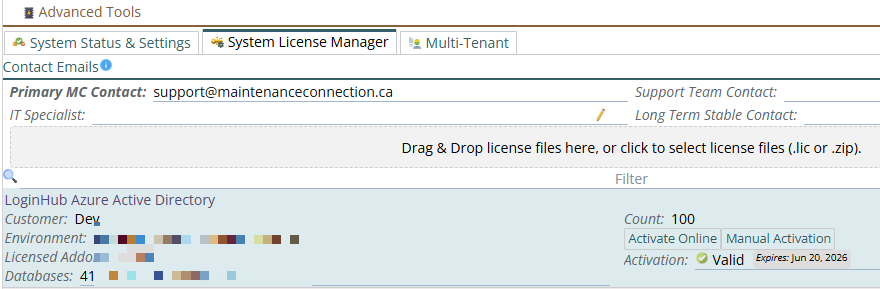
Once you correctly paste it and hit save activation, the popup dialog will disappear and you'll be returned to the list of licenses, and now it should save "valid".
If you got to this point you are done. If you ran into problems that require a manual intervention, read on.
If the manual activation fails - in general meaning, you appear to be breaking the rules, you send a REQUEST for a manual intervention. The request happens at the License portal by clicking on the orange "Request Manual Intervention" button. It will send the token you pasted in an attempt to figure out what the issue might be. The most common issue is - you didn't deactivate the license on the old server first, and then the corollary is "and you reformatted the hard drive so there is no way to do it anymore."
Then, MCC/ITIQ staff will receive the request and decide first whether to do the manual intervention. In almost every case the answer will be 'yes', because scammers and cheaters will have self filtered out at the previous step. There are instructions given in the ticket created to remind our staff HOW to do the manual intervention. Our staff will check first whether you are up to date on SMA to determine whether the request is valid. Note, there ARE cases where even with the SMA not up to date, your are still are permitted the activation and by extension the intervention.
If we are suspicious (and the easiest way to make us suspicious is to regularly request manual intervention) there may be further conversation before we approve the manual intervention request.
Whether you did the online activation or the manual, the final result, if your license was legal, will be as below - look at the Activation in the bottom right portion of this image.