Maintenance Connection Everywhere (MCe) · EAM/CMMS manuals
DataHub Mutator
Runs in Pass 2
Purpose:
The Mutator manipulator allows transformation of one or more input fields into one or more output fields. This is where complex logic can be applied to merge, split, or enrich data.
Key Characteristics:
- Executes second in the pipeline (Pass 2)
- Can process multiple input fields
- Can generate multiple output fields
- Enables complex data transformations and calculations
Common scenarios include:
- mutating multiple fields into other field(s)
- Fix entity field references, actually for filling fields like PKIDNameSyncGuid of a linked entity.
- Performing calculations across multiple columns
- Data aggregation and summarization
Configuration Fields
- Name – Friendly identifier.
- Type – Set to Mutator (Pass 2).
- In Fields – Source field(s) for mutation (supports multiple fields)
- Out Fields – Destination field(s) for the mutated data
- Order – Determines execution priority.
- Comments – Optional documentation.
- Script – Code defining transformation logic.
- When you add a manipulator, and tell it the type should be Mutator (Pass 2), it will generate some code to get you going . The part at the top is all comments (JSDoc style to be specific), then you add your JavaScript code in the middle of the 'return function' with your own code.
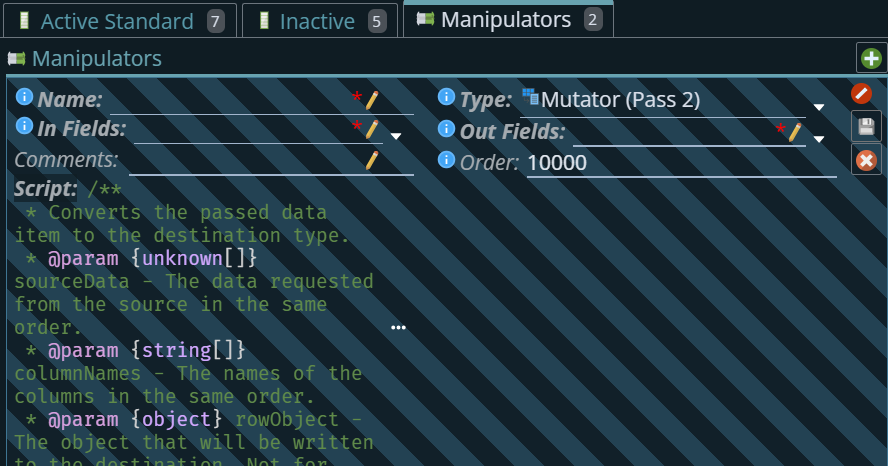
The full code it is providing is as follows
/**
 * Converts the passed data item to the destination type.
 * @param {unknown[]} sourceData - The data requested from the source in the same order.
 * @param {string[]} columnNames - The names of the columns in the same order.
 * @param {object} rowObject - The object that will be written to the destination. Not for writing, just for reference.
 * @param {IConnectionData} connectionData - The connection data in order to connect to the database or other similar function.
 * @param {(friendlyText: string) => void} createError - A function to create an error that will be thrown.
 * @returns {unknown[]} The mutated data in the same order as the output fields is defined.
 **/
return async function mutate(sourceData, columnNames, rowObject, connectionData, createError) {
	// Your code here
	return [];
}
Implementation Examples:
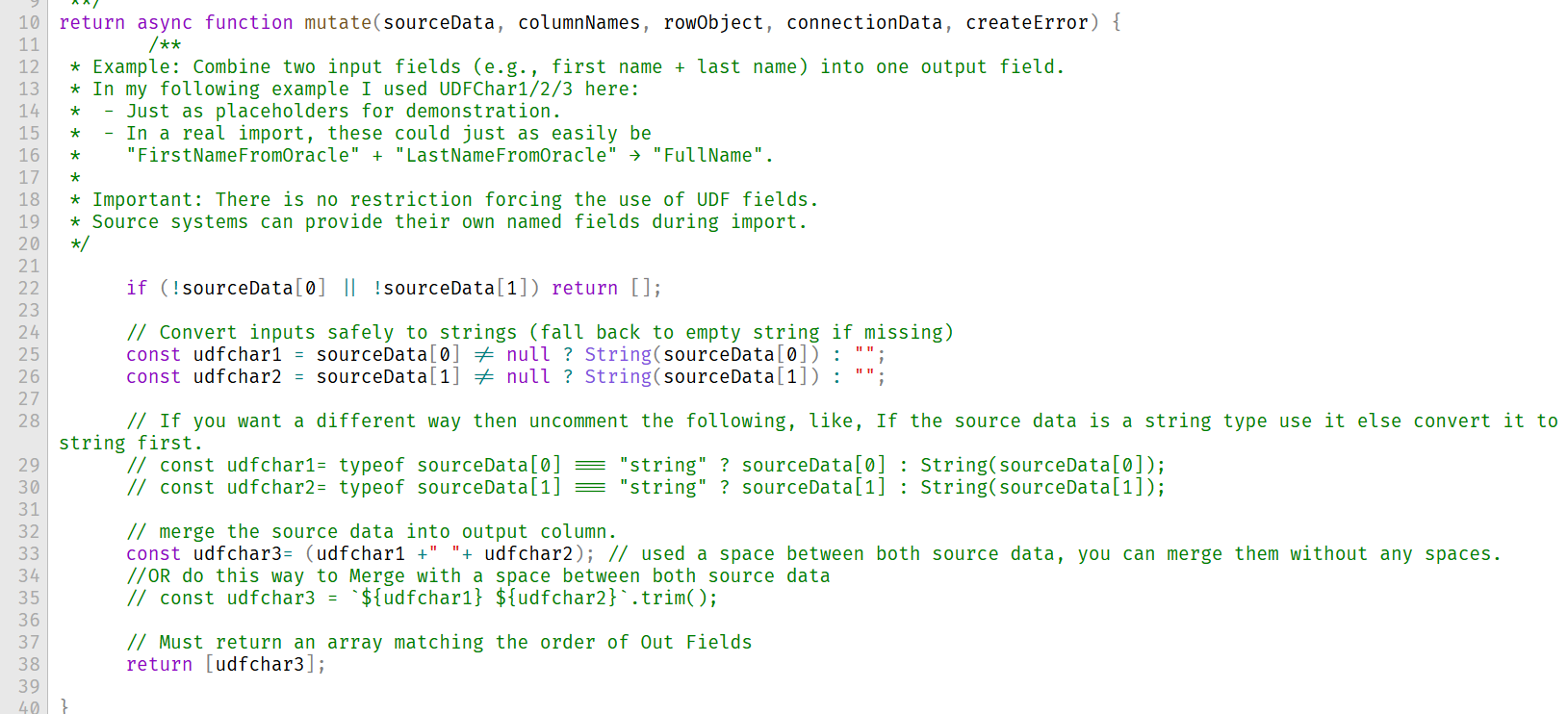
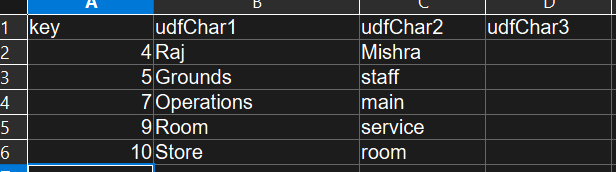
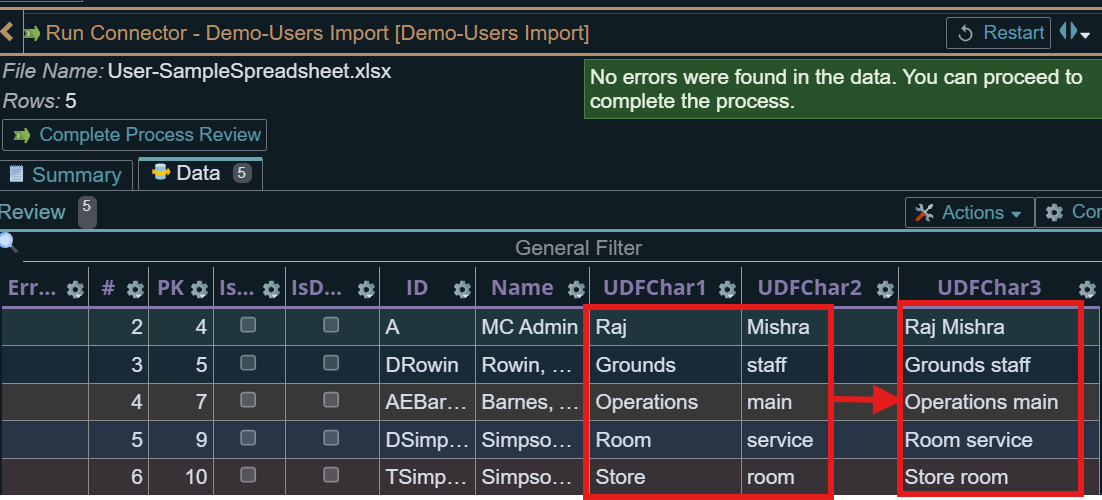
Example 1: Mutating multiple fields into other field(s). Filling a field from other multiple field's values:
In the following example, File the UDFChar3 from UDFChar1 and UDFChar2
Set up:

Script:
Source Data:
After Processing the file:
Example 2: Performing Caculations
Perform basic calculation (Discount, Subtotal, Total).

Script:
return async function mutate(sourceData, columnNames, rowObject, connectionData, createError) {
    /**
     * Example: Perform basic invoice/line-item math (Discount, Subtotal, Total).
     *
     * In this example, we calculate:
     * 1. Applied Discount
     * 2. Subtotal after Discount
     * 3. Final Total (including Freight & Tax)
     *
     * Source Data Mapping (sourceData array comes in the order of your configured In Fields):
     * [0] -> Discount Percentage (e.g., 10 for 10%)
     * [1] -> Freight charge
     * [2] -> Subtotal before discount
     * [3] -> Tax
     *
     * Output Mapping (what we return must align with your configured Out Fields):
     * [0] -> Applied Discount amount
     * [1] -> Effective Subtotal (after discount)
     * [2] -> Final Total (effective subtotal + freight + tax)
     *
     * Note:
     * - This is just an example. Your real import could use different field names
     *   (e.g., "InvoiceDiscountPct", "ShippingFee", "BaseSubtotal", "VAT").
     * - You don’t need to stick to “Discount/Tax” math – mutators can be used
     *   for *any* calculation or transformation needed before data is written.
     */

    // Step 1: Read input values safely (use nullish coalescing to avoid NaN).
    const discountPercent = Number(sourceData[0] ?? 0); // Discount % (default 0 if missing)
    const freight        = Number(sourceData[1] ?? 0); // Freight/shipping cost (default 0 if missing)
    const subtotalBase   = Number(sourceData[2] ?? 0); // Subtotal before discount (default 0 if missing)
    const tax            = Number(sourceData[3] ?? 0); // Tax amount (default 0 if missing)

    // Step 2: Calculate applied discount.
    let appliedDiscount = 0;
    if (discountPercent !== null && discountPercent !== 0) {
        appliedDiscount = subtotalBase * (discountPercent / 100);
    }

    // other way to calculate discount, accepting 0
    // const appliedDiscount = discountPercent ? subtotalBase * (discountPercent / 100) : 0;

    // Step 3: Calculate subtotal after discount.
    const effectiveSubtotal = subtotalBase - appliedDiscount;

    // Step 4: Calculate Final total including freight and tax
    const finalTotal = effectiveSubtotal + freight + tax;

    // Step 5. Return values in the SAME order as Out Fields
    return [appliedDiscount, effectiveSubtotal, finalTotal];

    // If you want rounding off, then you can use Math.round(num * 100) / 100;, it is for 2 decimal places, if you want more decimal
    // point than add number of 0s
    // e.g. appliedDiscount = Math.round(appliedDiscount * 100) / 100;
}
Source file:

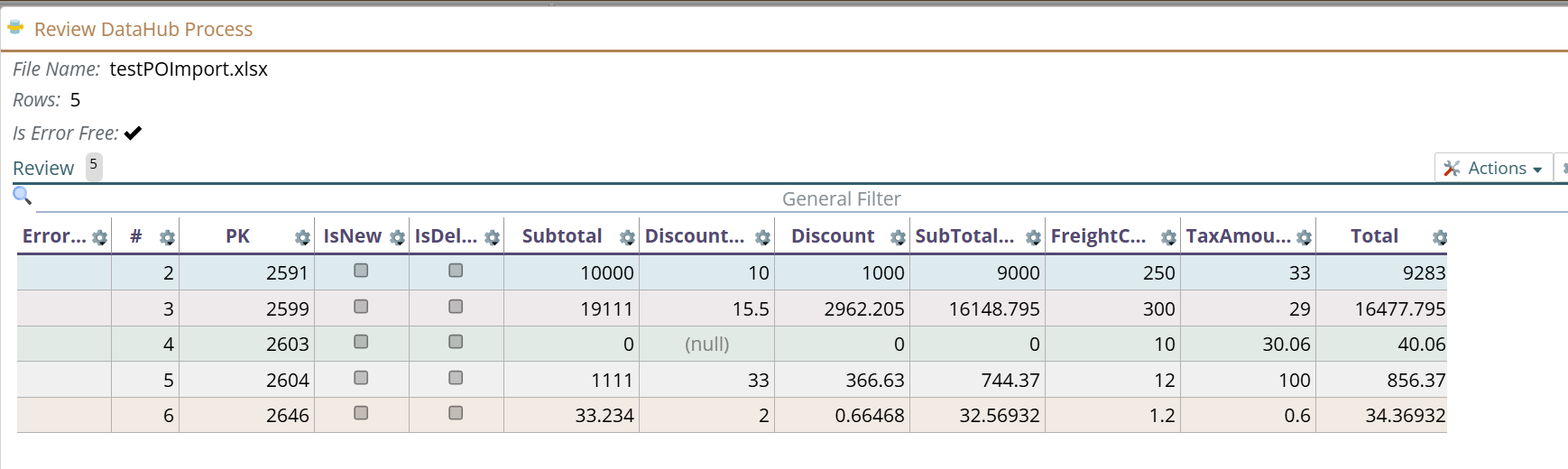
Output after mutating: