

 Maintenance Connection Everywhere (MCe) · EAM/CMMS manuals
A reminder that changes to the UI config are not covered under SMA, they are covered under Professional Services which you may have bought a block of hours (lower price typically) or may be pay-as-you-go. Fortunately there are tools (exporting the preferences to view, importing them to 'fix up' mistakes) to lower the cost when you do make a mistake.

If your changes are plain 'not showing up':
Did you forget to hit save?
It's a simple mistake to make, and is quite a common one, especially since very few of the normal EAM/CMMS sections of our programs require explicitly hitting a save button. You get used to not having to hit save, then you come to something like this and don't notice the Save button is required. (New rows and admin functions like UI Config are where the 'save' buttons are common.)

After you hit the save button, you should refresh the page. (hit the browser refresh). Without going into details, since tool is a 'digging the sand under your feet' part of the program, the refresh is sometimes necessary, so the author of this doc just ALWAYS does it "so I don't have to wonder".
If you are testing is in another browser or device, use the 'manual sync' to force changes after you hit the save button above to avoid having to wait several minutes for the sync to happen.
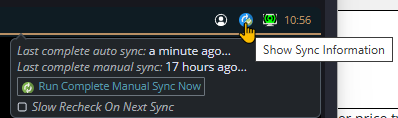
If it is in the same browser on the same device, the changes should be evident immediately
Power tip: Use your browser's 'split screen' to see changes on one side while making them on the other See how to do a split screen in the browser
Did you move something?
Is it in a place where it is hidden?
It is quite common to move something to a place that 'doesn't make sense' and ends up hidden or isn't quite what you were thinking. The first step to resolving this is: does it still show up in the UI Config tool where it started? If it isn't there - then it is moved somewhere. Maybe just not where you intended. If you can find it in the UIConfig - try a parent a little deeper to see if that gets you to where you wanted.
Is a parent hidden?
If an object is moved into something where the parent, or parent's parent etc.., is hidden, then it will not show up because it is inside something that is hidden.
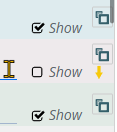
Did you not change the 'sort order' the position?
Remember there is a 'sort order' field, you may have to check the other items that it is near and see what their orders are, then tweak the one you are moving.
Note that by default we leave a gap of 100 between items to make it easy for you. Typically you'll use increments of 25 or 10 for where you move things. Remember that with an upgrade, we might have more added, so if the last is 700, don't use 800 (because we will someday) use 750 (so it stays after the current one) or 9950 to make sure it ends up at the bottom after upgrades.
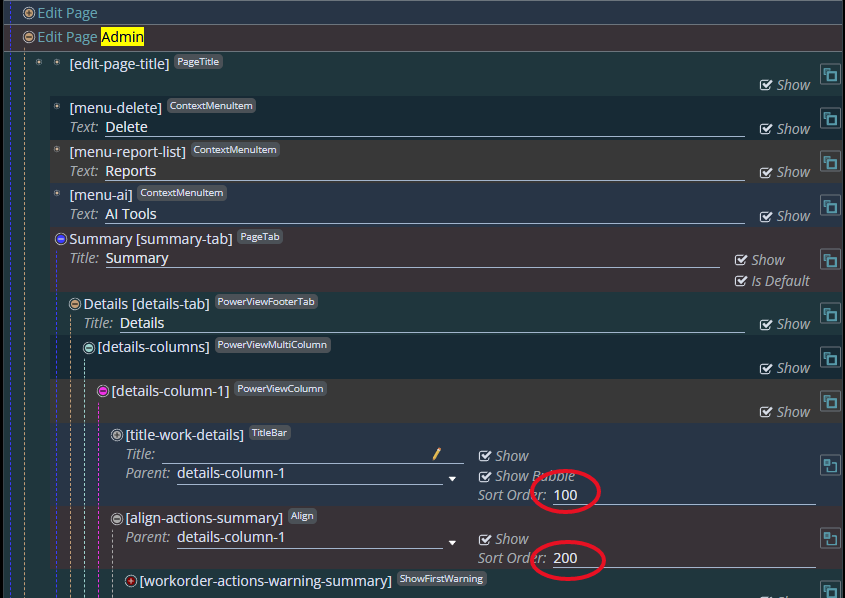
At every node, every level the sort order starts over. So you might have moved something that was at 'the very bottom' that had a sort order of 200, to something that has 9 or 10 so you need the sort order to be something like 1050 for it to end up at the end of the new list.
Are you changing it for everyone? An access group? A user?
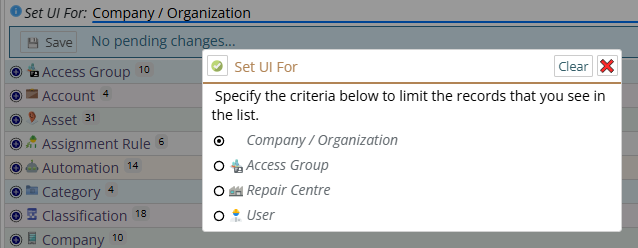
If you are setting it for one access group but your test is a user (perhaps you} that belongs to another - you won't see the change
Is it overridden at a deeper, more specific level?
This one is a little trickier to tell if you don't know. It may have been done decades ago, and/or by someone who isn't you.
Here are some ways you can check:
1. Check the access group your test user belongs to. Is this item overridden by that?
2. Check the repair center your test user belongs to. Is this item overridden by that?
3. Check the user your test user belongs to. Is this item overridden by that?
Note that you CAN change the ORDER of overrides, specifically you can switch Access Group and Repair Center with each other. This is VERY uncommon, but if you did it - the override order difference may be you issue
4. Expert the UI Config and search in a tool like Notepad++ for what might be overriding
Did you remember there is a tech and an 'admin' version of everything in WO?
Is it a Work Order? If yes - did you remember there is an 'admin' and a 'tech' version of almost everything?
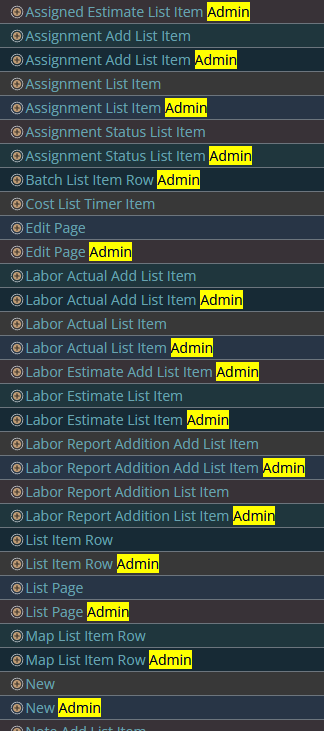
It is very common to make a change in one, then try to check it in the other. So for example, you might be making a change to the tech one, but then be running in Admin, and then you don't see the change.
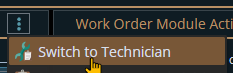
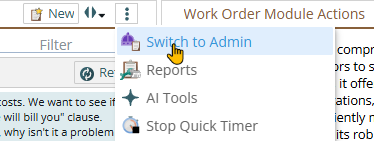
Being practical: The most common mistake in this area is making a change to the Tech version, and then viewing it in Admin. But sometimes it is the other way around, in which case ... switch to admin.
Some style changes don't work:
The tooling for the UI config is computer generated out of a pattern. It does create some things, especially around style that simply don't work.
If we have forced styles that are out of the ordinary, in those cases, style will either not work at all, or will be limited.
Contact Professional Services if you want help with this or anything in UI Config.