Maintenance Connection Everywhere (MCe) · EAM/CMMS manuals
Data Hub Converter
Runs in Pass 1
Purpose:
Converts source data from one type to another, ensuring data compatibility and proper formatting before further processing.
So imagine in one system you have a string, but in MC the same field is a number. Or the reverse. Or the source system has numbers like "$123 456,78" (note the $, space and ,) or "1,23,456.78" (commas) but the database needs that to be a number '123456.78'
Key Characteristics:
- Executes first in the pipeline (Pass 1)
- Focuses on data type conversion
- Single input field to single output field transformation
- Handles null values and type safety
Configuration Fields:
- Name: Friendly name for identifying the manipulator.
- Type: Set to "Converter (Pass 1)"
- In Fields: Source field for conversion
- Order: Execution priority (lower numbers execute first)
- Comments: Optional notes for reference.
- Script: Code defining the conversion logic.
When you add a manipulator, and tell it the type should be Converter, it will generate some code to get you going. The part at the top is all comments (JSDoc style to be specific), then you add your JavaScript code in the middle of the 'return function' with your own code.
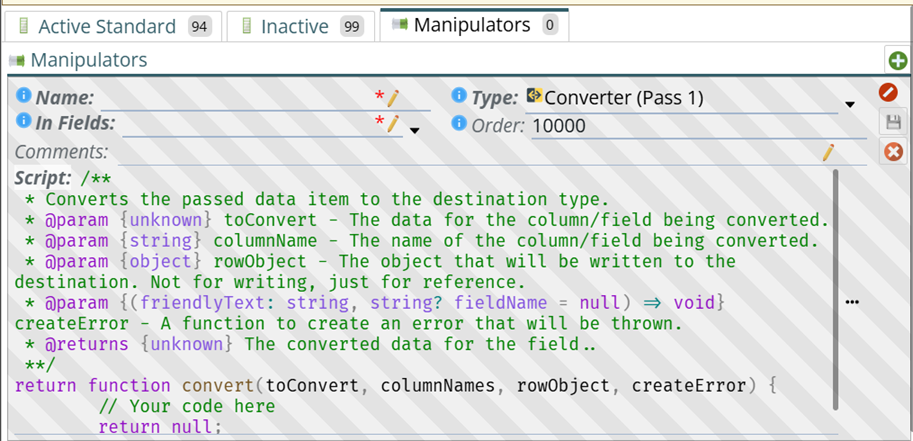
The full code it is providing is as follows
 * Converts the passed data item to the destination type.
 * @param {unknown[]} sourceData - The data requested from the source in the same order.
 * @param {string[]} columnNames - The names of the columns in the same order.
 * @param {object} rowObject - The object that will be written to the destination. Not for writing, just for reference.
 * @param {IConnectionData} connectionData - The connection data in order to connect to the database or other similar function.
 * @param {(friendlyText: string) => void} createError - A function to create an error that will be thrown.
 * @returns {unknown[]} The mutated data in the same order as the output fields is defined.
 **/
return async function mutate(sourceData, columnNames, rowObject, connectionData, createError) {
	// Your code here
	return [];
}
Common scenarios include:
- Converting known strings to numbers.
- Formatting text (trimming, case changes)
- Custom Date Parsing.
Example Implementations (Converters):
Example 1: Known String to Number conversion
Priority Mapping, Convert various language descriptions to priority value.
Input Example:
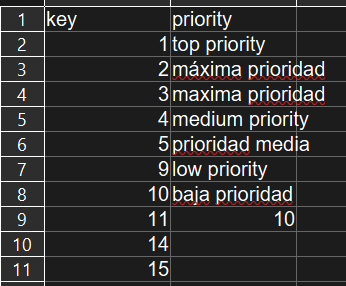
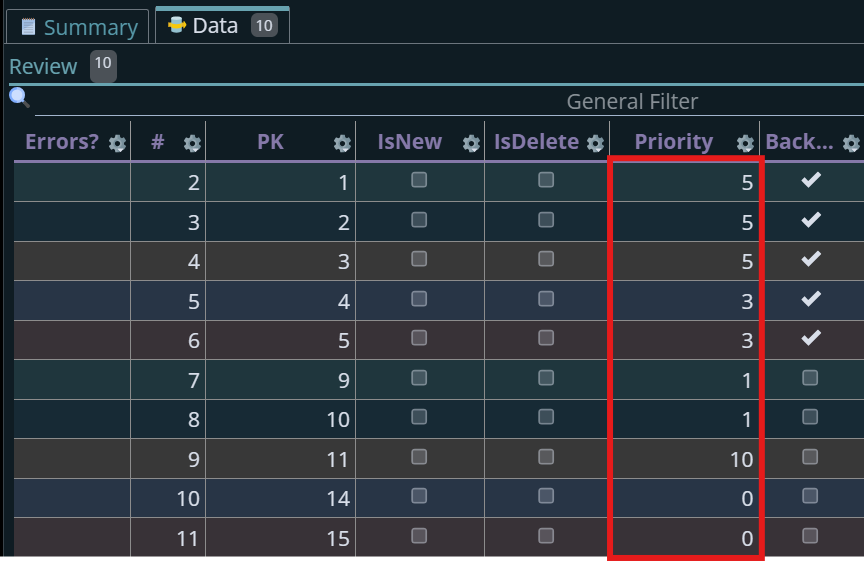
- "Top Priority" / "máxima prioridad" / "maxima prioridad" → 5
- "Medium Priority" / "prioridad media" → 3
- "Low Priority" / "baja prioridad" → 1
- Anything else → 0
Test field:
Priority field of AssetLabor
Script, written in JavaScript:
return function convert(toConvert, columnNames, rowObject, createError) {
 /**
   * Example: Converting priority labels (possibly in different languages) into numbers.
   *
   * Why? – Some target fields only accept numbers. But source systems
   * often describe priority using words like "Top", "Medium", "Low".
   *
   * For example:
   *   "Top"    → 5
   *   "Medium" → 3
   *   "Low"    → 1
   *   Anything else → 0 (safe default)
   *
   * How it works:
   *   1. If the value is already a number, just return it.
   *   2. If the value is text, look it up in a “mapping table” (defined below).
   *   3. If it is not in the table, return 0 (or raise an error if you prefer).
   */

if (toConvert == null) return 0; // Note: If your target column allows blank/null values,
                                // you may instead want: return toConvert;
if (typeof toConvert === "number") return toConvert; // Already numeric → no conversion needed.

// This mapping table defines how text values are converted into numbers.
 // You can customise it to match your source system’s labels.
const mapping = {
        "top priority": 5,
        "máxima prioridad": 5,
        "maxima prioridad": 5,
        "medium priority": 3,
        "prioridad media": 3,
        "low priority": 1,
        "baja prioridad": 1,
    };


    // Normalise the input value:
    //   - Convert to lower-case (because the mapping keys are lower-case).
    //   - Trim spaces (so " top priority " matches correctly).
    //
    // Without this step, extra spaces or inconsistent casing
    // would cause data to be missed and default to 0.
    const val = (toConvert|| "").toLowerCase().trim();
    // Look up the value in the mapping, or return 0 if it is not found.
    return mapping[val] ?? 0;
   // Alternative: If you want to *reject* bad data instead of using 0,
   // uncomment the following:
   //
   // if (!mapping[val]) {
   //   createError(
   //     `Unrecognised priority label: "${toConvert}". Must be one of: ${Object.keys(mapping).join(", ")}`
   //   );
   // }
   // return mapping[val];
}
Source Rows:
Output after converting:
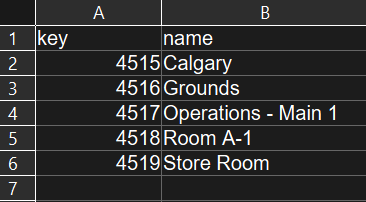
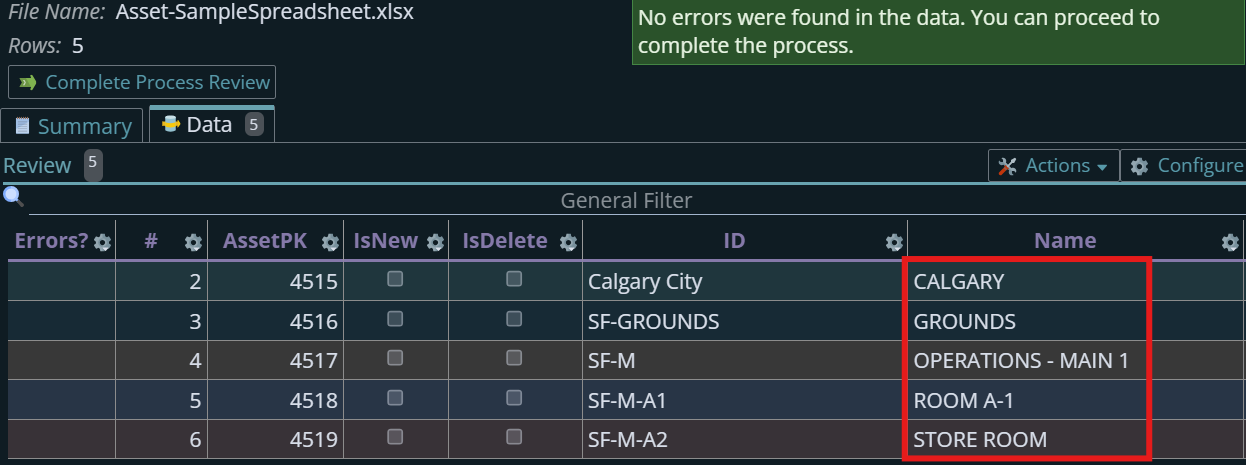
Example 2: Formatting text, trimming and case changes
Script:
return function convert(toConvert, columnNames, rowObject, createError) {
/**
 * Example: Formatting text values.
 *
 * • Removes leading/trailing spaces
 * • Optionally forces upper-case (uncomment one line) or lower-case
 *
 * Why? – Many source systems pad fields to fixed widths (e.g. “Bob   ”) or often has accidental spaces, inconsistent casing, etc.
 * This ensures the stored value is "clean" and consistent.
 *
 * If the source is not text (e.g. number/date), we leave it unchanged.
 */
    if (typeof toConvert !== "string") return toConvert;

    // Trim off leading/trailing spaces
    let val = toConvert.trim();

  // ===== ONE of the next two lines needs to be uncommented to match  your preferred case style =====
  // if you comment both out, there will be no casing (upper or lower) applied
  // if you uncomment both - only the second will have any effect
  // note in general, toUpperCase works across more languages than toLowerCose
    val = val.toUpperCase();    // corporate standard: upper-case
    // val = val.toLowerCase();    // or lower-case if that suits better

    return val;
}
Output:
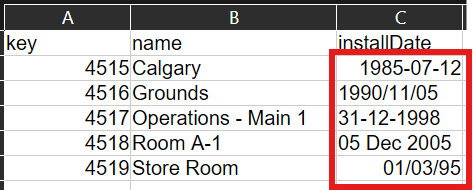
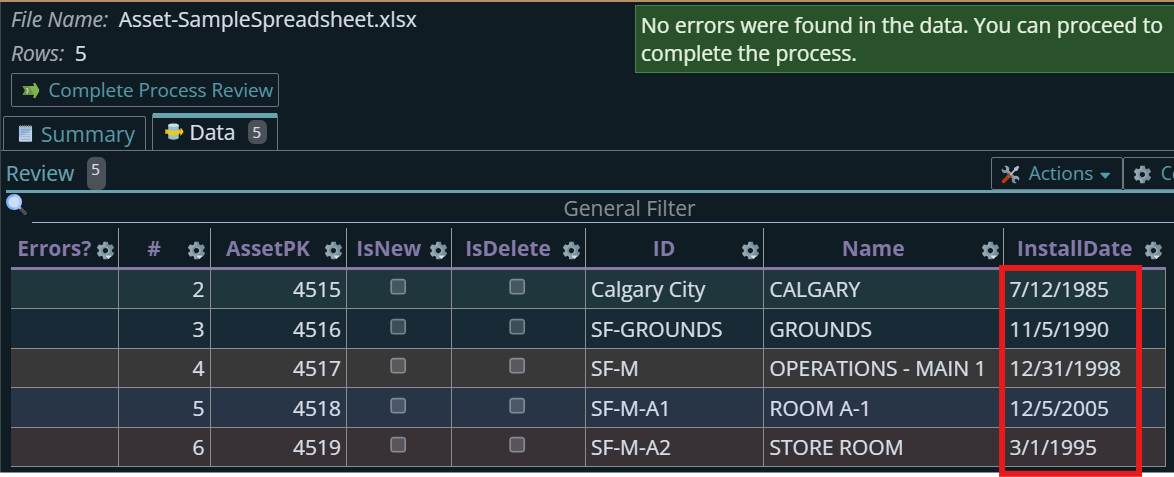
Example 3: Custom Date Parsing
Script:
return function convert(toConvert, columnNames, rowObject, createError) {
/**
 * Example: Turns a wide range of text date formats into a real JavaScript Date.
 *
 * Why? – Source systems send dates in different string formats
 * ("2023-12-31", "12/31/2023", "Dec 31 2023").
 * JavaScript's Date.parse() can handle most common ones.
 *
 * How it works:
 *  - Date.parse() returns the number of milliseconds since Jan 1, 1970.
 *  - isNaN(parsed) checks if it was an invalid date.
 *  - If parsing fails, it returns NaN  (special “Not-a-Number” value)
 *  - If valid, we return a Date object.
 *  - If invalid, we return null so the import knows this field is empty/bad.
 */
    if (!toConvert) return null;

    // Date.parse handles many common formats
    // parse into milliseconds
    const parsed = Date.parse(toConvert);
    // When the parse is failed, you can generate an error or return null.
    if (isNaN(parsed)) {                    // failed?
      // Uncomment the following option to generate error
      //    createError(`Unrecognised date '${toConvert}' in column ${columnNames[0]}.`);
         return null;
    }

    return new Date(parsed);

}
Source Data:
Output:
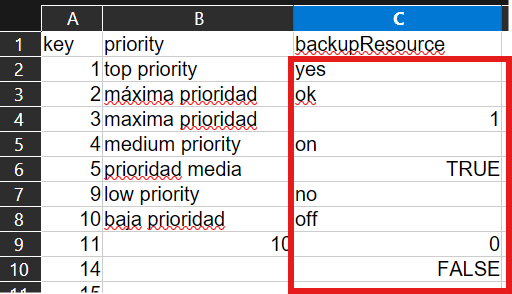
Example 4: Custom Boolean parsing
Script:
return function convert(toConvert, columnNames, rowObject, createError) {
/**
 * Example: Parsing many "true/false" variations into a Boolean.
 *
 * Why? – Source data might use "yes/no", "1/0", "on/off", etc.
 * This converter makes sure they all become a real `true`/`false` value.
 */
    if (!toConvert) return false; // or just return as it is: return toConvert;

    // Already a Boolean? Return it directly.
    if (typeof toConvert=== "boolean") return toConvert;

    // Convert to a trimmed, lowercase string for easy matching.
    const val = String(toConvert).trim().toLowerCase(); // if you want to upper the case then: .toUpperCase();

    const trueSet  = new Set(["yes", "ok", "on", "1", "true"]);
    const falseSet = new Set(["no", "off","0", "false"]);

    if (trueSet.has(val))  return true;
    if (falseSet.has(val)) return false;

    // value not recognised → raise an import-blocking error
    createError(`'${toConvert}' is not a recognised Boolean literal for column ${columnNames[0]}`);
    return null;   // will be ignored because the row is now in error
}
Source
Output: