Maintenance Connection Everywhere (MCe) · EAM/CMMS manuals
Unless your admin has removed it, the Home page will have 'Timesheet' as one of the options. Technicians can edit their own timesheet. Administrators can edit themselves and others.
Changes that can be done by administrators, not individual users
Though if there is a need, administrators can set it up specifically for an individual user or access group.
It is common for your admin to remove some unnecessary columns, removing one or more of:
- Type (if all time is regular)
- Account
- Category
- Comments
- One or more days of the week if you 'never' work specific days of the week
- The terminal column 'total' (total for the work order/type)
The fewer columns you have, the wider you can make them to see the full header for a given window or device width.
What rows are returned as 'possible' rows?
There are two queries for this typically, though you can add more. The favorites and:
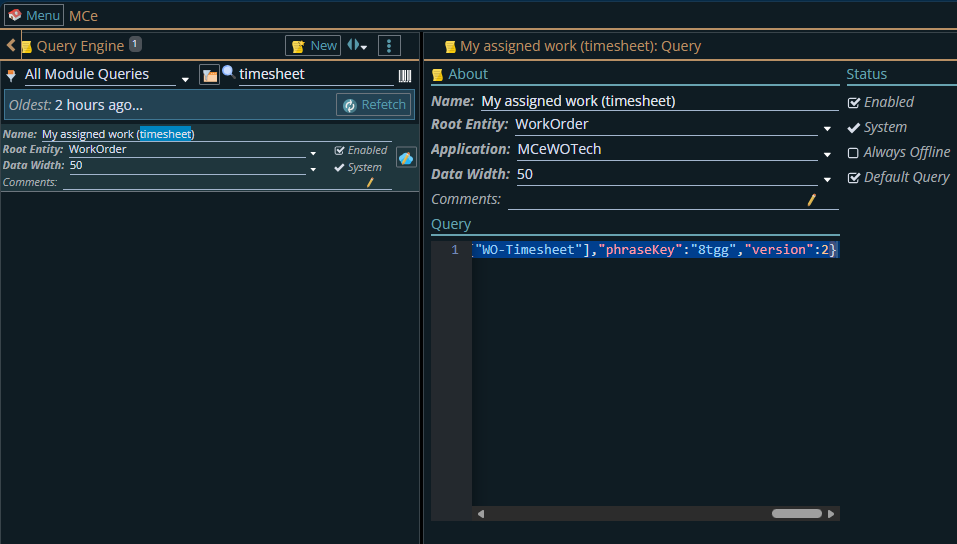
The query is best edited in an external tool like Notepad++ using our Professional services. Editing this incorrectly can break some or all of the queries for some or all users.
Setup changes users can make:
It's worth spending a bit of time the 1st time to set it up to work nicely for you. The changes discussed below are remembered by device and browser so you can optimize differently, as an example, for your phone and laptop.
You can 'drag' columns around. you might want to move the most important to you ones to the left.
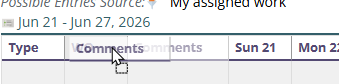
If there are columns YOU don't need ever .. ask your Admin to remove them, especially if you are using it on a small device like a phone or tablet or move them to the right and then make them very narrow as below.
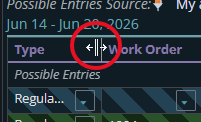
You can change the width of columns to fit nicely for your normal working window width on this device.