

 Maintenance Connection Everywhere (MCe) · EAM/CMMS manuals
This tutorial shows how to build an Event and Action (E&A) that copies the selected Asset's Zone into the Work Order field UDFChar1.
This setup is based on the Work Order Asset Change trigger. That means it runs when the Asset is first set on a new Work Order and when the Asset is changed later. It does not run for unrelated Work Order edits where the Asset value stays the same.
Download the finished event
If you want a reference export while following the steps, use this file:
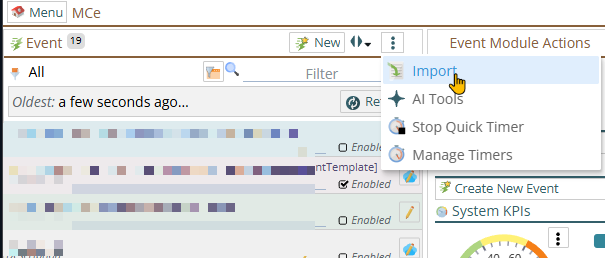
Download the finished Event and Action exportIf you do, you can import it from the 3 dot menu in the Events and Actions module
What this event does
By the end of this tutorial, your event will:
- Detect when the Work Order Asset is assigned or changed.
- Read the ZoneName from that Asset.
- Write the ZoneName into WorkOrder.UDFChar1.
Before you start
- Make sure you can open the Events and Actions module and create or edit events.
- Confirm that UDFChar1 is the correct destination field on the Work Order. You don't want a test/learning exercise to wipe out real data!
- Have an Asset with a Zone available for testing.
Import or Build the E&A
Import the E&A
OR build the event
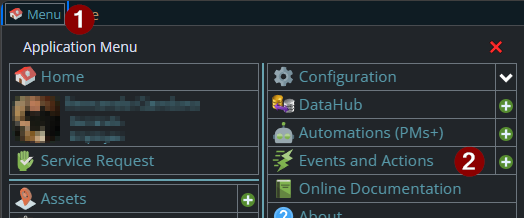
1. Open the Events and Actions module from the main menu.
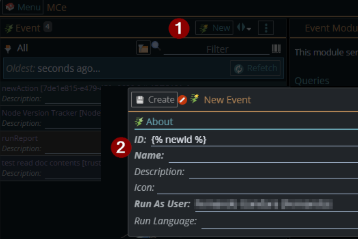
2. Create a new event, then enter an ID and a name. Those fields are mandatory.
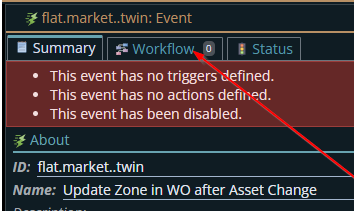
3. Open the Workflow tab.
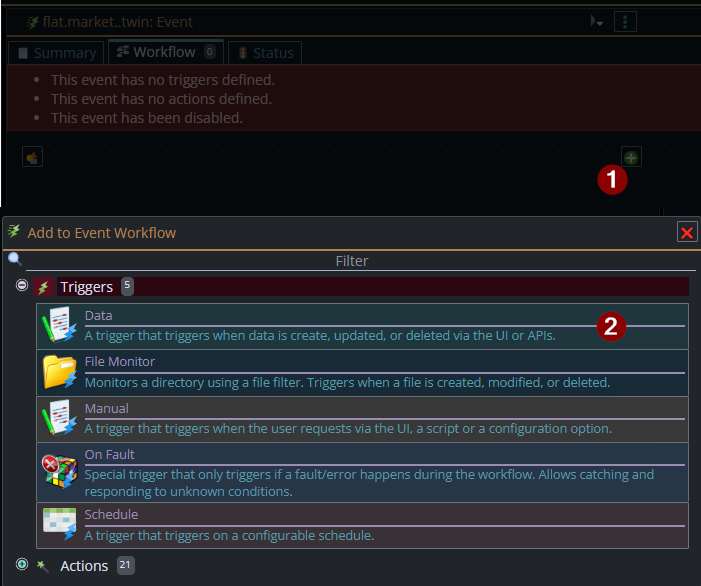
4. Click + and add a Data trigger.
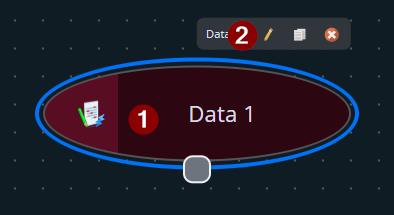
5. Select the new trigger puck, then click the pencil icon to edit it.
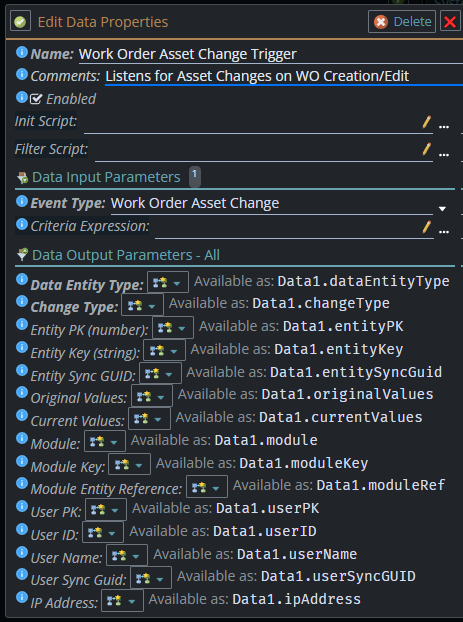
6. Give the trigger a useful name and comment, set Event Type to Work Order Asset Change, then save it with the green tick.
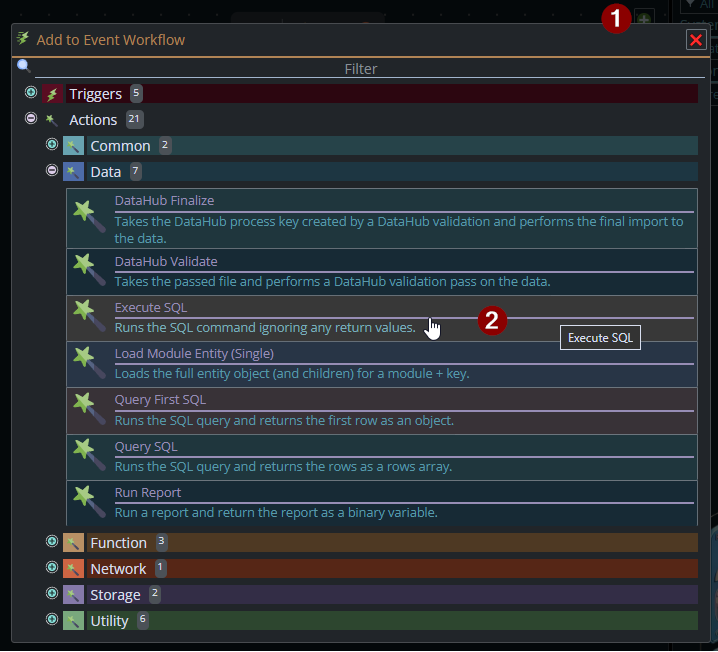
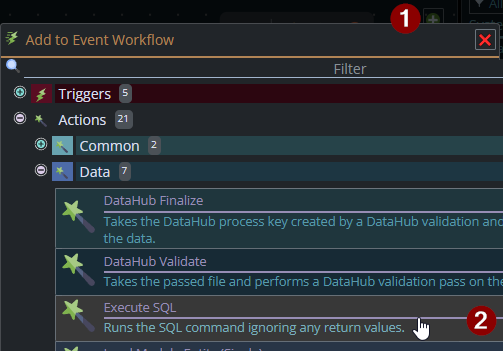
7. Back in the workflow editor, click + again, then go to Actions -> Data -> Execute SQL.
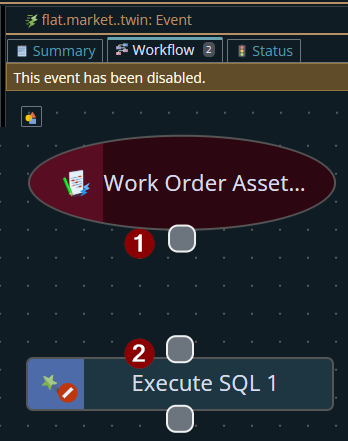
8. Connect the trigger to the SQL action by dragging handle 1 to handle 2.
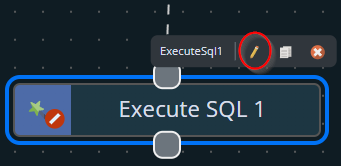
9. Select the SQL action puck and click the pencil icon to edit it.
10. In the Parameters section, click Add.
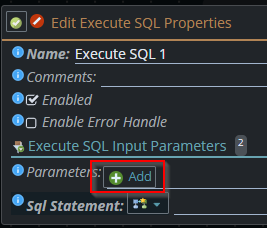
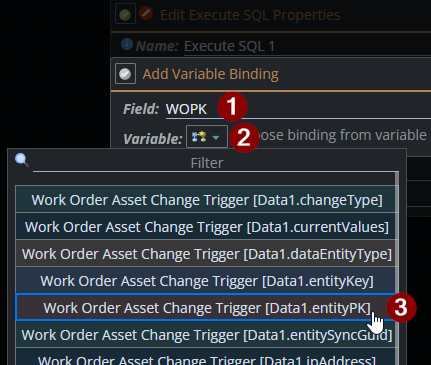
11. Create a parameter named WOPK and bind it to Data1.entityPK11. This gives the SQL action the primary key of the Work Order being processed.
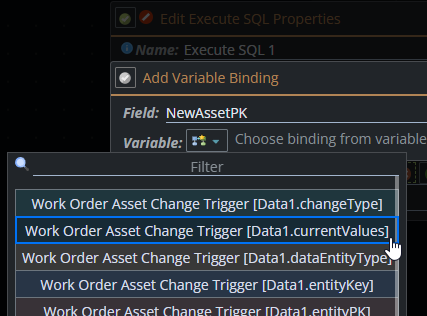
12. Create a second parameter for the Asset primary key. Name it NewAssetPK and bind it to Data1.currentValues.?
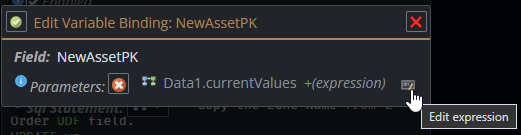
13. After adding that binding, click Edit Expression so you can pull the AssetPK out of the bound object.
14. Use this expression, then save it with the green tick:
return bound["AssetPK"]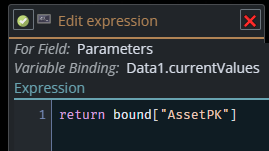
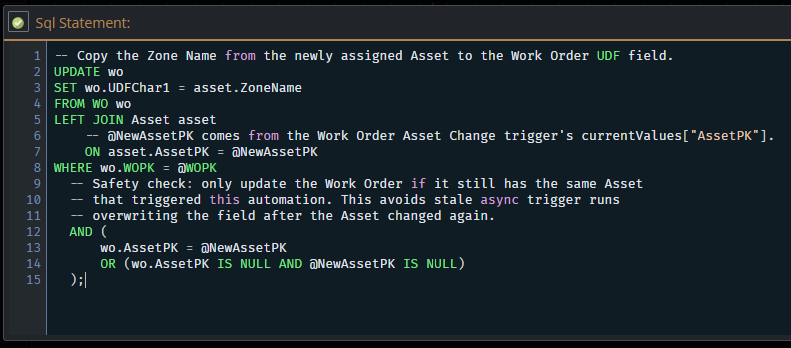
15. In the Sql Statement field, paste the SQL below. You can use the ... button to expand the editor if needed.
UPDATE wo
SET wo.UDFChar1 = asset.ZoneName
FROM WO wo
LEFT JOIN Asset asset
    ON asset.AssetPK = @NewAssetPK
WHERE wo.WOPK = @WOPK
  AND (
      wo.AssetPK = @NewAssetPK
      OR (wo.AssetPK IS NULL
      AND @NewAssetPK IS NULL)
  );
The extra condition in the WHERE clause is a safety check. It makes sure the Work Order still points to the same Asset that triggered the event, which helps prevent an older async run from overwriting a newer change.
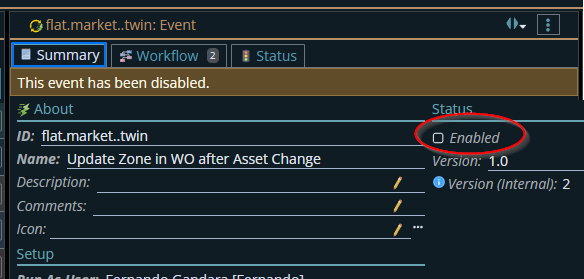
16. Save the action. Then go back to the summary tab and tick Enabled so the event starts listening for Asset changes on Work Orders.
Expected result
When a Work Order is created with an Asset, or when the Asset is changed later, UDFChar1 is updated to match that Asset's Zone Name.
If the Asset is removed from the Work Order and the trigger fires with a null AssetPK, this SQL will clear UDFChar1 as well.
Test it
- Create or open a Work Order.
- Assign an Asset that has a Zone.
- Save the Work Order and confirm that UDFChar1 now matches the Asset's Zone.
- Change the Asset to a different one and confirm that UDFChar1 updates again.