
 Maintenance Connection Everywhere (MCe) · EAM/CMMS manuals
There are times when you want to change a whole bunch of Work orders in a similar way at the same time.
TL;DR
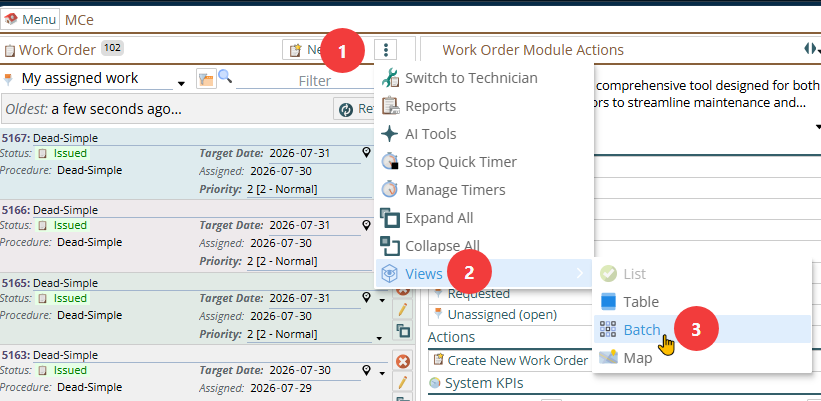
1. In the WO module, click on the 3 vertical dots at the top of the module list, choose Views, Choose Batch
2. Choose the WOs you want to edit
3. Click the edit pencil
4. Pick the fields you want to change
5. Decide whether to Set a 'simple' value (the most common), Clear, use a template or use JavasScript to set the value
6. Click save. All the WOs (or all the child, such as assignments) will be altered based on the rules you picked.
Details
To use the Bulk change option for this, get to the WO module, change the view from "List" (shown), "Table" or "Map" to "Batch"
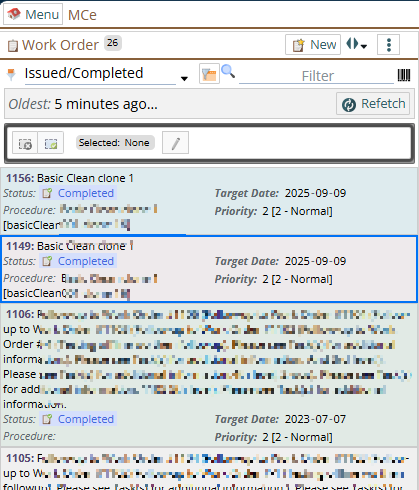
Select the WOs you want to adjust, in this case I picked 4
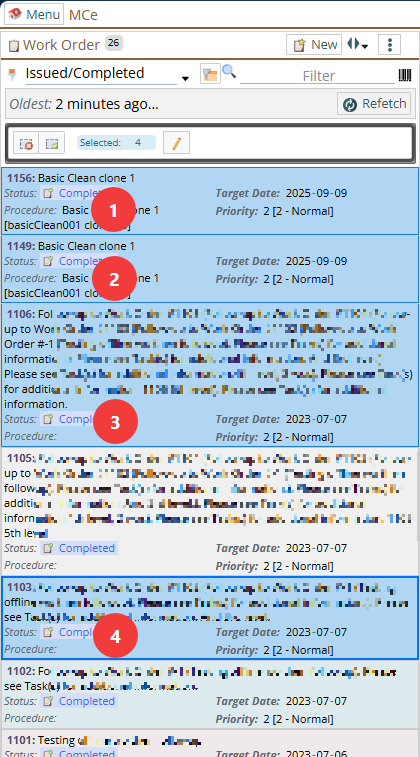
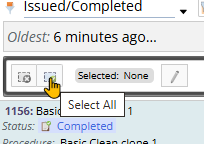
There are tools for: Selecting all: (available when there is 1 or more row not selected)
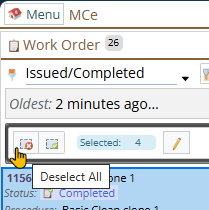
Deselecting all: (available when there is one or more row selected)
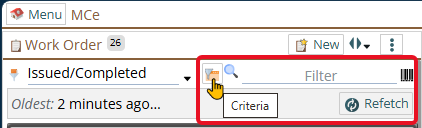
You can use the tools like sort and filter in the criteria picker or the quick filter or the barcode reader to help you select the WOs you want to edit.
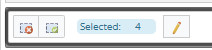
Then when you have all the rows selected you want, click on the edit pencil
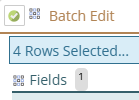
In the batch edit you can decide which fields to edit. On the left (top on a narrow screen) are the common fields to change ①
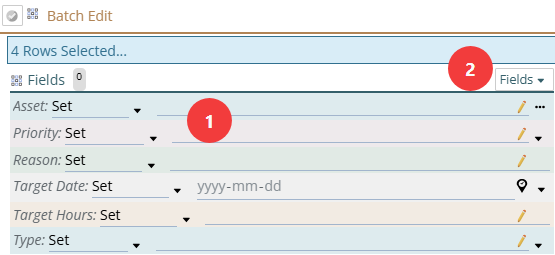
and you can choose other fields ② above, which will show you the screen below. You can then scroll through all the fields or, like I did, type in a few characters to narrow it down to the one I wanted to edit.
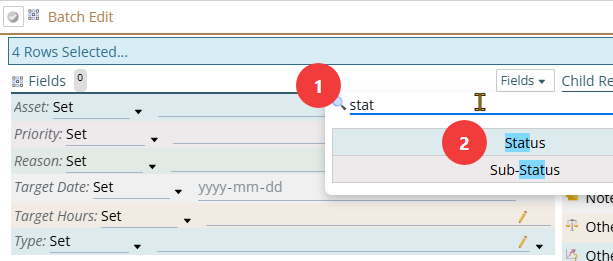
While it isn't useful for the specific example, you can also on the right (bottom on a narrow screen)
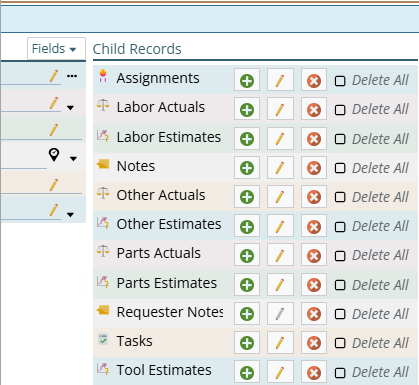
So for example you may want to something on all the assignment records for the WOs chosen.
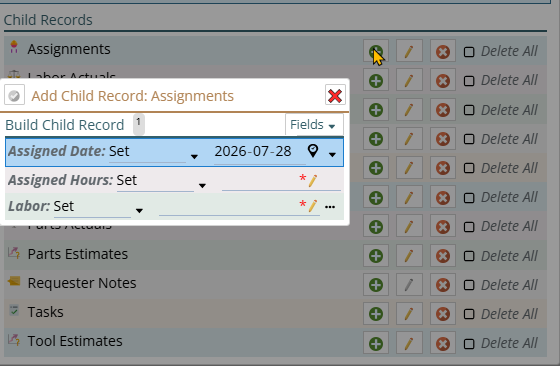
In our case though, we just want to add the status, as above, then set it for them all.
Your choices for how to change the status are as below.
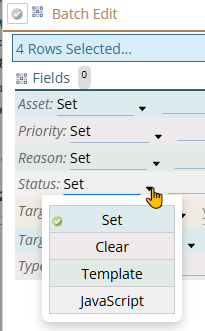
"Set" is by far the most common.
"Clear" means you set it to null or 0 or the empty string etc.., depending on the data type and what it's 'nothing' value is if it can't be set to 'null'.
"Template" is like the UI Config templates for changing it by pattern. If you use these you will typically keep a file in a tool like Notepad++ that you can use to copy then paste. Some customers create these themselves, but most enlist our Professional Services to create them for them.
"JavaScript" allows for code to make the bulk changes. This is extremely powerful, you can make SQL calls, you can have logic, you can go out and check the weather forecast and make choices or enter values. Again, while some customers create some of these themselves, most enlist our Professional Services to create them for them. Either way, you will typically keep these in a file in a tool like Notepad++ that you can use to copy then paste.
In our case, we are going to use the Set method. We then click on the line to the right to get a list of the choices available. Or in some cases (like Labor in the Assignment child above) we click on the ... to get the more powerful picker.
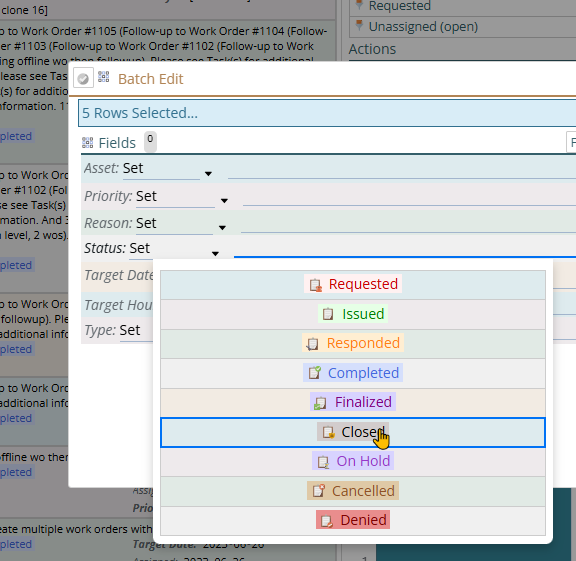
Once you have at least 1 field that is ready to be set, the save button in the upper right will be highlighted indicating it is available to be clicked.