
 Maintenance Connection Everywhere (MCe) · EAM/CMMS manuals
TL;DR
We are going to use a script to hide a field on the screen based on what classification the asset is.
Details
1. You can find UI Configuration under Access Manager.
Getting to UI Config
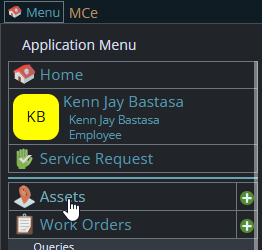
Start by clicking on the main menu button on the left panel, top left portion.
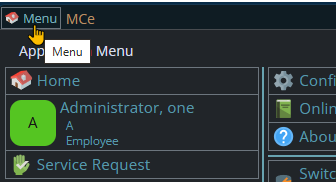
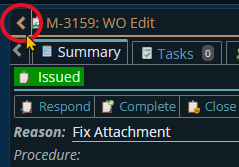
If the menu button isn't visible, you are likely on a screen too narrow to see everything, press on the left pointing gold button to take you so you can see the menu button.
Variation 1: What you have access to
Depending on the size of your screen, what products your company has purchased and what rights you have been granted, the choices in the menu will vary.
Variation 2: How wide your window is
The menu will show up as 1, 2 or 3 columns depending on how wide your screen is.
If you are on a cell phone, and some smaller tablets in portrait mode or a narrow window on a laptop or desktop, you'll see the menu as one column that you scroll through using your finger or the scroll wheel or the scroll bar depending on your device, browser and whether you have a touch screen or not.
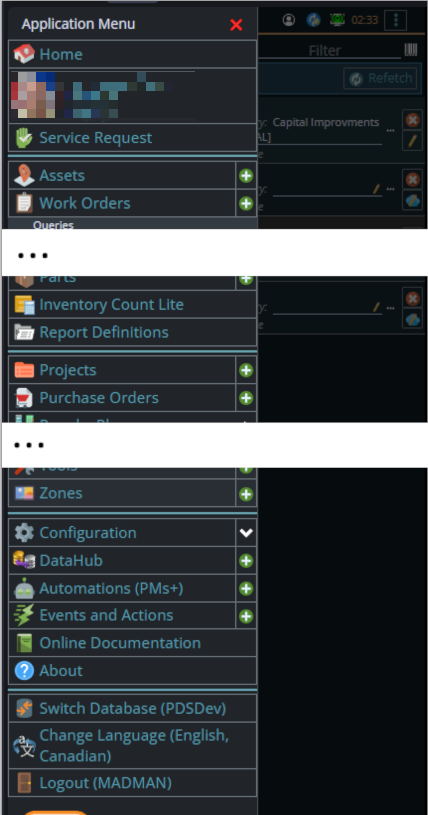
A bit wider, some cell phones in landscape, some tablets in portrait, most tablets in landscape and 'somewhat' wider laptop/desktop, will show it as 2 columns wide, with the middle column available on the left by scrolling down
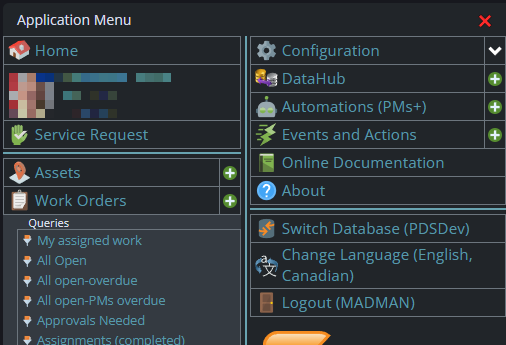
And wider screens, some landscape tablets, and wider windows on a laptop or desktop show it as 3 columns. If you have all the dropdown sections expanded, it may still require vertical scrolling to see all the choices depending on the height of your device or window.
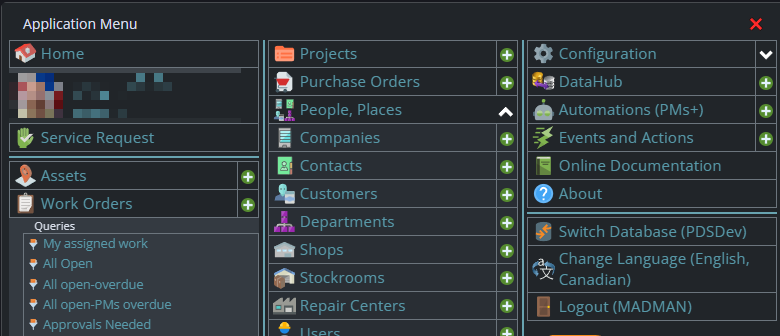
You can then proceed to clicking the expand/collapse toggles in the following order:
Asset > Edit Page > Summary > Details > details-columns > details-column-1 > Classification.
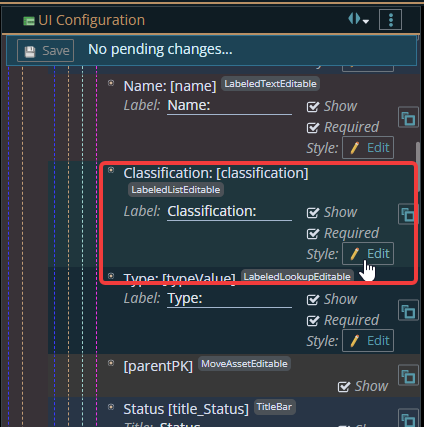
Now, under normal circumstances you would just unselect 'Show' to hide a field. But in this case we are looking at a script so we can conditionally hide the field.
2. Click Style: Edit, and a pop-up will appear, where you can put the script to implement your preferred configuration.
In the Smart Style section of the pop-up, paste in the script for the styling behavior.
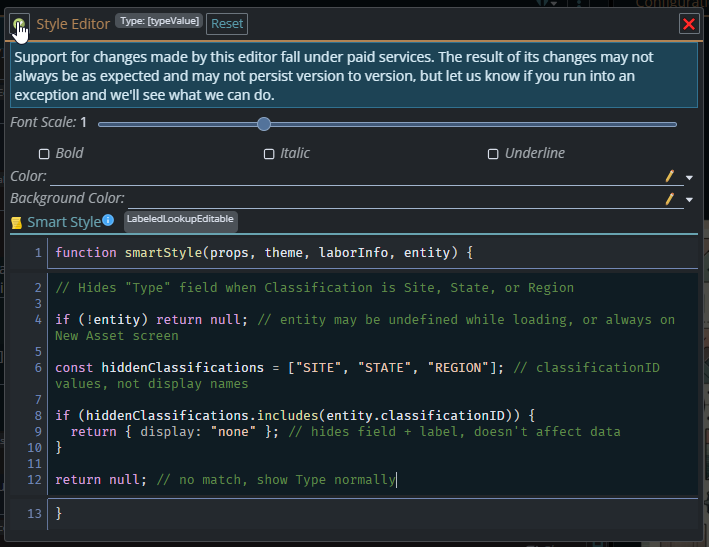
For this scenario, we use the script below to hide "Type" label if the Classification is "Region", "Site" or "State".
// Hides "Type" field when Classification is Site, State, or Region

if (!entity) return null;

const hiddenClassifications = ["SITE", "STATE", "REGION"];

if (hiddenClassifications.includes(entity.classificationID)) {
  return { display: "none" };
}

return null; // no match, show Type normallyhiddenClassificationsnow holds the list of codes that should trigger hiding:SITE,STATE,REGION.- If
classificationIDmatches one of those, it returns{ display: "none" }, which removes the field (and its label) from the layout entirely. - Anything else falls through to the final
return null;, which is the catch-all for every classification not in the list, meaning "no style override, show the field normally."
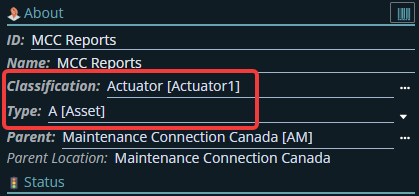
3. Going to Asset, selecting "Site", "State" or "Region" under Classification will hide Type(as configured in the script).
Before Classification change
After Classification change