

 Maintenance Connection Everywhere (MCe) · EAM/CMMS manuals
Overview
A DataHub Connector defines how data from an external source file is read, mapped, validated, and imported into the system.
This document walks through the process of creating a basic DataHub Connector from scratch. Using a simple example, you will learn how to configure a connector, define the source file and data type, create field mappings, and prepare the connector to import data.
By the end of this document, you will have a working DataHub Connector that can be used to import data into the selected module.
For a ready-to-use example of a DataHub Connector and its source spreadsheet, see DataHub Sample - Asset Import
Summary:
- Have the licenses and permissions required
- Create a connector that tells the DataHub how to read the file to import
- Activate the connector
Prerequisites
Required Access
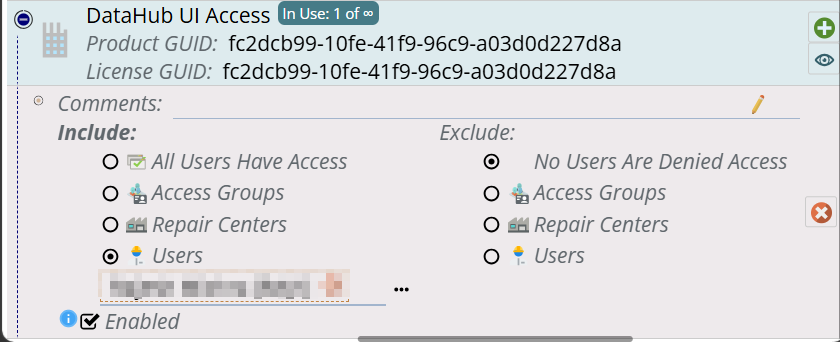
You must have one of the following licenses activated for you (company level - all users, your access group, your repair center or your user id):
- Admin1C
- DataHub UI Access
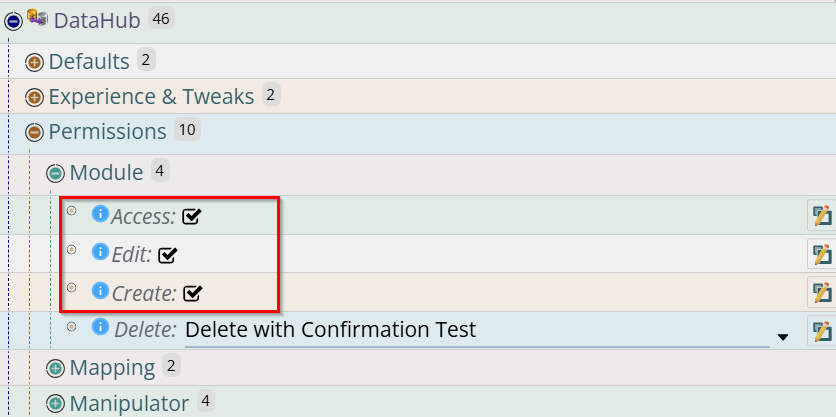
You must have the required permissions in Preferences to access and create a DataHub Connector.
DataHub UI Access.
Required permissions in the preferences to access and create the DataHub Connection.
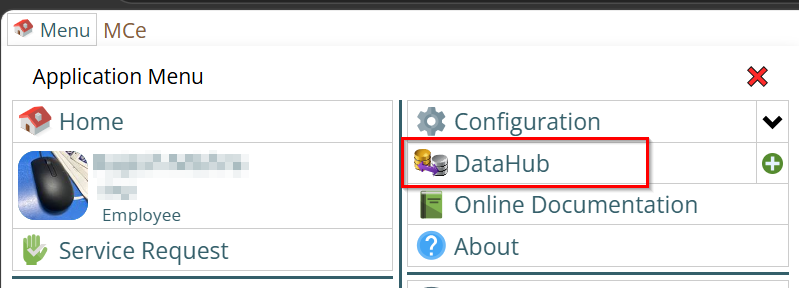
Access to DataHub: The Datahub should now be accessible through main menu:
Source File:
You will also need source data to be imported, we support importing for .xls, .xlsx, .json and .csv file extensions.
Supported readers include:
| Reader Type | Supported File Extension |
|---|---|
| Excel Reader | .xls, .xlsx |
| CSV Reader | .csv |
| JSON Reader | .json |
Note that showing .xls and .xlsx means the reader doesn't care whether it is .xls or .xlsx but if you use .xls you are subject to the limitations of that very old file format, but if it works for you - the reader is fine with it.
The uploaded file format must match the configured reader type. Unsupported formats cannot be processed.
XLS, XLSX, CSV or JSON?
If human, likely XLS or XLSX is the best. If computer, CSV or JSON is the best. Why not XLS/XLSX? read on!
But note that Excel may corrupt your data. For example, if you enter FE-2 as a string value, perhaps a part ID, Excel will change that to "February 2nd" ... a huge shock to many people. (It is such a severe problems that there are some chemical names that have been around for 100's of years that have been changed in the scientific community due to the desire to store data in .xls(x) format that kept getting changed into dates!
While we know that XLSX is heavily used when coming from other computer systems, if the 'other' computer system has the ability to give .csv instead of .XLSX - choose .csv because of the above problem. If you have a choice, XLSX is fantastic for data entered by humans, csv and JSON is excellent for data coming from another computer system.
But having said that, we know that, informal statistic, more than 90% of the time, people use .XLSX these days when exporting from another system, so despite the above, .XLSX remains the favorite for importing regardless of the source.
OK so what about this .XLS vs .XLSX?
When it comes to data transfer, XLSX is the better choice compared to .XLS. It is the modern Excel format that supports more rows and columns, creates smaller files, and is more reliable when files get corrupted1. It has been around for a very long time now. The only reason to use XLS is if you need to send a file to someone running Excel 2003 or an older system that only accepts XLS, and when coming back, if the above user is sending the file back or if the file is coming from an older system that can only expert in .XLS, not in .XLSX (but then ... see if it can export in .CSV).
Create the DataHub Connector
Create a new connector
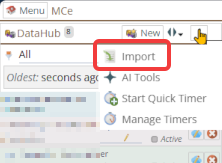
By Importing
Or by Building it from scratch
Initial creation of a DataHub connector from scratch
Click the Menu button, then Datahub:
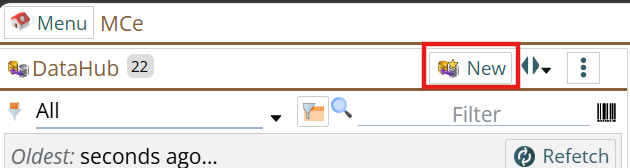
The DataHub list page will be shown. Click on New button to proceed to create a new Connector.
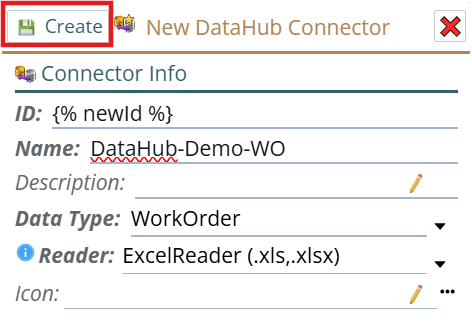
The new popup will be shown, Fill in the fields, required fields are bold in color and a red asterisk will be there too to indicate a required field. If you don't fill in the required fields, you will see validation error(s).
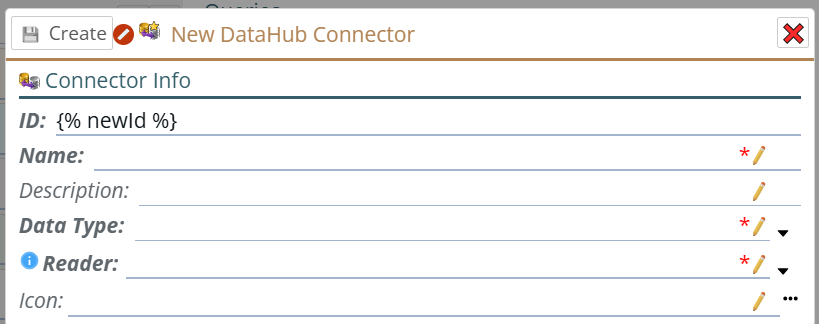
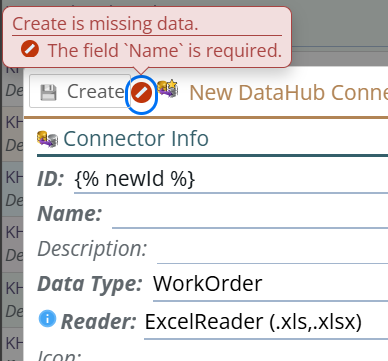
Set ID/Name: Provide an ID and Name for the connector. However, you can use template for them (can be set in preferences too), The ID may be pre filled with a template if you are using default settings.
Select the Data Type: Select the Data Type from the drop-down for the module into which you want to import data.
Select the appropriate reader: Select the Reader that matches the file type of the source file you intend to import. The data reader that will be used to read data from the source. Traditionally this will represent the file type that is going to be used as the data source. We support Comma?The name 'Comma' in Comma Separated Values is a historical name from when 'Commas' where the only option for separating the values. Now-a-days the official standard for CSV includes other separators such as Tabs. We provide several parameters to handle hundreds of different CSV configurations including all of the common ones from systems decades old (mainframes) to modern ones. Separated Values(CSV, aka .csv), Excel(.xls, .xlsx) and JSON(.json) reader.
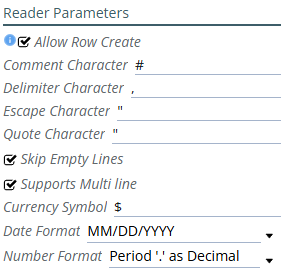
Samples of Reader parameters
Sample CSV Reader Parameters
Sample JSON Reader Parameters
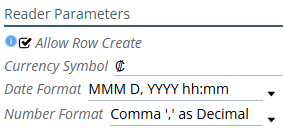
Sample XLS(X) Reader Parameters
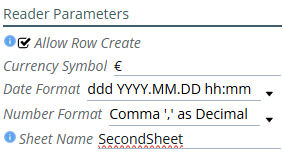
The create button will be activated when it passed the required field filled validation. Click on the Create button.
The Connector will be created.
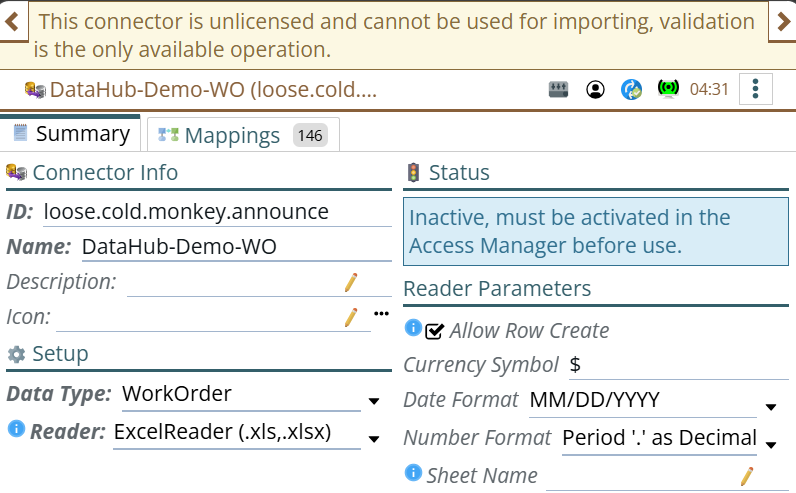
Review the Connector Summary
- Reader
- Data Type
- Other important configuration
After creating the connector, You will need to activate it to be able to run the import. However, data validation will be the option available for you.
Before that You way want to look at mappings, do some changes etc.
Configure the Connector Mappings
On the edit page of the connector, switch to Mappings tab. There are 3 sub tab. Active Standard, Inactive and Manipulators.

- Active Standard: Fields in the Active standard tab will only be used during reading the source file.
- Inactive: Fields are in Inactive mappings would not be used when reading the source file..
- Manipulators: for Manipulators there is separate documentation DataHub Manipulator Overview
- Mappings: A field mapping contains:
-

- Source Field: identifies the column in the source spreadsheet. This is editable and should match the source header. This will typically be the value that the source computer system (or the existing spreadsheet you have) already has as it's column header for this data.
- Target field: identifies the module field that will receive the value. Not editable. This is where the data is going TO. It is a fixed list it will vary slightly, usually adding more, from version to version, but it is fixed within a given version. Because of this you can edit what is sent to a target field, or not send anything to it, but you can't edit it.
- Column Type: Shows the type of the column, i.e. Boolean, Number, String, Date/Time etc. Not editable, this is what the target field IS - it is information, not something you can change.
- Max Length: Displayed only on String type field. Shows the maximum character limitation you can put in the source data for the column. Not editable, this is what the target field IS - it is information, not something you can change.
- Default Type: Specifies the default value behavior when no explicit value is provided. Options include:
- None: no default, ignored, any existing value in the database will be left alone
- Static: a fixed value, the value specified will behave as if it was in the source data.
- Default Value: The default value to use when no explicit value is provided. This is only used when Default Value Type is set to Static.
- Hide Field: If the field is hidden it will not be included as an input or output, this is useful for columns that may contain data that should be ignored. When set, checked, the Column will be move to Inactive Standard tab, this is not permanent, if you later decide you need it, you can bring it back to the Active Standard tab.
-
Prepare the Source File
This may be created by another computer system (the data source)
This may be created by hand, perhaps from paper notes,
This may be data you already have, typically in an XLS spread sheet
- Create a source file matching to the Reader Type of the Connector with the data (or sample to test); the connector needs this to be able to locate the file to upload.
- Column headers: Add the headers (source columns) in the source file matching with the Source Field of the Active Standard mappings of the connector. you can ignore adding the columns don't want to import. Another way to look at this: Set the 'Source' values in the connector to match what the headers have - perhaps the headers coming out of another computer system.
- Add the data rows starting from row 2. You can't just put blank rows between data rows. If you Put a blank rows before a data row, the Connector will treat as data row and then you will get validation error when running the import.
- Example spreadsheet: Here is just as example showing how you could add column and data row:

Initial Tests
Once the connector is created and you have at least one import file ready, you can do the initial testing using the 'run' button.
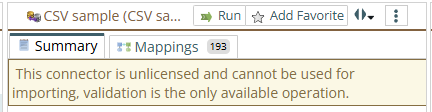
Once your files and the Data connector are passing the validation steps, it is time to license it so you can load.
Activate/License the Connector
Activate the Connector
Activating the Connector
To activate the connector:
Navigate to: Configuration → Access Manager → DataHub Connector Keys
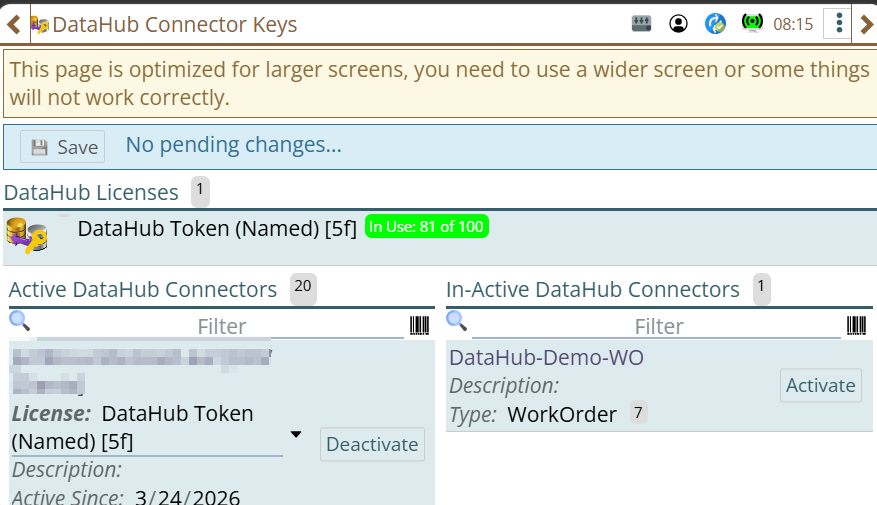
Assign a license to the connector.
Activation consumes DataHub tokens. Token usage depends on the module associated with the connector. You likely have purchased 50 or 100 (or more) tokens.
Examples: Token Cost for the WorkOrder will be 7, for Asset it will be 9 tokens and for Part it will be 4 tokens.
Token requirements vary depending on connector type and module configuration.
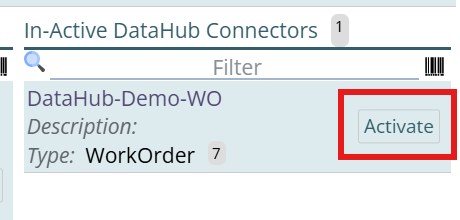
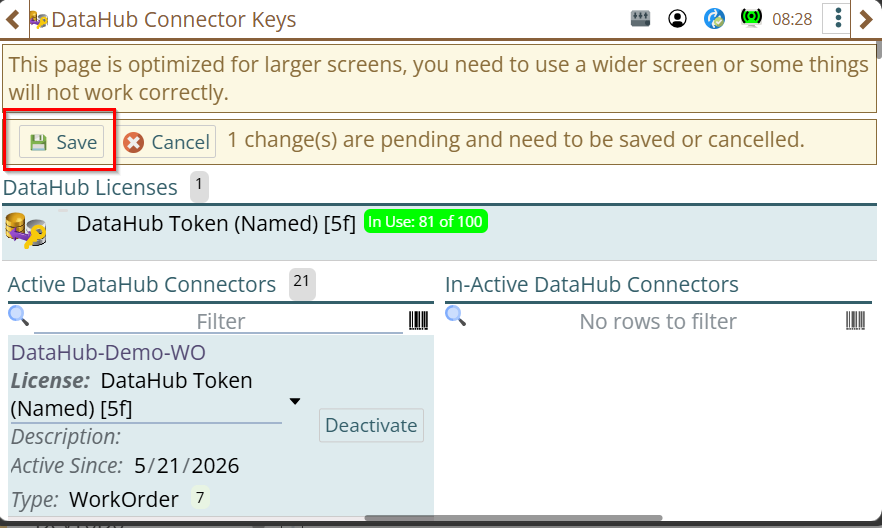
So look for your connector that needs activation on the In-Active DataHub Connectors section.
Click on Activate
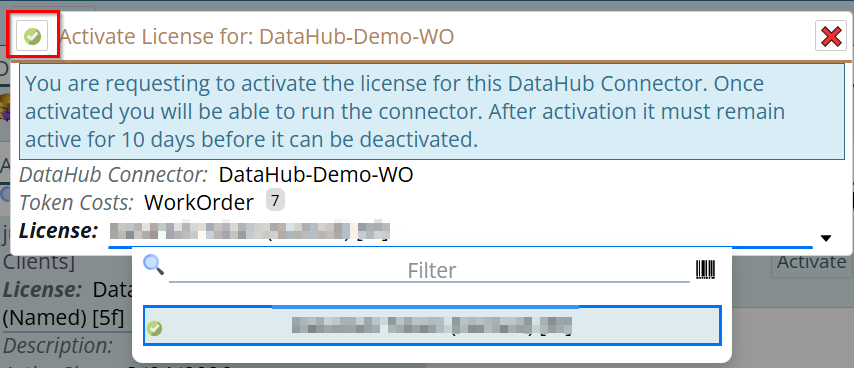
Assign the license.
select a license and hit the green tick button at the top left to assign the license and activate the connector:
A Save/Cancel option will appear to Save or cancel the license activation change. Click on Save
Verify Connector Activation
After licensing:
- Return to the DataHub module.
- Open the connector.
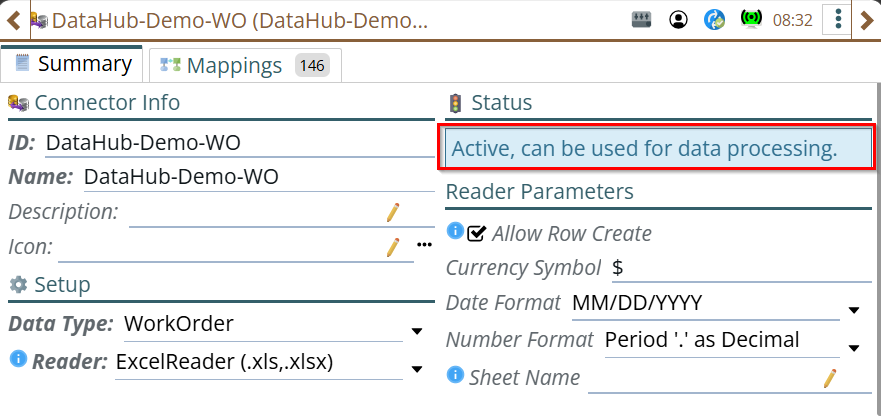
The connector status should now display as:
Active, can be used for data processing.
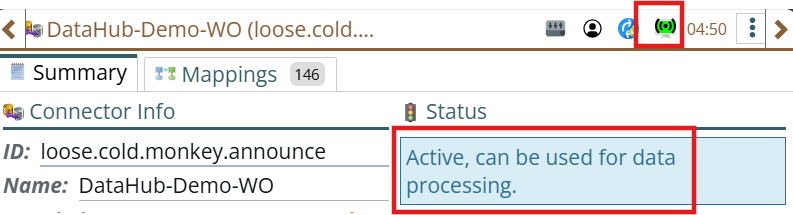
Ensure no pending changes are waiting for sync and the Connector is activated
Run the Connector
After activation, the connector can be run manually or automatically.
See how to run it manually:
Purpose
This document explains how to manually run a DataHub Connector to import data into the system and verify the imported records.
Prerequisites
Before running the connector, ensure the following requirements are met.
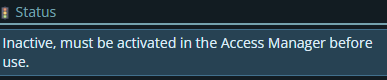
Ensure Connector is Active
You can use inactive connector only to run validation. But to import the data the Connector must be active.

Who can build DataHub connectors and active them
Depending on what your IT and admin team decide, the people who activate DataHub connectors may or may not be the same people that build the connectors. Someone with Access Manager rights is required to activate them.
Getting to License Manager
Getting to Access Manager
The Access manager requires that you have rights to the "Access Manager" license. YOU decide what permissions it needs, not us, that is discussed elsewhere.) The Access Manager is on the Configuration page
Start by clicking on the main menu button on the left panel, top left portion.
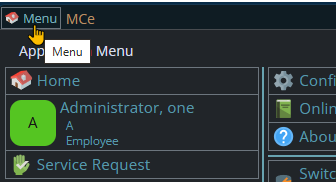
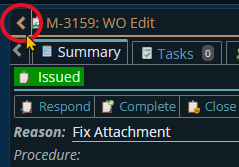
If the menu button isn't visible, you are likely on a screen too narrow to see everything, press on the left pointing gold button to take you so you can see the menu button.
Variation 1: What you have access to
Depending on the size of your screen, what products your company has purchased and what rights you have been granted, the choices in the menu will vary.
Variation 2: How wide your window is
The menu will show up as 1, 2 or 3 columns depending on how wide your screen is.
If you are on a cell phone, and some smaller tablets in portrait mode or a narrow window on a laptop or desktop, you'll see the menu as one column that you scroll through using your finger or the scroll wheel or the scroll bar depending on your device, browser and whether you have a touch screen or not.
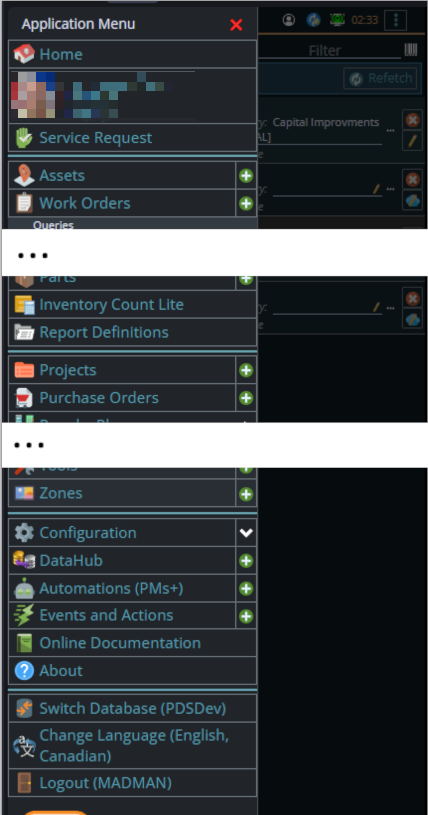
A bit wider, some cell phones in landscape, some tablets in portrait, most tablets in landscape and 'somewhat' wider laptop/desktop, will show it as 2 columns wide, with the middle column available on the left by scrolling down
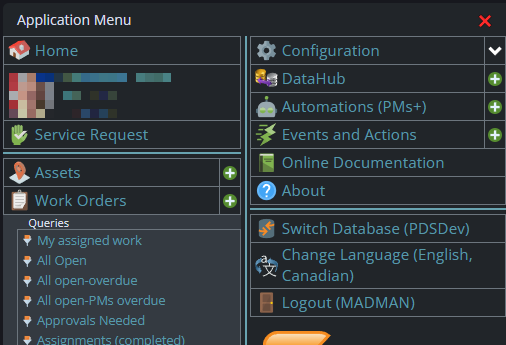
And wider screens, some landscape tablets, and wider windows on a laptop or desktop show it as 3 columns. If you have all the dropdown sections expanded, it may still require vertical scrolling to see all the choices depending on the height of your device or window.
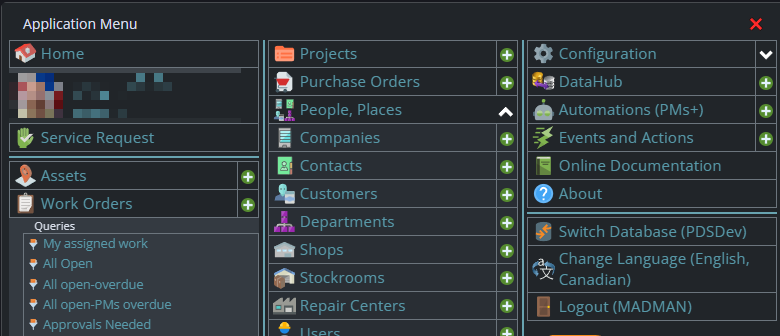
Once the menu is up, the exact location of the configuration button depends on how wide your window is and how many options you have access to. On most it will be at the top of the 2nd or 3rd column of the menu but on a cell phone or narrow window, it will be down partway in the first column.
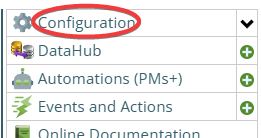
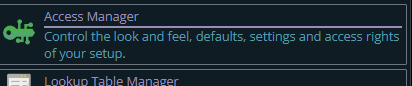
Then from there you choose the Access Manager, or what we call the funny green key
You can also click on the right hand V button in the main menu (if you don't already have it open), noting if you do it this way, you can directly pick the Access Manager tool that you want to go into.
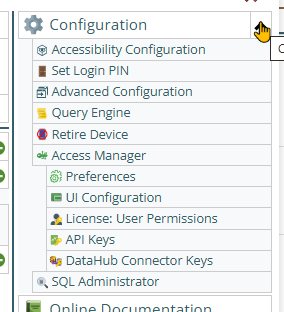
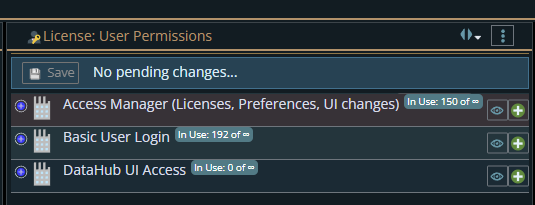
From there select the License User Permissions button
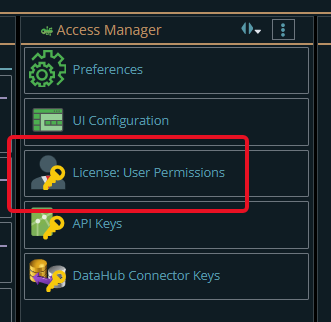
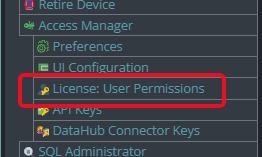
The top 2 licenses shown are needed to activate DataHub connectors (most systems allow 'everyone' for the Basic User Login. There is no limit as to how many can have any of these 3 licenses, but the Access Manager you will want to heavily restrict because it decides who can do what, and allows someone to allocate the licensed DataHub tokens between connectors. The DataHub UI restricts who can create DataHub connectors
Source File Availability
Prepare the source file containing the data to be imported.
The source file extension must match the reader configured in the connector Summary tab.
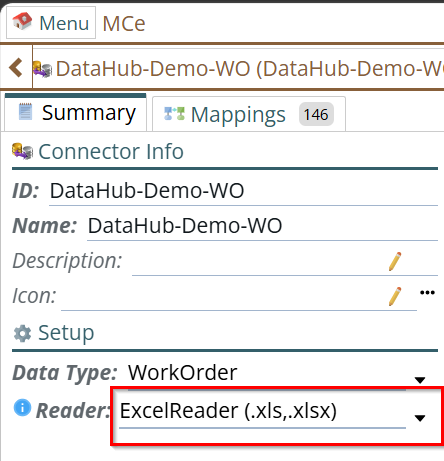 See which file format you should choose for more info
Verify Source Column Headers
Ensure that the column headers in the source file are on the 1st row and match the connector mapping configuration.
To be clear, it is REQUIRED that the 1st row be the one and only header row, all other rows must be data rows.
See also troubleshooting problems in data file for importingNavigate to:
Mappings Tab → Active Standard → Active Standard Mappings → Source Field
The source file headers must match the configured Source Field values.
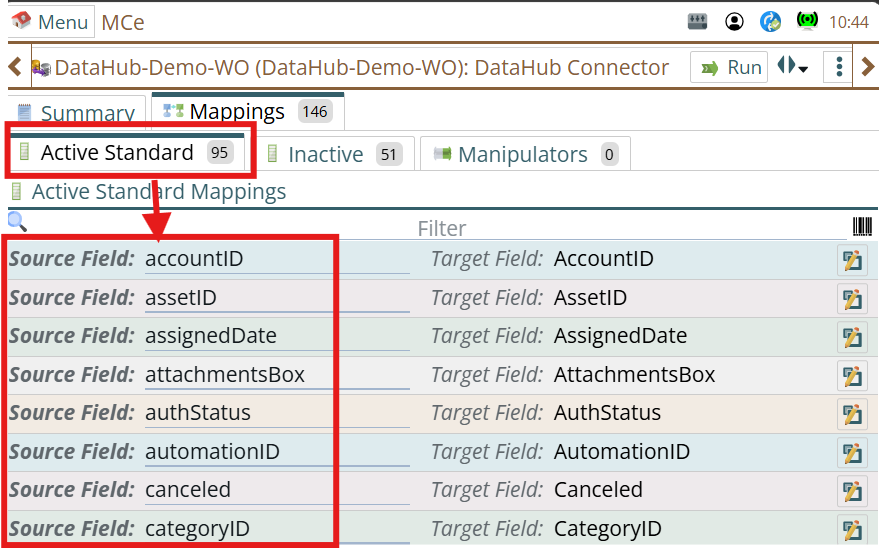
Verify Data Type Configuration
Open the connector Summary tab.
Confirm that the correct Data Type (Module/Table) is selected.
This determines where the imported data will be stored.
Examples may include:
- Asset
- Part
- WorkOrder
- Other configured modules
Incorrect Data Type configuration may result in importing data into an unintended location.
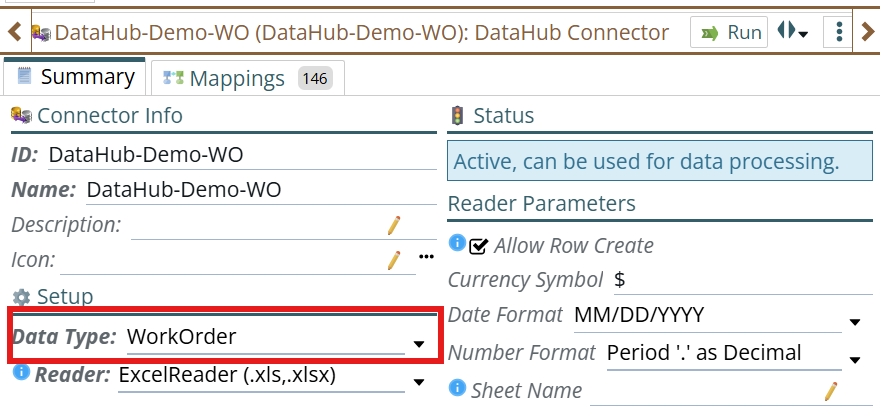
Running the Import
After all prerequisites are verified and the connector is active:
Step 1: Start the Import Process
- Open the connector.
- Locate the Run button at the top-right corner.
- Click Run.
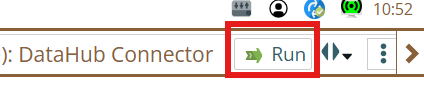
A new window will open.
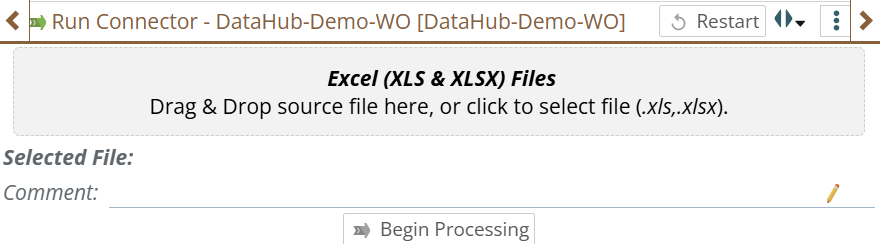
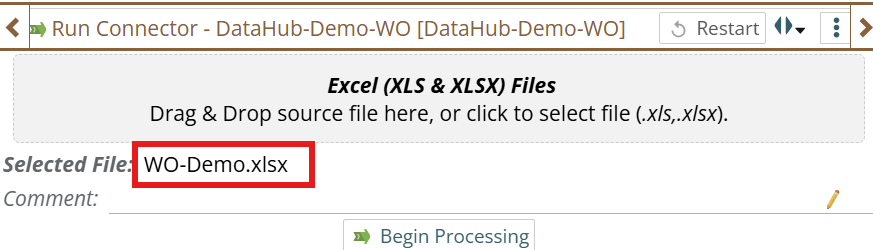
Step 2: Upload the Source File
Upload the import file by either:
- Dragging and dropping the file into the upload area
- Clicking the upload area and selecting the file manually
After successful upload:
- The uploaded file name will appear in the Selected File section
Step 3: Begin Validation
Click Begin Processing.
The connector will validate the source file before importing data.
Validation checks may include:
- Column mapping validation
- Required field checks
- Data structure validation
- Data existence check
- Data will be manipulated using manually defined or existing system's Converter/Validator/Mutator
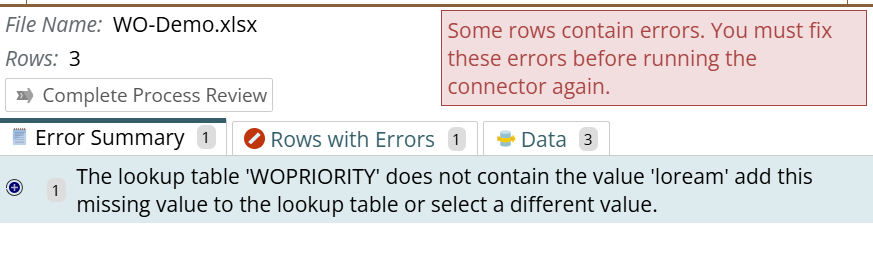
If validation errors are detected:
- Errors will be displayed
- Processing cannot continue until issues are corrected
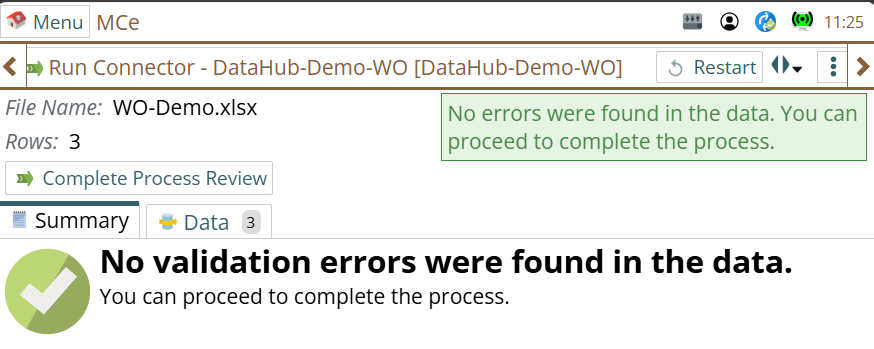
Following screenshots are to show how it looks like when successful and failed validation
On Success Validation:
On Validation Failed:
Step 4: Review Loaded and Validated Data
After validation completes:
- Open the Data tab.
- Review the loaded records.
Verify:
- Expected rows are present
- Values are mapped correctly
- No unexpected blank fields exist
Step 5: Complete Import
If validation is successful:
Click Complete Process Review.
The import process will begin.
Possible outcomes are:
Import Failed
If errors occur during import:
- Error messages will be displayed
- Failed rows should be reviewed and corrected
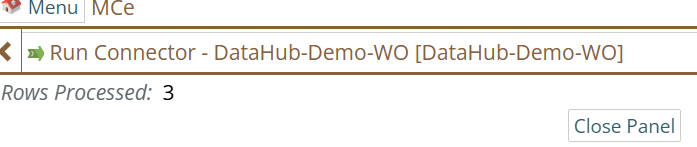
Import Successful
If processing completes successfully:
The system displays:
Successfully Imported <count> Rows
The imported records are now stored in the database.
Verify Imported Data
After import completes:
- Navigate to the module configured in the connector Data Type field.
- Verify that the imported records exist.
Check:
- Record count
- Field values
- Imported attributes
- Data relationships (if applicable)
Examples:
- Asset imports → Verify in Assets module
- Part imports → Verify in Parts module
- Work Order imports → Verify in Work Orders
Troubleshooting
Data Not Imported
Possible causes:
- Source file extension does not match configured Reader
- Source column names do not match mapping fields
- Required fields are missing
- Validation errors exist
- Import errors during processing
Additional Notes
- Connector must be Active before import execution.
- Validation occurs before database updates.
- Always verify mappings before uploading large files.
- Imported records should be validated after every import run.
See how to run it automatically:
While DataHub connectors are great for one time imports, they are often used for syncing between other systems and might need to be read in hourly or even more frequently than that.
TL;DR
1. To do this, you create an Event and Action that watches for certain named files in certain locations using our sample template as a starting point
- Read in the sample DataHub Connection that you can grab here: export_event_example.kdl
2. Change the Monitor file path and file name to your path and the file you want to import.
3. In the DataHub Validate, specify the DataHub connector YOU built that you want to use to interpret and read the data from the files.
Prerequisites
- You need to have a DataHub connector built. This is what defines HOW to read a file.
- You need to have activated your DataHub connector.
- You need to have tested above, and to test the auto import, you'll need one or more files to import that you can load after you build your event & action.
- You need to have an Event and Action to read when there is a new file. This document tells how to do that.
Details
You may get an error:

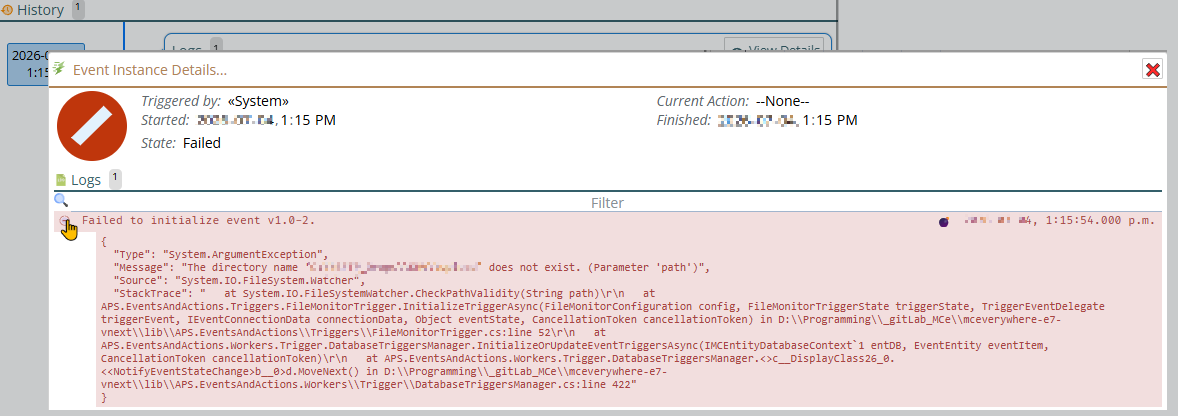
Understanding the error
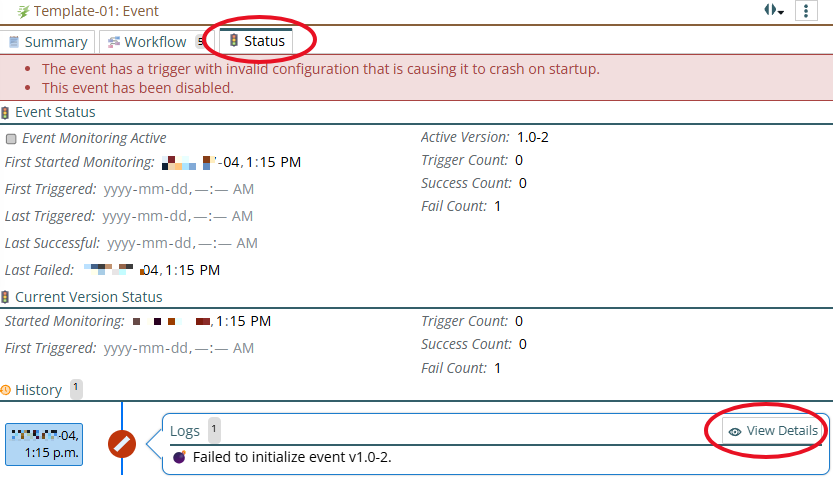
Clicking on the View Details above, and then the + button to see the entire error shows us that the problem is the directory doesn't exist
Fixing the error and setting the path you actually want even if there is no error
Select the Workflow tab

Then click on the event
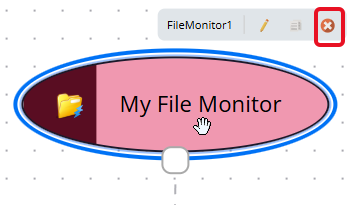
Then click on the pencil (as above) to get to the dialog
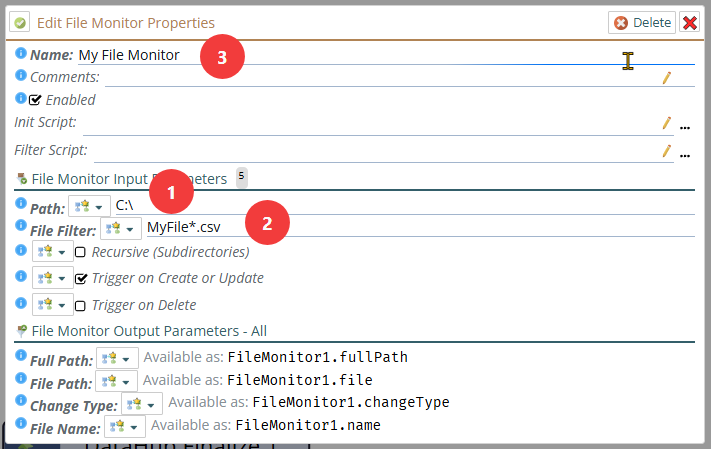
1. Choose the correct Path where your files are going to be stored
2. Put in a valid file filter, in the example, it is looking for any files of type .csv that start with the name "MyFile". The * means "anything" so MyFile.csv MyFile2020.03.04.csv is valid as is MyFile_abc123.csv
3. Optionally change the name that will show up on the graphic.
If you now make it active (on the summary tab)
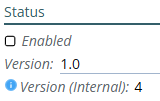
The error should go away in a minute or two after it talks with the server. If not, go check for any new errors as above.
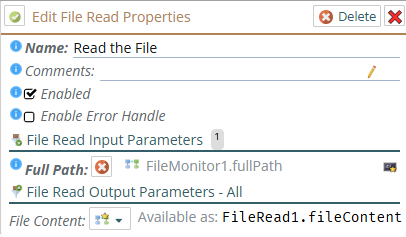
Going back to the workflow, the File reader will do the act of reading the file that triggered the monitor. It knows which file by the parameters specified in the 'File Monitor Output Parameters' above.
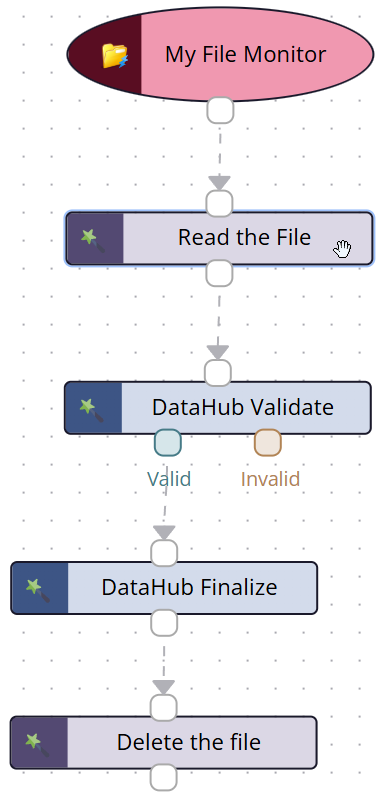
It will then read the file into memory:
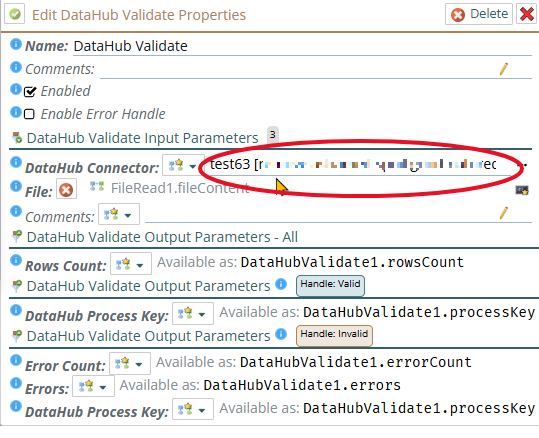
You need to change the DataHub Connector file to the one you want to use to interpret the results in the file being imported. You obviously won't have our 'test63' in your system, you will want to use one of yours - likely the one that prompted you to come read this doc.
If you are using the same file and making changes to it and want it imported after each saved change, delete the "Delete the file' action. Generally we don't recommend this.
Footnotes
-
1: Although realistically, if the file gets corrupted, it won't matter that .XLSX can recover unless it recovers in a way that recovers the original data ↩