

 Maintenance Connection Everywhere (MCe) · EAM/CMMS manuals
TL;DR
There are times when you might want to grab a parts list from a procedure that isn't the one attached to the work order.
- Perhaps you are doing a 'major' job and realize you need a minor side repair. You have 3 basic choices, you can create a new work order to do it, you can manually enter the parts or you can use the "Add Procedure costs to estimates". Each has it's benefits and it's negatives.
- Perhaps you have a 'supplies' kit containing several items and you had to do a temporary cleanup so you now need some or all of the parts from the kit an extra time. If you have a procedure for that supplies kit you can just add it to add the extra supplies you want.
- Perhaps you use Work Orders to build up kits to provide to clients and the specific customer needs more than one kit and you don't want to use a separate WO for each kit provided.
Details
Fairly easy to use, with some caveats:
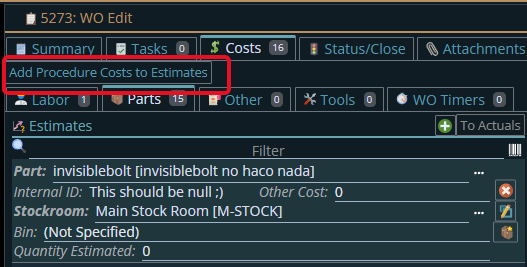
You'll then be asked for which procedure, and it will copy the cost estimates from that procedure to the estimates for this work order.
Warning: If you change the PROCEDURE on the work after doing this, it will warn you but to be clear, all the cost estimates will be removed including these and set to the procedure you picked. If you are using this feature either you should only use this for choosing the procedures for this purpose, or you should enter the primary procedure first and then don't change it after using this feature.
Fortunately that would be a very unusual work flow, but it does bear mentioning.
Administrators: how to make this feature available
Administrators only:
To turn this feature on, you need to go and make it visible on the WO edit pages cost tabs:
Getting to UI Config
Start by clicking on the main menu button on the left panel, top left portion.
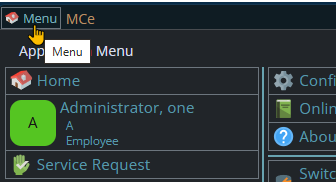
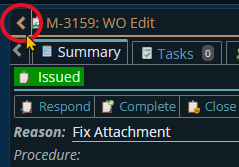
If the menu button isn't visible, you are likely on a screen too narrow to see everything, press on the left pointing gold button to take you so you can see the menu button.
Variation 1: What you have access to
Depending on the size of your screen, what products your company has purchased and what rights you have been granted, the choices in the menu will vary.
Variation 2: How wide your window is
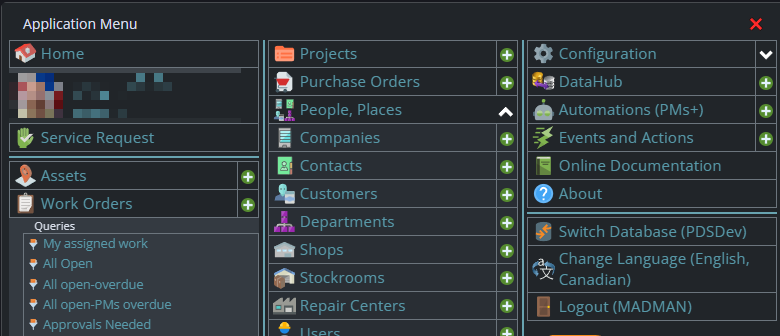
The menu will show up as 1, 2 or 3 columns depending on how wide your screen is.
If you are on a cell phone, and some smaller tablets in portrait mode or a narrow window on a laptop or desktop, you'll see the menu as one column that you scroll through using your finger or the scroll wheel or the scroll bar depending on your device, browser and whether you have a touch screen or not.
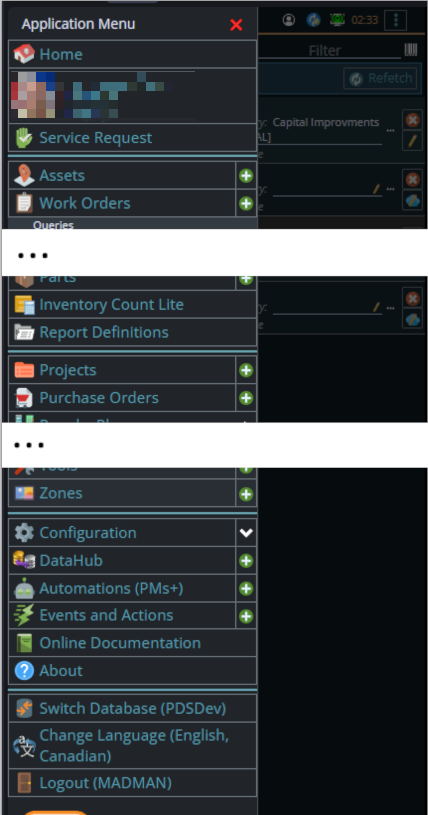
A bit wider, some cell phones in landscape, some tablets in portrait, most tablets in landscape and 'somewhat' wider laptop/desktop, will show it as 2 columns wide, with the middle column available on the left by scrolling down
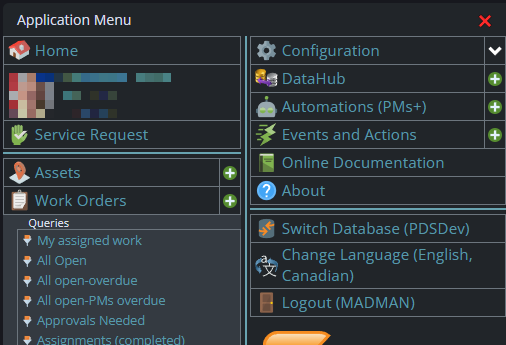
And wider screens, some landscape tablets, and wider windows on a laptop or desktop show it as 3 columns. If you have all the dropdown sections expanded, it may still require vertical scrolling to see all the choices depending on the height of your device or window.
In the UI Config tool you are going to normally make this change in 2 places:
Work Order > Edit Page > Costs tab > Check the Show checkbox for Add Procedure Costs to Estimates
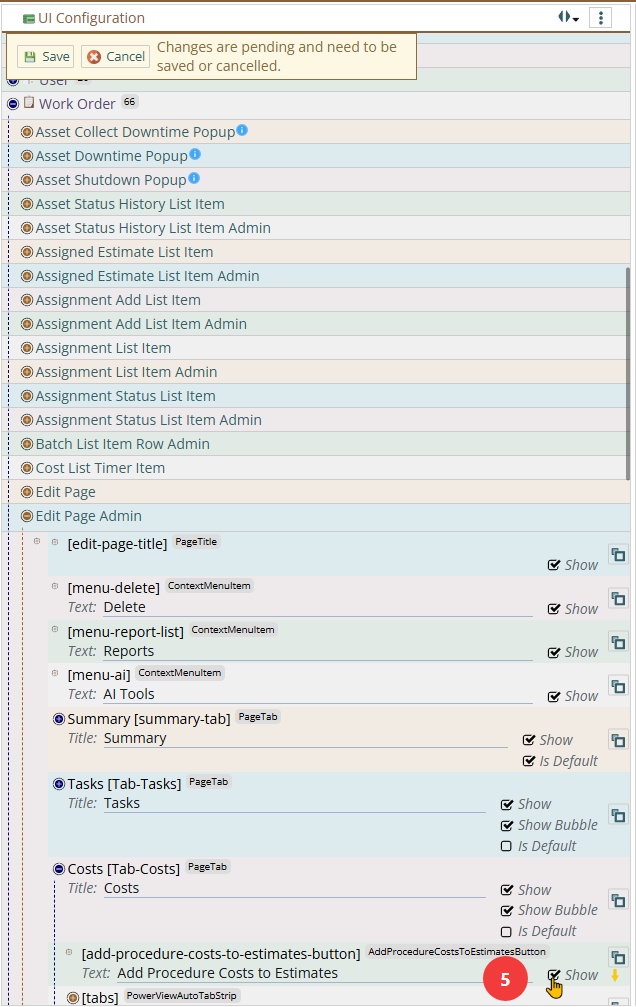
Work Order > Edit Page Admin > Costs tab > Check the Show checkbox for Add Procedure Costs to Estimates
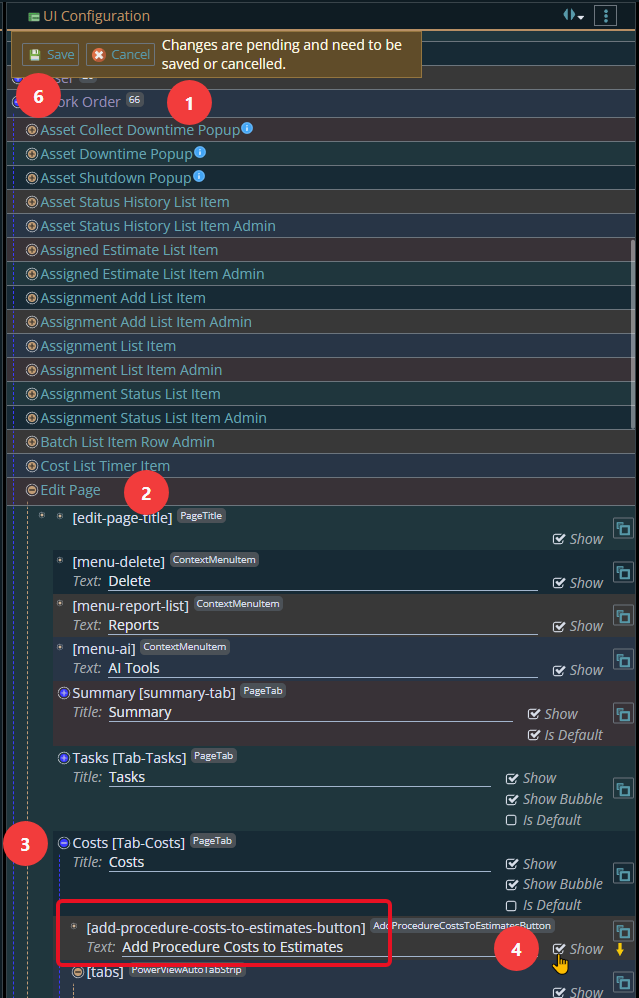
Steps 1 through 4 show this for the technician Edit page. You'll duplicate this (#5) for the Admin Edit page, then #5 you'll hit the Save button.
Some 'of courses':
- You can turn this on by access group or individual if it doesn't make sense for everyone to have it.
- You can change the text on the button if you don't like our description
- You can move it to the Summary tab - or almost anywhere else you want it.