
 Maintenance Connection Everywhere (MCe) · EAM/CMMS manuals
This tutorial shows how to load an Event and Action (E&A)that you got from some source such as our Professional Services
Import an E&A you have a kdl file
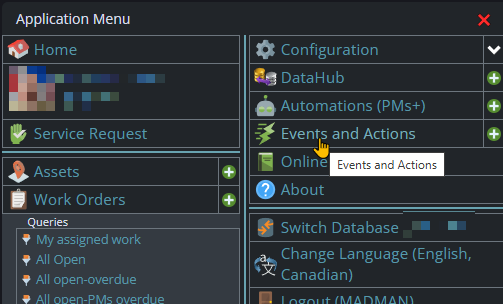
Getting to the Events and Actions
You need an administrator MCe license to do this
Start by clicking on the main menu button on the left panel, top left portion.
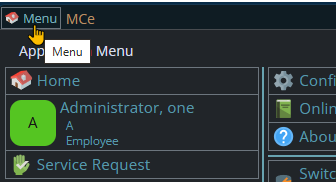
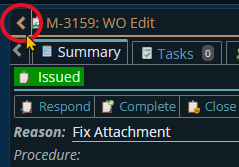
If the menu button isn't visible, you are likely on a screen too narrow to see everything, press on the left pointing gold button to take you so you can see the menu button.
Variation 1: What you have access to
Depending on the size of your screen, what products your company has purchased and what rights you have been granted, the choices in the menu will vary.
Variation 2: How wide your window is
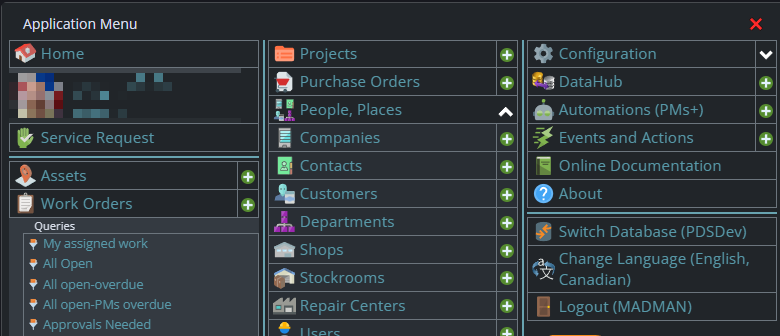
The menu will show up as 1, 2 or 3 columns depending on how wide your screen is.
If you are on a cell phone, and some smaller tablets in portrait mode or a narrow window on a laptop or desktop, you'll see the menu as one column that you scroll through using your finger or the scroll wheel or the scroll bar depending on your device, browser and whether you have a touch screen or not.
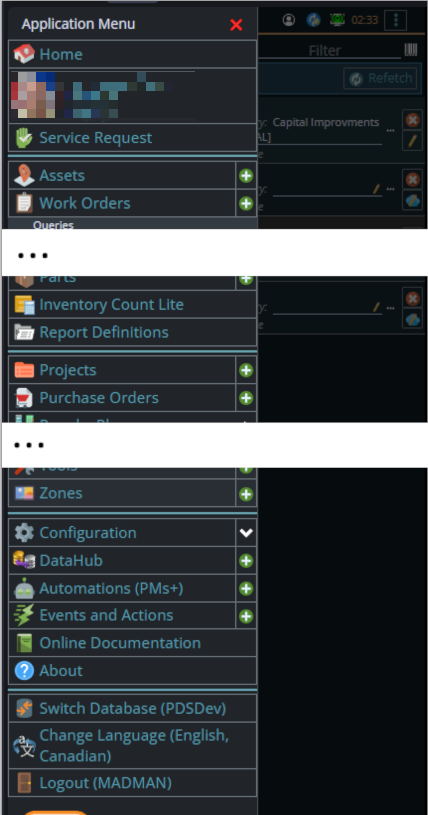
A bit wider, some cell phones in landscape, some tablets in portrait, most tablets in landscape and 'somewhat' wider laptop/desktop, will show it as 2 columns wide, with the middle column available on the left by scrolling down
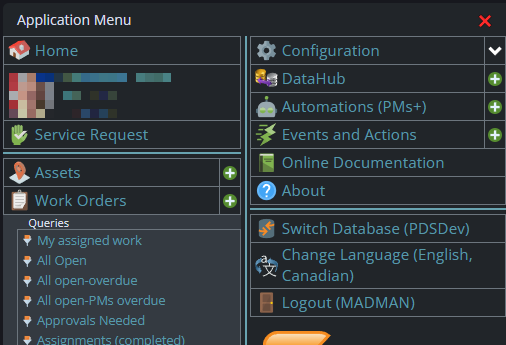
And wider screens, some landscape tablets, and wider windows on a laptop or desktop show it as 3 columns. If you have all the dropdown sections expanded, it may still require vertical scrolling to see all the choices depending on the height of your device or window.
What's a kdl file for importing? See: What's a KDL file
Note: If your .kdl is in a zip file, you likely have to extract it first, your OS will likely not let it be found if you search and not let it be 'dropped' if you drop it.
1. in the event module, click on the 3 vertical dot menu, and choose import
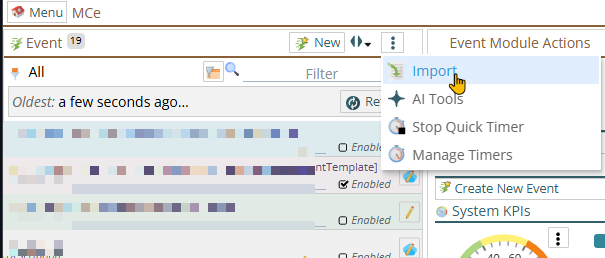
2. click the drag and drop to get your system's file choosing dialog, and find the file you want to import, or use the drag & drop feature.
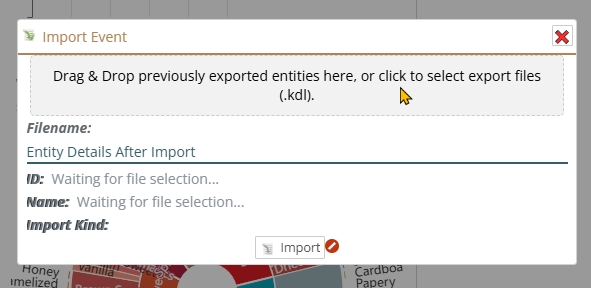
Then it will show the ID and Name that is in the Event .kdl file.
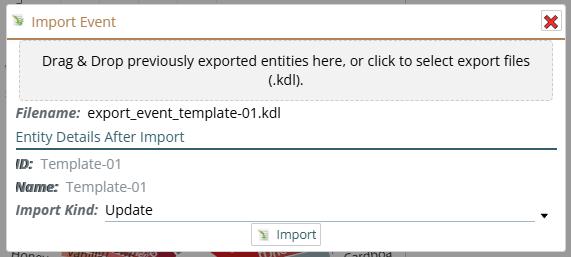
If one already exist with that ID you'll have the choice between updating or creating a new one

If you choose 'Create as New' the dialog will change to let you edit the ID and Name.
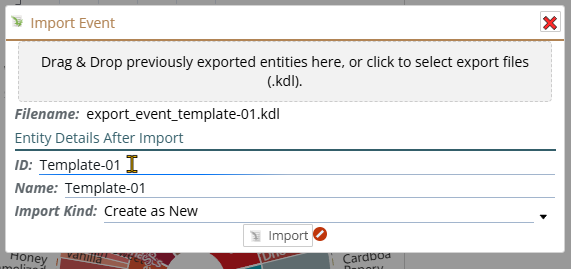
When ready, click import.
Then you can edit it to make it the exact way you want it.
The hopefully final step is to test it to make sure it works they way you intended, if it doesn't then edit or ask our Professional Services to modify it, and test again until you are happy.