
 Maintenance Connection Everywhere (MCe) · EAM/CMMS manuals
Getting to the Style Editor
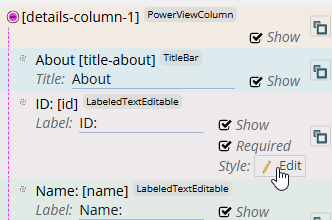
- Select Menu > UI Configuration.
- Expand the section for the screen you want to change.
- Find the field you want to format and click Style: Edit next to it.
. .
.
Styling is done one field at a time. If you want a whole card or row to change, apply the same style to every field in it.
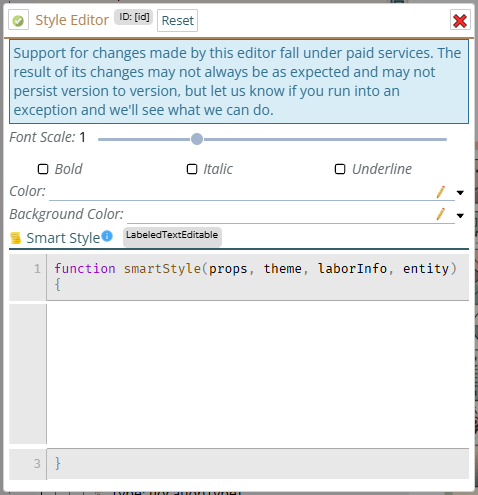
The Style Editor has simple controls at the top and Smart Style below them. The info button next to Smart Style brings you here.
Before you start: the paid services note
At the top of the Style Editor is this banner:
Support for changes made by this editor fall under paid services. The result of its changes may not always be as expected and may not persist version to version, but let us know if you run into an exception and we’ll see what we can do.
Simple formatting
If the style is 'always' going to be one way, 3 of the most common styles are available to just set without using the Smart Style. Anything else requires the Smart Style
Note that not all formatting options, simple or smart, work with all fields, some fields have values that are immutable. As the SmartStyle dialog is generic, it doesn't know which. If unsure or having trouble with the SmartStyle, try changing the 3 simple styles first and see if/which work for the component.
Smart Style
The simple controls apply all the time. Smart Style is for when the formatting should depend on something, like the record being edited or who is logged in. Another way to think of this might be “conditional style”, as that is a common way of using it.
You only write the middle part. The first line and the closing } are filled in for you. Your code gets four things to work with:
- props: the field itself
- theme: the app’s colors and styles, including whether it’s light or dark (
theme.colorScheme) - laborInfo: the logged-in user
- entity: the record being edited
Your code returns a style, or null to leave the field alone.
Example: hide a field based on another field
This hides the Type field on an Asset when its Classification is SITE. Put it on the Type field, not on Classification:
if (!entity) return null; // record still loading
if (entity.classificationID === "SITE") {
    return { display: "none" };
}
return null;
display: "none" hides the whole field, label included.
Example: style based on who is logged in
This hides labor rows on a Work Order that don’t belong to the logged-in user:
if (!entity) return null; // record still loading
if (entity.laborPK !== laborInfo.labor.laborPK) {
    return { display: "none" };
}
return null;
For which fields to apply it to, see Configuring so that a user can only change their own times.
Example: color
Using the simple controls
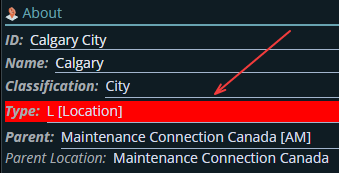
For example, on the Asset Type field:
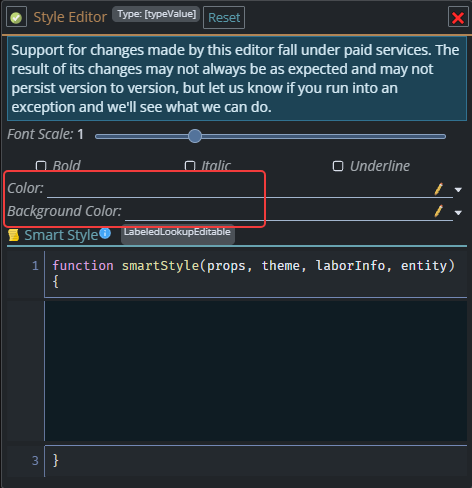
- Color changes the color of the value. The label stays as it is.
.
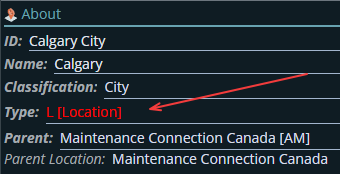
- Background Color fills the whole field, label included.
.
Using Smart Style
Smart Style doesn’t have to depend on anything. This colors the Type field’s value red on every asset, the same as using the Color control:
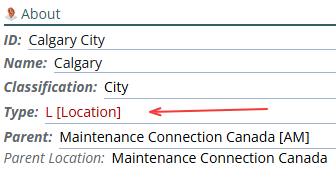
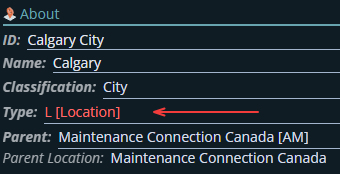
return { color: "red" };You can also add a condition. This colors Type red only when the asset’s Classification is CITY, using a darker red on the light theme and a lighter red on the dark theme so it’s easy to read on both:
if (!entity) return null; // record still loading
if (entity.classificationID === "CITY") {
    if (theme.colorScheme === "dark") {
        return { color: "#ff6b6b" }; // lighter red for dark
    }
    return { color: "#b00000" }; // darker red for light
}
return null;
.
.
For a background instead, use backgroundColor:
return { backgroundColor: "yellow" };As with the simple control, the background fills the whole field, label included.
Things that will catch you out
- The record isn’t always there yet. While the screen loads,
entityis empty. Always start withif (!entity) return null;. - It doesn’t work on the New Asset screen.
entityis always empty there because it doesn't yet exist. The entity is created after you successfully 'save' the new record. - Errors are often silent. If your code fails, the page carries on and your style just doesn’t apply. This is common in JavaScript and HTML, they simply ignore things they don't understand by design. This was for various reasons, the biggest benefit of this design was that you can often use newer features and they don't 'blow up' on an older browser.
- Check your field names. If nothing happens, double-check the name you used after
entity.